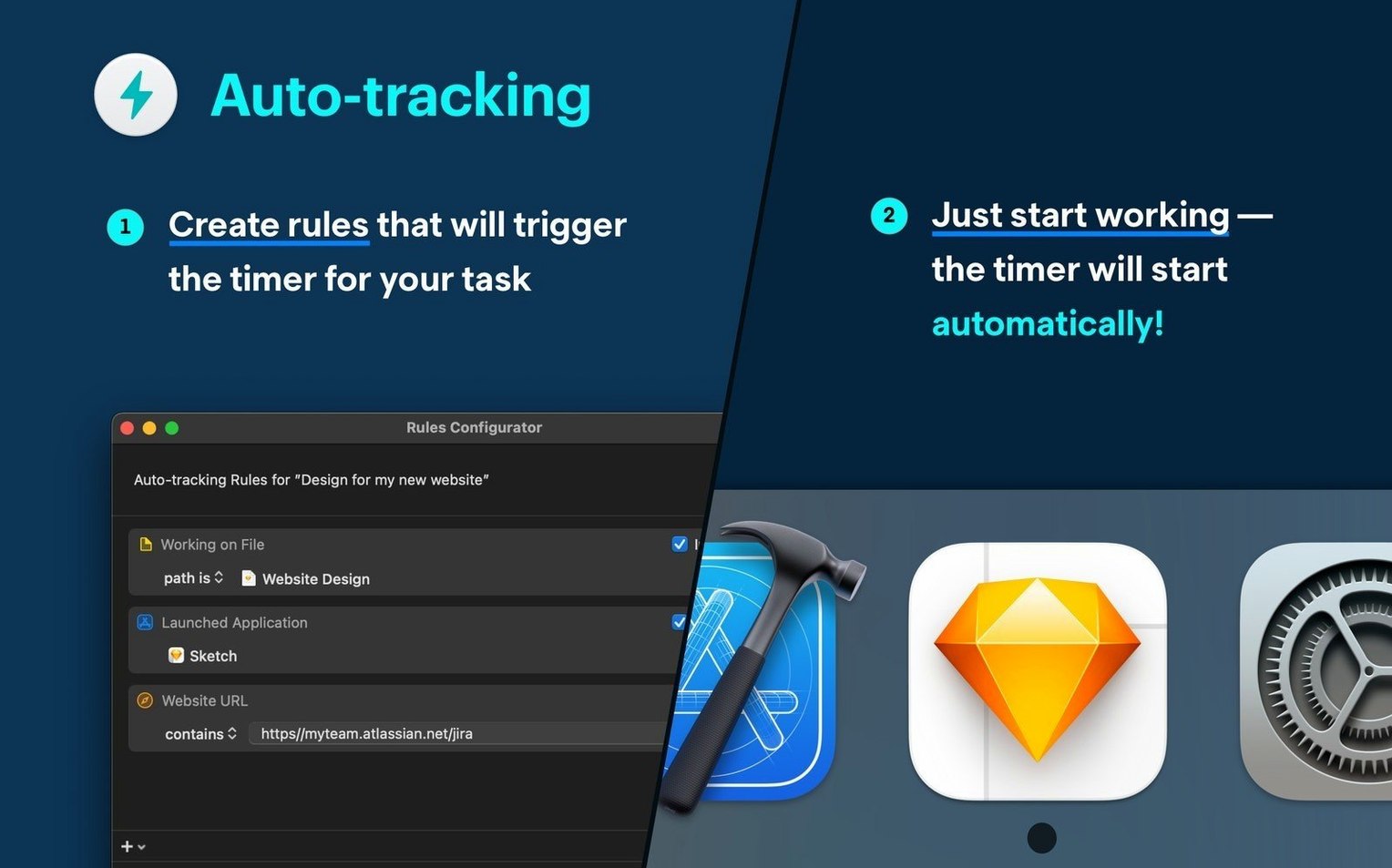
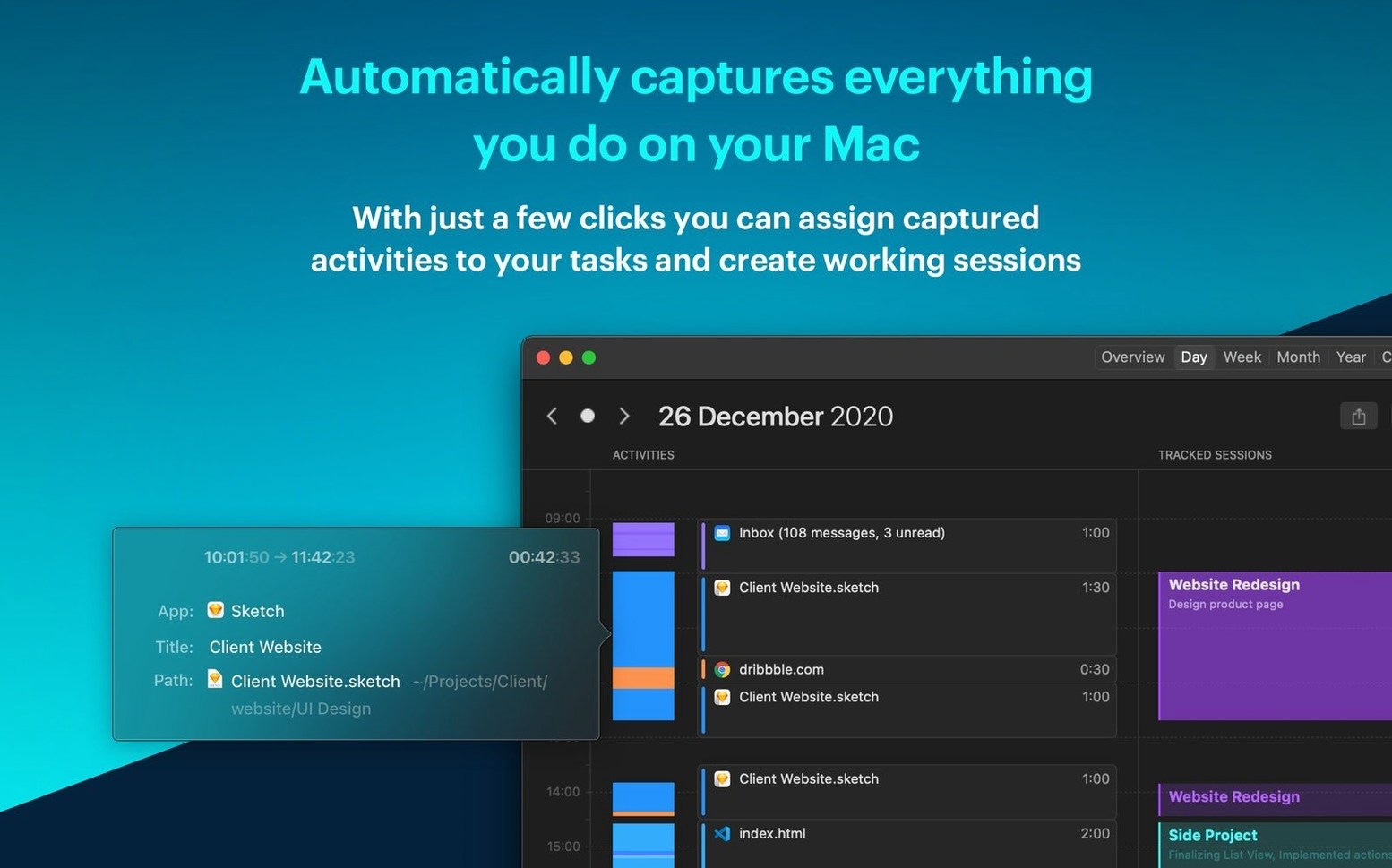
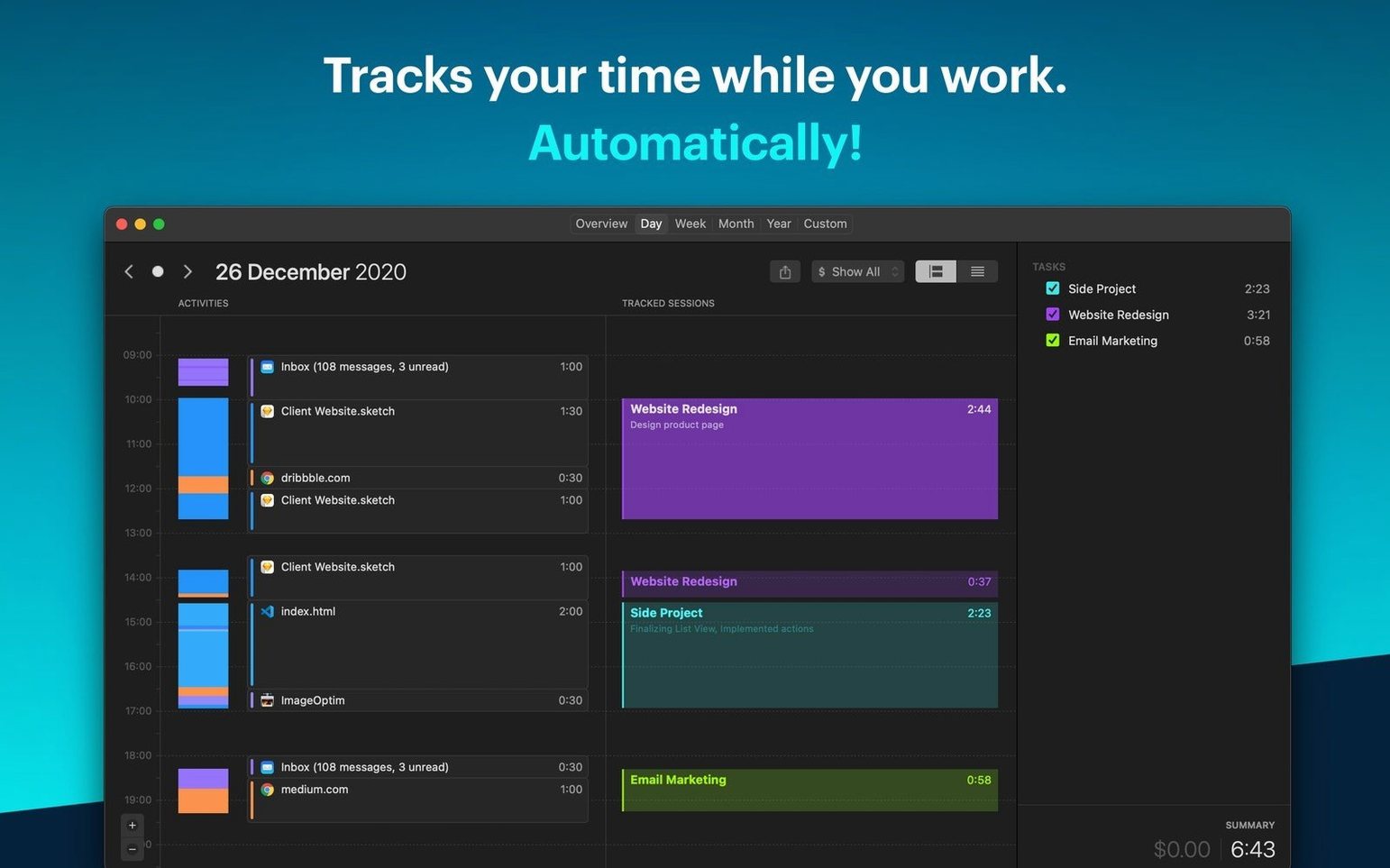
The Session Pass feature is where the whole thing starts making sense. You're not starting and stopping a clock—you're just working. Timemator watches which app or website is in front and quietly builds a timeline in the background. Later, you open the day view and see your morning laid out in colored blocks: email, Figma, a spreadsheet, that detour into Slack. It's all there.
- Set a rule once—like "Firefox + Notion = Client Project"—and future time gets sorted without you.
- The timeline lets you drag to adjust start and end points when you got pulled away and forgot to switch tasks.
- Reports break down hours by project or by app, so you can send a client a clean summary without explaining every gap.
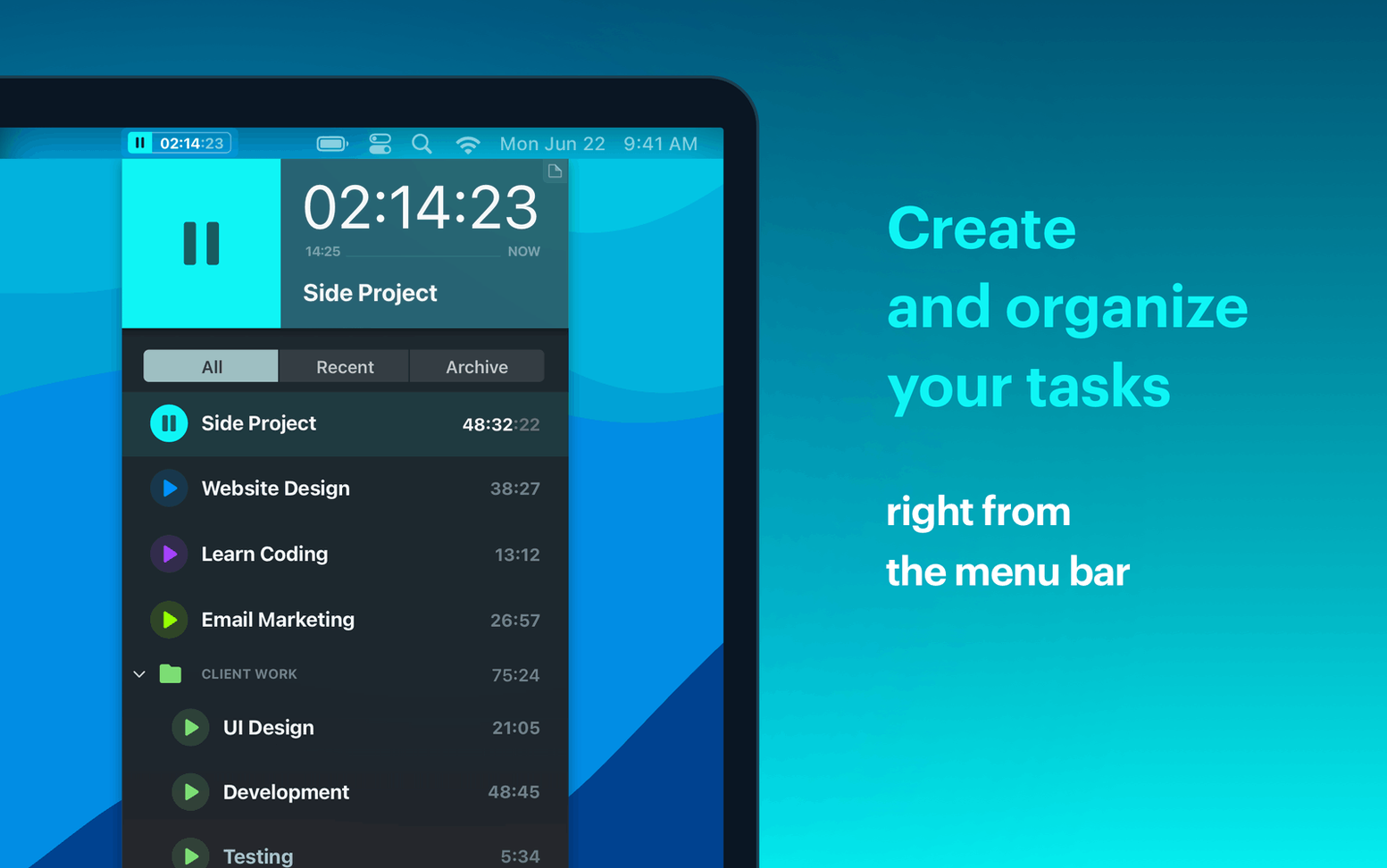
- It runs locally and stays out of your way, just a small icon in the menu bar while it listens.
- You can assign untracked stretches later by highlighting a block and typing a project name.
What you end up with isn't a timer you had to babysit. It's an honest record of where the afternoon went, already organized. Bottom line: Timemator does the logging so you can get back to the actual work.
First settings to dial in
Out of the box, Timemator tracks everything indiscriminately. That's the right default, but you'll want to shape it a little before it becomes useful.
- Open Preferences and hit the Privacy tab first. Narrow which apps and websites get logged—strip out YouTube, Netflix, or anything that's just background noise. Your timeline gets cleaner instantly.
- Under Rules, create two or three project assignments right away. Pick the apps and file paths that clearly belong to one client. The rule editor is plain: choose a trigger, name the project, and you're done.
- Set your default hourly rate in the Projects section. Even if you bill differently per client, having a fallback means reports show dollar amounts instead of just hours—way more satisfying at the end of a week.
- Turn on menu bar time display. It shows the current project and a running total without opening the full window. Glanceable, no clicks wasted.
What 3.2.2 smoothed out
The May 2026 update didn't add flashy features—it tightened the seams. A handful of nagging interface bugs got squashed, the kind that made the timeline stutter when dragging across midnight or caused a rule to ignore a freshly installed app until you restarted. Everyday tracking just feels less brittle now.
If you last used Timemator in early 2026 or before, the difference is the silence: fewer beachballs when pulling up a dense day view, and the menu bar counter doesn't drift out of sync with the main window after a long session. For anyone reading this after grabbing a fresh download timemator for mac install, those fixes are baked in from the start.
- macOS 10.15 or later
- Works on Apple Silicon and Intel Macs
Notes from the tables 0
Sign in or pull up a chair to leave a note.
No notes on this one yet. They go up after I read them.