You've downloaded Things, stared at the blank sidebar for a minute, and maybe typed in a couple of to-dos. The real difference between letting it collect dust and having it run your day quietly in the background comes down to a handful of early habits. These are the moves I'd make on day one.
- Learn the Quick Entry shortcut. No matter what you're doing, tap Control-Space and a little window drops down. Type your thought, hit Enter, and it lands in the Inbox. This is how you get stuff out of your head without breaking stride.
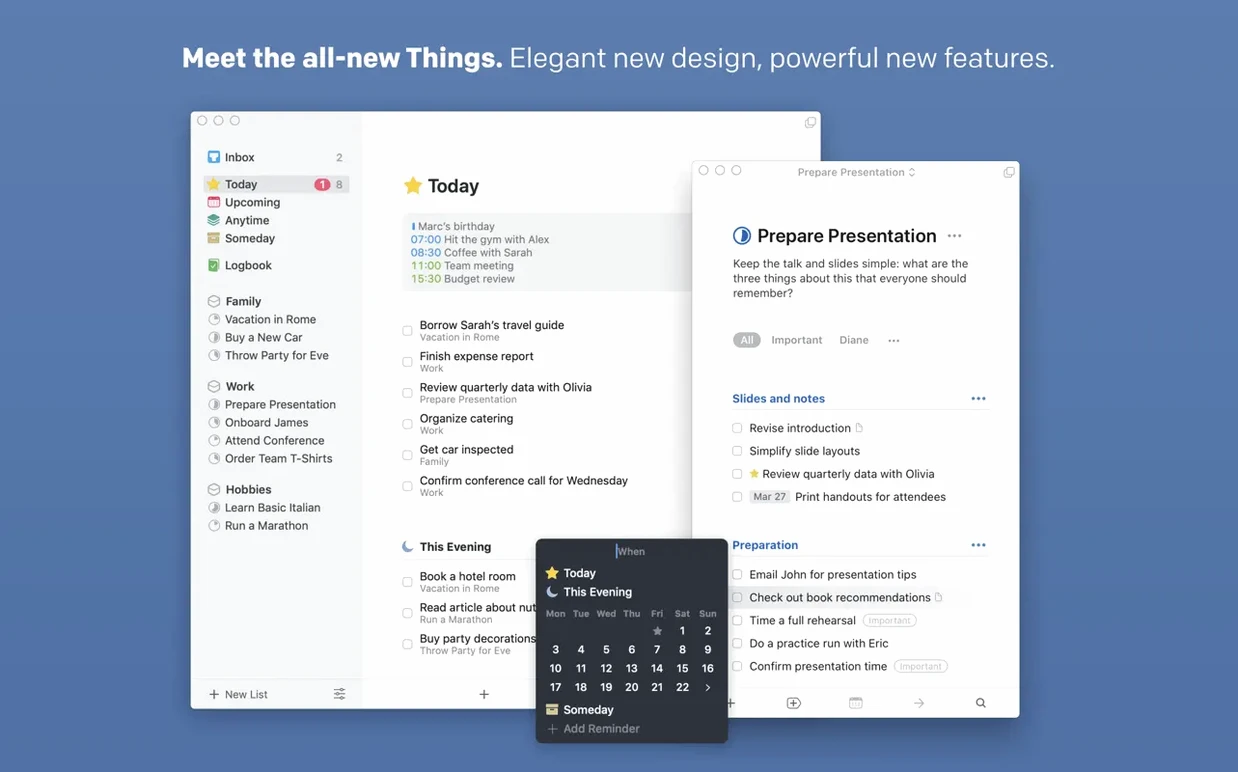
- Live in the Inbox, then sort. Dump everything there for the first few days. When you have a quiet moment, drag items into Today or into an Area like "Work" or "Home." The Inbox is your staging ground, not a permanent home.
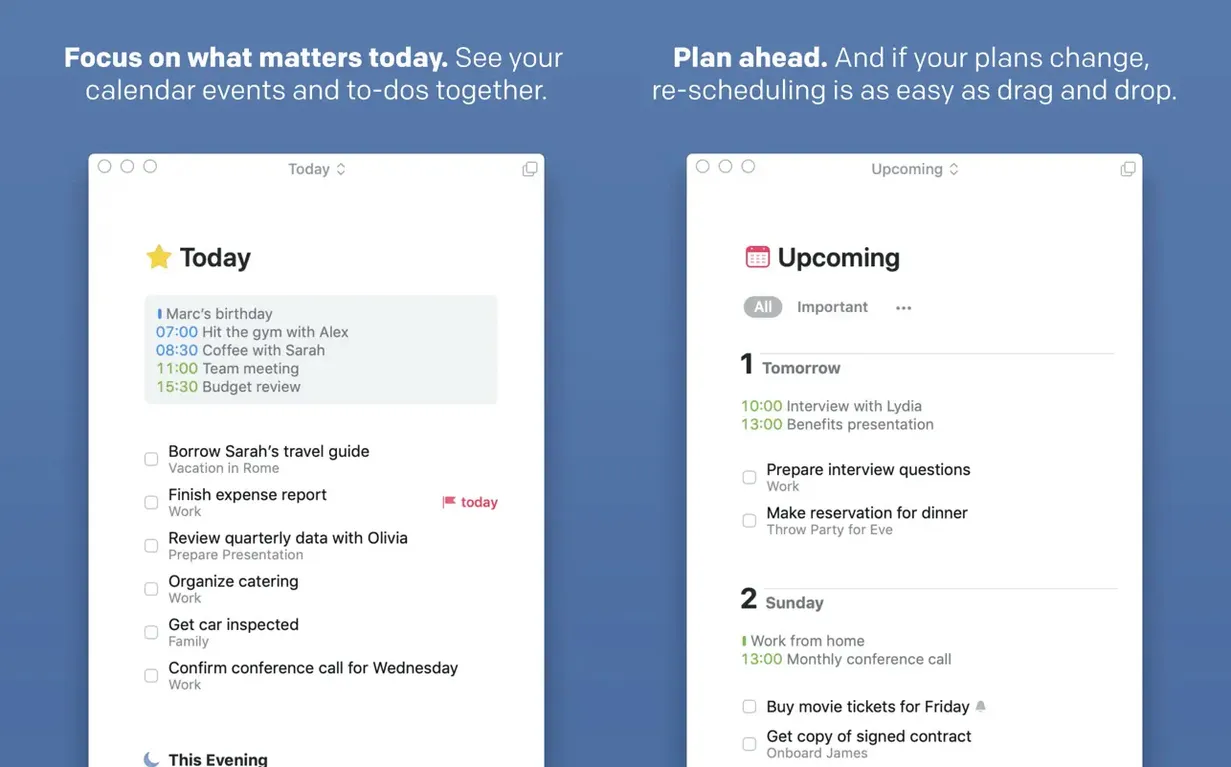
- Set Today's list the night before. Before you wrap up, scan Upcoming and your Areas, and drag a few things into Today. Tomorrow morning you'll open the app and know exactly where to start.
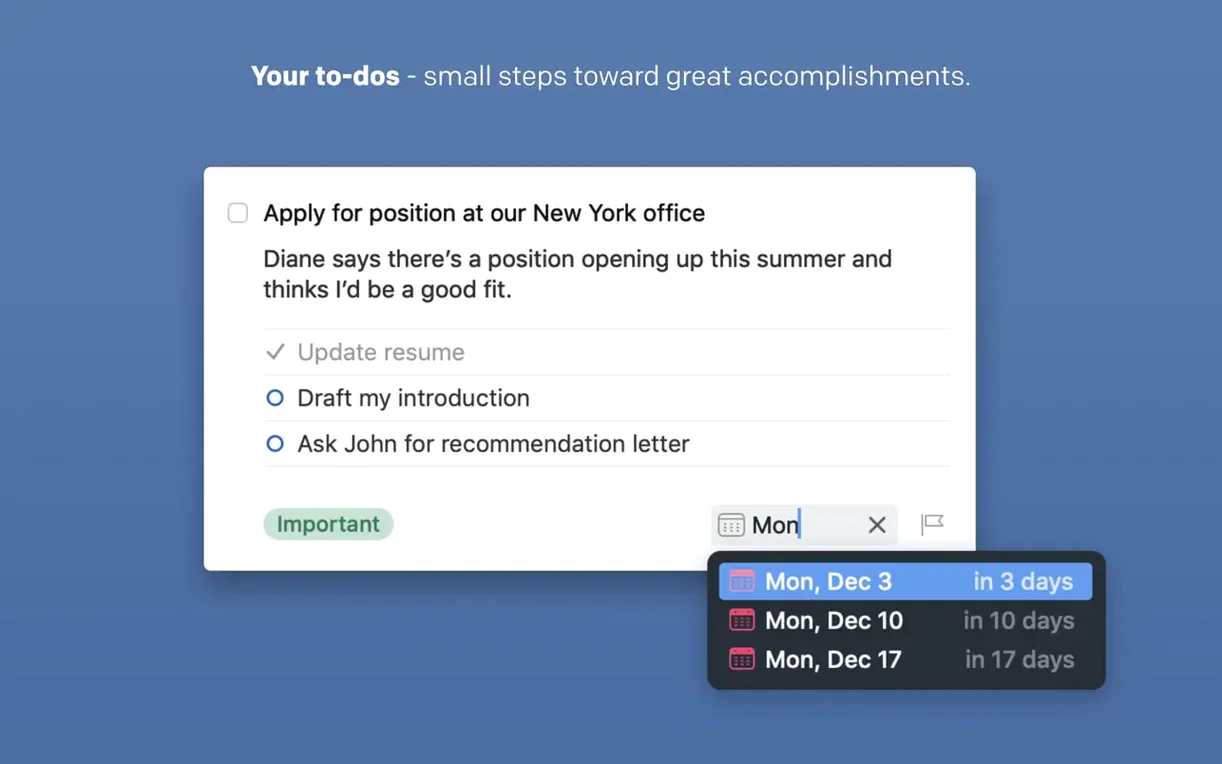
- Try one repeating task. Find something you do weekly—taking out the trash, a Monday report—and set it to repeat. Once you see it pop back on its own, you'll start trusting the system for the things you shouldn't have to remember.
- Use Siri for the drive-home thought. On a walk or driving, just say "Hey Siri, in Things, remind me to email Jim about the invoice." It lands in your Inbox, waiting for you.
Start with these five, and you'll be leaning on the app without thinking about it by the end of the week. After that, you can wander into Areas, tags, and the deeper stuff at your own pace.
planning a small weekend project from scratch
Say you want to reorganize the garage. It's not a single to-do, and it's not a massive remodel either. Here's how I'd shape that in Things without overcomplicating it.
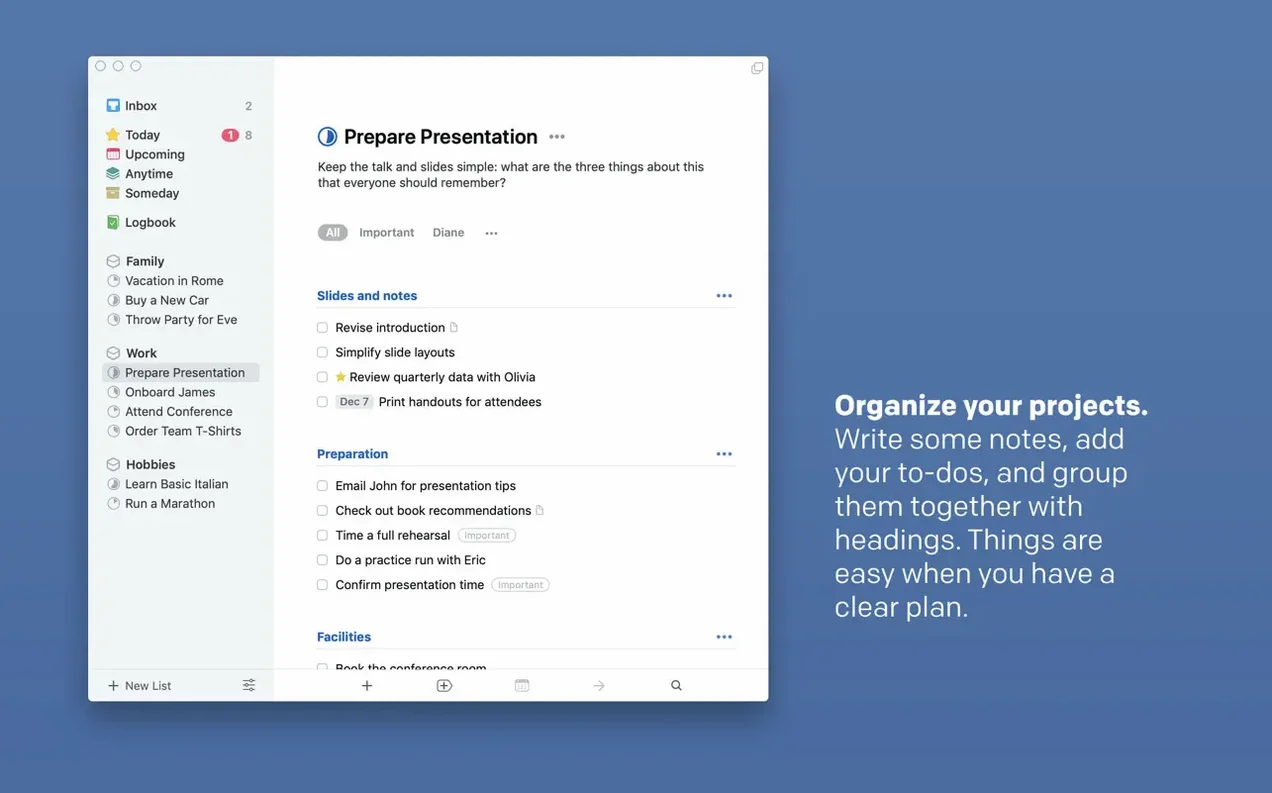
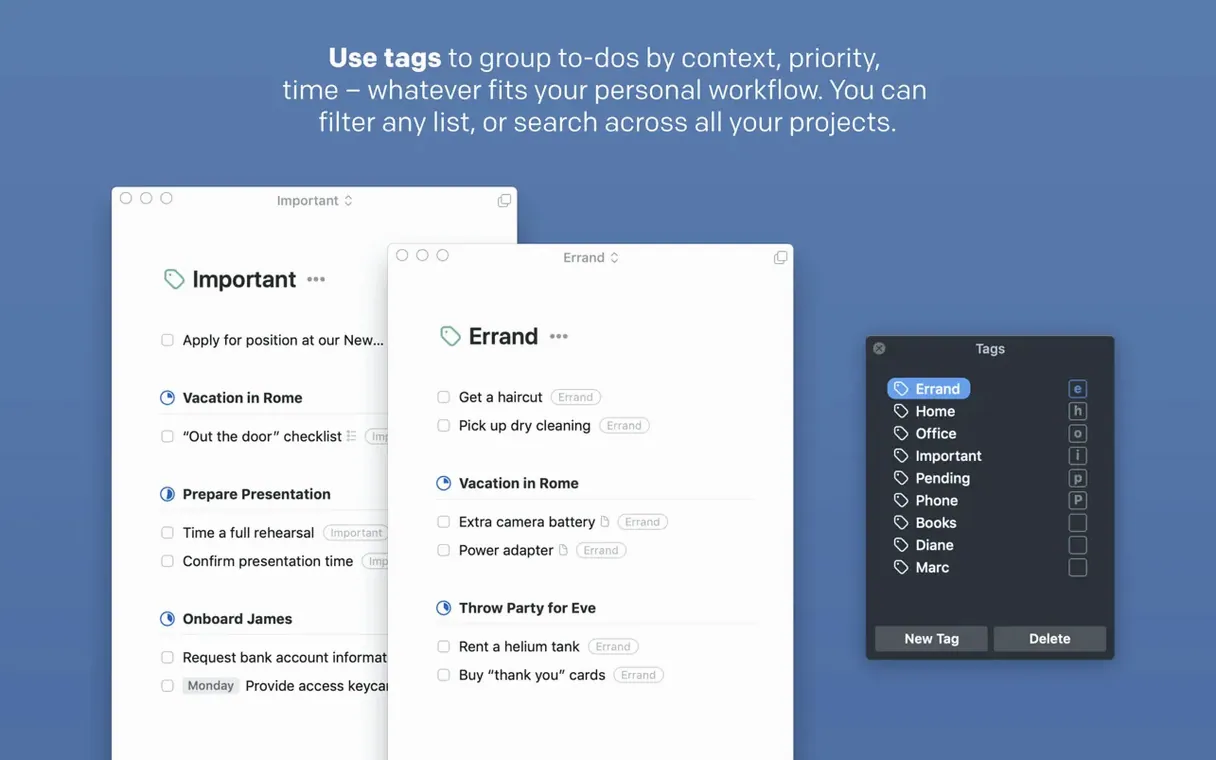
First, create a new project and name it plainly: Garage cleanup. The project gets its own heading in the sidebar, and right away I add a deadline—Saturday morning, so it shows up in Upcoming with a little pressure. Then I break the work into three or four chunks: "Clear out old paint cans," "Build the wall shelving," "Sweep and power-wash the floor." Each one becomes a task with a few sub-items underneath. The shelving task, for example, gets subtasks like "Measure wall width," "Buy brackets and pine boards," and "Drill into studs." I tag anything that needs the hardware store with a Errand tag so I can filter for it when I'm out.
Friday night I drag the first task into Today. Saturday morning, I open the app and there it is, waiting. As I finish each subtask I tick it off, and the parent task shows a little pie-ring filling up—stupidly satisfying. By Sunday evening the whole project is checked off, and it slides into the logbook where I can ignore it forever.
a quiet first week with Things 3
Nobody learns a task manager by reading the manual. You learn it by feeding it real stuff and seeing what sticks. Here are a few things I'd do in the first three or four days after installing things 3 mac:
- Don't build Areas yet. The temptation is to map out your entire life on day one. Resist it. Spend a week just using the Inbox and Today. You'll naturally spot the two or three buckets that matter—probably Work, Personal, and maybe one side project. Add those Areas once the pattern is obvious.
- Add calendar events to Upcoming. In Settings, let Things pull from your Mac's Calendar app. Now your tasks and your appointments sit in the same list. It's the single feature that stopped me switching to other apps. You see the dentist at 10 a.m. and the three calls you need to make before lunch, all in one scroll.
- Use the extra-tall widget. The new widget from the 3.24 release is genuinely useful. Stick it on your Notification Center and you get a long glance at Today's list without opening the app. Good for that moment when you're staring at the desktop and wondering what's next.
- Try AppleScript for one repeat annoyance. If you have a daily text file you open—notes, a log, whatever—you can wire a tiny script to create a Things task each morning. It's a gentle way into automation without drowning in Shortcuts.
Don't chase a perfect setup. Just use it for real obligations, and let the system bend around how you actually work.
A tidy maintenance update from the Things team that smooths out small bumps and keeps everything humming on your Mac.
- macOS 10.15 (Catalina) or later
- Apple Silicon or Intel 64‑bit Mac
Questions I actually get
Can I add a task from another app without switching windows?
Yes, use the Quick Entry keyboard shortcut from any app, or the Share actions built into macOS to send text directly to your Things Inbox.
Notes from the tables 0
Sign in or pull up a chair to leave a note.
No notes on this one yet. They go up after I read them.