
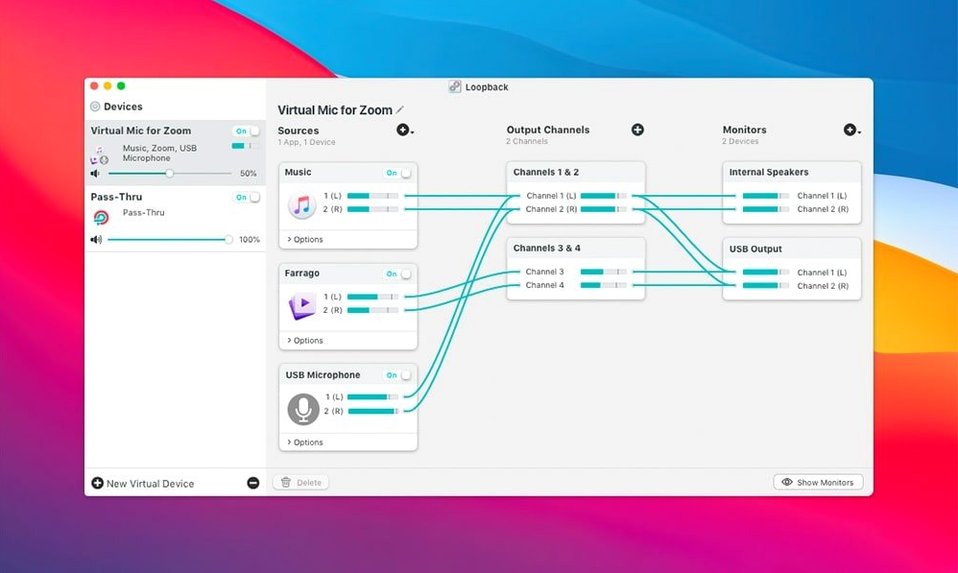
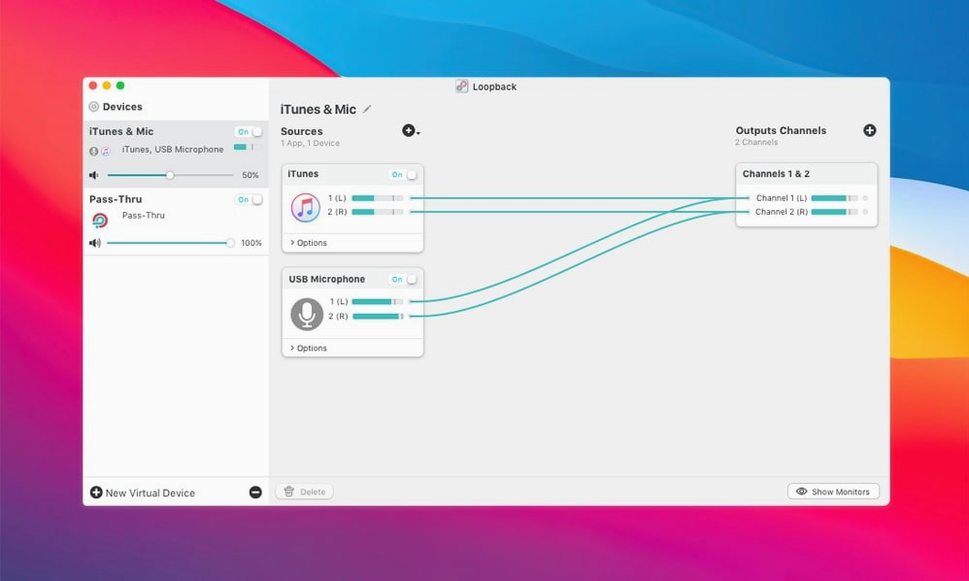
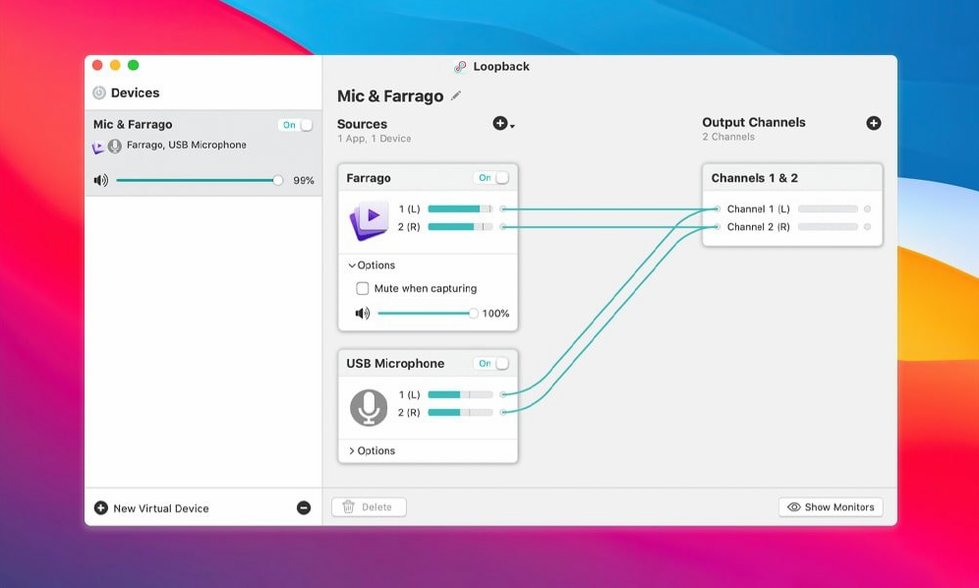
If you've ever used Audio Hijack to grab sound from a single app, you know the feeling when you need just a little more—like pulling in your mic, a guest from a call, and your soundboard all at once. That's where Loopback steps in. It works as a natural partner, creating virtual audio devices that mix and match any sources on your Mac.
Merging a mic and a music app for a live stream
Say you're running a small online radio show. You want your voice through a USB microphone, background music from Apple Music, and a few sound effects from Farrago—all hitting your streaming encoder as one clean signal. Open Loopback and create a new virtual device. Give it a name like "Show Mix." Drag your physical microphone into the source column, then add Apple Music and Farrago from the application list. You'll see individual volume sliders pop up for each. Set your levels, maybe duck the music slightly under your voice, and you're done. Over in your encoder, you select "Show Mix" as the microphone input. Everything arrives as a single, polished feed.
Feeding a clean signal to Audio Hijack
This setup also shines when you pair Loopback with Audio Hijack. Use Loopback to assemble that same multi-source mix, then point Audio Hijack at it as an input device in a larger capture chain. You can record, broadcast, or process the combined audio further without any cable spaghetti. Bottom line: it turns your Mac into a patch bay where any app can talk to any other, plain and simple.
Here's how a session typically goes when I'm setting up a guest interview. I open Loopback and hit the plus button to create a new virtual device. I call it “Guest Call.” Now I drag my USB microphone from the input devices column over to the sources area. Next I grab Zoom—or whatever app the guest is using—from the application list and drop that in too. Right away, both sources show their meters bouncing. I run a quick test by speaking and asking the guest to count to five. The combined signal looks healthy, but the guest is a little hot. I pull their slider down to about 70%, leave my mic at 80%, and glance at the master output meter to make sure nothing is clipping. Over in Audio Hijack, I add a new recorder block and point its input to “Guest Call.” That's it. One virtual device, two source types, zero cable tangles. I hit record and focus on the conversation.
Turn off the mute-at-zero trap
Out of the box, Loopback works fine, but a few quick adjustments make life easier later. Open the preferences window—it's tiny but useful.
- Turn off “Mute when volume is zero.” This sounds obvious, but I've seen people waste twenty minutes wondering why their device went silent. If you pull a source slider all the way down, Loopback kills the signal entirely. Unchecking this means the source just goes quiet without disconnecting.
- Rename your sources inside the device. By default, an app like “com.spotify.client” shows up with its bundle identifier. Double-click the name and type “Spotify.” Your future self, staring at five unnamed sources, will thank you.
- Set a custom device icon. Click the icon next to your virtual device's name at the top. Pick something visual. When you're scanning system sound preferences or OBS inputs, a distinct icon saves squinting at tiny text.
- Check the channel mapping. If your virtual device is stereo but you only need mono for a podcast, click the gear icon on the output channels and collapse it to a single channel. Some apps get confused when they see two channels and only one has audio.
Tiny conveniences you'll miss if you blink
One shortcut I use constantly: Option-click a volume slider to reset it to 100%. No dragging, no guessing. Another: hold Command while clicking multiple sources to select them together, then adjust their levels in lockstep. Great when you've got a music bed and a soundboard that need to move as a pair.
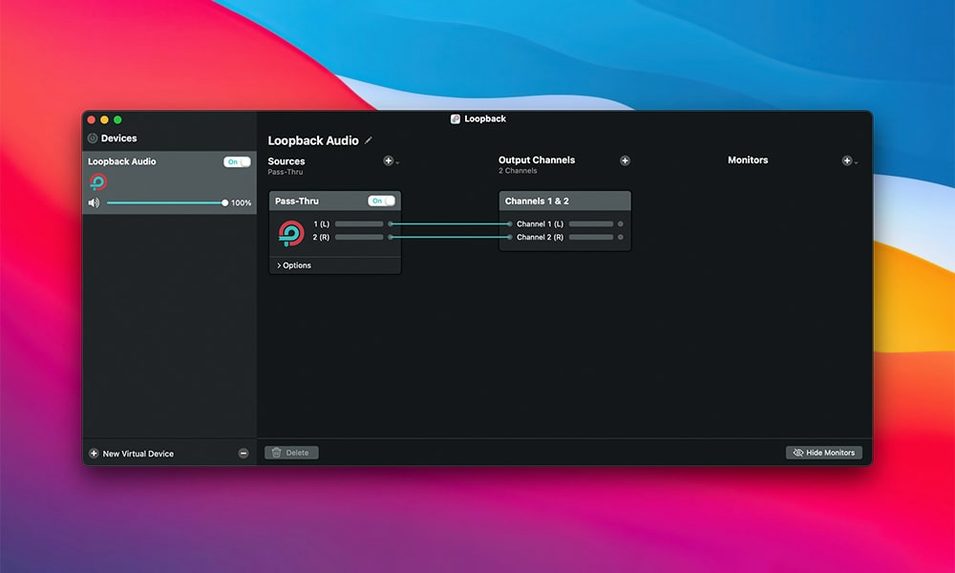
The pass-through button—that little arrow icon next to each source—is easy to overlook. When it's on, Loopback sends the source audio straight through without any monitoring delay. If you ever hear a faint echo on your own voice, flip pass-through off for your microphone source and let your monitoring app handle the sidetone instead.
Also, the source ordering matters for the on-screen meters. Drag your most important source—usually your voice—to the top so you can see its level at a glance without scrolling. The audio signal itself doesn't change, but your sanity during a live stream absolutely does.
If you download Loopback and spend ten minutes setting up these bits, the app practically disappears and you just think about your audio, not the plumbing. That's the whole point.
Version 2.5.0 catches up with the latest macOS release and quiets an old warning. Here's what changed:
- Added support for macOS 27.
- No more launch warnings on macOS 27.
- Updated the ARK audio plugin to version 13.5.
- macOS 11 or newer
- Works on Intel and Apple Silicon Macs
Notes from the tables 0
Sign in or pull up a chair to leave a note.
No notes on this one yet. They go up after I read them.