Version 2.7 is a minor update, but it tightens up RAW handling — better color for CR3 files, smarter decoding for RW2, and no more muddy TIFF previews. Good housekeeping for anyone feeding real camera files into the matting pipeline.
One product shot, start to finish
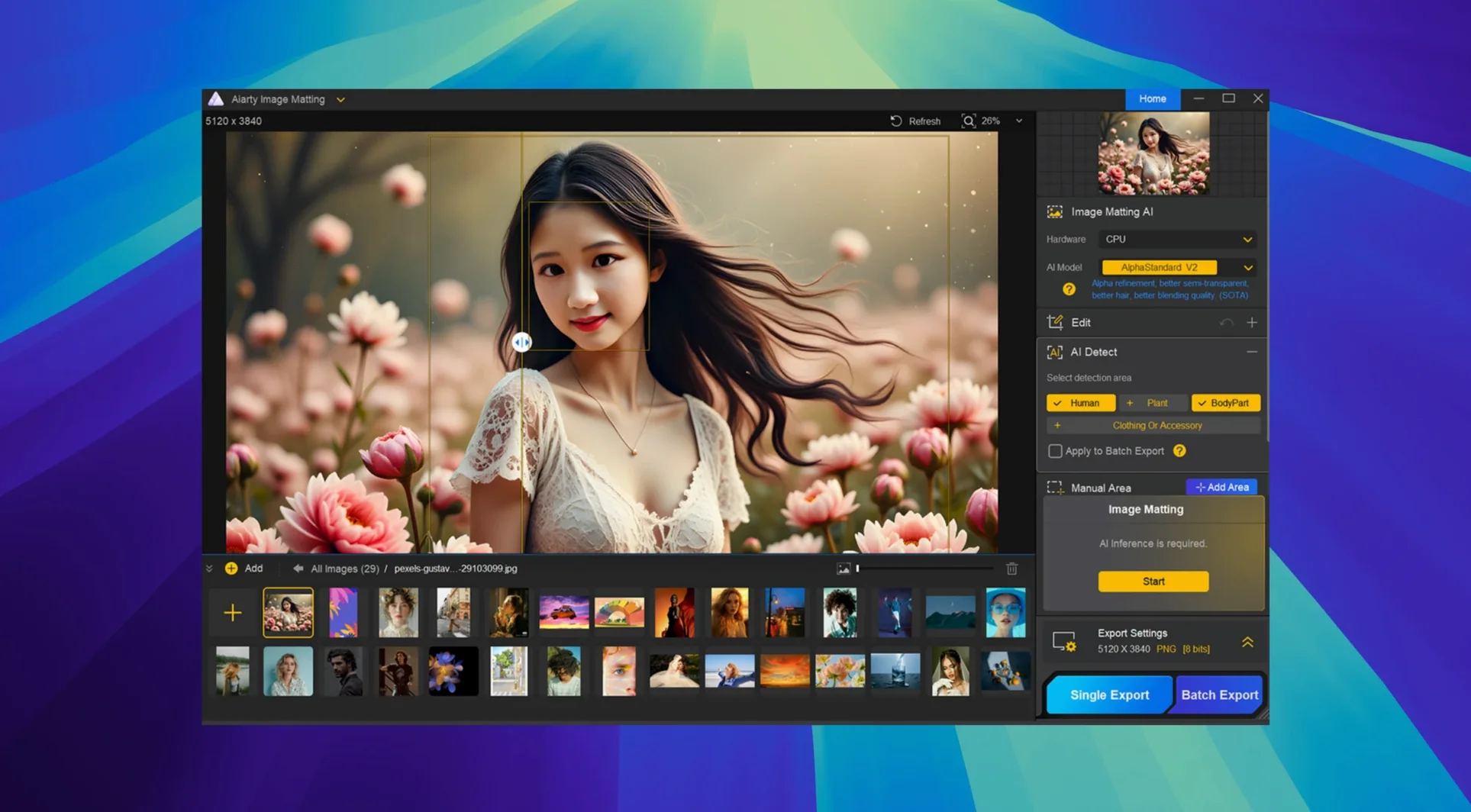
- Drop a product photo onto the canvas. The AI makes its first pass at cutting the subject loose.
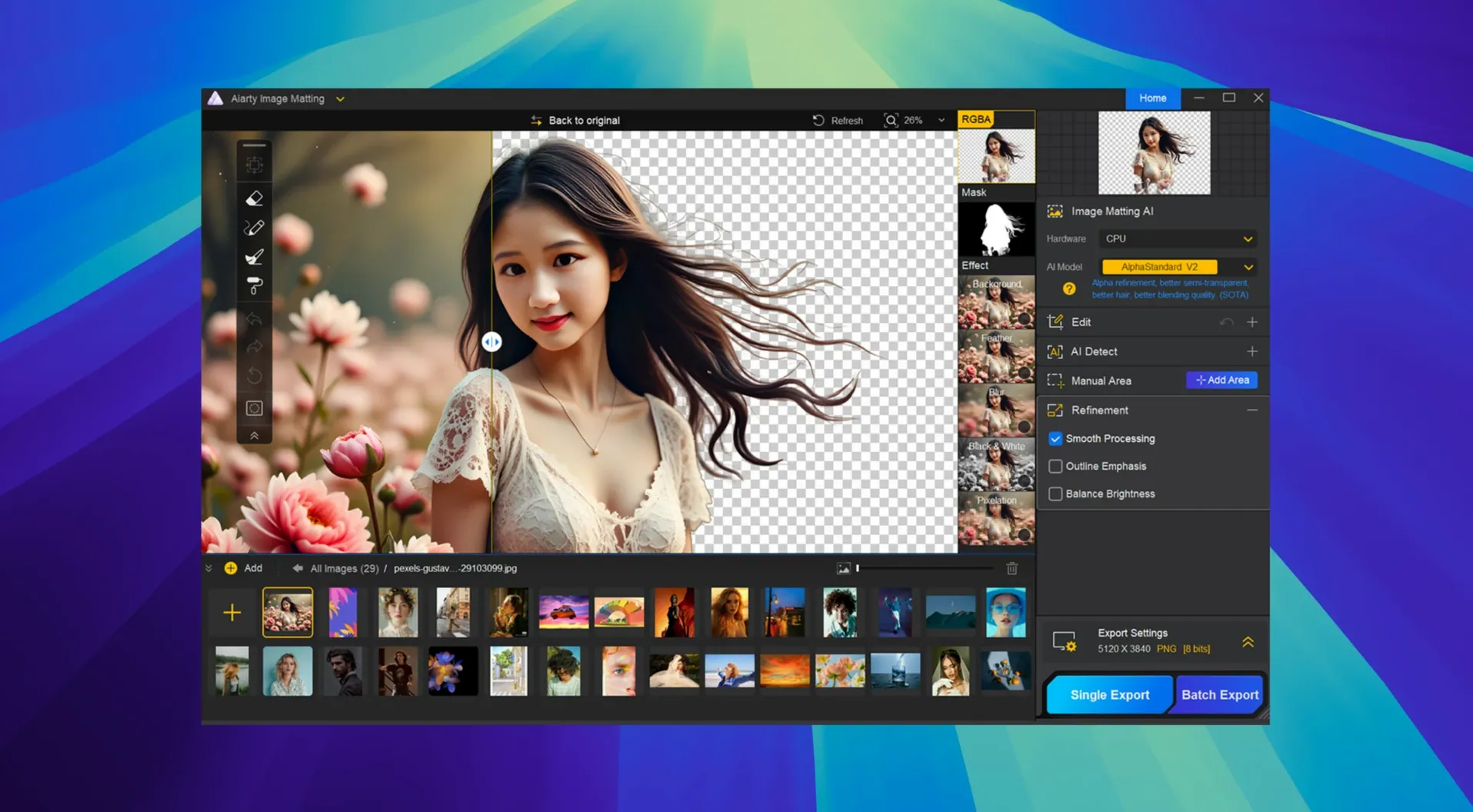
- Switch to the Brush and Eraser to fix the obvious mistakes — hair edges, thin handles, anything the machine misread.
- Use Dodge and Burn on the mask itself. Brightening the mask recovers lost edge detail; darkening it hides background bleed.
- Turn on dynamic transparency control for the stubborn spots, the semi-transparent areas that confuse most automatic tools.
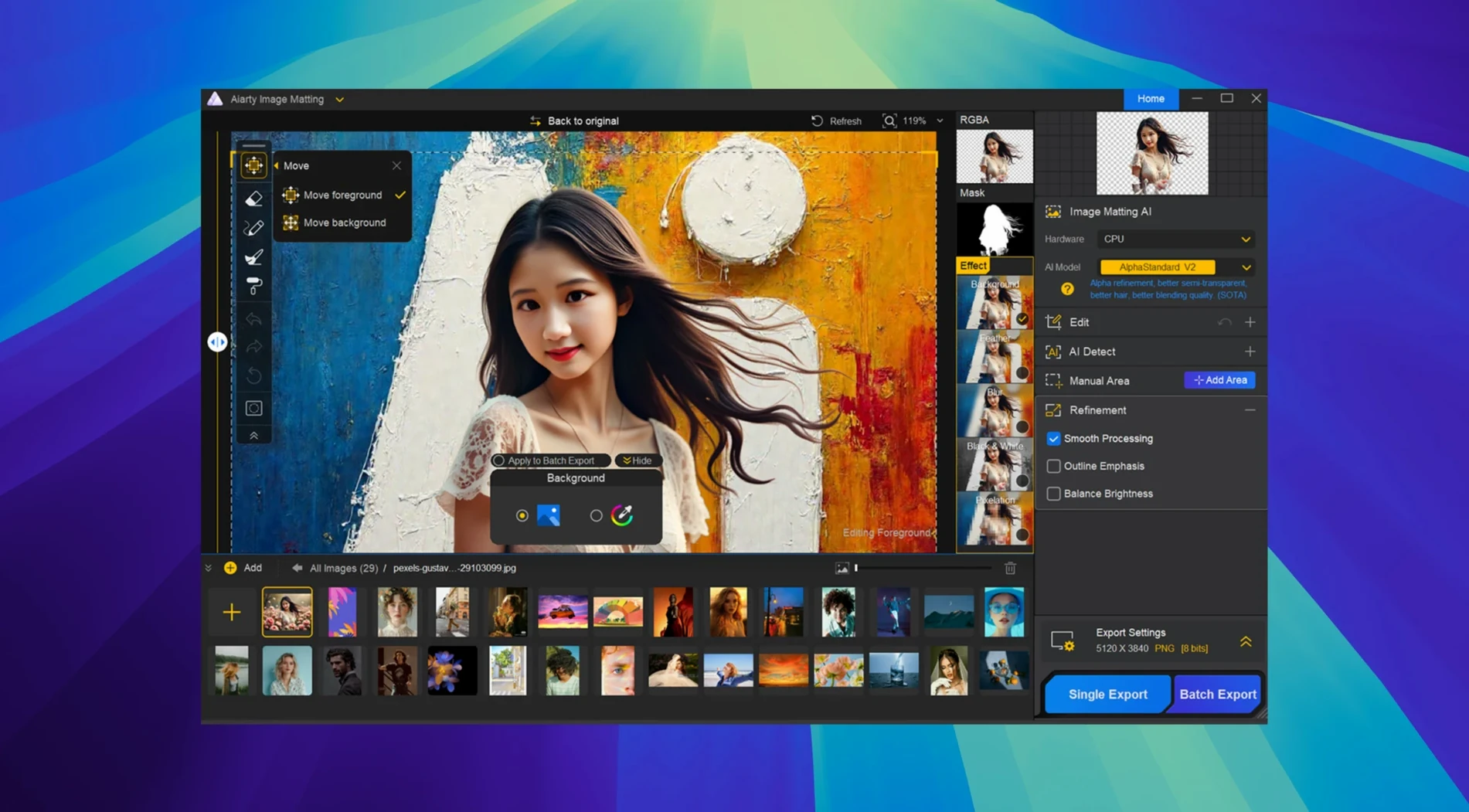
- Blend the cutout over a new background, or queue it with a batch of up to 3,000 shots.
The Eraser, Brush, Dodge, and Burn tools make this feel less like babysitting an AI and more like retouching with a safety net. The interface stays out of the way, so the whole job moves at the pace you set.
What trips beginners up
Most mistakes come from rushing the mask. People drop an image, trust the first AI pass, and wonder why the edges look like chewed toast. The machine is smart, but it needs a second pair of eyes.
- Skipping the Dodge and Burn pass. Brightening the mask along hairlines and darkening it near background bleed takes thirty seconds and fixes more than the Eraser ever can on its own.
- Ignoring dynamic transparency. Wedding veils, glassware, water droplets — the AI gets the broad shape right but leaves a flat, unnatural border. A nudge of the transparency slider brings back the real-world material.
- Batch processing without a preview. Running 3,000 shots unattended is tempting. Check the first three or four results before you let the whole folder rip. One bad mask template repeats across a whole catalog.
Clearing forty earring shots with uneven light
A seller sends over forty earring shots on a white foam board. The light is uneven, and one pair has thin silver hooks the camera almost lost. I open Aiarty Image Matting, drop the first image in, and watch the AI outline the jewelry in under two seconds. The hooks are a mess — half missing, half blended into the white. I grab the Brush at a small radius, paint the missing metal back into the mask, then switch to Dodge and trace the curve of each hook until they read as solid. A faint shadow from the foam board remains, so I drop the transparency control to ten percent and feather the edge. The cutout lands on a soft gray background and the hooks look like actual silver. I save the mask preset, load the batch queue, and walk away while the other thirty-nine shots process the same way.
Version 2.7 is a maintenance pass with real benefits for RAW shooters. Nothing flashy, just cleaner files in and better previews out.
- Improved RAW decoding for mainstream formats.
- Better color accuracy for CR3 files.
- Refined rendering for RW2 images.
- Fixed low-quality previews on some TIFF files.
- macOS 11 or later
- Intel and Apple Silicon supported
Questions I actually get
Does Aiarty Image Matting work on Intel Macs?
Yes, it runs on both Intel and Apple Silicon Macs with macOS 11 or later.
Can it handle more than one photo at a time?
Yes, the batch background replacement feature supports up to 3,000 photos in one go.
What languages does the interface use?
English, German, Traditional Chinese, Simplified Chinese, and Japanese.
Notes from the tables 0
Sign in or pull up a chair to leave a note.
No notes on this one yet. They go up after I read them.