
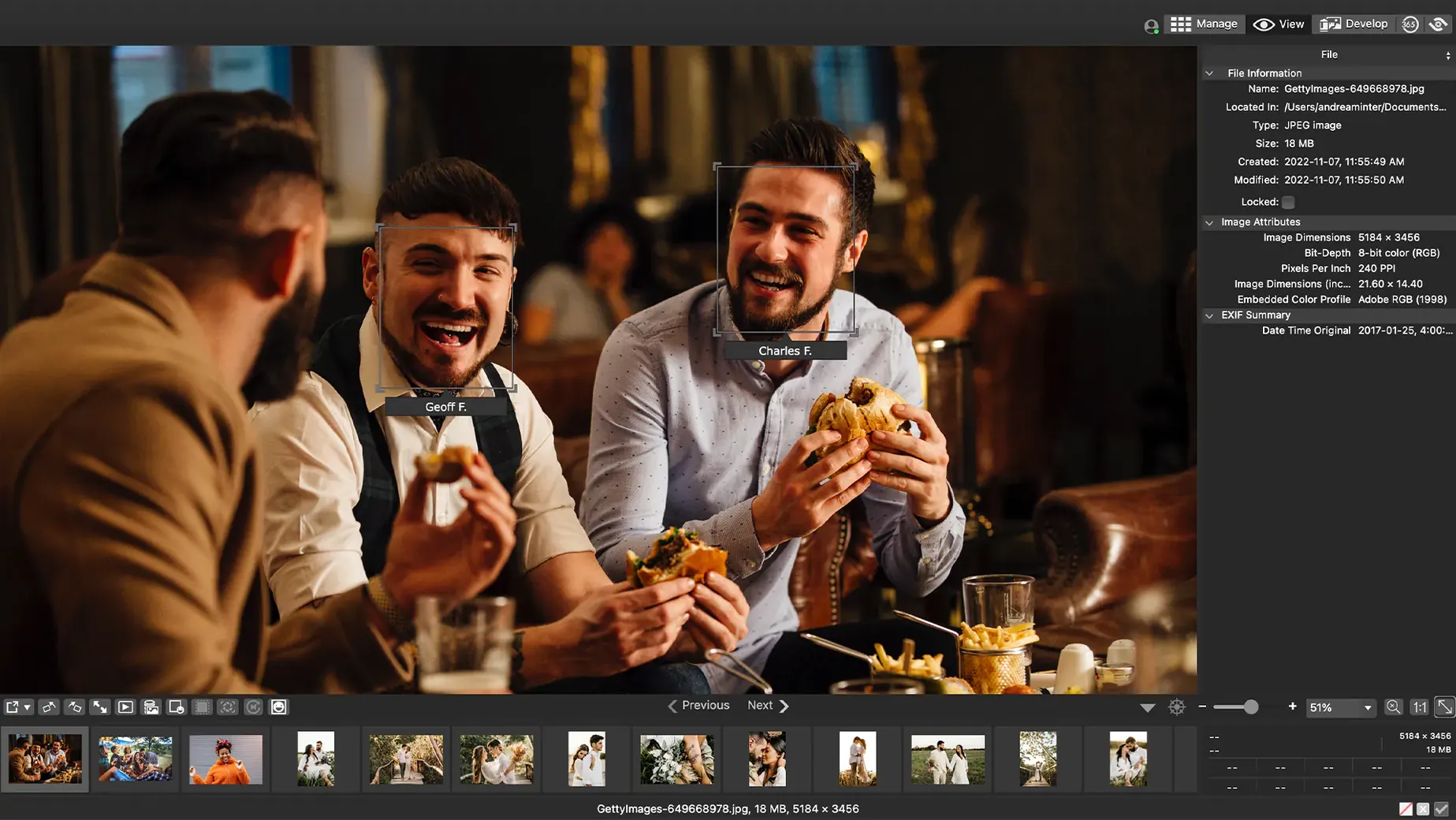
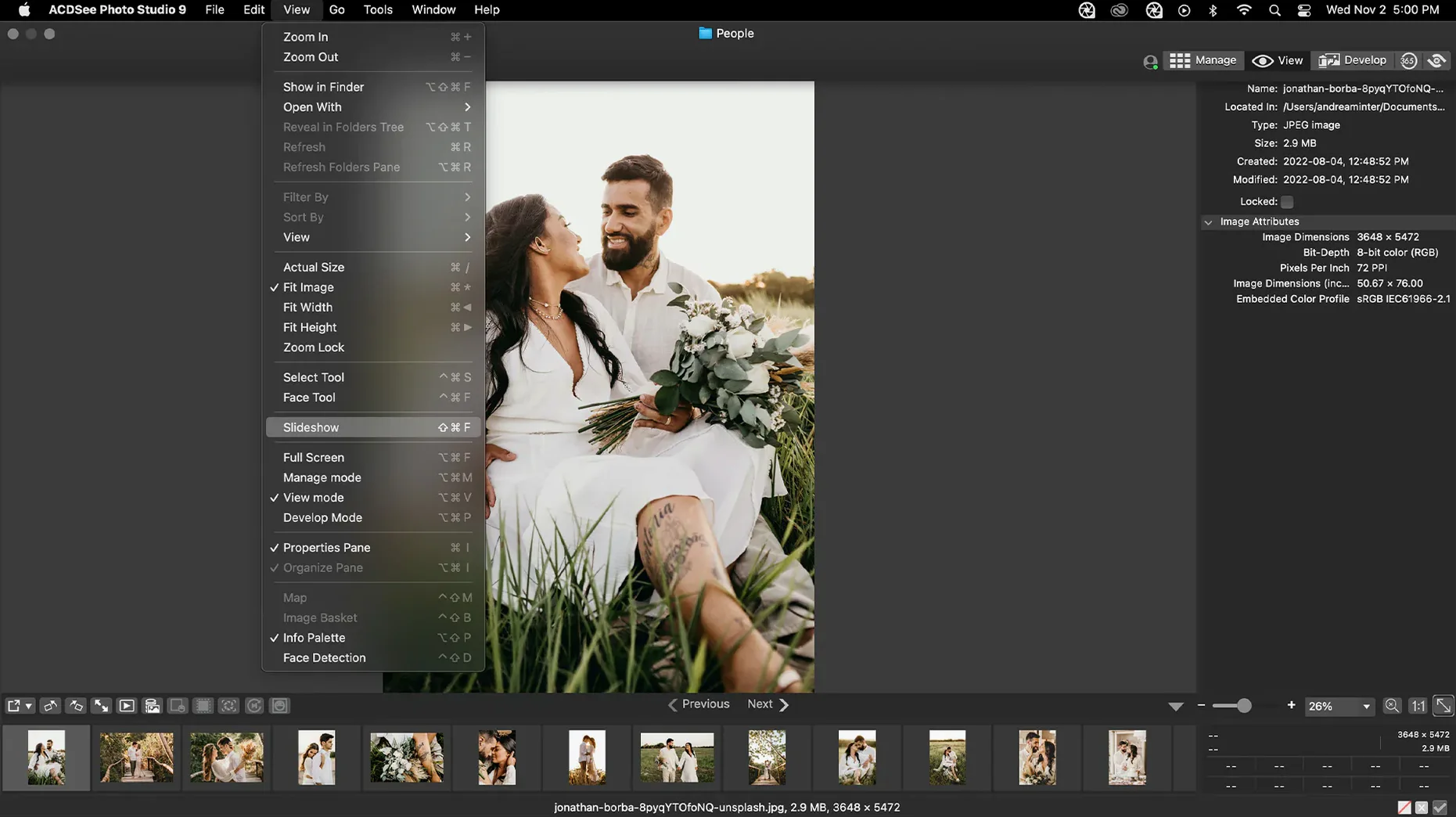
You come back from a trip with a card full of photos. Hundreds of them. Some are keepers, some are blurry, and a bunch are near-duplicates of the same sunset. The real job isn't the fancy editing—it's sorting the mess before you even think about adjustments. That's where a good organizer earns its keep.
Tackling the inbox
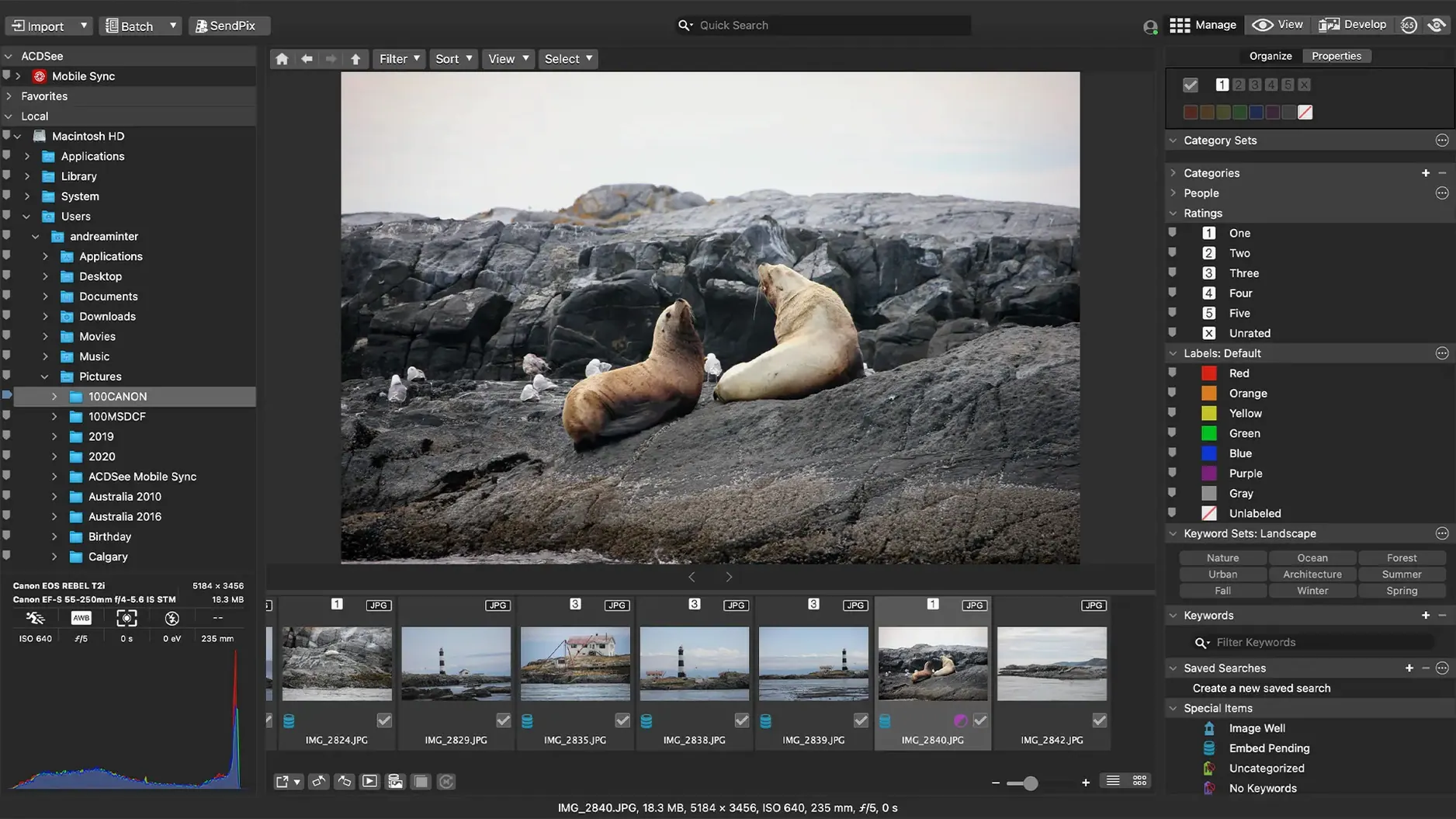
I pulled a messy folder into the app to see how it handles a real culling session. The workflow felt familiar, like a well-organized prep station:
- Quickly rate the obvious winners and losers with keyboard shortcuts, getting the clutter out of sight first.
- Hover over thumbnails to see EXIF data like focal length or ISO without opening a separate panel.
- Run the duplicate finder to weed out the burst shots where I held the shutter down a second too long.
From picks to a clean set
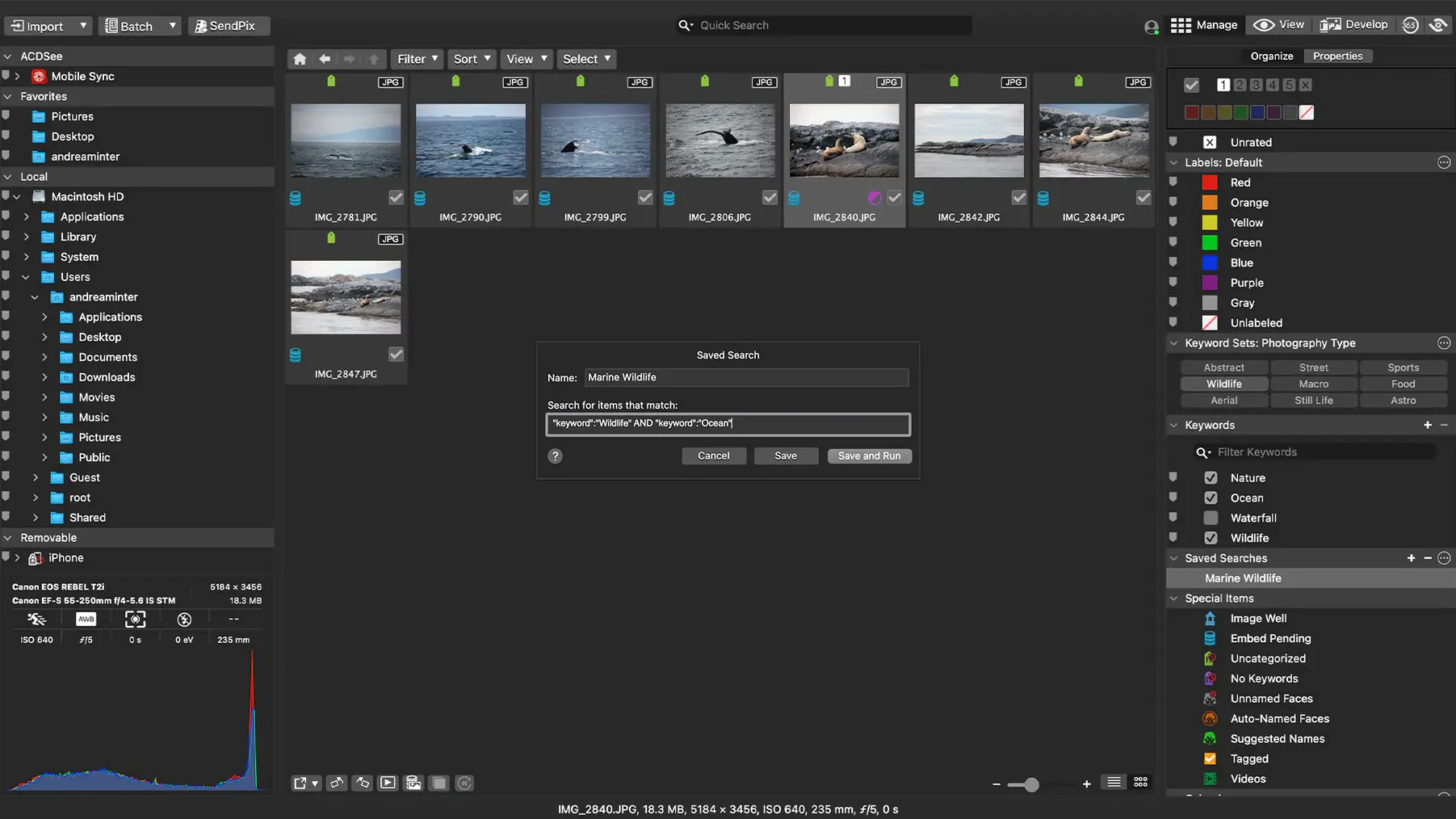
With the best shots rated, I grouped them into a category and added a few keywords like "coast" and "golden hour." Having that IPTC data embedded right there means the context travels with the file, not just inside some proprietary database. I made a quick non-destructive crop on one favorite using a batch preset I'd tweaked earlier—applying the same straightening and shadow lift to a handful of images without opening each one individually. It's a practical, no-nonsense way to get a folder from chaos to something you can actually use.
Rough edges smoothed in the quiet 26.0.3 patch
If you're hunting for an acdsee 2025 workflow that doesn't fight back, version 26.0.3 quietly patched a few rough edges that used to trip people up. Nothing flashy in the update notes, but the daily rhythm improves in ways you'll notice if you organize heavily with keywords.
The biggest headache removed was a crash when adding a new keyword or category in certain setups. Before, you'd be humming along, hitting a groove with tagging, and the app would just vanish. Now that path stays solid. They also fixed a quirk where clicking away from a new keyword or category didn't stop editing—so you'd end up with half-typed nonsense saved by accident. That alone saves a few muttered curses per session.
iCloud integration got smoother too. If you keep reference folders on iCloud Drive, the app now reads and writes without those odd permission hiccups that used to stall the browser. And if you're the type who rates images in-camera and expects those stars to survive into your Mac library, the inaccurate RAW rating reads in certain scenarios have been corrected.
Where newcomers usually stumble
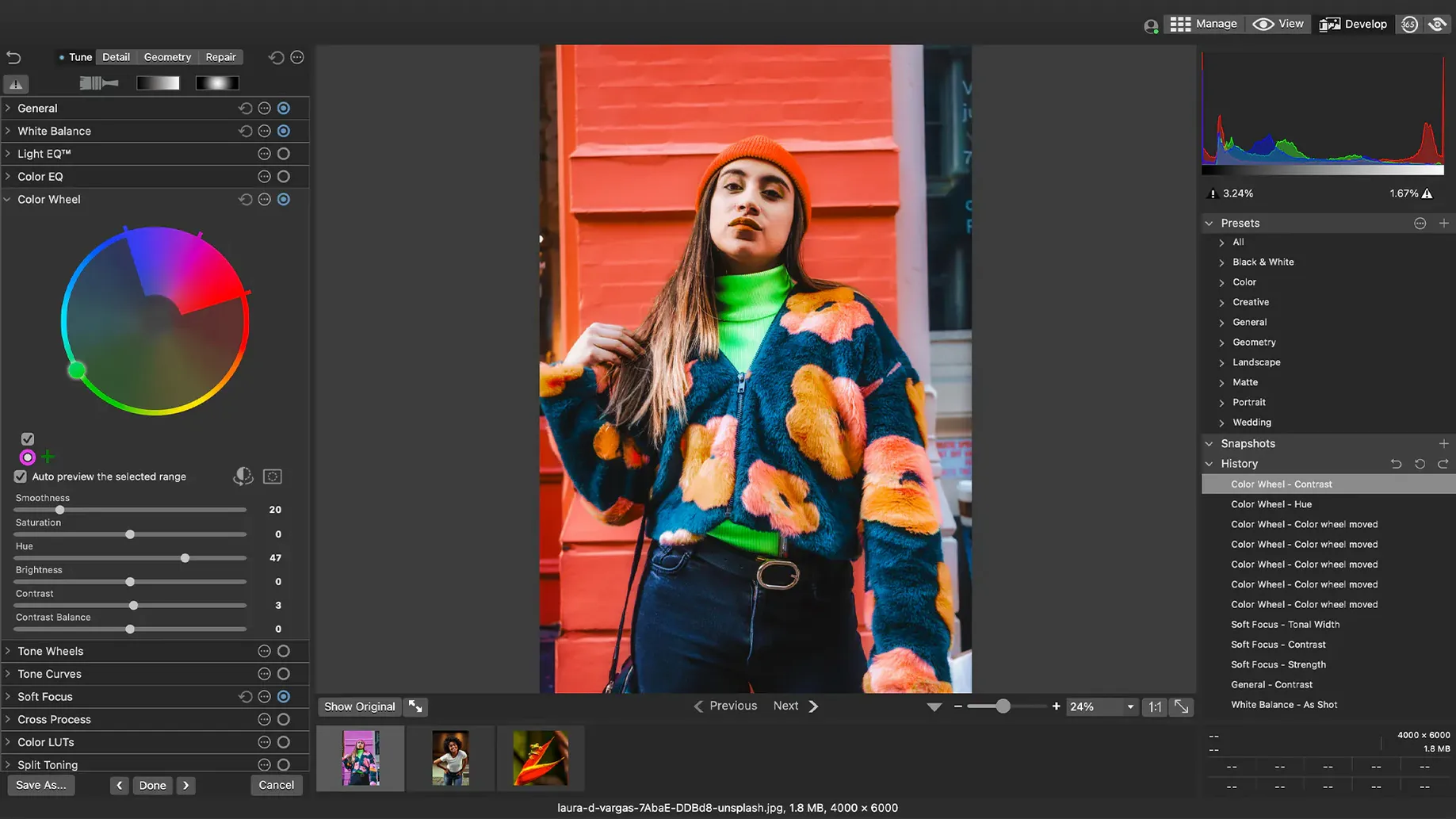
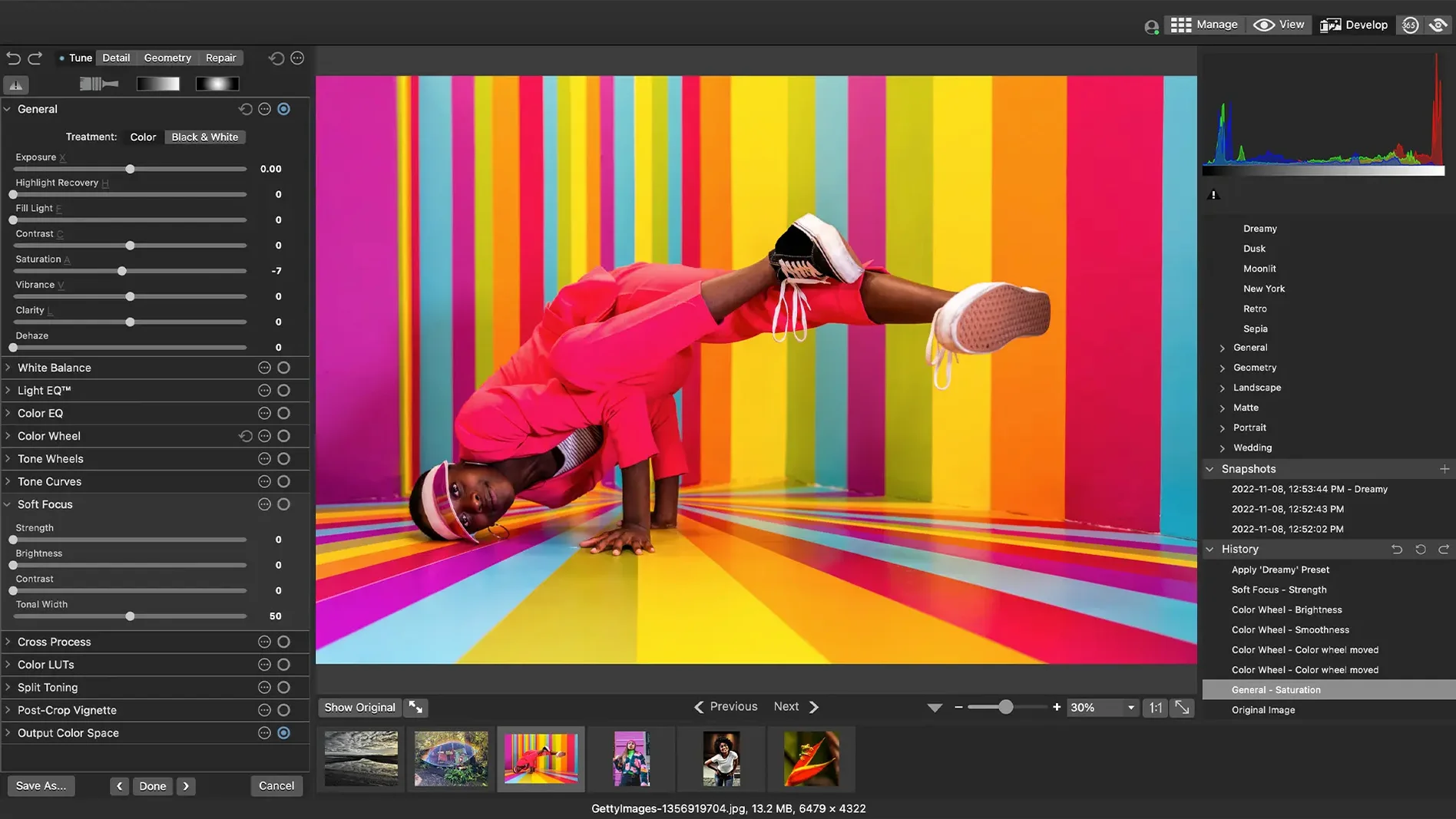
When someone grabs acdsee studio for the first time and dives straight into editing, they often skip the mode switch that trips them up later. The app separates the Manage and Develop workspaces for a reason. Opening a RAW file in Manage mode and cranking sliders won't give you the full non-destructive engine—you need to be in Develop mode for that. Beginners sometimes flatten an image accidentally by editing in the wrong mode and not understanding why they can't walk back the changes cleanly.
The other common slip is treating the catalog like a Finder window. People delete files from inside the app expecting them to go to the Mac's Trash, but ACDSee has its own internal trash. I've watched folks panic over "lost" files that were actually sitting in the app's bin, recoverable with two clicks. It's not a bug—it's a design choice that catches anyone who doesn't hover over the toolbar long enough to spot the difference.
A few rough edges got smoothed out in this update. The fixes are practical, not flashy:
- Fixed a crash that could happen when adding a new keyword or category.
- Corrected an issue where clicking away from a new keyword wouldn’t stop editing it.
- RAW file ratings now read accurately, even in the odd scenarios where they were misread before.
- Squashed a bug related to iCloud integration.
- macOS 14 or later
- Works on both Apple Silicon and Intel Macs
Notes from the tables 0
Sign in or pull up a chair to leave a note.
No notes on this one yet. They go up after I read them.