
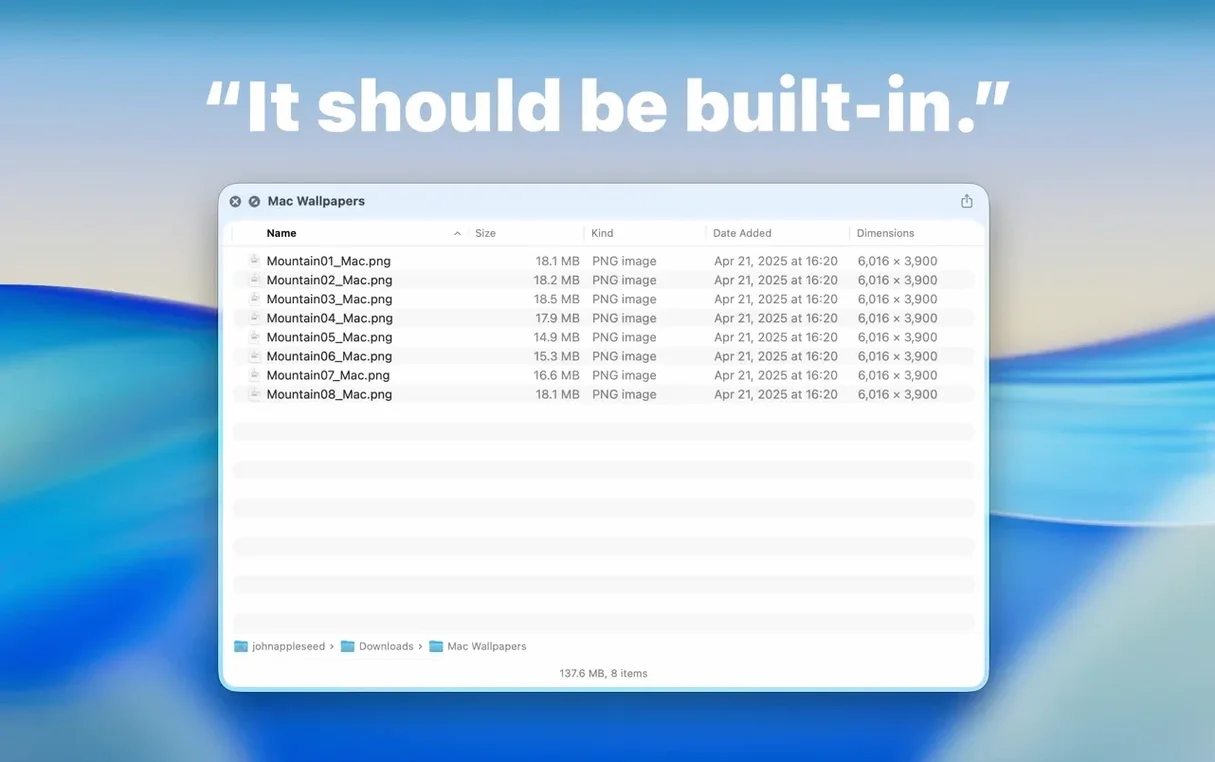
By default, pressing the spacebar on a folder in Finder shows a generic blue icon and a name—zero detail. Folder Preview Pro fixes that with a proper Quick Look extension that surfaces the actual contents, file sizes, and even lets you browse inside archives like ZIP or RAR without unpacking a thing.
- Select a folder full of photos, hit space, and thumbnails appear instantly in a resizable window.
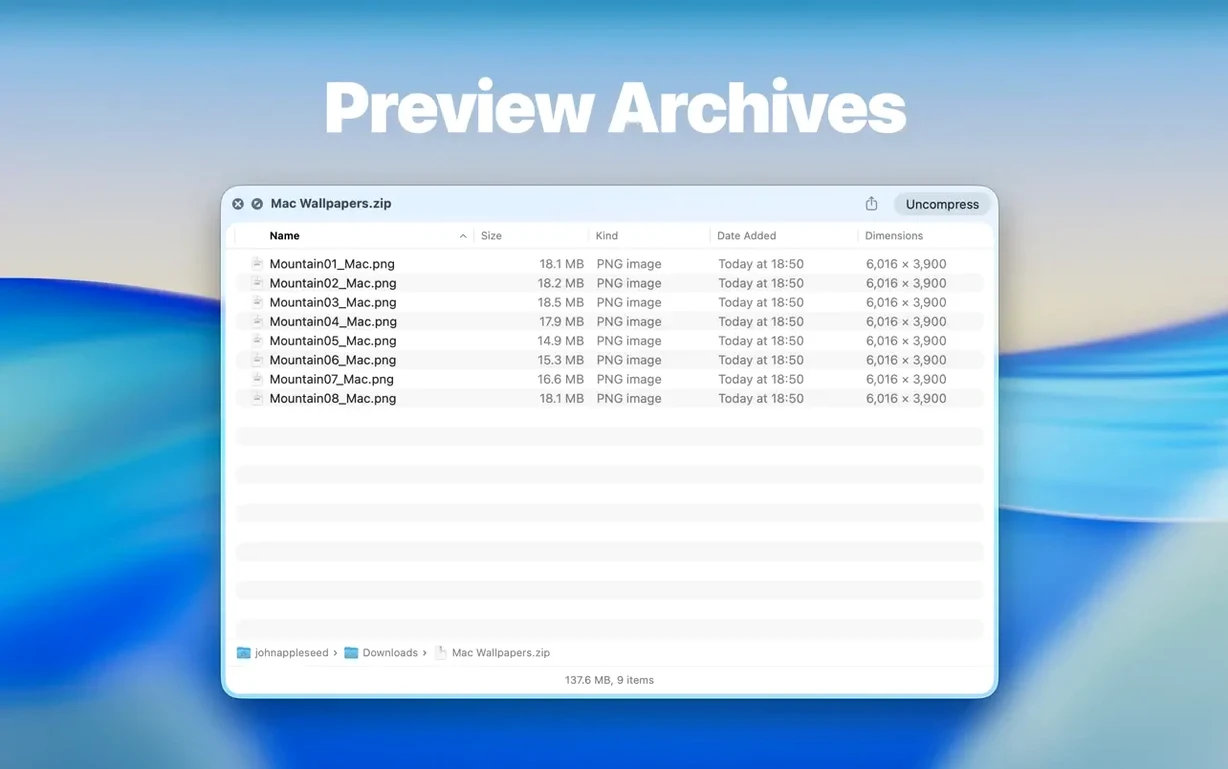
- Check a downloaded ZIP or 7Z archive the same way—no need to uncompress it first.
- Switch to the Dual Columns view to compare two folders side by side, or to see a file list next to a single preview.
- Drag a document straight out of the preview and drop it onto an email or a chat window.
- Right-click any subfolder inside the preview and choose “Contents” to drill down one level, keeping the whole path visible in the toolbar.
The toolbar now shows folder size at a glance right under the name, so you don’t have to hunt through a status bar. It’s the kind of small, practical extension that makes Finder feel more helpful the moment you turn it on.
Enable it in Quick Look settings first
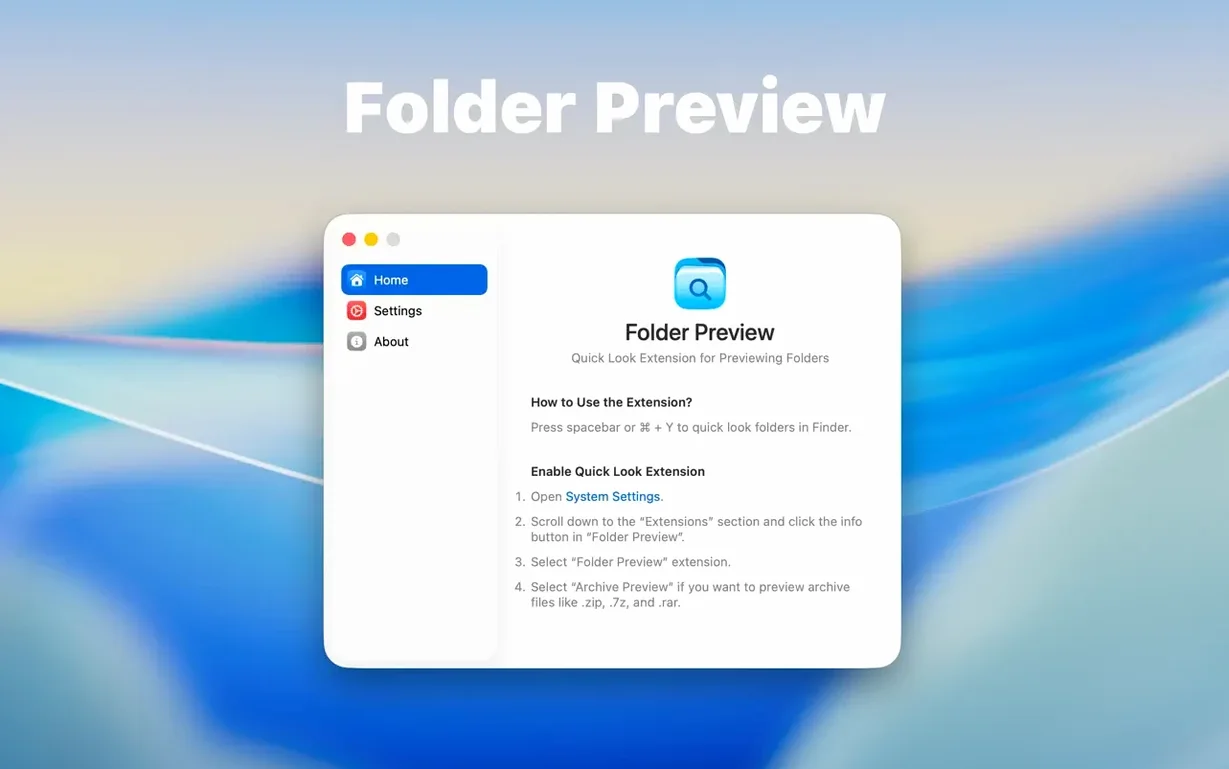
Most trouble starts with Quick Look itself. The extension doesn’t kick in until you enable it manually—open System Settings, head to Quick Look, and make sure Folder Preview Pro has a checkmark. Skipping that step is the number one reason people think the app isn’t working.
Another common slip: treating the preview window as a full Finder replacement. You can drag files out, but you can’t rename anything, move items between folders, or delete from inside the preview. A few new users tap Delete on a selected file and expect it to vanish—nothing happens, and that’s by design. It’s a viewing tool, not a file manager.
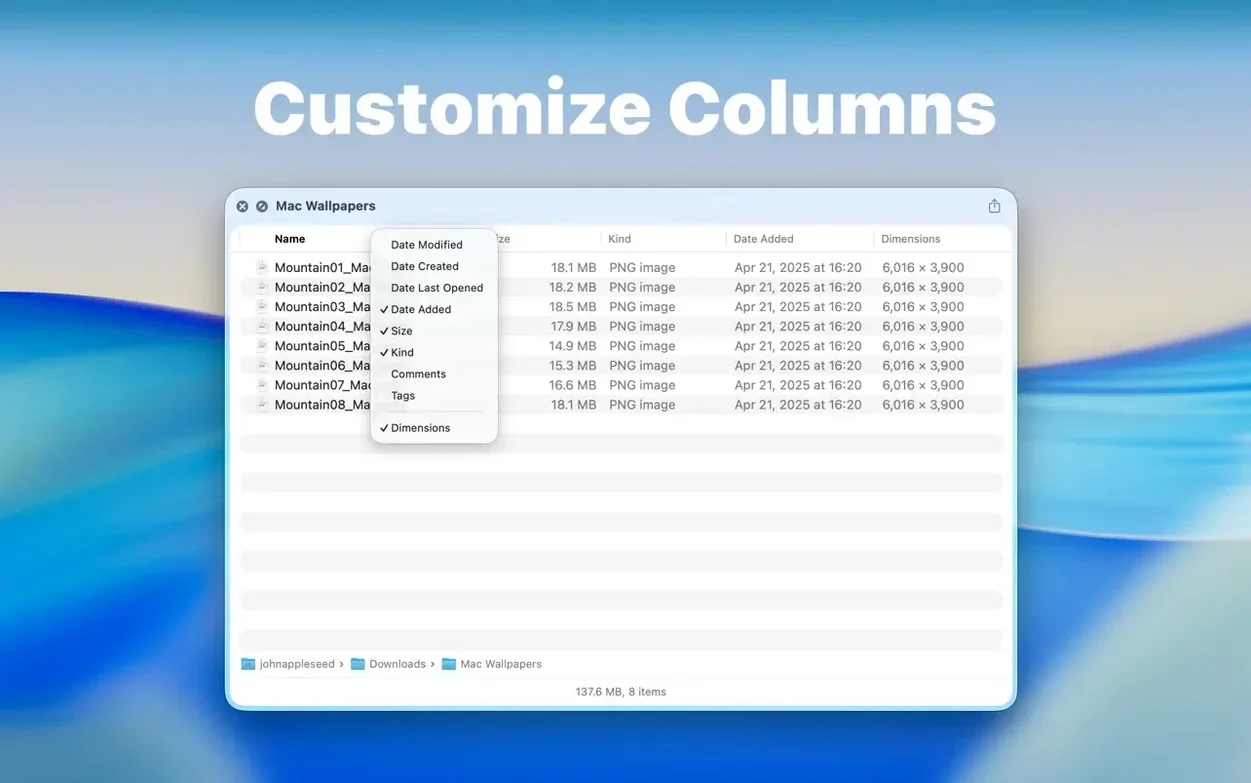
Beginners also overlook the column header right-click. A right-click on any column heading in list view opens a popup that lets you show or hide details like date modified or file size. Plenty of people never discover it and assume the columns are fixed.
With archives, the rookie move is forgetting the size limit setting. Version 3.1 added 5 GB and 10 GB caps—if a ZIP or RAR exceeds what you’ve set, the preview stays blank. No error message, just silence. Check the setting before you assume a download is corrupted.
Feels native on Apple Silicon
On an Apple Silicon Mac, the extension loads folder previews fast enough that it feels native—thumbnail grids appear without a stutter, even in directories with a few hundred photos. Older Intel machines show a brief beat before the layout settles, nothing that interrupts the rhythm of work.
Memory use stays modest. I’ve had it sit in the background through a full day of hopping between image folders, zipped client deliveries, and software bundles without the Mac’s fans ever spinning up. It doesn’t leave ghost processes behind when you close a preview window, which is more than I can say for some Quick Look generators I’ve tried over the years.
Stability has been solid. I’ve thrown malformed RARs, nested archives three layers deep, and folders with weird permission flags at it—the preview either renders what it can or shows an empty pane without crashing Finder. That’s the right kind of quiet reliability for something that hooks into the system at this level.
If you’re evaluating a tool like this, you might search for folder preview pro to see how others describe it, or stumble on phrases like folder preview mac crack and folder preview torrent in the usual corners—but the version that works without surprises is the one that installs clean and stays out of your way.
A solid update that makes navigation feel more fluid. Here’s what changed:
- Dual Columns view. You can now split the preview pane to browse two locations or see a file list beside a preview.
- Context menu browsing. A new “Contents” item lets you drill into subfolders level by level without losing your place.
- Draggable files. List and icon views now support dragging items directly out of the preview window.
- macOS 13 or later
- Apple Silicon or Intel Mac
Questions I actually get
Why don’t I see a preview when I press space on a folder?
After installing, you need to enable Folder Preview Pro in System Settings under Quick Look. Until that toggle is on, macOS will keep showing the default preview.
Which archive formats can I peek inside without extracting?
The app supports ZIP, TAR, GZ, 7Z, and RAR files. Select one, press space, and you’ll see the file list right in the preview window.
Notes from the tables 0
Sign in or pull up a chair to leave a note.
No notes on this one yet. They go up after I read them.