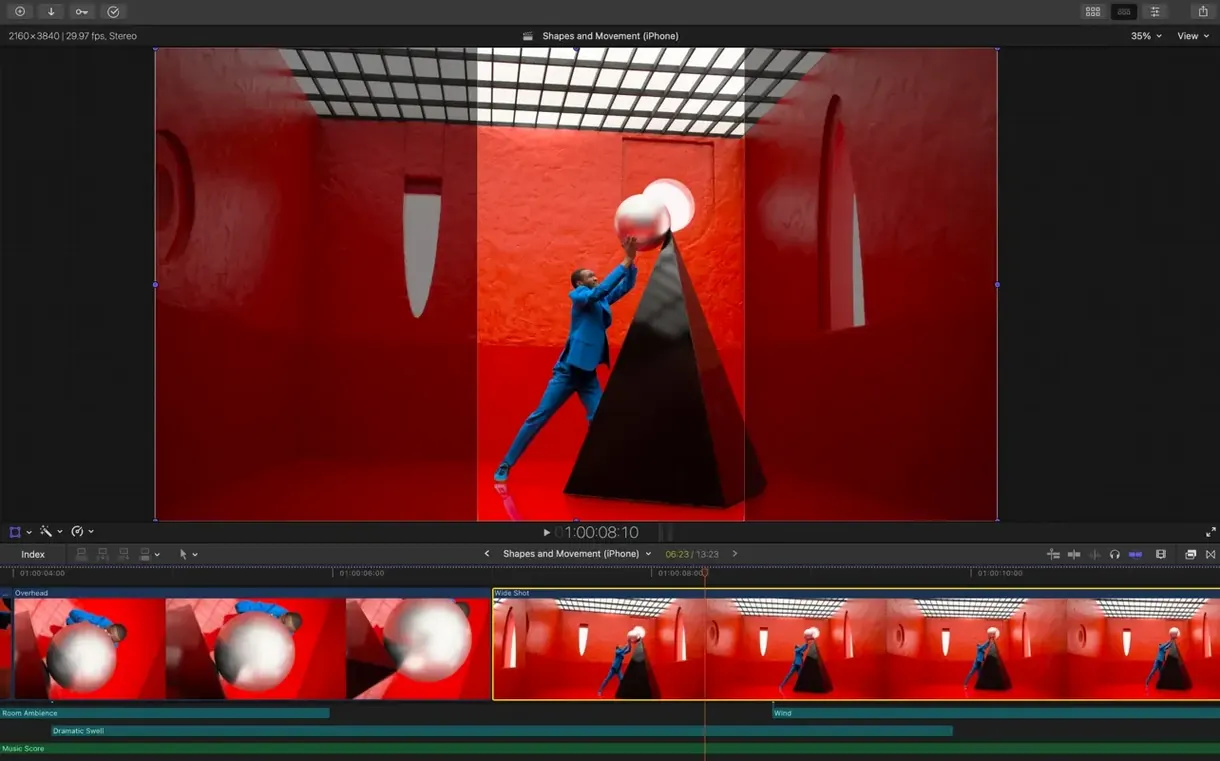
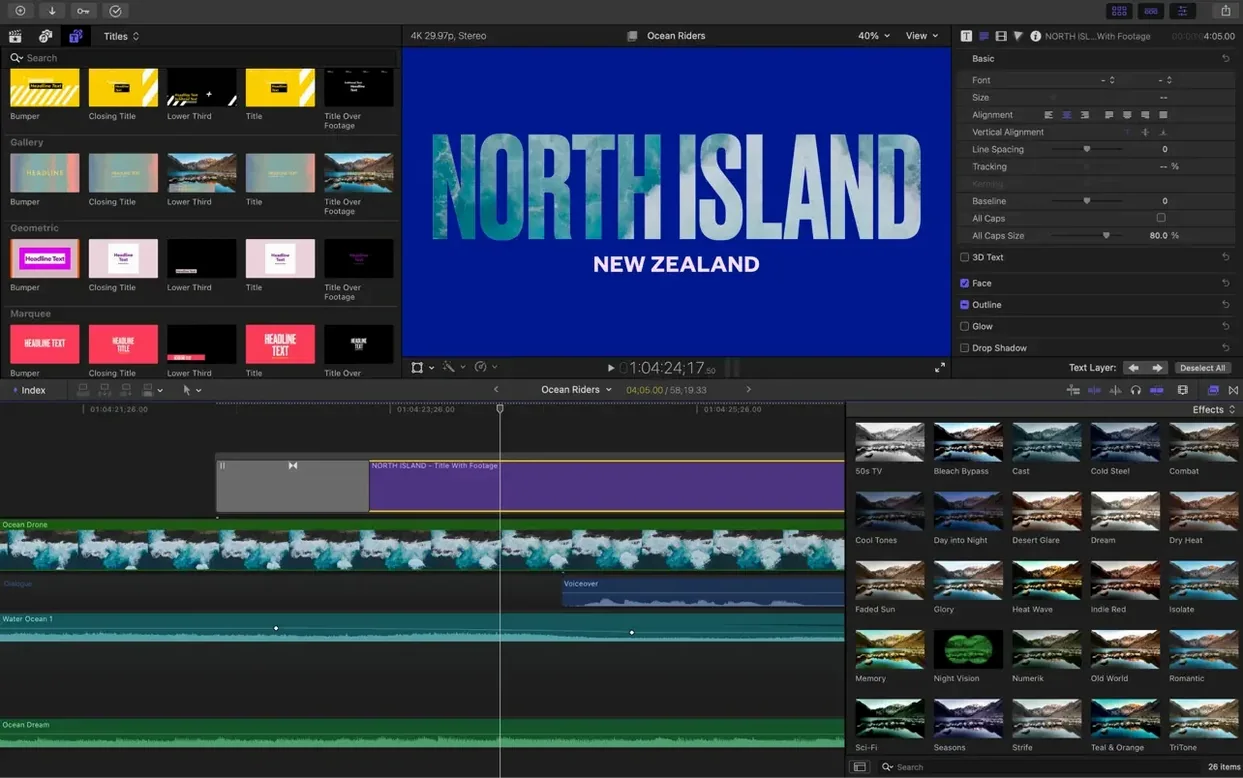
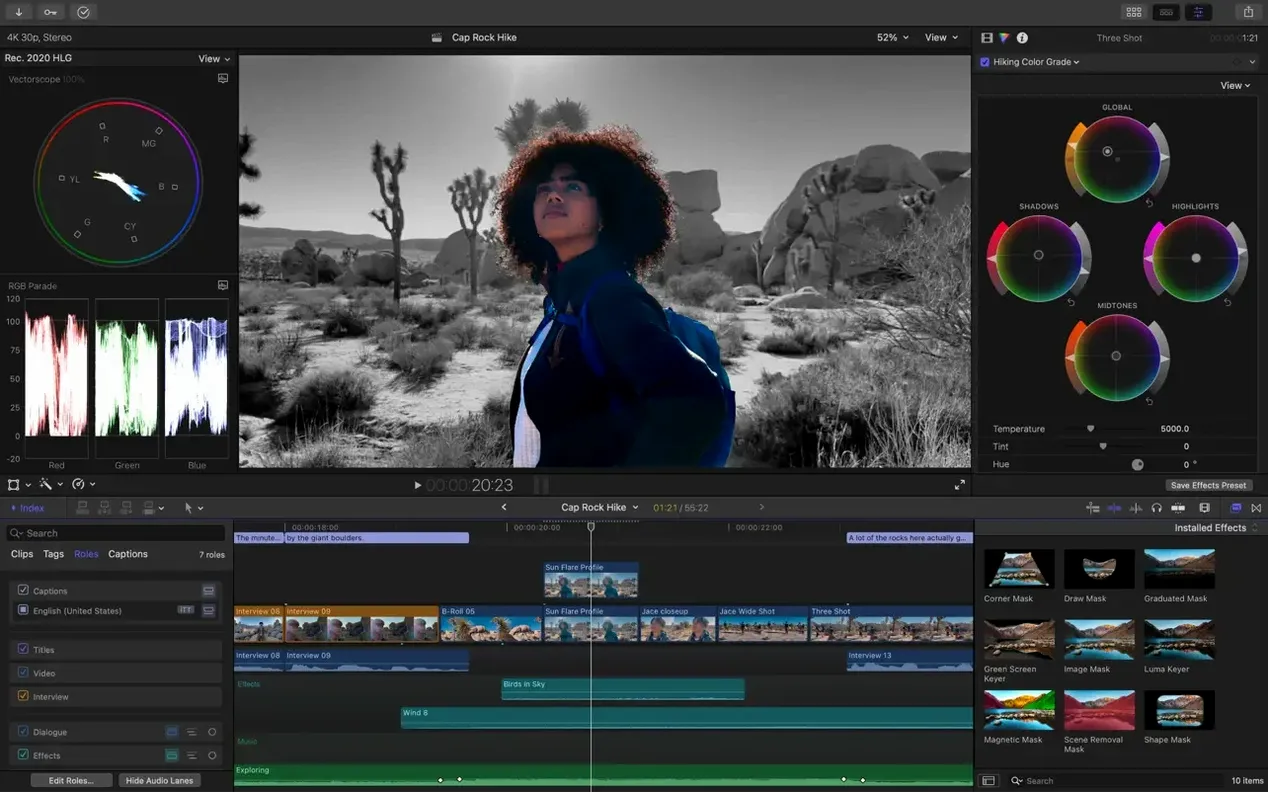
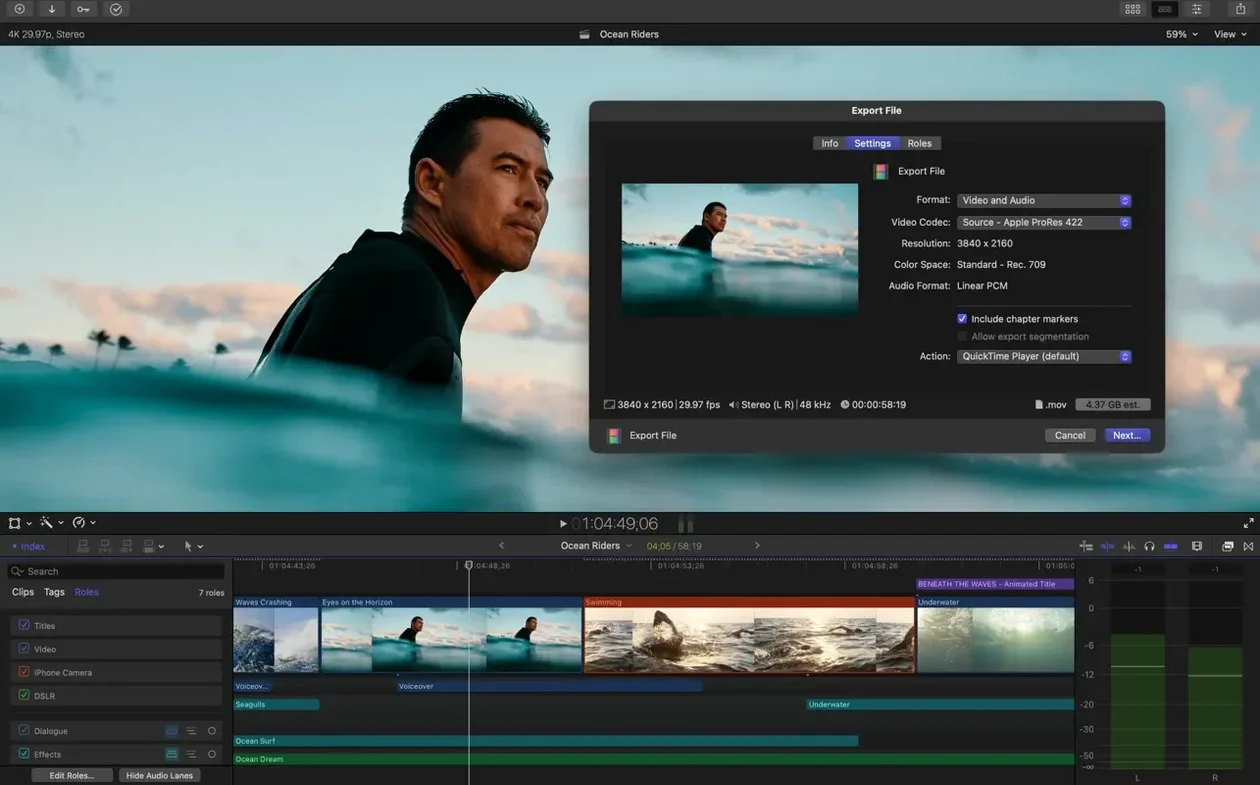
Apple dropped Final Cut Pro 12.3 at the end of June 2026, and it’s a quieter, more practical update than the big interface shakeups we’ve seen in past years. This one is about saving you time on the fiddly stuff — captions, masking, and color matching that used to need a trip to another app.
What does my Mac need to run it?
You need macOS 15.6 or later and at least 8 GB of RAM. The app asks for 5.8 GB of free disk space. Intel Macs must have a Metal-capable graphics card, and a few features simply won’t work without an Apple silicon chip.
Will all the new tools work on my Intel Mac?
Most of them will, but not everything. Apple is leaning harder on its own silicon. Some of the machine-learning tricks in Auto Mask and Edit Detection need that Apple silicon horsepower, so an older Intel machine might leave you watching from the sidelines.
What do I actually get in version 12.3?
You get four new tools built right into the editor. Generate Captions creates subtitles you can style to match your project. Auto Mask isolates a person or object so you can tweak just that area. Match Color helps bring footage from different cameras into the same visual world, and Edit Detection splits a rendered file back into individual clips.
That hour-six feeling where background tasks disappear
I was talking with a buddy who edits wedding videos, and he nailed what 12.3 feels like. It's not the kind of update you notice on day one. It's the kind you feel around hour six, when you realize you haven't opened a separate subtitle tool or exported a clip just to fix a mask. That's the theme here.
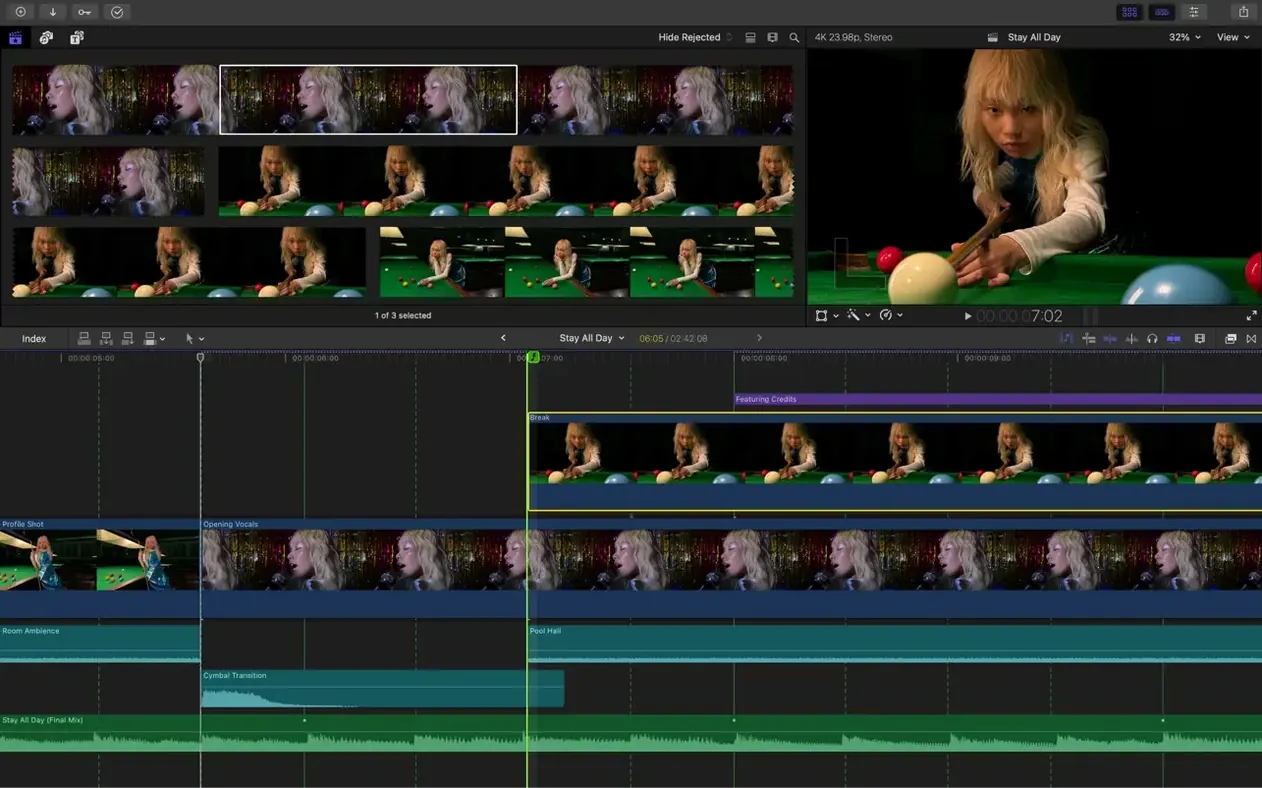
Generate Captions is the standout. Before this, adding subtitles meant exporting a rough cut, running it through another app, importing the SRT file, and hoping the timings didn't drift. Now you stay inside Final Cut Pro. The captions live in the timeline like any other element, and you can change font, size, position, and color without converting anything. If you edit the video, the captions follow along because they're baked into the project, not pasted on top.
Auto Mask is quieter but just as useful. You draw a rough box around a face or an object, and the app tracks it through the shot. Suddenly you can brighten a person against a blown-out window, or mute the colors on a distracting background sign, without rotoscoping frame by frame. It's not perfect on fast motion, but for talking-head footage and b-roll, it's close enough that you stop dreading those fixes.
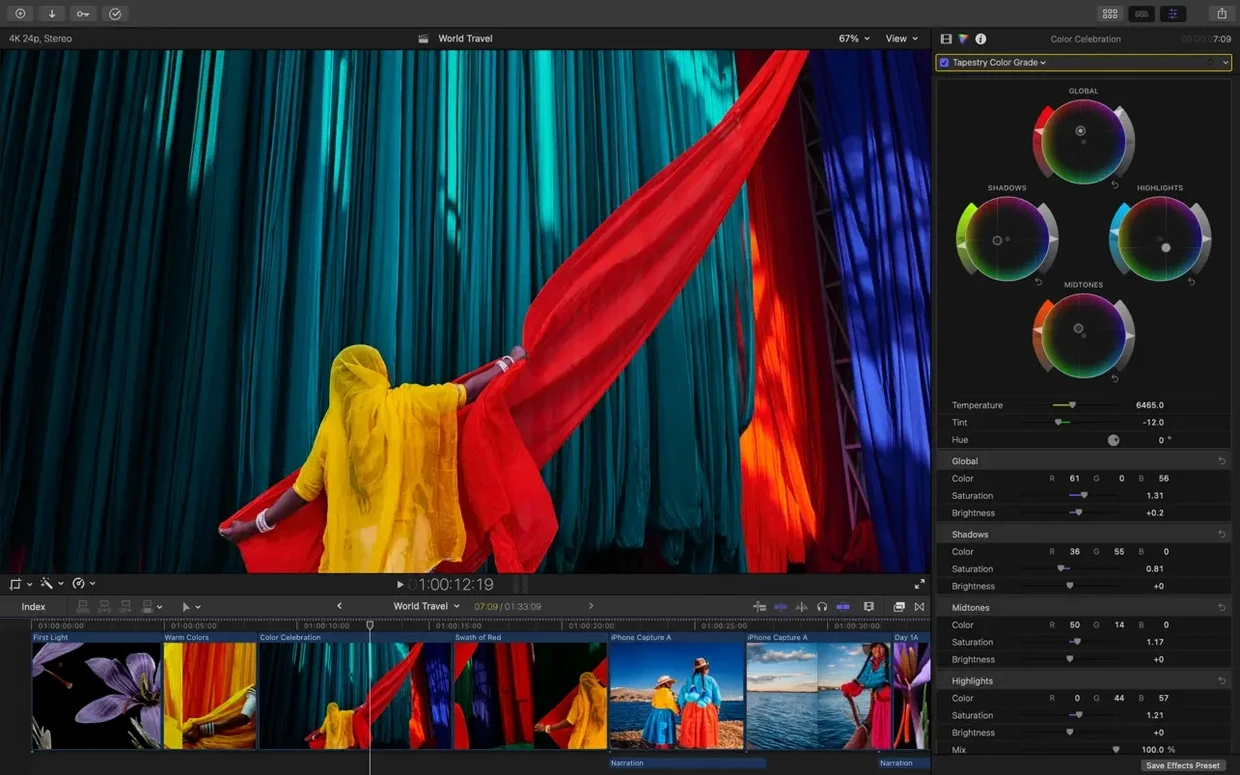
Match Color got smarter. Older versions could nudge one clip toward another, but mixed lighting and different camera brands still threw it off. The 12.3 version handles wider gaps — think Sony footage next to iPhone footage — and doesn't push everything into a muddy middle ground. Edit Detection, meanwhile, solves a problem I've seen trip up editors for years: someone hands you a flattened export and says "can you tweak the third shot?" Now the app finds the cuts and breaks the file apart automatically.
Turning a Monday folder of mixed footage into a first cut by lunch
Imagine a freelance editor who handles product demos and internal training videos for mid-size companies. She gets a folder on Monday morning: two talking-head interviews shot on a Canon, b-roll from an iPhone, and a finalized voiceover track. The client wants subtitles on everything and needs the talking-head shots to match the product footage.
She drops everything into a library, lets the app generate proxy media so her MacBook doesn't choke, and starts with the multicam angle sync for the two interview cameras. That's old Final Cut Pro muscle memory. What's new is what happens next: she selects both interview clips, hits Match Color on the Canon footage, and the app pulls them into the same warm balance without her touching a single slider. Then she runs Generate Captions on the voiceover track, picks a clean sans-serif style, and the timeline fills with perfectly timed subtitles.
The b-roll has a shot where the product looks washed out against a bright window. She draws a loose mask around the item on the table, Auto Mask tracks it through the pan, and she bumps the contrast just on that area. What used to be a thirty-minute round trip to Motion or a compositing app takes two minutes. By lunch, she's watching the export with subtitles burned in, color looking consistent, and zero files left her Mac.
Color grading depth where Resolve still pulls ahead
DaVinci Resolve is the obvious comparison, and it's still the heavyweight for color grading. The node-based color tools in Resolve go deeper than anything Final Cut Pro offers, and the free version covers more ground than most paid software. But Resolve asks you to learn its way of thinking about media management and timelines. Final Cut Pro is faster to just open and start cutting, especially if you're not grading a feature film.
Premiere Pro has the cross-platform advantage and tighter integration with After Effects. If your workflow jumps between Mac and Windows machines, or you rely on dynamic link for motion graphics, Premiere makes sense. On a Mac, though, it's never felt as native as Final Cut Pro. Scrolling through a timeline on Premiere still has a micro-stutter that the magnetic timeline avoids entirely.
CapCut is worth mentioning because so many short-form creators use it. It's dead simple, runs in a browser or desktop app, and does one-tap captions and masks. But it's not a professional editor's tool. You outgrow it the moment you need compound clips, multicam, or proper media management. Final Cut Pro is where you land when CapCut starts feeling like a toy.
Motion templates you can tweak right in the timeline
Final Cut Pro talks well to Apple's other pro apps. Motion handles custom titles, transitions, and generators, and anything you build there drops into Final Cut Pro as a live template you can adjust later. Compressor handles batch exports and custom delivery formats without tying up the timeline. Together, the three apps cover what a single Adobe subscription does, but in a way that feels like macOS software rather than a port.
Outside Apple's own circle, Logic Pro projects can open as audio stems, and the XML export sends a clean timeline to Resolve for color or to Pro Tools for audio post. That matters if you edit the rough cut yourself but hand off the finishing work. Even Finder and Quick Look play along — you can scrub through library files and exported ProRes masters without launching anything, which saves time when you're hunting for a specific take.
iCloud and AirDrop aren't afterthoughts here. You can start a rough cut on an iPad version, open the library on your Mac, and pick up where you left off. Airdropping a proxy file to a colleague's laptop for a quick review keeps things moving without uploading to a web portal. It's not a cloud-first workflow, but it's a fast local one, and for a lot of editors that's exactly what they want.
Bottom line: it’s a point update that fixes real annoyances. Just make sure your Mac is ready for it before you jump in.
Version 12.3 adds four new tools that cut down on busywork. No flashy redesign, just stuff you’ll actually use.
- Generate Captions builds subtitles right on the timeline and lets you customize how they look.
- Auto Mask finds a person or object in the frame and isolates it for color correction or effects without manual rotoscoping.
- Match Color pulls footage from different cameras into a consistent look, even under mixed lighting.
- Edit Detection takes a rendered video and intelligently splits it back into separate clips.
- macOS 15.6 or later
- 8 GB of RAM
- 5.8 GB of available disk space
- Metal-capable graphics card (Intel Macs)
- Some features require an Apple silicon Mac
- Internet connection needed for some features
Questions I actually get
Does Final Cut Pro work on an iPad?
Yes, Apple designs Final Cut Pro for both Mac and iPad, though the interface and some features differ between the two platforms.
Can I use third-party effects in Final Cut Pro?
Absolutely. The app supports FxPlug plugins and third-party extensions, so you can add effects and tools from other developers.
Notes from the tables 0
Sign in or pull up a chair to leave a note.
No notes on this one yet. They go up after I read them.