
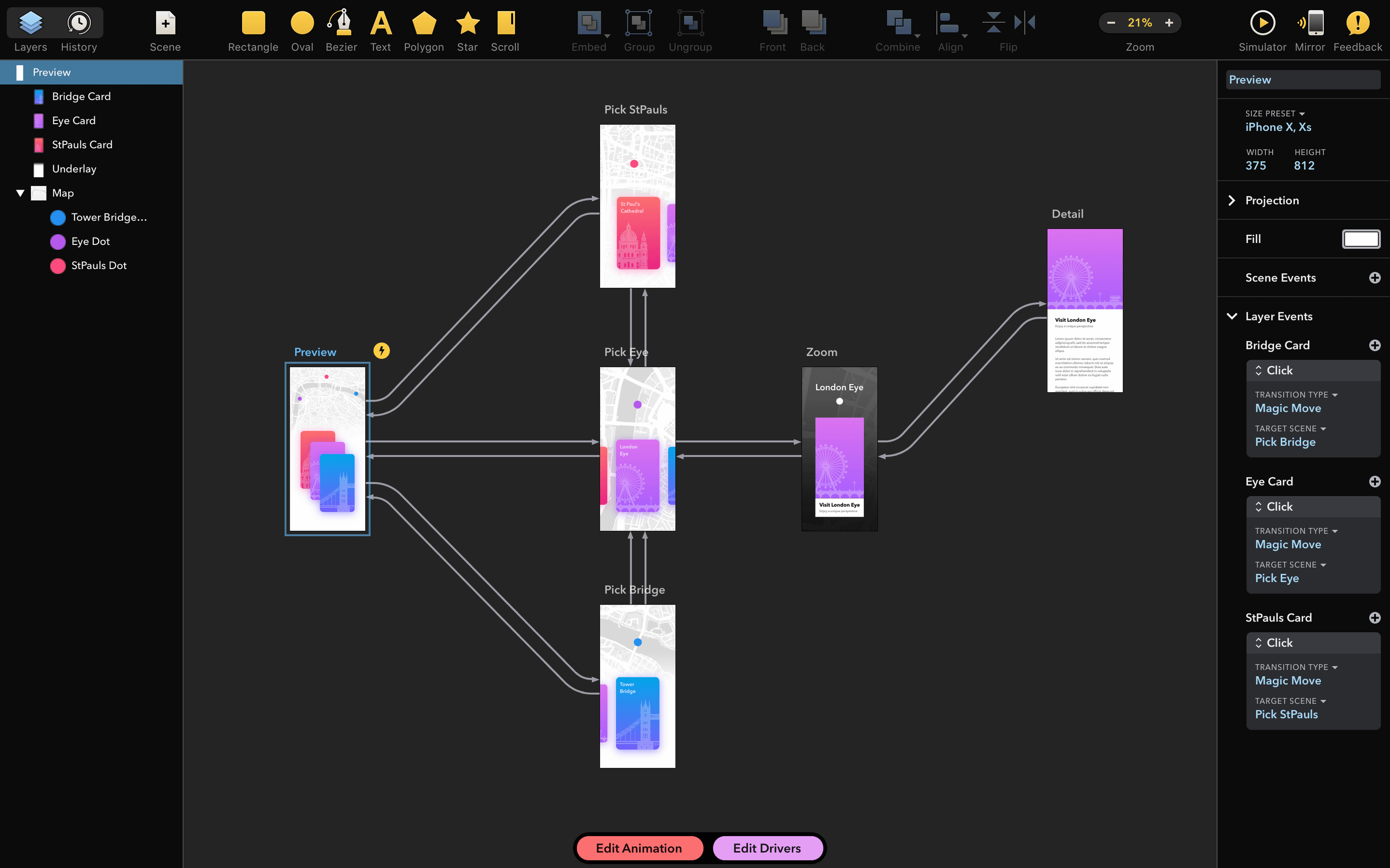
Drama is a Mac app that rolls prototyping, animation, and design into a single workspace. If you build motion mockups or need to rough out an interface idea with some life in it, this is the kind of tool you reach for instead of stitching three separate apps together.
What does the 3-in-1 label actually mean?
You can draw interface elements, link screens into clickable prototypes, and animate transitions all inside the same canvas. No exporting to a dedicated animation program just to show a hover state.
Still an Intel Mac app at its core
It's still an Intel app that runs on macOS 11.5 and later. The core workflow hasn't shifted—you design, you prototype, you animate, and you hand off something that actually moves.
What got fixed in version 2.1.4?
One specific bug: a crash on launch triggered by certain installed fonts. If you were unlucky enough to have the wrong font in your library, Drama would refuse to open. That's sorted now.
It animates where Sketch stops
Drama sits at a crossroads, so the comparisons depend on what you're trying to do.
Put it next to Sketch, and the difference is motion. Sketch is the sharper pure-design machine—symbols, libraries, a massive plugin ecosystem. But it doesn't animate. You design a button in Sketch and you ship a flat PNG to someone else. In Drama, you design the button, then you make it react to a click right there. The trade-off is that Drama's vector toolset isn't as deep. You won't find the same artboard management or collaborative handoff features.
Stack it against Principle, and Principle wins on animation finesse. Principle is built for one thing: making interfaces feel real through motion. Its timeline and driver-based interactions are more granular. But Principle expects you to bring finished designs from somewhere else. Drama lets you build the design from scratch, which means fewer round trips when the idea is still taking shape.
Figma is the elephant in the room. It does design plus prototyping, and it runs in a browser with multiplayer editing. Drama doesn't try to compete on collaboration—it's a solo Mac app. Where Drama pulls ahead is in native animation. Figma's "smart animate" is clever, but it's not a full animation environment. Drama gives you a real timeline and state-based transitions that feel closer to what you'd get in After Effects, minus the complexity.
Solo designers selling an idea with motion
The sweet spot is a solo designer or a tiny team who need to show an interaction rather than document it. If you're presenting a concept to a client on Friday afternoon, a moving prototype beats a stack of wireframes every time.
Interface prototypers who hate context-switching will feel at home. Instead of jumping from a design tool to an animation tool to a screen-recording tool, you stay in one window. That's a real time-saver when you're iterating fast.
Motion designers dabbling in UI work get a gentler on-ramp than diving into code-based prototyping. Drama's timeline borrows familiar ideas—keyframes, easing curves, state changes—without the weight of a full compositing app. If you've ever tried to mock up a micro-interaction in Final Cut, you'll understand why this matters.
It's less suited to large teams who live inside design systems. There's no shared component library that syncs across files. That's fine for a one-person project; it gets messy with five people.
A workflow: animating a sign-up button
Let's say you want to prototype a sign-up button that expands into a form on click—a common pattern for onboarding flows.
- Draw the button. Start with a rounded rectangle and a text label on a blank canvas. Set the background to a brand color and group the two layers.
- Define the default state. Name the state "idle." This is what the user sees before any interaction.
- Add a hover state. Duplicate the group, change the background to a slightly darker shade, and name it "hover." Drama will tween between these two appearances when you wire them up.
- Build the expanded form. Still on the same canvas, lay out the email field, password field, and a submit button below the original button group. Group everything into a single "expanded" state.
- Connect the states with triggers. Set a click on the "idle" button to transition to "expanded." Choose an easing curve—something snappy like ease-out works for this kind of reveal. Set the duration to 0.3 seconds so it feels responsive without being jarring.
- Preview and tweak. Hit the play button and click through. If the form elements appear too abruptly, add a short stagger delay to each field so they cascade in. Drama's timeline lets you offset individual layers inside the same transition.
- Record the prototype. When it feels right, capture a quick video right from the app. That clip goes into a presentation deck or a Slack thread, and the client sees something that behaves like the real thing.
Bottom line: you went from a rectangle to a working interaction in under ten minutes, and you didn't open another program. That's the whole pitch.
A small but welcome update. Version 2.1.4 squashes a crash-on-start bug that some folks ran into because of a handful of specific fonts on their system. If Drama was refusing to open for you, this one’s the fix.
- macOS 11.5 or later
- Intel processor (x86 64-bit)
- Interface language: English
Questions I actually get
Is Drama ready to use right after installing?
Yes, once you follow the install steps—which include a quick Terminal command to bypass Gatekeeper—the app opens and you can start building animations immediately.
Notes from the tables 0
Sign in or pull up a chair to leave a note.
No notes on this one yet. They go up after I read them.