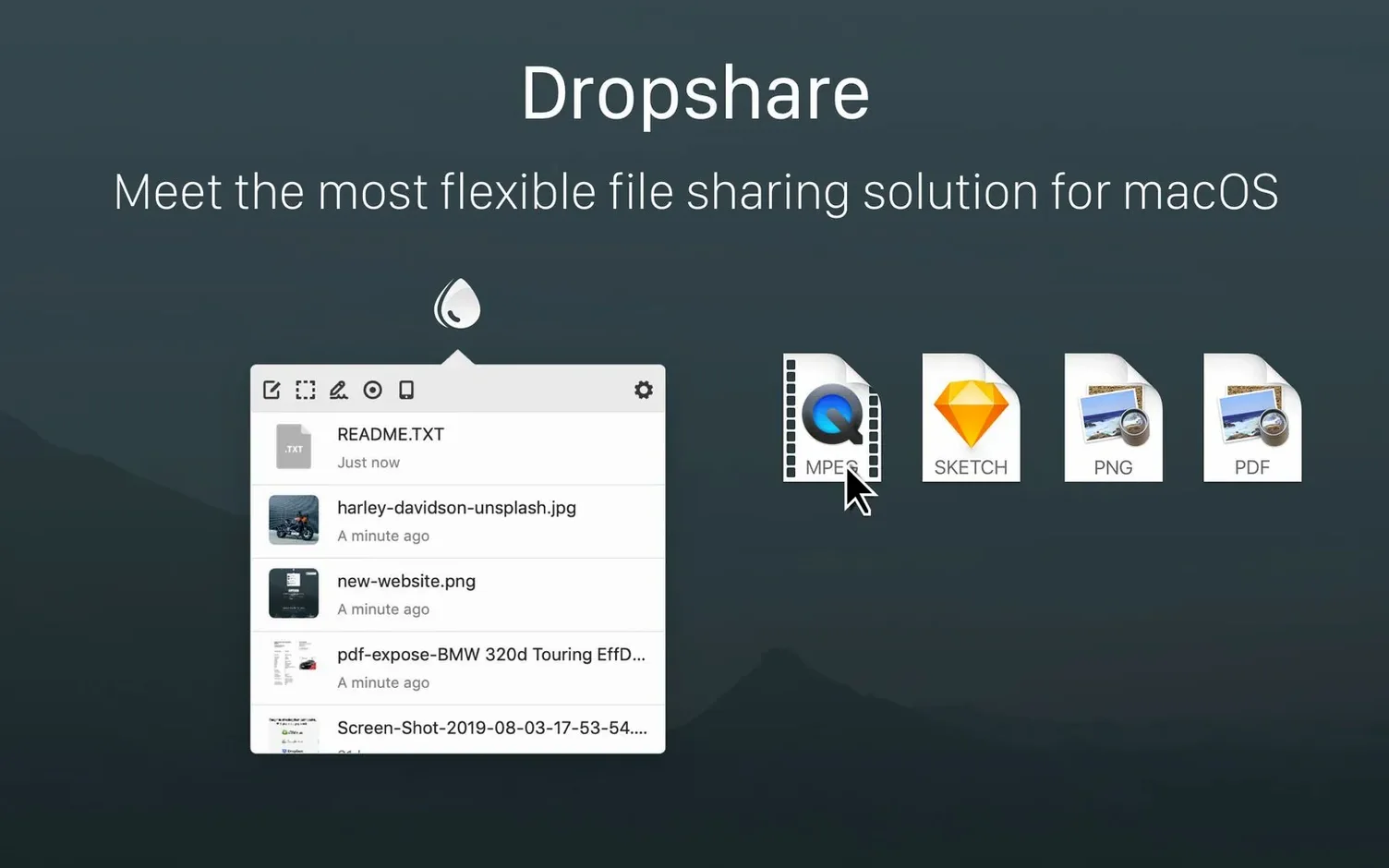
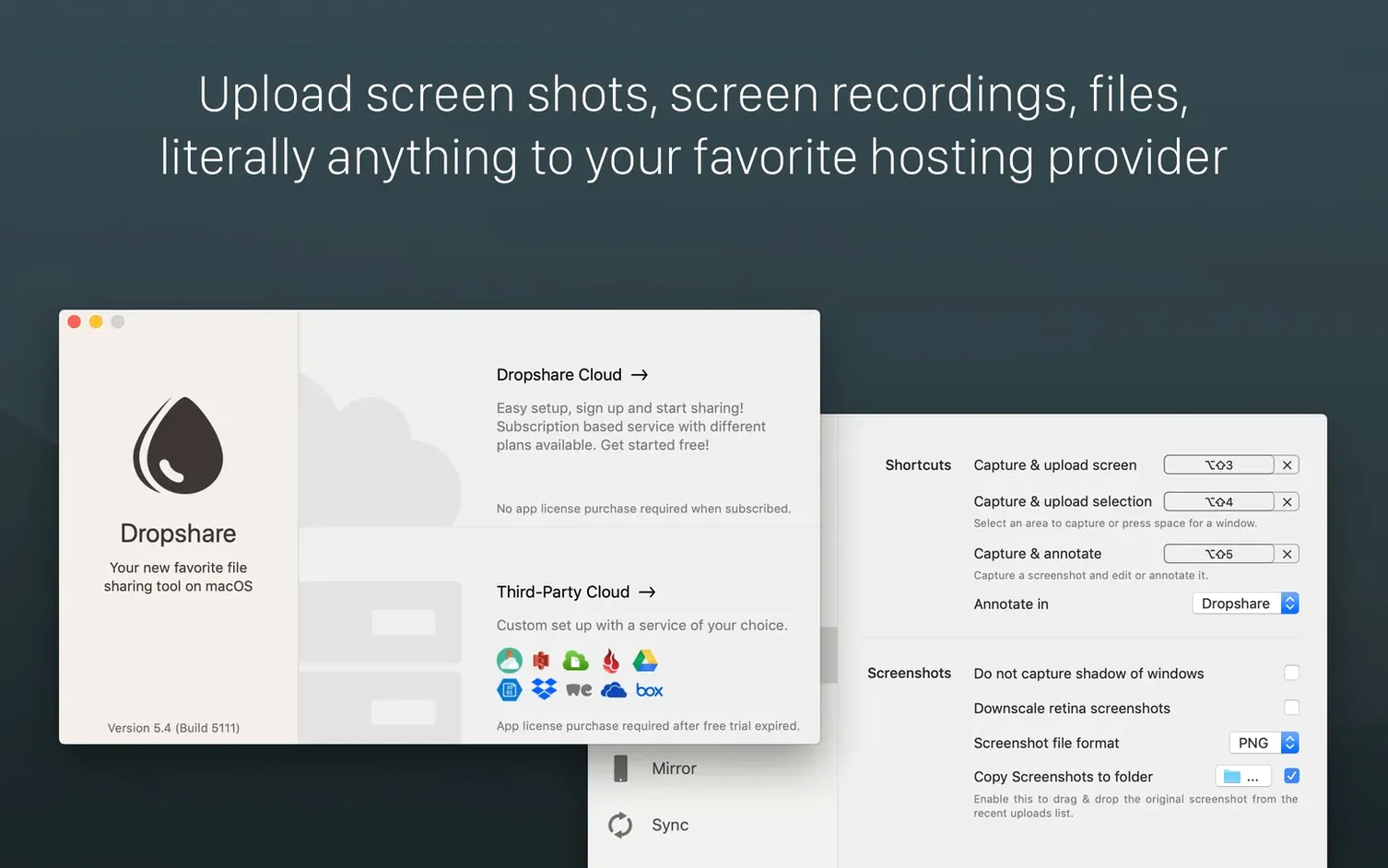
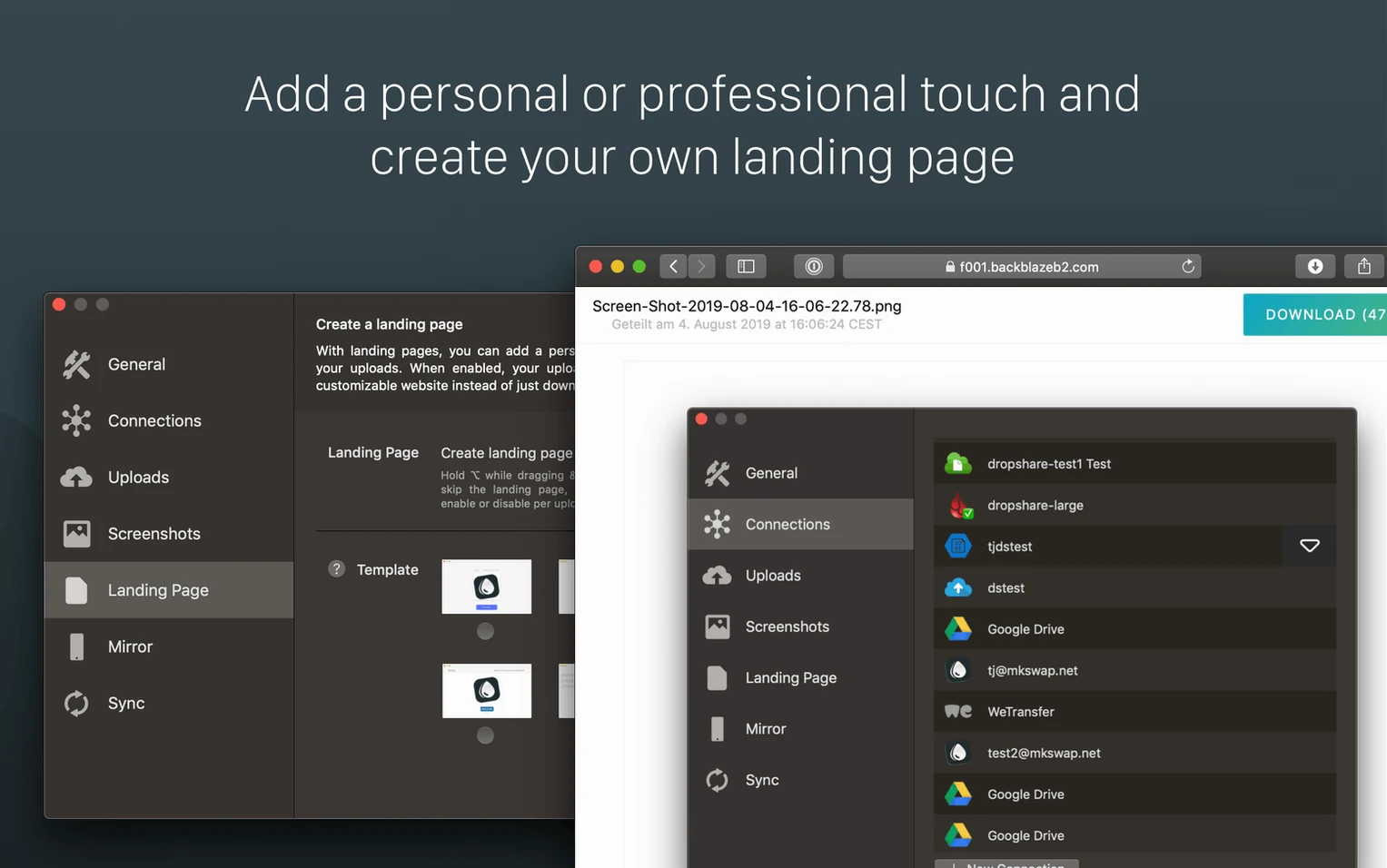
Dropshare 6 connects to over two dozen storage providers, from Amazon S3 to your own SFTP server. It skips the middleman—your files go straight to a destination you control.
Drag a file, get a link in seconds
- Dragging a file to the menu bar and getting a shareable link back in seconds.
- Capturing a screenshot or screen recording and having it upload automatically.
- Building a custom download page with your own HTML, CSS, and JavaScript templates.
- Jotting down a quick Markdown note from the clipboard and sharing it as a styled page.
Separate macOS and iOS purchases
- The macOS app and the iOS app are separate products.
- Custom templates require comfort with writing HTML, CSS, or JavaScript.
- Needs macOS 12.3 or later; runs natively on Apple Silicon and Intel Macs.
Set your default upload destination first
Out of the box, Dropshare 6 works fine. But a few tweaks make it feel like it's reading your mind. Here's where I'd start.
Default upload destination. The first time you drag a file to the menu bar icon, Dropshare asks where it should land. Pick the connection you'll use most often and check "Always use this destination." You can still override it per upload with a right-click, but skipping the prompt saves a click every time.
Clipboard detection. By default, the Markdown note feature watches for copied text. If you copy URLs or snippets all day and don't want a popup asking if you'd like to share them, toggle this off under Dropshare > Settings > General. I leave it on but dial the sensitivity down so plain text doesn't trigger it.
Expiration defaults. Head to the upload settings and set a sensible expiration time for your links. A week is a good middle ground for most work files. If you're sending something sensitive, you can tighten it per upload, but a default means you're never the person whose client meeting link expired mid-presentation.
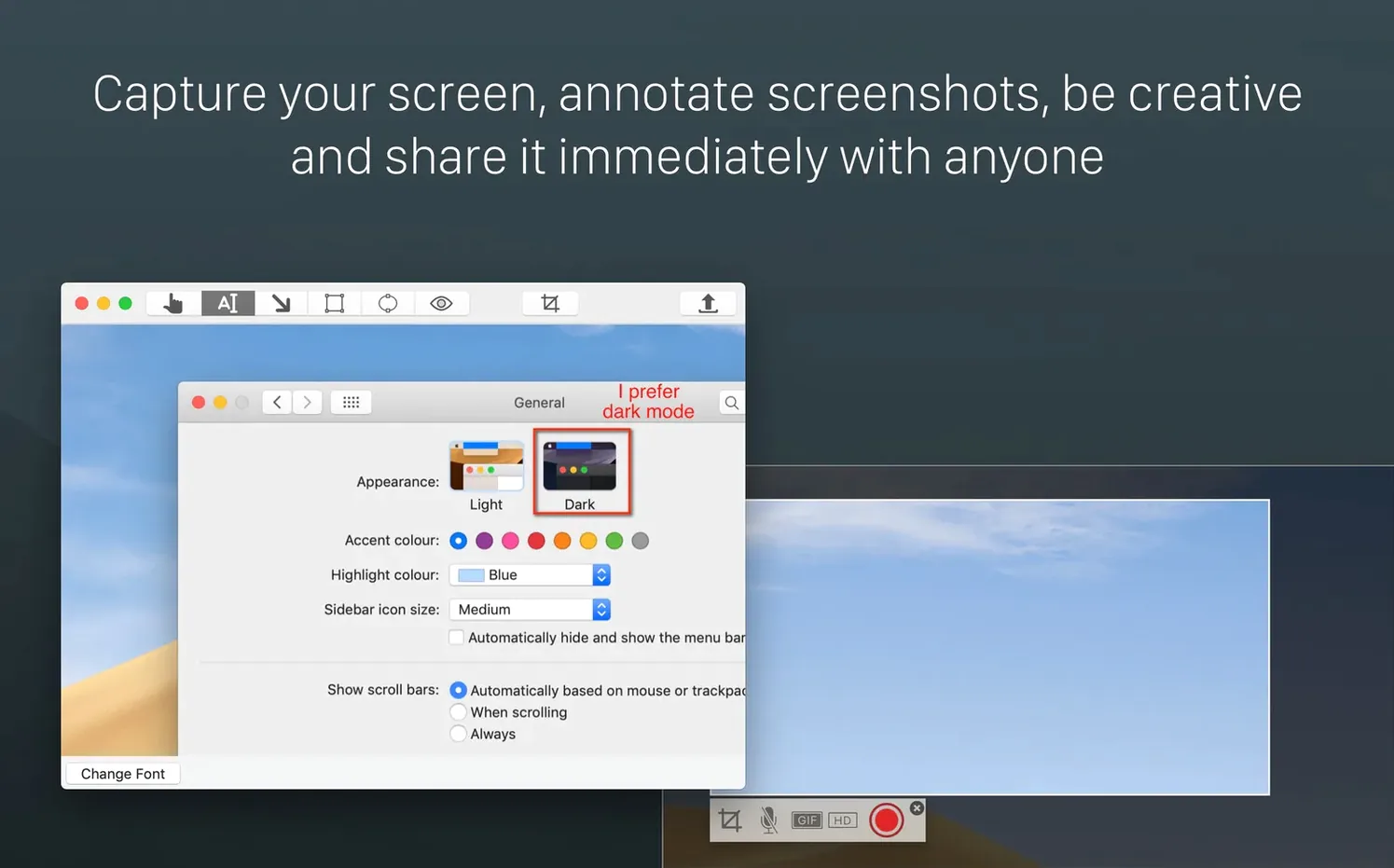
Keyboard shortcut for annotation. Version 6 added a solid annotation editor, but it's tucked away unless you assign it a shortcut. I use Shift-Command-5 to grab a screenshot and Shift-Command-6 to open the annotator right after. It's quicker than hunting through menus.
Built-in annotation editor replaces extra tools
The jump to version 6 brought an annotation editor that's actually useful—crop, draw arrows, add text, then either save locally or upload directly. Before that, you needed a separate tool. It's not Pixelmator, but for marking up screenshots before a quick share, it's all I reach for now.
Version 6.15 shipped a quiet but important fix: encrypted uploads over FTP(S) connections had been misbehaving. If you use SFTP or FTPS for sensitive transfers, that one's worth having. Upload history syncs across your Apple devices via iCloud, so anything you send from your Mac shows up on the iOS app later, assuming you own both.
Bottom line: the core loop—drag, drop, get a link—has been polished for years. Recent updates have mostly been about the edges: annotations, encryption reliability, and the occasional squashed bug. If you grabbed a Dropshare 6 Mac torrent to try it out, those fixes are already baked in.
One fix landed in this update, and it's an important one for privacy. Version 6.15 patched a problem where encrypted uploads could fail over FTP or FTPS connections.
- macOS 12.3 or newer
- Works on Apple Silicon and Intel 64-bit Macs
Questions I actually get
Can Dropshare 6 upload files without me opening the app window?
Yes. You can drag files straight to the menu bar icon, and screenshots or recordings can be set to upload automatically the moment you capture them.
Does the app work with my own web server?
It does. Dropshare supports FTP, SFTP, and S3-compatible services alongside the usual cloud providers, so you can point it at your own hosting space.
What was fixed in the latest version?
Version 6.15 fixed a bug that could stop encrypted uploads from completing successfully over FTP and FTPS connections.
Notes from the tables 0
Sign in or pull up a chair to leave a note.
No notes on this one yet. They go up after I read them.