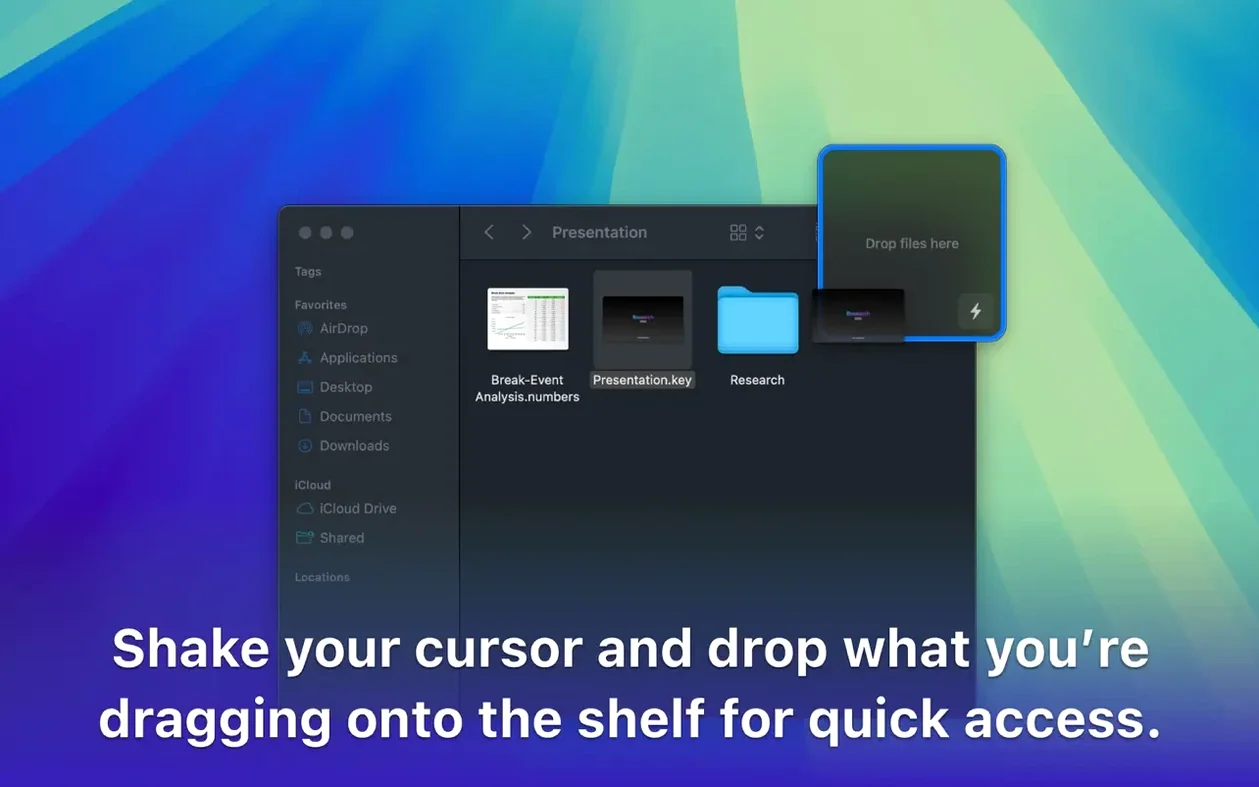
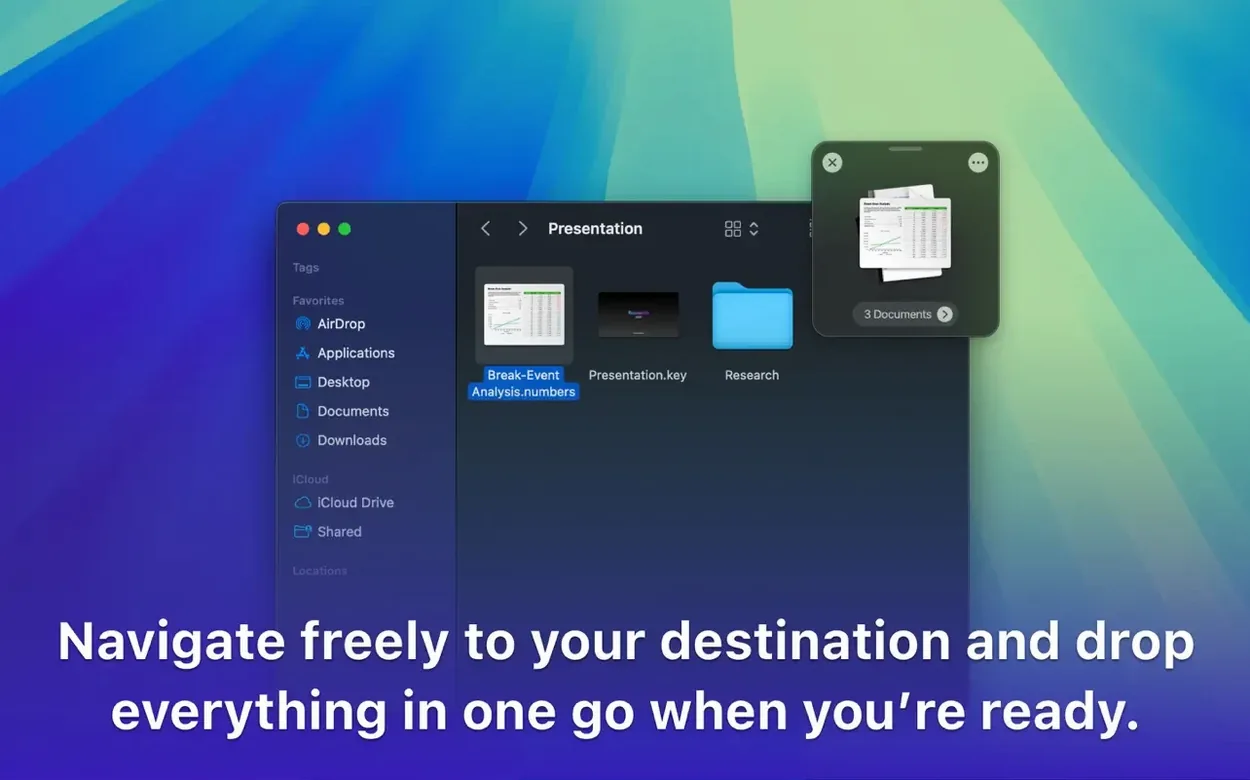
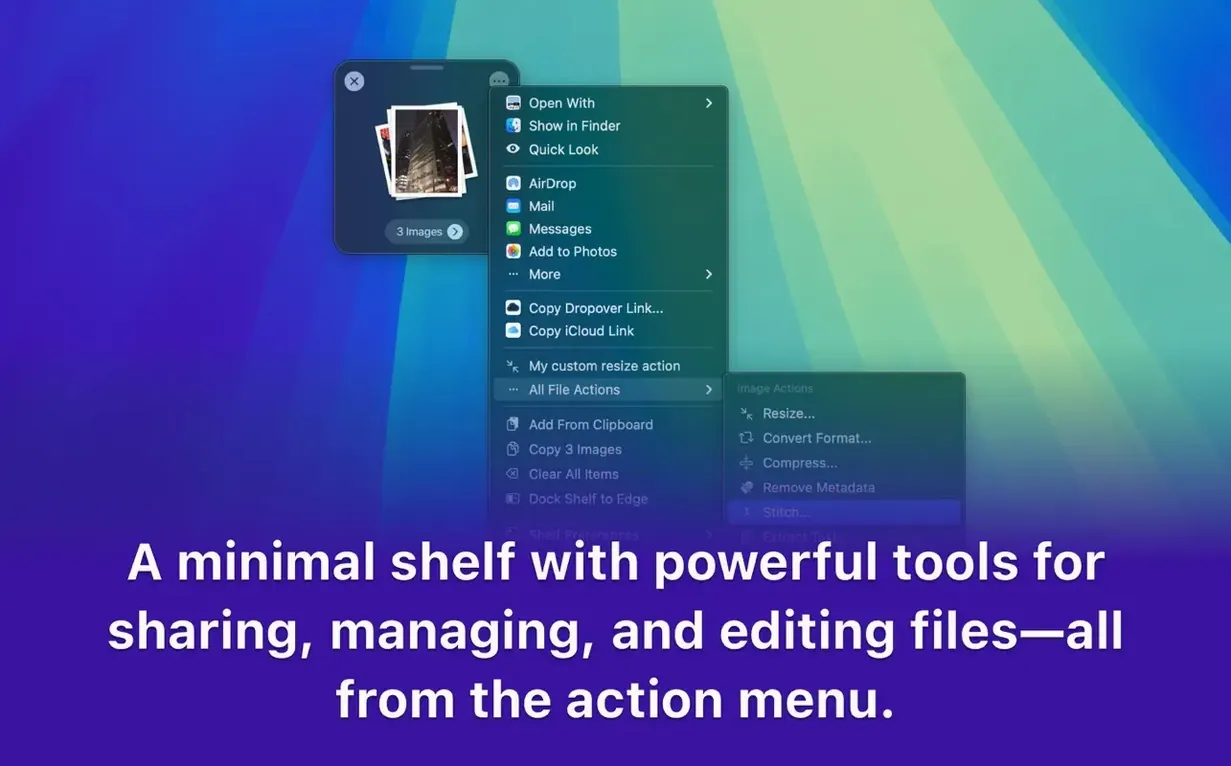
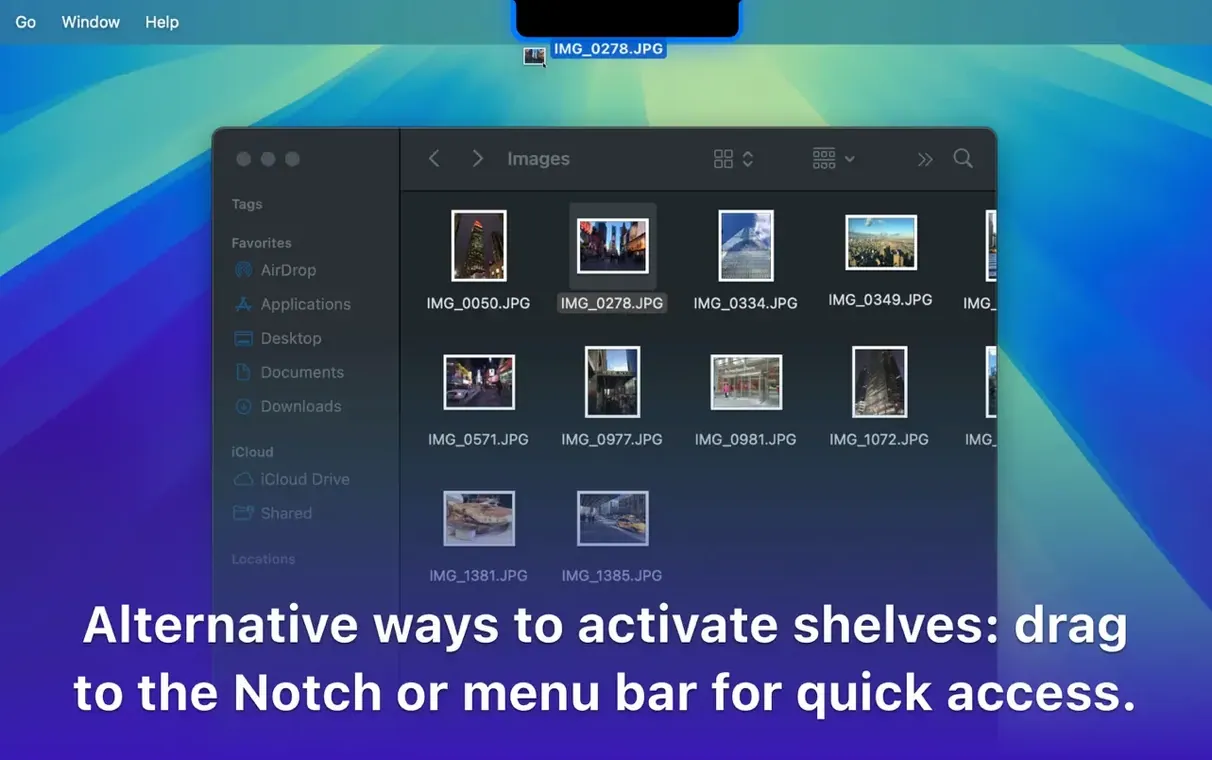
Dropover runs on any Mac with macOS 12 or later, happily on both Intel and Apple Silicon machines. It creates a floating shelf that appears when you give your files a wiggle, holding everything you’ve gathered until you know where it belongs. But casual drag-and-drop is just the surface. The real craft is in the details an experienced user will appreciate.
- Right-click any file and send it straight to a shelf from the context menu, no dragging required.
- Share sheets from any app can toss images, links, or text onto the shelf for later use.
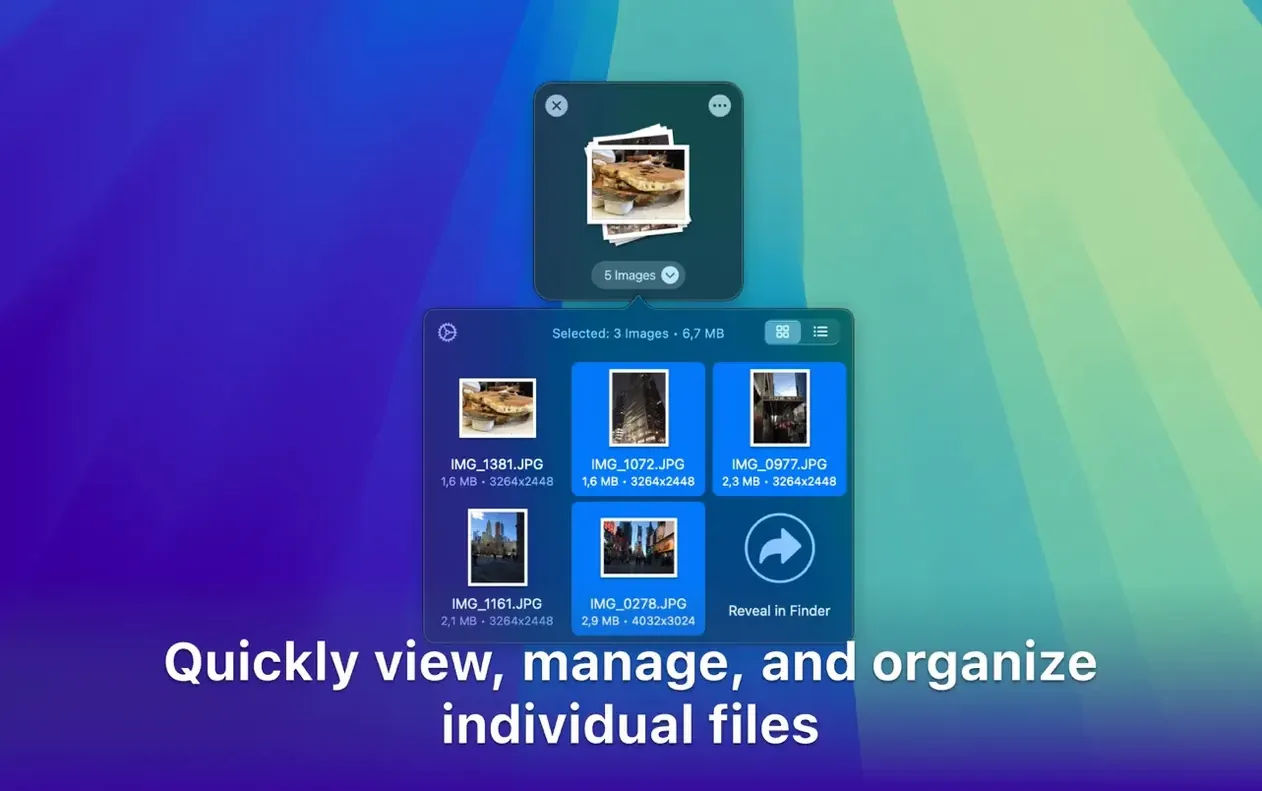
- A shelf can combine disparate items—a folder, a URL, a clipped image—into a single tidy bundle before moving or uploading.
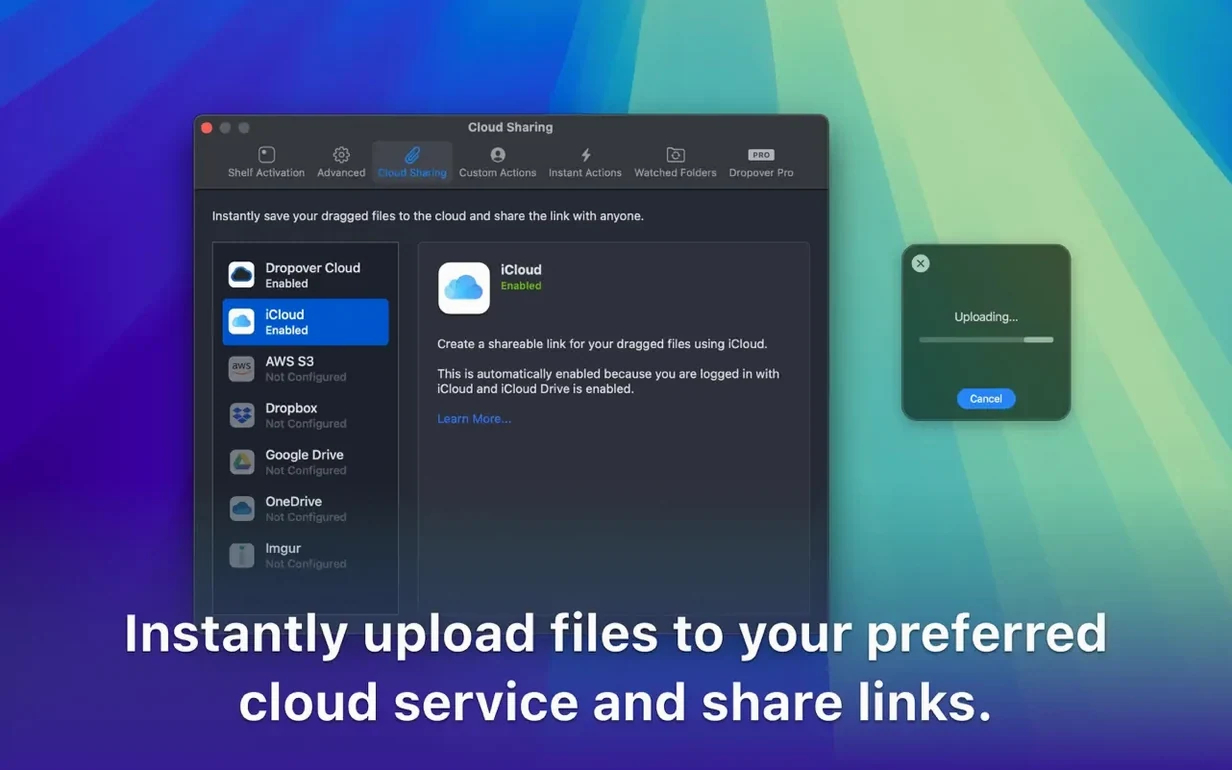
- With a quick action, you can send the shelf’s contents directly to a Google Drive or Dropbox folder and get a shareable link back.
- The shelf remembers your recent upload destinations and suggests them, cutting out repetitive folder navigation.
These aren’t flashy tricks; they’re the kind of small workflows that disappear into muscle memory. When you’re assembling assets for a project or moving research between a dozen Finder windows, the shelf becomes a quiet second pair of hands.
Beginner slip-ups worth sidestepping
Most people figure out the wiggle gesture in thirty seconds. After that, a few habits tend to trip up new users for weeks before they notice.
- Dragging before the shelf appears. You grab a file and start moving before the shelf has floated up. Give it a tiny shake and pause a heartbeat — the shelf needs that moment to register.
- Forgetting the shelf stacks. Beginners treat each drop as a replacement. Dropover actually stacks items unless you clear the shelf manually. Three unrelated drags can leave you with a messy pile you didn’t mean to collect.
- Ignoring the context menu entirely. The right-click “Send to Dropover” command is faster than dragging across Spaces or full-screen apps. New users almost always default to dragging, even when it’s the longer route.
- Leaving shelves cluttered for days. The shelf survives reboots if you don’t clear it. That’s useful once you know it, but first-timers build up forgotten stacks and wonder why their Mac feels cluttered.
None of these are dealbreakers. They’re just the difference between using Dropover and thinking with it.
A prep station between Finder and everywhere else
Dropover doesn’t try to replace Finder or your file manager. It sits between them, like a prep station between the fridge and the stove.
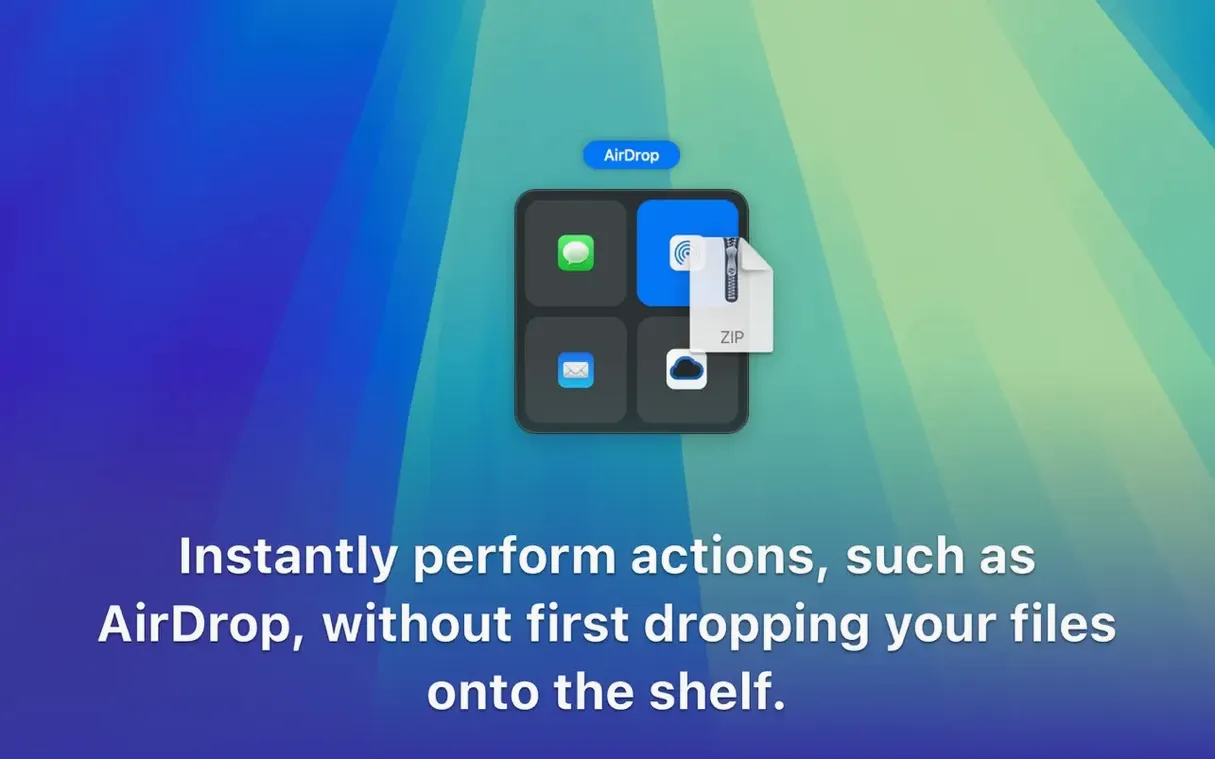
If you lean on Shortcuts, you’ll find the app slots in cleanly. A shortcut can gather items on a shelf, process them, then hand them off to another app — all without touching a folder. Designers dragging assets from Photoshop into Finder while keeping a browser window open on the side will notice the shelf bridges Spaces that normally break a drag. The share sheet integration means Safari highlights, Mail attachments, and Notes clippings can land on the same shelf and wait for a single upload action.
Cloud storage gets friendlier too. Once you’ve linked Google Drive or Dropbox, the shelf becomes a temporary launchpad: collect a batch, right-click, pick a destination, and you’re done. No Finder sidebars, no extra windows.
For anyone pulling together a dropover free workflow from scattered pieces — a quick dropover download plus some muscle memory — the shelf starts feeling like part of macOS itself after a week. It doesn’t announce itself. It just makes dragging between apps feel a little less like juggling.
- macOS 12 or later
- Works on Intel and Apple Silicon Macs
- Available in English, German, Simplified Chinese, and Dutch
Questions I actually get
Does Dropover work on Windows?
No, Dropover is a Mac-only utility built specifically for macOS.
Can I upload a shelf's contents to cloud services?
Yes, it can integrate with cloud services like Google Drive and Dropbox to send files directly and even generate shareable links.
Notes from the tables 0
Sign in or pull up a chair to leave a note.
No notes on this one yet. They go up after I read them.