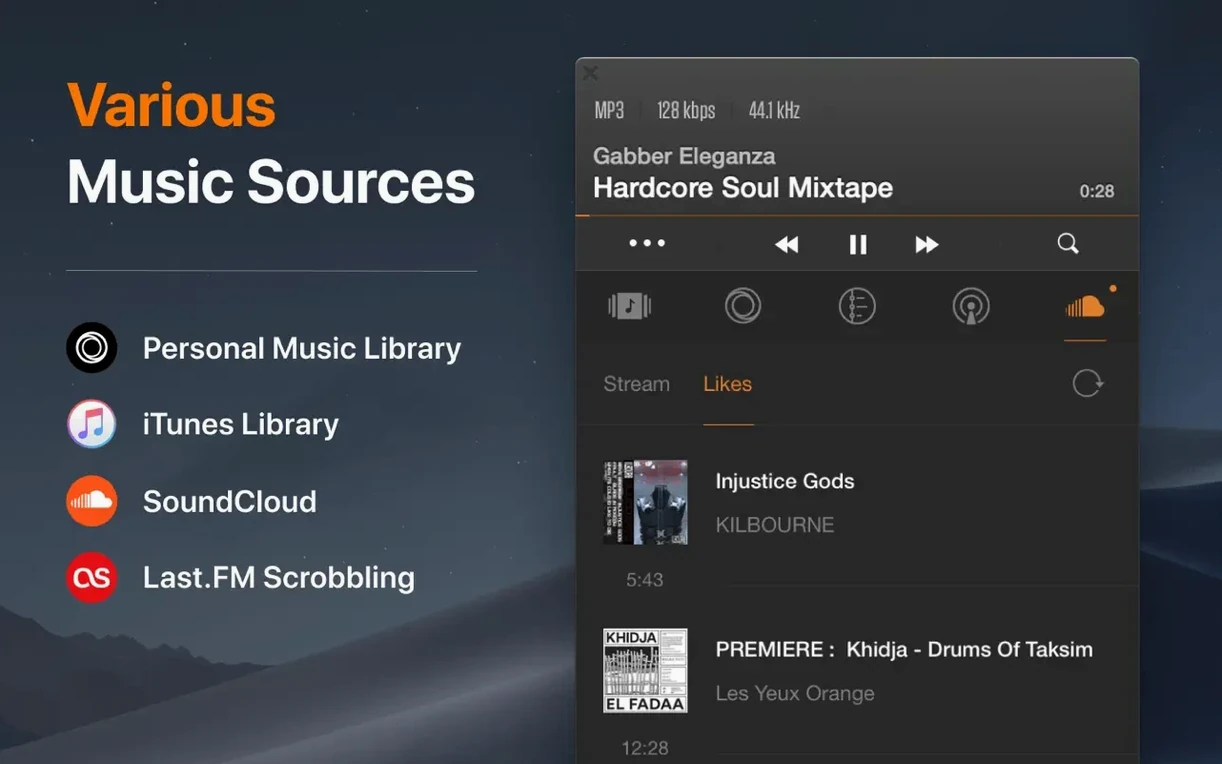
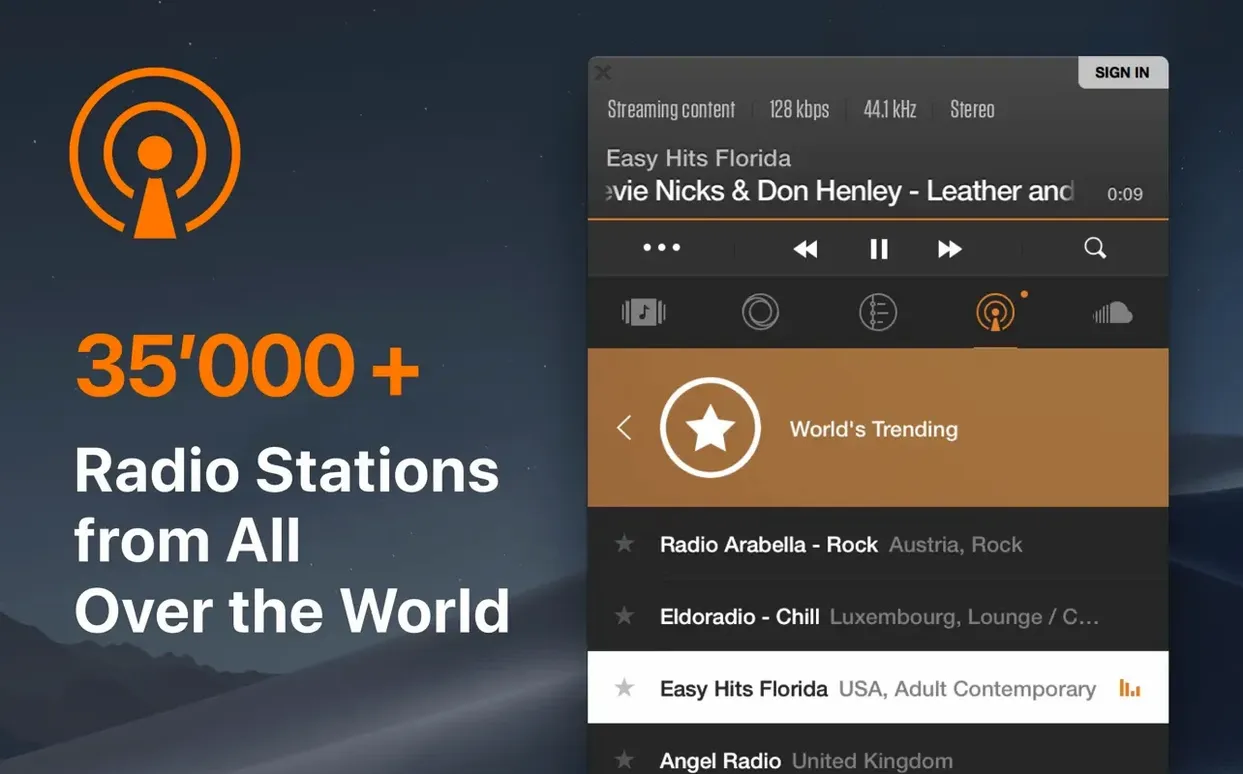
There's no big feature list to run through this time. The latest build is about stability on newer Macs, keeping the engine humming along nicely. So here's how VOX fits into a typical afternoon with a local library.
Playing your own files, step by step
- Point it at your music. Add a folder of FLACs or an old MP3 collection. It grabs M3U, PLS, and XSPF playlists too.
- Drop in a CUE sheet. If you've got a single album file with a CUE, VOX splits it into tracks right away. No extra tools needed.
- Let the audio engine take over. Coppertino built their own playback engine, not a skin on top of iTunes. Multichannel 5.1 works, and formats like APE, WAV, ALAC, WMA, and OGG all play without fuss.
- Switch between speakers. Apple Silicon support is native, so it runs without Rosetta. Send sound to a stereo pair or a full surround setup.
- Keep it simple. The interface stays out of the way in Russian, English, Traditional Chinese, or Japanese.
FLACs missing from scan
A few things catch new users off guard. They're all fixable once you know where to look.
- FLAC files that won't scan. If VOX ignores a folder of FLACs, check the permissions on that drive. Network shares and external disks sometimes need a quick re-add through System Preferences → Security & Privacy → Files and Folders. Rare, but it happens.
- CUE sheets that split wrong. The CUE file and the audio file need to share the same name before the extension, and sit in the same folder. If you renamed "album.wav" to "my-rip.wav" but left the CUE pointing at the old filename, you'll get silence or a single long track.
- DSD playback stuttering. Hi-res DSD files at high rates can choke if your Mac is pushing audio to a Bluetooth speaker at the same time. Plug in wired headphones or switch to the built-in output and the stutter usually vanishes.
Rookie mistakes worth skipping
Most of these come from treating VOX like it's iTunes with a different coat of paint. It's not, and that's the point.
- Dragging in your whole home folder. VOX scans what you give it, happily. Point it at your entire user folder and you'll spend ten minutes watching it index old GarageBand loops and voicemail snippets. Add just your music directory.
- Expecting it to organize anything. It won't move files, fix tags, or rename folders. If your library is a mess, it stays a mess. Clean that up in Finder first, then let VOX play it.
- Forgetting the dedicated engine. Some folks download VOX then wonder why the sound is different from Music.app. It's not using the same pipeline. Check your Audio MIDI Setup if you're switching sample rates manually; VOX's engine handles that on its own for most setups.
It's not a library manager. It's a player for people who already know where their files live and just want clean, accurate playback.
- macOS 10.15 or later
- Works on Intel and Apple Silicon Macs
Questions I actually get
Does VOX work on Apple Silicon Macs?
Yes, it has native Apple Silicon support, so it runs directly on M-series chips without Rosetta translation.
What lossless formats can VOX play?
It handles popular lossless formats including FLAC, APE, WAV, and ALAC, along with CUE sheets for single-file album images.
Notes from the tables 0
Sign in or pull up a chair to leave a note.
No notes on this one yet. They go up after I read them.