

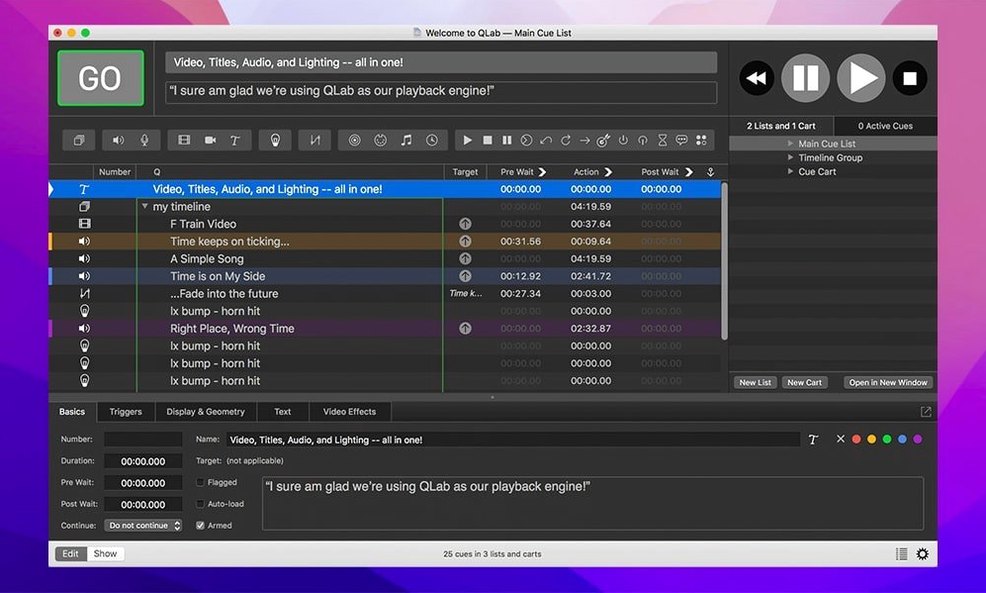
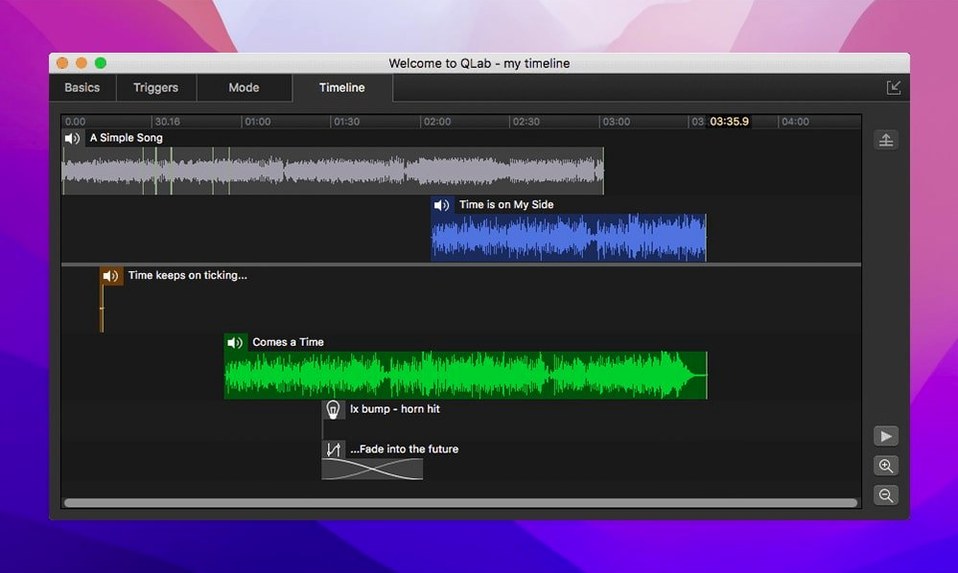
QLab is the backstage brain that theater technicians, sound designers, and live performers trust to fire off every cue in a show. It pulls audio, video, MIDI, and lighting controls into a single timeline on your Mac, so the sound of rain, a spotlight shift, and a projection change all happen with one tap of the spacebar.
How QLab fits with the tools you already use
You likely have a folder full of sound files and a video editor you know well. QLab doesn’t replace those; it becomes the conductor. You build sequences by dragging in your finished clips, then layer in fades, animated titles, and playback speed changes with pitch control. It talks to lighting desks and MIDI gear over the network, so a single cue can send a note to the sound board and black out the lights simultaneously. If you’ve been stitching shows together with separate apps for sound, video, and lights, this brings it all under one roof.
Building a show that responds to the moment
Live performance never follows a perfect script. QLab’s workspace lets you jump to a safety cue, loop a pre-show announcement, or adjust a video fade on the fly without stopping playback. The adjustable playback speed keeps voices sounding natural, and the built-in audio and video effects mean fewer round-trips to external editors. Bottom line: it’s a show control hub that connects your Mac to the rest of the booth.
A night in a community theater booth
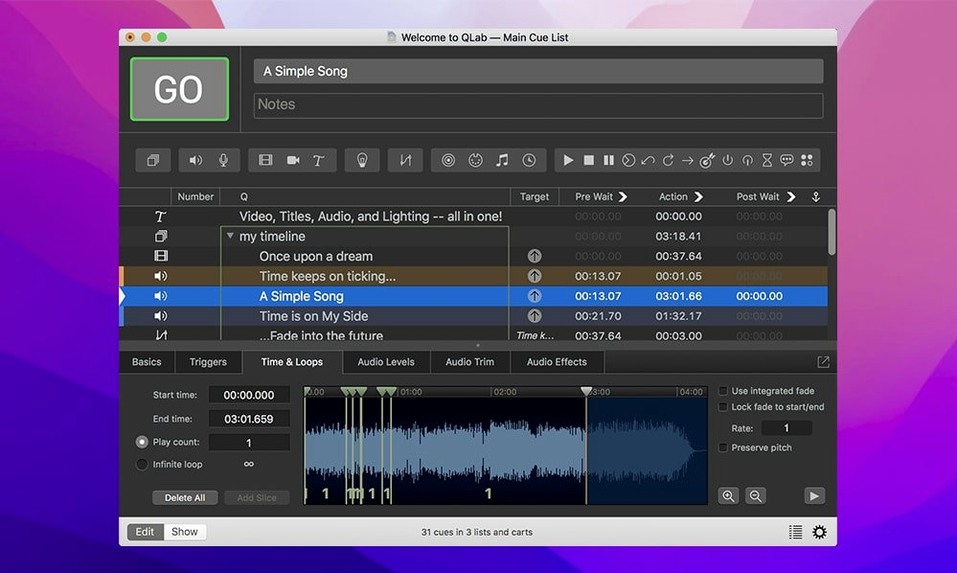
Imagine a volunteer sound op on opening night of a musical. Twenty minutes before curtain, they realize the pre-show voiceover needs to loop three times instead of once. In QLab, they grab the cue, set a loop count, and hit go — no rendering, no exporting. During act two, a wireless mic drops out. The op jumps to a backup scene where a stage mic covers the dialogue, then triggers a video fade that buys the crew ten seconds to swap the pack. The whole thing happens from one laptop, with the house lights, projector, and sixteen channels of audio all responding to the same cue list. That’s the real-world rhythm QLab was built for: fixing things faster than the audience can notice.
What 5.6.3 tidied up in the lighting workflow
If you work with a lot of instrument definitions, the last update made mistakes harder to miss. The Light Library and Light Definition editor now use color coding on rows where an instrument definition is misconfigured, so a bad address or missing mode jumps out during patching instead of at the top of tech week. The Light Patch editor got the same treatment: a “Broken” label appears right in the status column for any definition that won’t talk to a fixture. That’s the kind of quiet fix that saves you from chasing a ghost in a dimmer rack at midnight.
Workspaces created in 5.6.2 and earlier also got a migration path to the built-in network device definition for Right On Cue Services Stage|Tracks, which matters if your venue runs tracked scenery or stage lifts alongside audio and video cues. And a rare crash when stopping video playback — the kind that only hits during the finale — got squashed.
How QLab talks to the rest of your toolbox
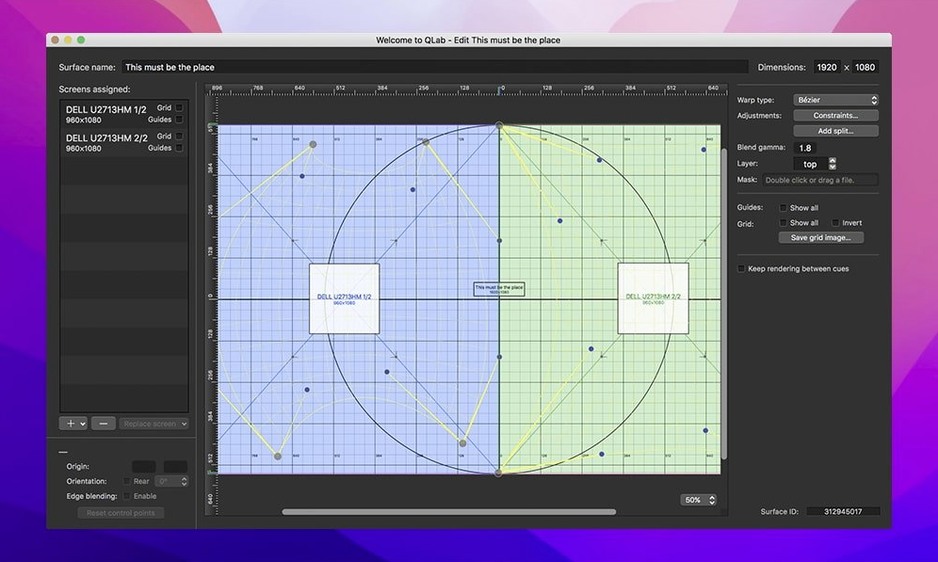
QLab sits between your media files and the gear in the booth. It reads your audio straight from Finder folders, lets you trim start and end points with the integrated editor, then hands the signal to up to 48 outputs. On the video side, Syphon integration means you can pipe a live feed into a mapping app like MadMapper without leaving the cue-to-cue workflow. Blackmagic input support turns a camera pointed at the stage into a live texture on a projection surface, with keystone correction and corner pinning keeping the image square on an angled screen.
For show control, the app speaks MIDI and OSC fluently. A lighting console can fire a QLab cue over the network, or QLab can nudge a sound board’s fader. The animation tools and overlay titles let you add lower-thirds or scene numbers without opening a video editor. When the whole show runs from one machine, the real power is in how little you need to touch anything else during a performance.
Version 5.6.3 is a tidy maintenance update. The light library gets a bit smarter, and older workspaces move to a newer network device definition without a fuss.
- Rows in the Light Library or Light Definition editor now change color when an instrument definition is misconfigured, so you can spot the problem before the cue fires.
- Workspaces created in 5.6.2 and earlier now migrate automatically to use the built-in network device definition for Right On Cue Services Stage|Tracks.
- macOS 11 or newer
- Runs natively on both Intel and Apple Silicon Macs
Notes from the tables 0
Sign in or pull up a chair to leave a note.
No notes on this one yet. They go up after I read them.
More from the Audio page
The whole page Audio 24 MB
Piezo
1.9.10
Audio 24 MB
Piezo
1.9.10
 Audio 15 MB
Serato DJ Pro
4.0.5
Audio 15 MB
Serato DJ Pro
4.0.5
 Audio 977 MB
Serato Studio
2.5.0
Audio 977 MB
Serato Studio
2.5.0
 Audio 540 MB
Overloud TH-U Premium
2.1.0
Audio 540 MB
Overloud TH-U Premium
2.1.0
 Audio 1.4 GB
SoundSource
6.1.5
Audio 1.4 GB
SoundSource
6.1.5
 Audio Updated 46 MB
Steinberg Nuendo
15.0.30
Audio Updated 46 MB
Steinberg Nuendo
15.0.30
 Audio 1.6 GB
Studio One
7.0.0
Audio 1.6 GB
Studio One
7.0.0
 Audio 334 MB