
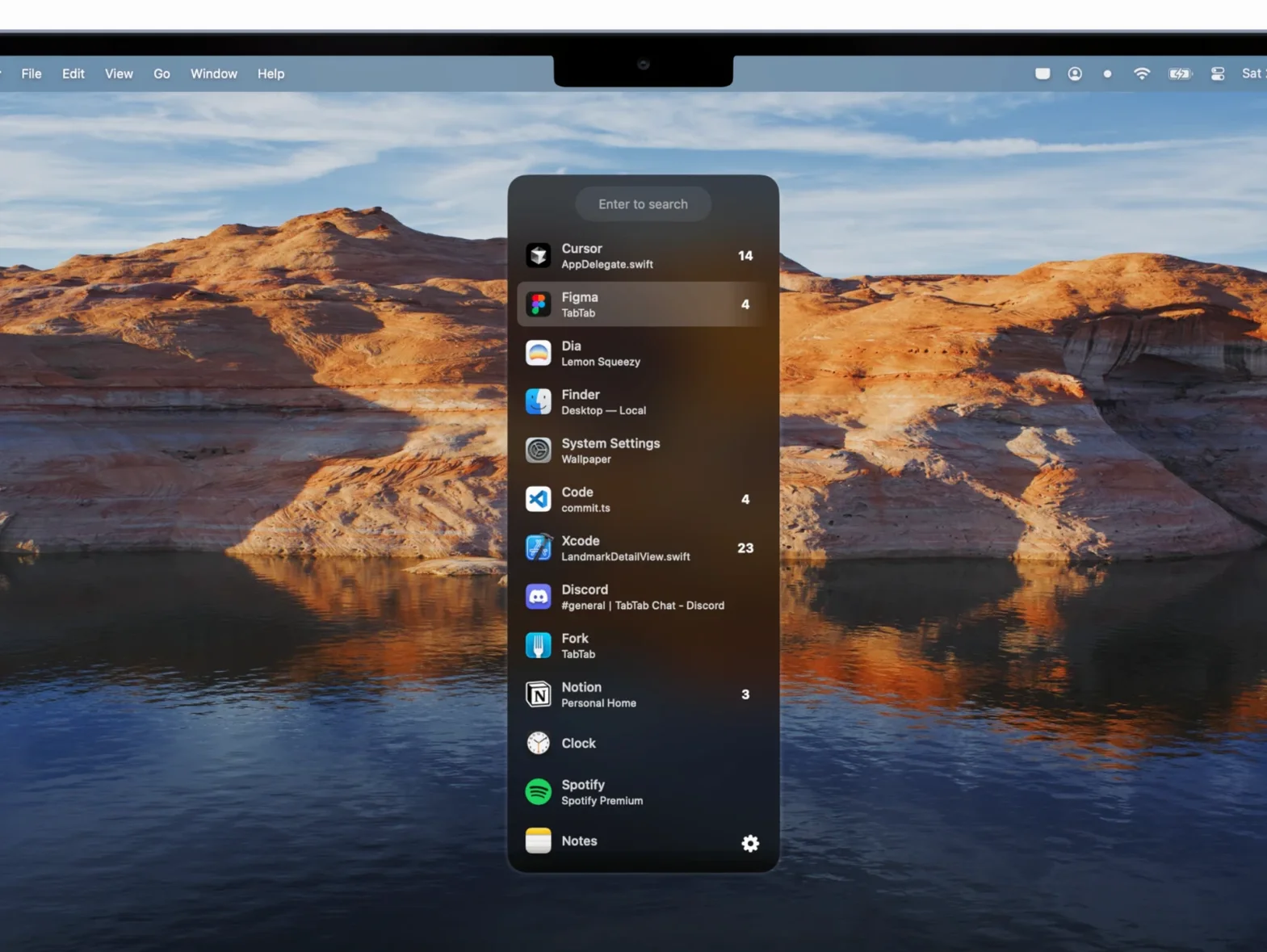
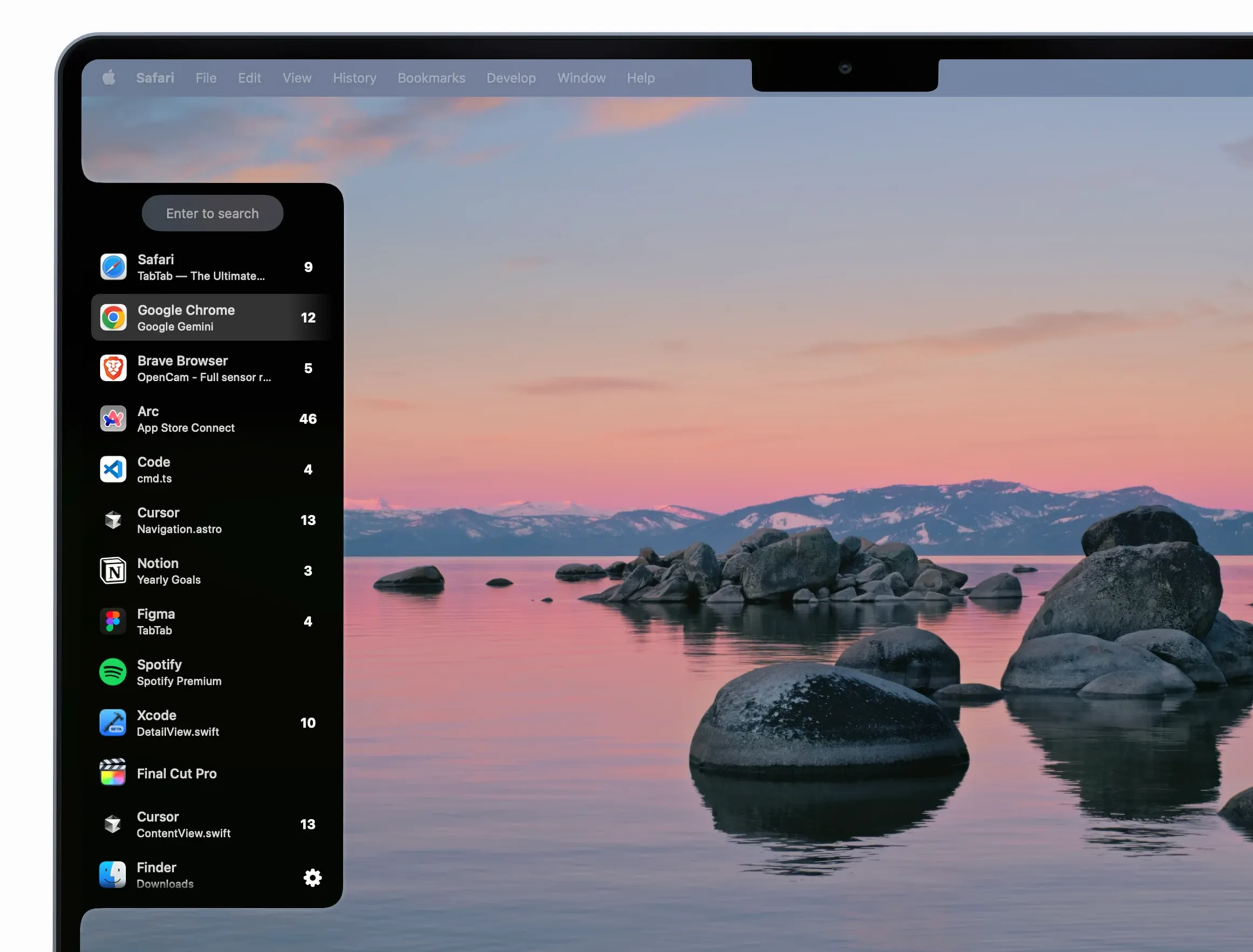
If you live in the Command-Tab shortcut, TabTab is what happens when you give that idea a bigger engine.
Window switching — moves between any open window, including fullscreen and split view spaces.
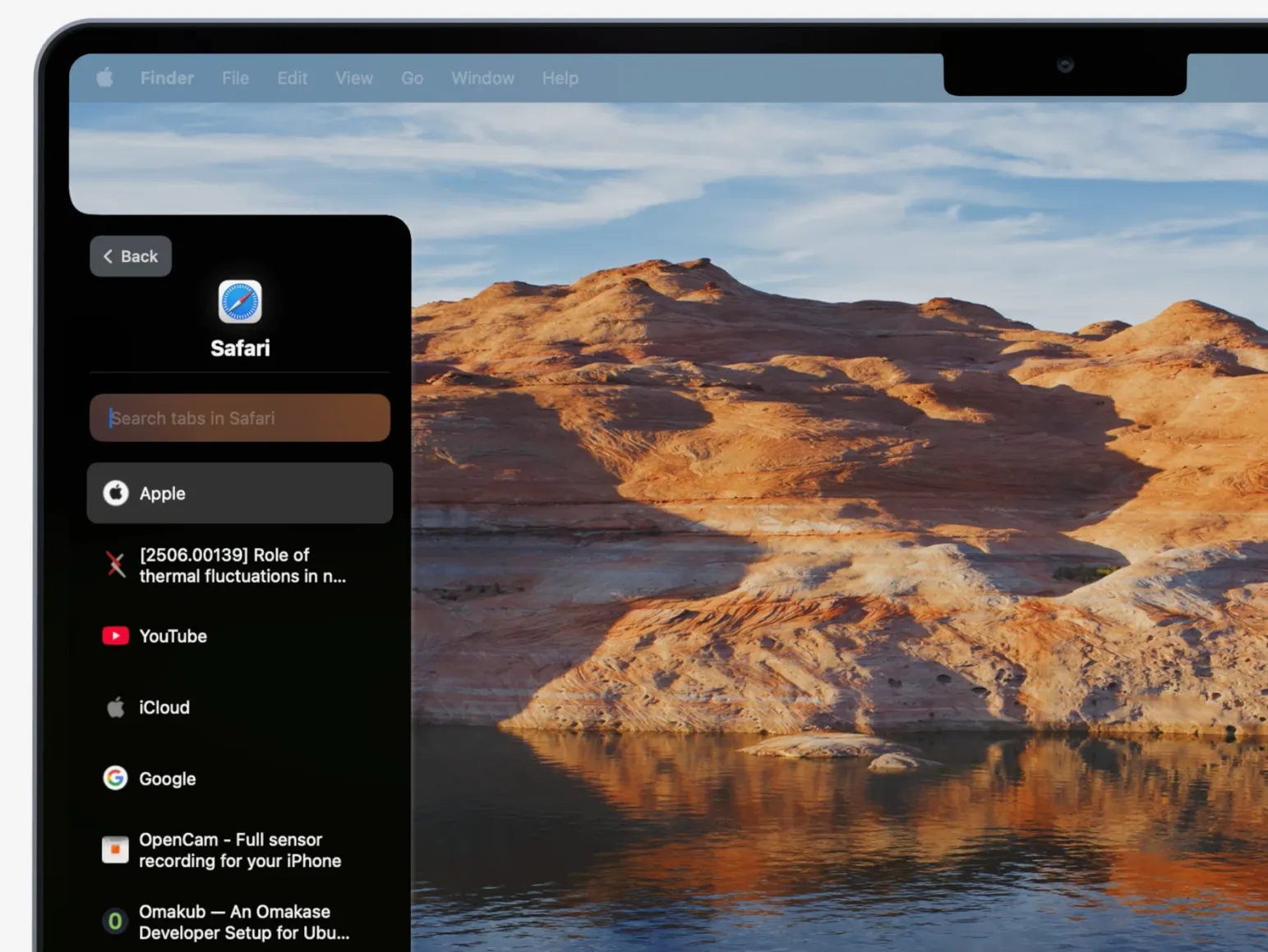
Tab switching — jumps directly to a specific tab inside Google Chrome, Safari, Visual Studio Code, or Finder.
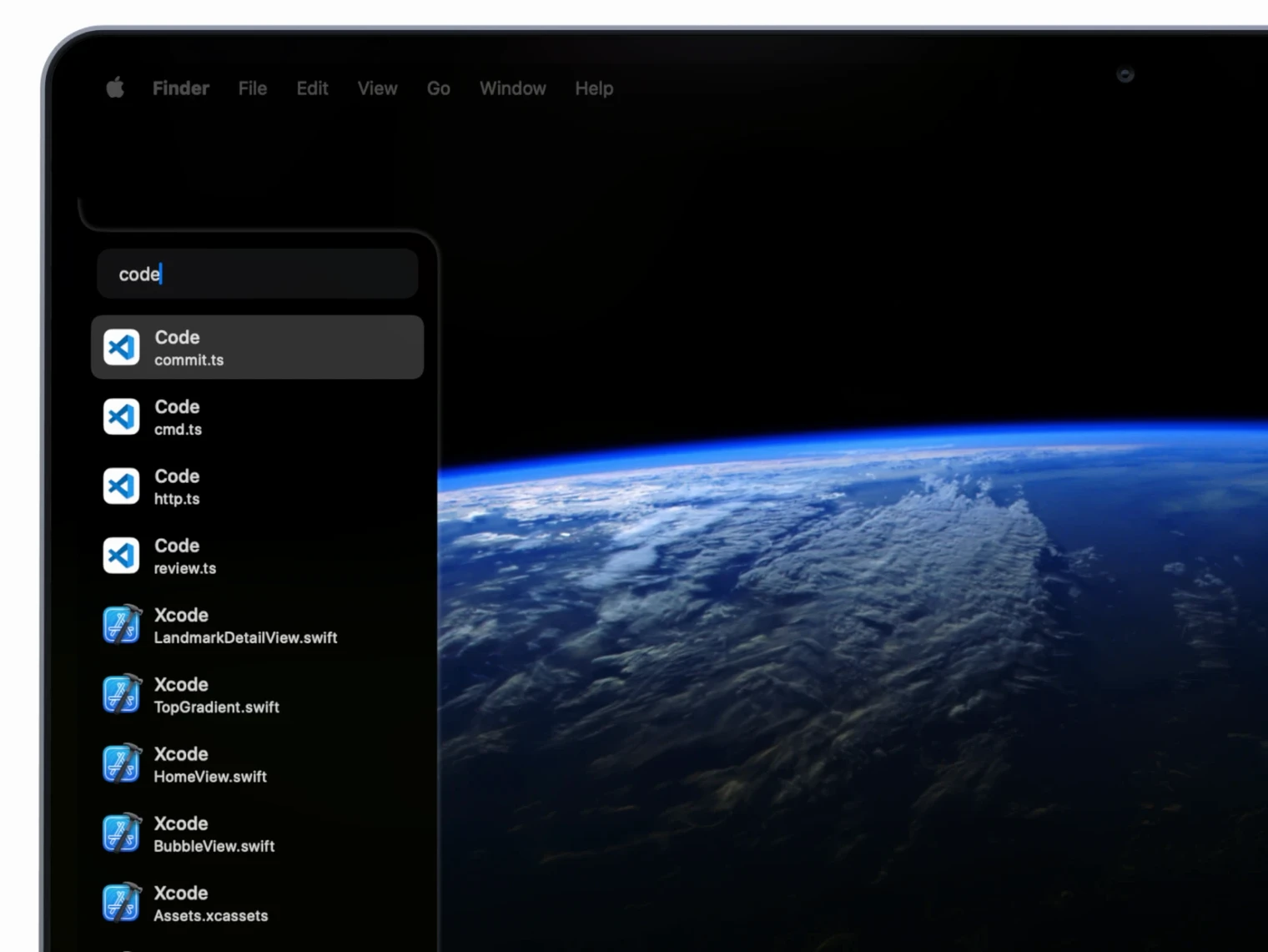
Search — type a few letters and it filters across application names, window titles, and tab titles all at once. No clicking around guessing where you left something.
Hotkeys — you set the shortcuts. One to bring up the switcher, another for whatever feels right.
It runs natively on both Apple Silicon and older Intel Macs, and it asks for macOS 14 or later. Think of it as the missing middle ground between the built-in app switcher and a full launcher—focused entirely on what's already open.
A couple of moves for day one
When you first launch it, TabTab sits quietly in the menu bar. You won't see windows flying around. Take ten minutes to let it settle into your muscle memory; that's where it earns its keep.
Invoke it on purpose a few times. Press your hotkey slowly, type two letters of a window you know is open, and watch the list shrink. Do that five or six times spread across an afternoon—once with a browser tab, once with a Finder window, once with a VS Code project. The rhythm clicks faster than you'd think.
Don't over-organize yet. The search is good enough that you can be messy for a while. Leave twenty tabs open in Chrome. The filter doesn't care. After a day or two you'll naturally start closing what you don't need, because the tool makes the clutter visible without making it painful.
Hotkey, font size, and menu bar—three early swaps
Out of the box it's sensible, but three things are worth changing before you build any habits.
- The hotkey. Default might clash with something—Spotlight, a clipboard manager, your screenshot tool. Open preferences and pick a chord your fingers already know. Something like
Option-SpaceorControl-Shift-Tabif you want the muscle memory to overlap with the built-in switcher. - Appearance. The compact panel is nice, but bump the text size one notch if you're on a 27-inch display. It's a small thing that saves squinting when you're scanning eight filtered results at speed.
- Excluded apps. You probably don't need your calculator or your password manager cluttering the switcher. Add a short exclusion list under the app's preferences now, not later, so the results stay useful from the start.
After that, you can download TabTab for Mac on whatever machine you're setting up and walk through the same ten-minute drill. It's the kind of tool that feels invisible after two days and indispensable after two weeks.
- macOS 14.0 or later
- Apple Silicon or Intel (64-bit)
Notes from the tables 0
Sign in or pull up a chair to leave a note.
No notes on this one yet. They go up after I read them.