
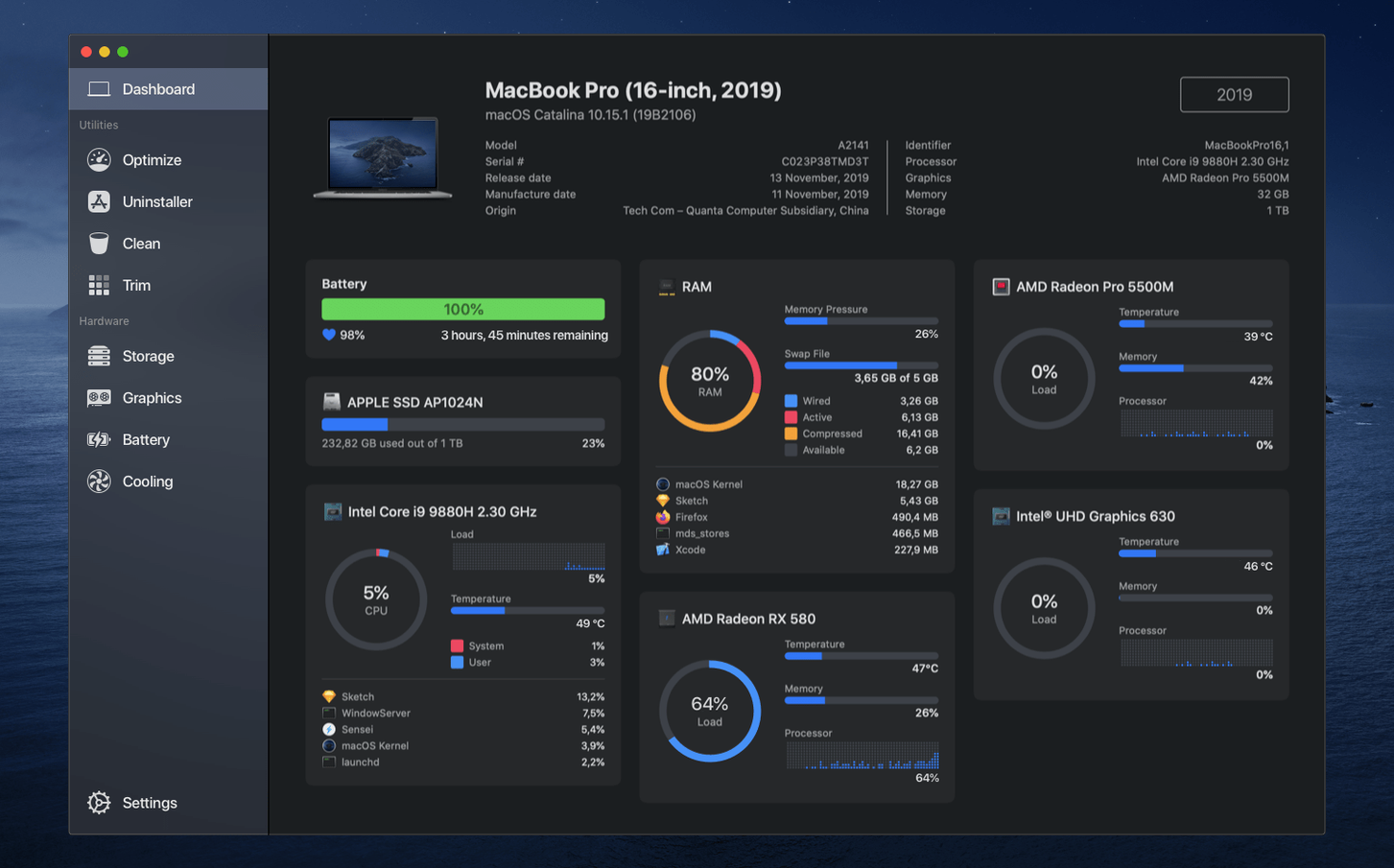
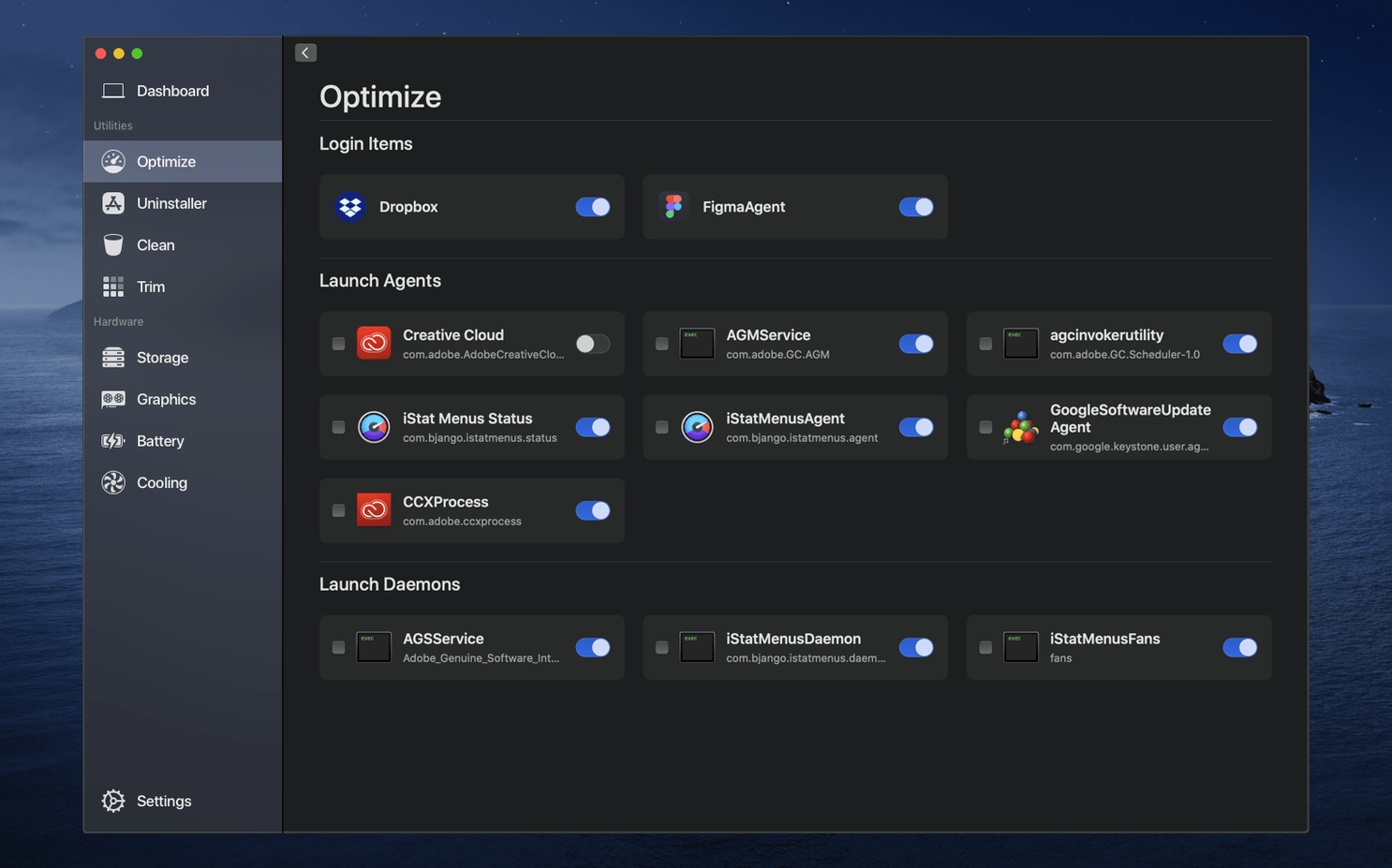
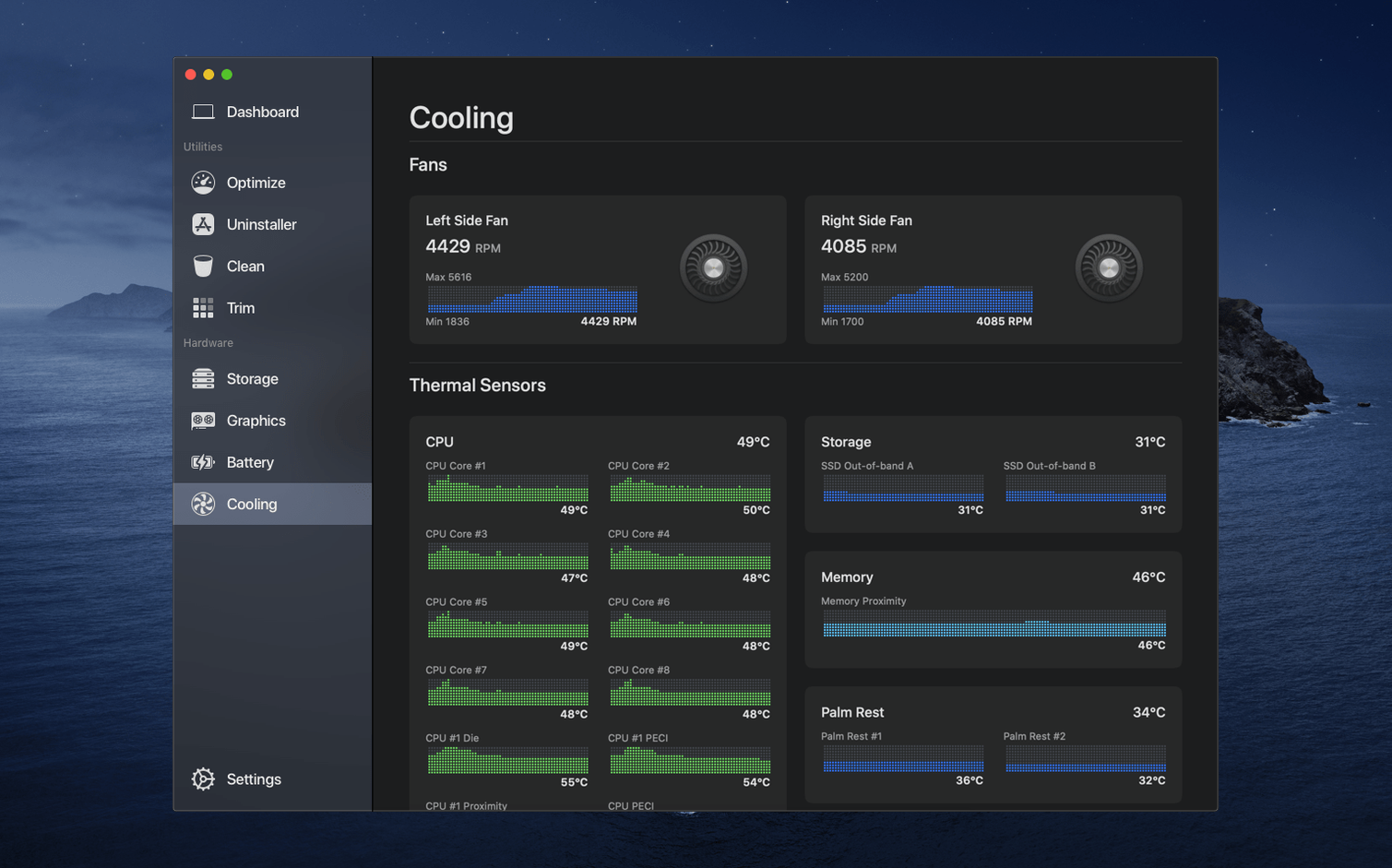
You’re not troubleshooting anything dramatic. You just want to glance at your Mac’s vitals before an afternoon of work — fan speeds, SSD health, maybe which app is hogging memory — and then get back to the day.
| What | Details |
|---|---|
| Developer | Cindori AB |
| Current version | 2.1.2 |
| Languages | Dutch, English, French, Japanese, Russian, Simplified Chinese, Spanish, Swedish |
The dashboard pulls together real-time readouts for your CPU, GPU, RAM, and temperatures, so you don’t need three separate tools just to see what’s heating up. When you want to act on what you find, the same app handles drive cleanup, app uninstalling, and even lets you enable TRIM on third-party SSDs — a small setting that can quietly extend drive life over time. It’s a monitoring tool that also knows how to take out the trash, without making a whole production out of it.
First-day settings worth a look
The app installs clean and doesn't push you into a dozen preference screens, but there are a couple of things I'd set up before you close the window.
- Menu bar monitor. Open Preferences, head to the Monitor tab, and pick which sensors show in the bar. I keep CPU temperature, fan speed, and memory pressure up there. Skip the ones you won't glance at daily — clutter defeats the point.
- Launch at login. It's off by default. Turn it on if you want the menu bar readout always available without remembering to start the app. The overhead is minimal on any Mac from the last five years.
- Temperature units. C or F, tucked in the Dashboard settings. Pick one now so you don't puzzle over a reading later when the machine feels warm.
- Drive health notifications. Enable the SMART warning under the Storage section. It's a quiet safety net — you'll get a heads-up long before a drive actually fails.
Cleaning up after a video project, step by step
Here's a real workflow I use when a Final Cut library balloons to 200 GB and I need the space back without guessing what's safe to delete.
- Open the Dashboard tab and note your free space and drive temperature. A hot drive under heavy write load is normal; a hot drive at idle is worth investigating.
- Switch to the Clean section and run the system junk scan. Sensei separates caches, logs, Time Machine local snapshots, and Xcode junk into clear categories — you decide what goes, not the app.
- Pay special attention to iOS backups and old disk images. Those two categories alone have recovered 40 GB for me more than once.
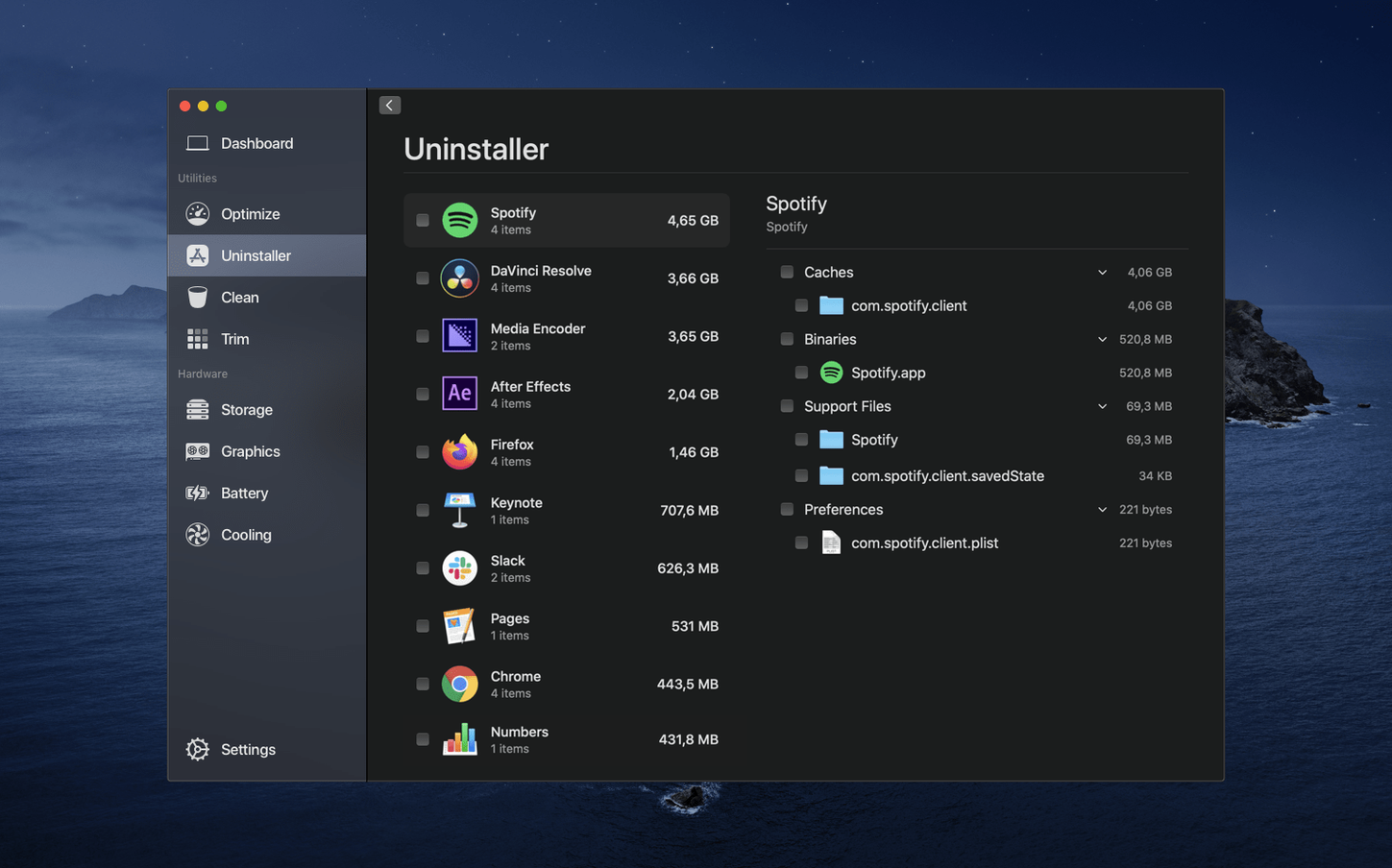
- Head to the Apps tab and sort by size. If you installed a trial of some motion-graphics tool six months ago and forgot about it, this is where it surfaces. Use the uninstaller here rather than dragging an app to the Trash — it grabs preference files and support folders that a manual delete leaves behind.
- Run one more scan after cleaning to confirm the numbers. Then pop back to the Dashboard and check the temperature and drive space. That's it — no terminal commands, no manual hunting through ~/Library.
A freelance photographer's afternoon
Mara shoots tethered all morning and imports about 3,000 raw files into Lightroom before lunch. By 2 PM her MacBook Pro feels sluggish, the fans spin at full tilt even though she's just culling, and she's not sure if the machine is throttling or if the import process left temp files everywhere.
She opens Sensei from the menu bar — the CPU is sitting at 90°C and a background Adobe process she didn't know was running has been eating 8 GB of RAM for two hours. She quits it from the dashboard, watches the temperature drop to the mid-60s within a minute, and then runs a quick system junk scan while she makes coffee. The scan finds 22 GB of Lightroom previews and old camera raw caches she never cleared. Fifteen minutes after she noticed the slowdown, the machine is quiet and responsive again. She didn't restart, didn't call support, and didn't guess. She just looked at the numbers and acted on them.
- macOS 14 or later
- Works on both Intel and Apple Silicon Macs
Questions I actually get
Does Sensei handle both monitoring and cleanup?
Yes. It shows live hardware stats like temperature and memory usage, and it also includes tools for uninstalling applications, cleaning up junk, and enabling TRIM on SSDs.
Notes from the tables 0
Sign in or pull up a chair to leave a note.
No notes on this one yet. They go up after I read them.