
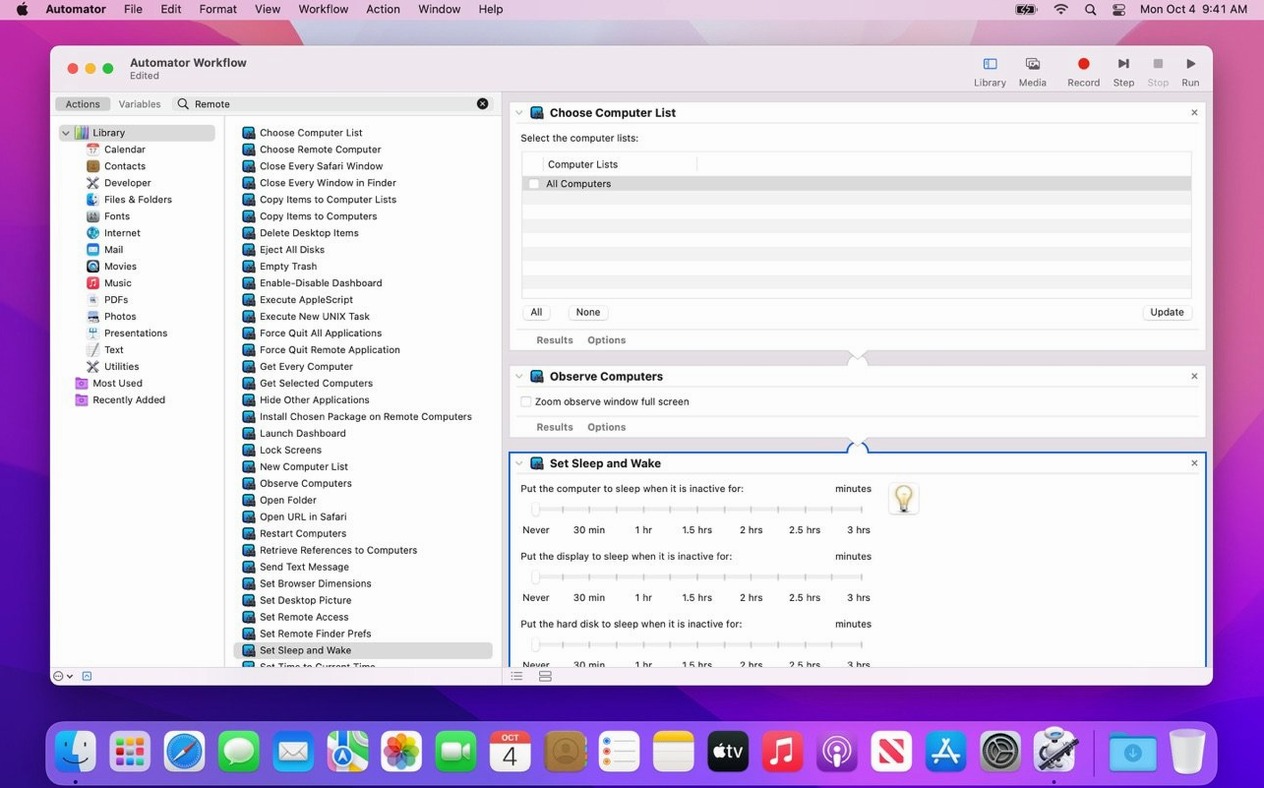
Version 3.10 lands with full macOS Tahoe 26 compatibility, new Accessibility and Remote Keyboard menu items, and VoiceOver support for the remote Mac on Tahoe 26 or later. It’s a maintenance release that keeps the tool running on current hardware, with the usual round of bug fixes and performance tweaks.
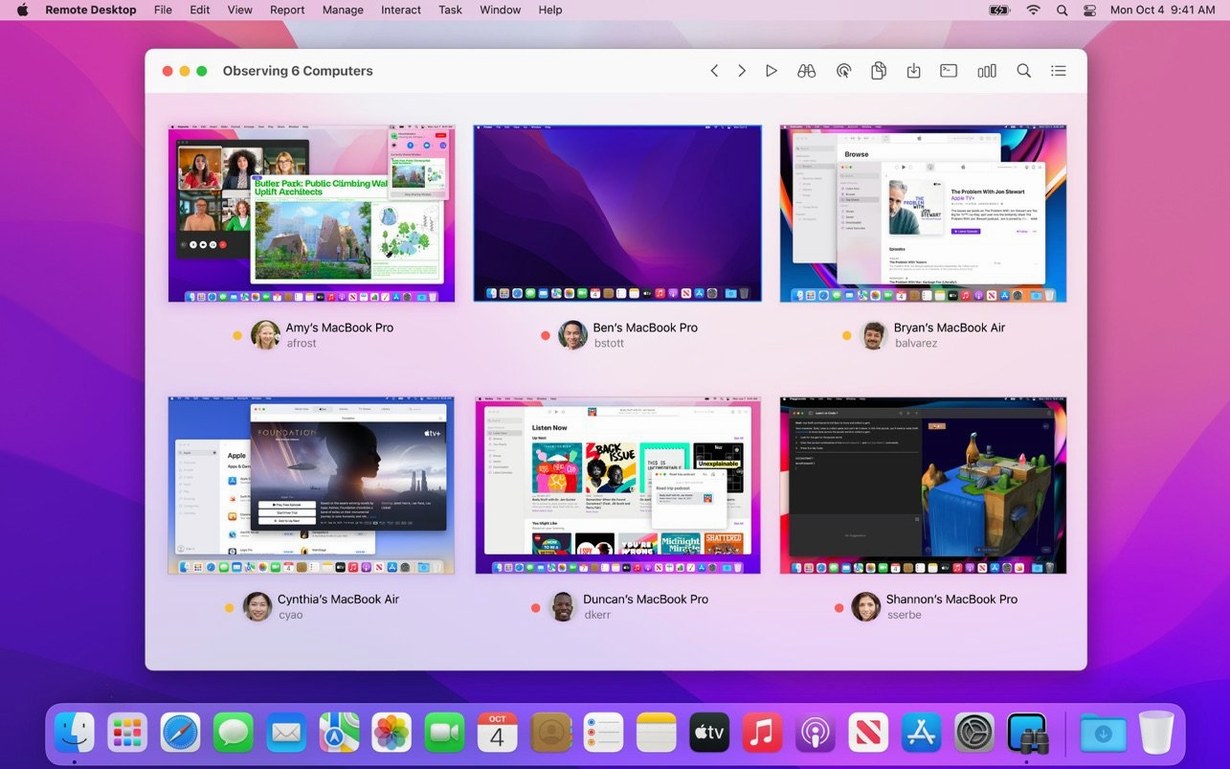
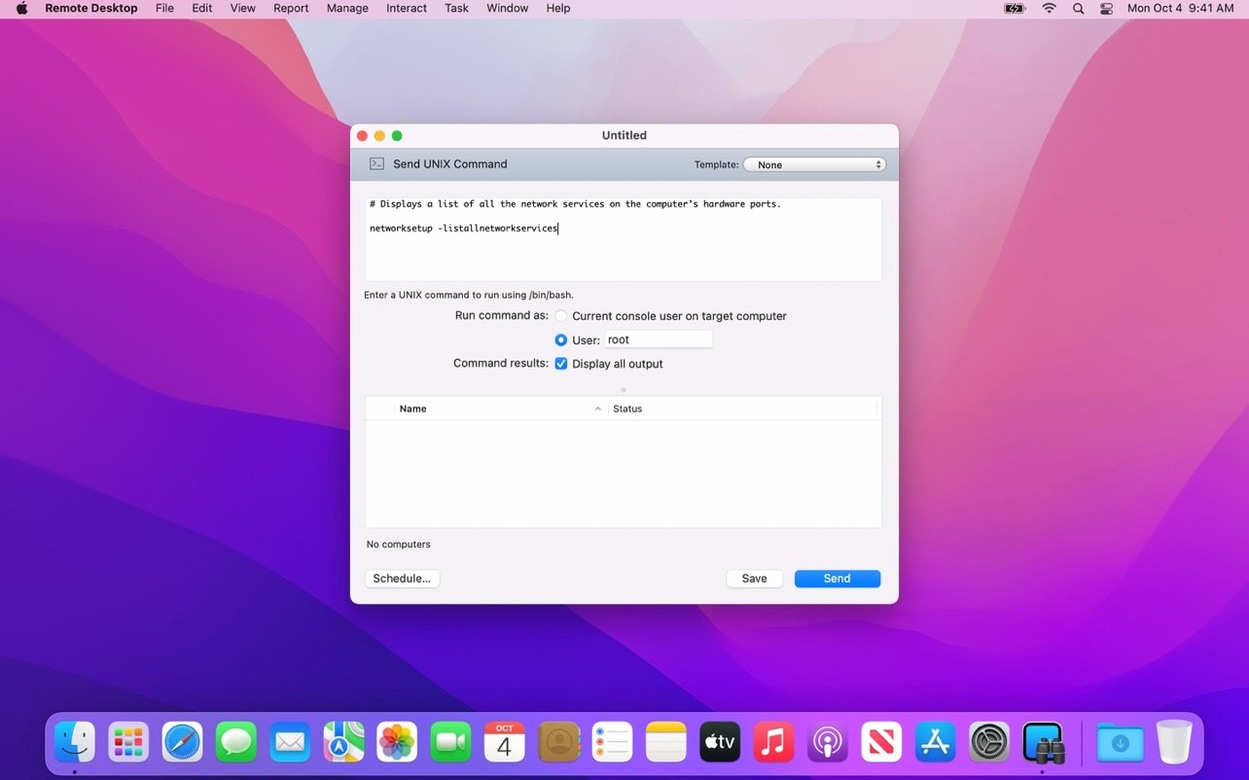
Apple Remote Desktop is Apple’s own remote management tool for Mac computers. It’s built for IT folks, lab managers, and anyone who needs to keep a fleet of Macs in line across a network. You can view and control screens, distribute software, copy files with encryption, and even schedule installations for machines that are offline right now.
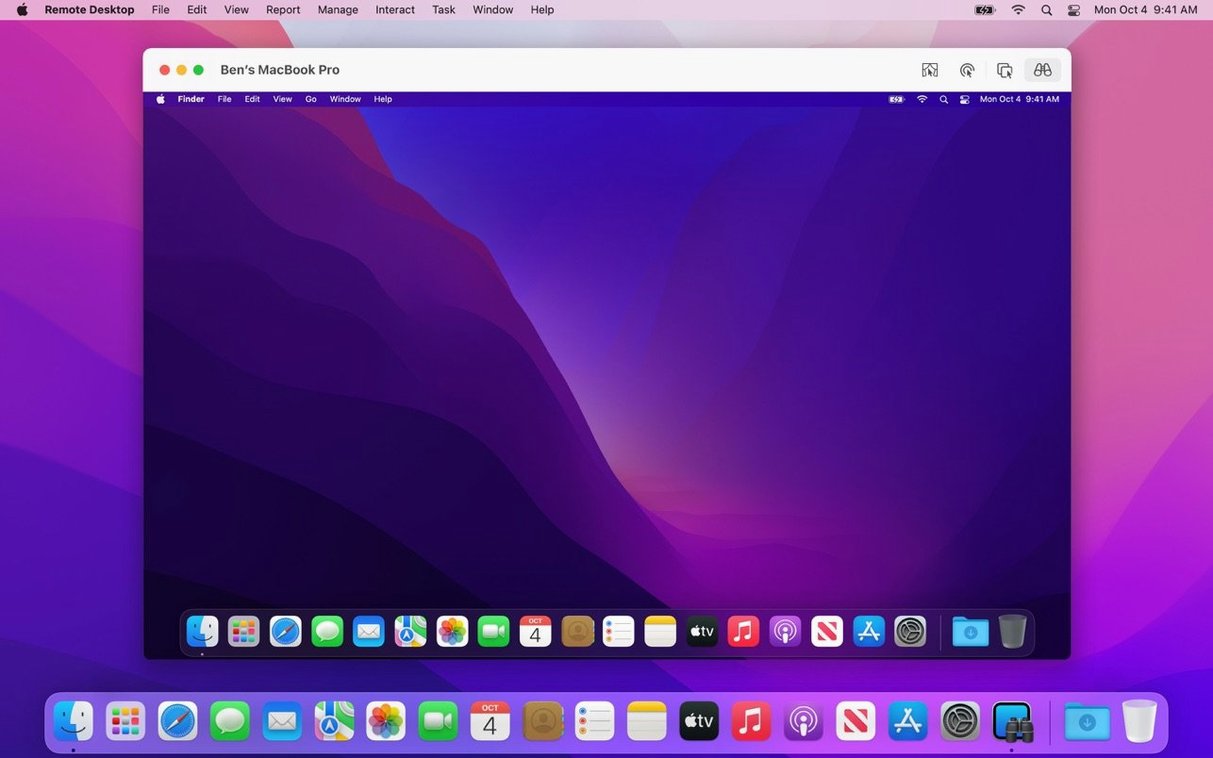
There are a few features that go beyond simple screen sharing. Curtain Mode hides the client screen while you work, so nobody watches you poke around. Remote Spotlight lets you search a distant Mac as if you were sitting in front of it. You can pull system reports, track user logins and application usage, and automate repetitive tasks. Copy and paste works between computers, which saves a lot of retyping.
This is not a tool for helping your uncle fix his printer once a year. It’s for people managing labs, classrooms, or small offices where walking to each desk isn’t practical. If you just need to grab a file from your own Mac at home, this is overkill.
The client already lives in System Settings
Does the remote Mac need anything special installed? Yes — the Remote Desktop Client, which is part of macOS. It's sitting in System Settings under Sharing, waiting for you to turn on Remote Management. You don't need to download anything extra onto the client machine.
Will this work over the internet, or just on my local network? Apple Remote Desktop works best on a local network. You can use it over the internet with a VPN or by forwarding ports, but that's a networking project, not a checkbox in the app.
Can I manage Windows and Linux machines too? You can connect to them through VNC, but you won't get the full management features you get with Macs — no software distribution, no system reports, no Curtain Mode. It's really a Mac tool first.
What happens if a computer is offline when I push software? You can schedule the installation. The task waits in the queue and runs the next time that computer checks in. Handy for laptops that leave the building.
Pushing a creative suite to thirty iMacs before class
Imagine a lab manager at a community college, thirty iMacs in one room, a new semester starting next week. She needs the latest version of a creative suite installed on every machine, plus a handful of fonts and a printer driver. She's done this before. Monday morning she opens Apple Remote Desktop, selects all thirty computers, drags the package file into the Install task window, and schedules it for Tuesday at 2 a.m. when the lab is dark. Tuesday afternoon she runs a quick system report — just software version and free disk space — to confirm everything landed. Two machines didn't get the fonts because their drives were full. She knows which ones, walks over, and cleans them up before the students arrive. No running around with a USB stick, no logging into each computer one by one. This is the kind of day where the tool earns its keep.
Blank the remote screen in shared spaces
Out of the box, a few defaults could be friendlier:
- Curtain Mode behavior. When controlling a remote screen, decide whether you want the client display blanked by default. If you manage computers in a shared space, it's polite to turn this on so your work doesn't distract someone sitting nearby.
- Report data location. By default, reports save inside the app. If you need to share them with a team, point the save location to a shared folder instead.
- Task server settings. If you manage laptops that come and go, set the offline task timeout to something generous — a few days, not a few hours — so scheduled installs don't expire before the machine checks in.
- VNC password and quality. When connecting to non-Mac systems, adjust the color depth and scaling. Lower quality means a faster connection over a slow link, and typing a remote password once beats hunting for it every session.
Spending five minutes here before your first big deployment saves a headache later. You won't think about these settings again for months, but you'll be glad they're dialed in when the day gets busy.
Version 3.10 is a compatibility update. Here’s what’s new:
- macOS Tahoe 26 compatibility.
- Accessibility and Remote Keyboard menu and toolbar items on Tahoe 26 or later.
- VoiceOver support for the remote Mac on Tahoe 26 or later.
- Bug fixes and performance improvements.
- macOS 15.5 or later
- Apple Silicon or Intel 64-bit Mac
Notes from the tables 0
Sign in or pull up a chair to leave a note.
No notes on this one yet. They go up after I read them.
More from the Mac Apps page
The whole page Mac Apps 356 MB
Araxis Merge
2026.1
Mac Apps 356 MB
Araxis Merge
2026.1
 Mac Apps 87 MB
ArchiCAD
29.2.1
Mac Apps 87 MB
ArchiCAD
29.2.1
 Mac Apps 5.1 GB
ApolloOne
4.5.0
Mac Apps 5.1 GB
ApolloOne
4.5.0
 Mac Apps 35 MB
Artlantis
9.5.2.32853
Mac Apps 35 MB
Artlantis
9.5.2.32853
 Mac Apps 370 MB
AnyTrans for iOS
8.9.14
Mac Apps 370 MB
AnyTrans for iOS
8.9.14
 Mac Apps 398 MB
Antivirus Zap - Virus Scanner
3.22.0
Mac Apps 398 MB
Antivirus Zap - Virus Scanner
3.22.0
 Mac Apps Updated 49 MB
Alfred 5 Powerpack
5.8.1
Mac Apps Updated 49 MB
Alfred 5 Powerpack
5.8.1
 Mac Apps 6 MB