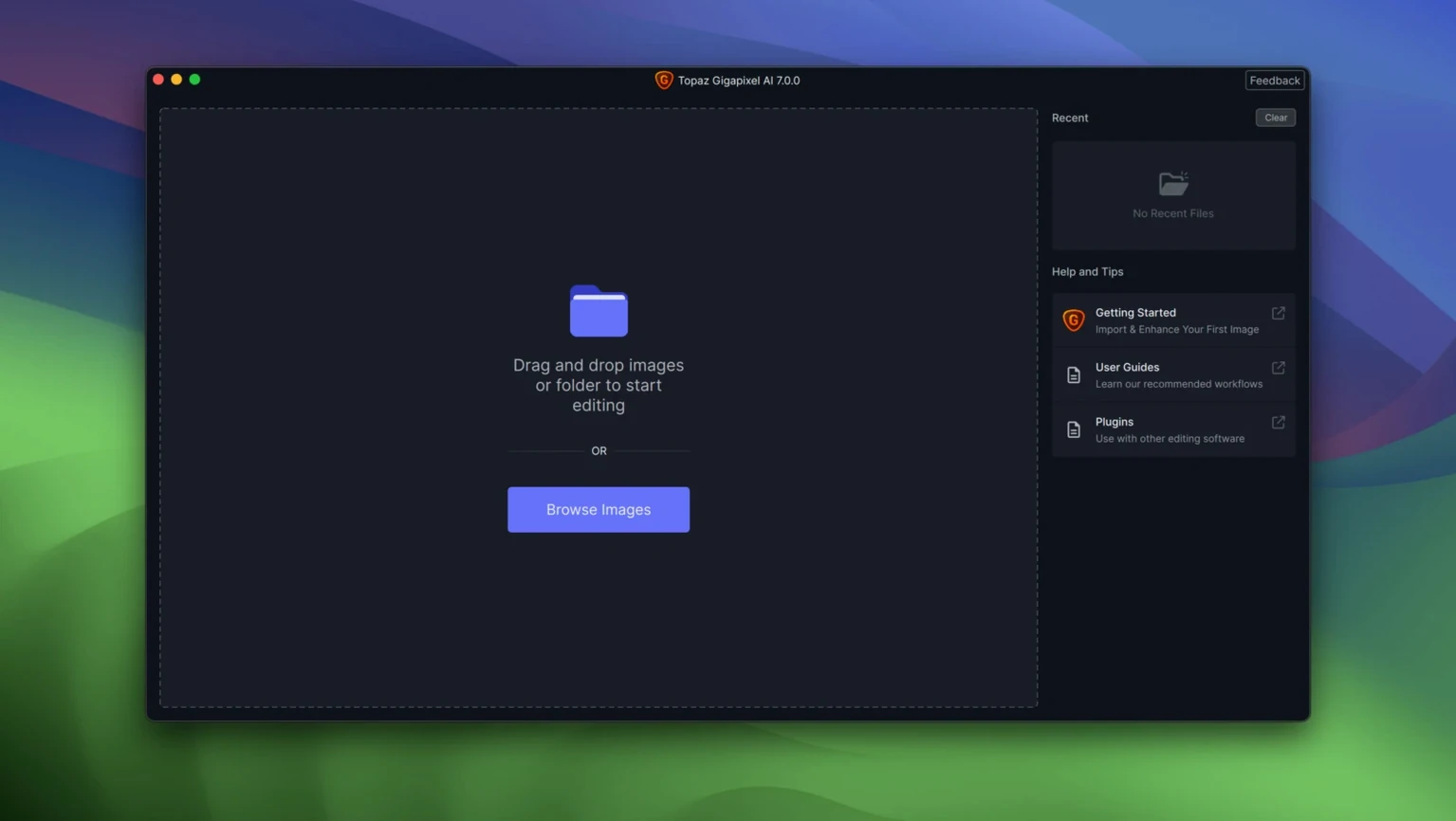
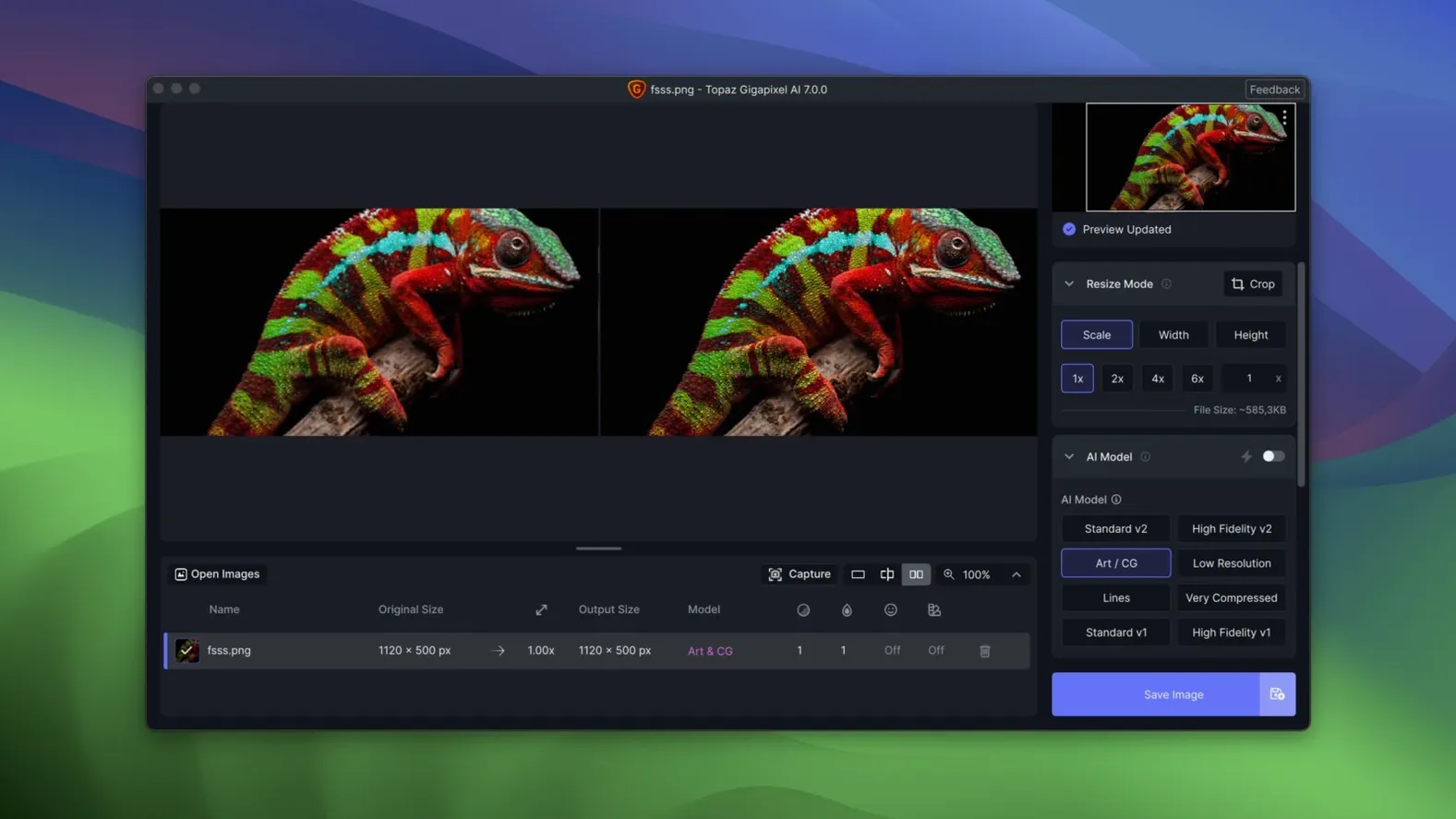
Photographers fixing old scans, designers handed a tiny logo, and anybody who's ever tried to print a photo from their phone. That's who this is for. Gigapixel uses AI to enlarge images while keeping edges sharp and details clear—something regular scaling just can't do.
- Runs natively on Apple Silicon and Intel Macs. The installer gives you the right package for your machine.
- Needs macOS 12 Monterey or newer. Older systems are out of luck with version 1.3.5.
- Cleans up compression mess. It can smooth out blocky JPEG artifacts and pixelation as it enlarges.
- Brings old portraits back. Low-res faces get reconstructed with surprising clarity.
- Interface is English-only. Straightforward, no language hunting required.
This is the legacy Gigapixel AI product line, replaced by the newer Topaz Gigapixel branding. If your Mac meets the requirements, it still does exactly what it promises: takes your small, rough images and makes them bigger and cleaner without the usual fuzzy trade-off.
who clicks with gigapixel and who doesn't
Not every Mac user needs an upscaler. The ones who do tend to know it within five minutes of opening the app. Photographers pulling old RAW files from a 2012 hard drive get immediate value—those 8-megapixel shots suddenly hold up on a modern display. Printmakers preparing files for large-format output notice it even faster, because the jump from screen resolution to 300 DPI at poster size is where regular bicubic scaling falls apart.
Designers get a different kind of win. The colleague who sends a logo at 200 pixels wide and says "just use it" stops being a problem. Drag it in, pick a scale factor, and you have something you can actually place in a layout without wincing. The app also earns its keep with low-quality PNGs and line art—the kind of assets that turn into a jagged mess with conventional enlargement.
You'll get less out of it if your source file is already high-resolution and just needs a modest bump. At 1.5x or 2x from a clean original, the difference between Gigapixel and a good bicubic resample in Photoshop shrinks. The magic lives at 4x and 6x, where the AI has room to reconstruct what wasn't there. Also worth knowing: images that are blurry to begin with stay blurry. The app can't invent sharpness from a soft focus shot. It excels at enlarging what's already crisp.
where gigapixel fits in your workflow
This isn't a replacement for Lightroom or Photoshop—it's a specialist that slots in between them. A common path looks like this: do your color and exposure work in your raw processor, export a high-quality TIFF or PNG, run it through Gigapixel for the size bump, then do final retouching and sharpening in your editor of choice. The result is a file sized exactly for its destination, whether that's a canvas print or a website hero image.
It plays nicely with macOS too. The app respects your file system—open an image from any folder, save it anywhere, no catalog or library lock-in. Batch processing means you can queue up a whole folder of scans while you step away, and the Finder integration is plain and predictable. It also leans on the Mac's GPU sensibly. On Apple Silicon machines, processing stays local and the fans rarely spin up. Intel Macs with a discrete GPU handle the workload fine; integrated graphics on older machines take longer but get there.
Upscales in under thirty seconds on Apple Silicon
On an M1 or M2 Mac, a single 4x upscale of a 2000-pixel image finishes in under thirty seconds. Bumping that to 6x doubles the wait, but not unreasonably. The app doesn't beachball or hog memory in the background, and I've left it churning through fifty-image batches without a crash. It's not lightweight—the AI models load into RAM and stay there—so a machine with 8 GB will feel the squeeze sooner than one with 16 GB or more.
The interface stays responsive during processing, which matters when you're tweaking settings between previews. You can switch between the standard model, the line art model, and the low-resolution face recovery model without restarting anything. Preview renders are fast enough to trust; what you see in the split-screen comparison is what lands in the output file.
One quirk to know: the first launch after installation takes longer. The app unpacks its AI models into a local cache, and that one-time setup adds maybe a minute. After that, startup is quick. If you're hunting for a topaz gigapixel download mac that runs clean on Apple Silicon without emulation layers, version 1.3.5 is built for it.
Bottom line: it's a single-purpose tool that earns its place when you genuinely need a big, clean enlargement. For the everyday crop-and-resize, it's overkill. For the times when the image matters enough to print, frame, or publish large, it's the right kind of overkill.
- macOS 12 (Monterey) or newer
- Apple Silicon or Intel 64-bit processor
Questions I actually get
Does Topaz Gigapixel 1.3.5 work on Apple Silicon?
Yes, version 1.3.5 has native support for both Apple Silicon and Intel 64-bit Macs.
What can Gigapixel AI fix besides low resolution?
It can remove pixelation and clean up compression artifacts, and it does a particularly good job restoring details in old or low-resolution portraits.
Is this the current Topaz Gigapixel product?
No, this is the legacy Gigapixel AI line, version 1.3.5. Topaz later replaced it with the product now branded as Topaz Gigapixel.
Notes from the tables 0
Sign in or pull up a chair to leave a note.
No notes on this one yet. They go up after I read them.