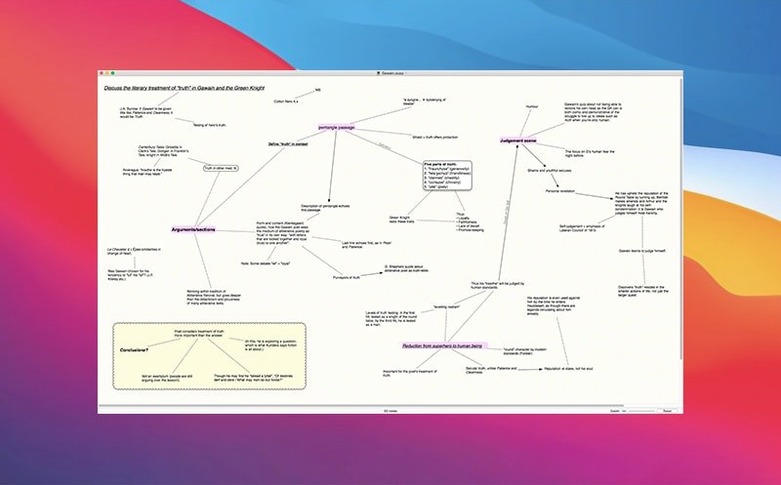
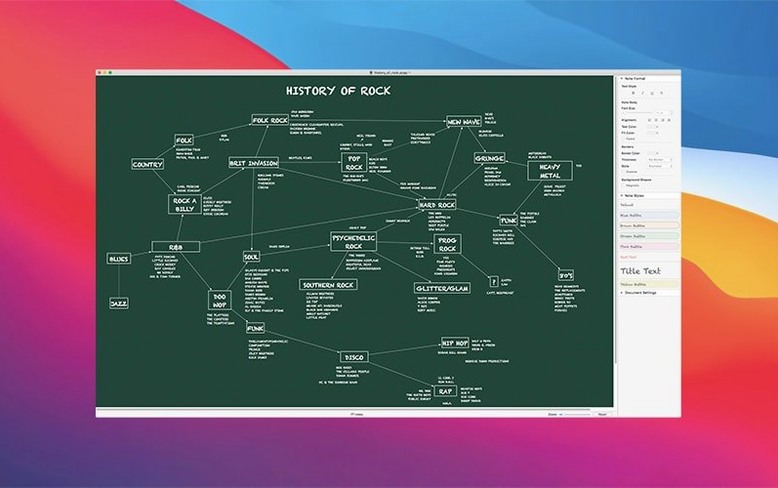
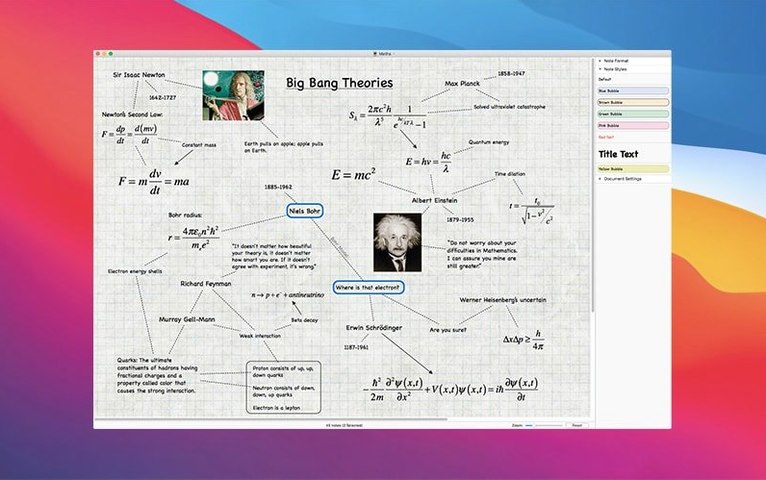
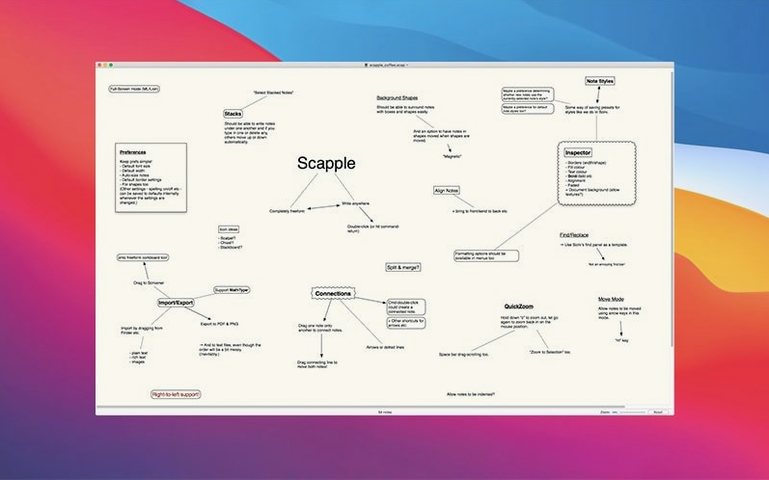
Scapple is a virtual sheet of paper where you jot down notes wherever they belong and draw connections between them.
It doesn't force you into lists or outlines. You double-click anywhere on the board and start typing. Drag notes around freely. When two ideas relate, you drag a line or an arrow between them — no parent, no child, just a flat space that grows with your thinking.
Who it works for
- Writers sketching character relationships or plot threads before committing to structure
- Researchers laying out loose findings and seeing what clusters naturally
- Project planners dumping tasks on a board and linking dependencies as they emerge
- Anyone who thinks better when notes can sit next to each other without a forced order
A blank board that never forces structure
The board starts blank. You click, you type, you move on. Notes can be styled differently — a different font or background color for a different kind of thought — but the app never pushes you to organize before you're ready. Connections are flexible lines you can reshape, and notes can connect to multiple others. It's the digital version of a whiteboard, minus the dry-erase smell, and it stays out of your way until you need it.
What version 1.5.4 fixes in daily use
If you've been running an older build, 1.5.4 quietly clears up several papercuts. The app no longer stutters when you zoom in and out quickly on a dense board — scrolling and pinch-zooming feel fluid now, even with fifty notes and a web of connectors.
Full Screen mode on older macOS releases used to resize the board awkwardly when you entered it; that's been squared away for Monterey and Big Sur users. Intel Mac owners also get a specific fix: entering Full Screen no longer risks a crash, which was a recurring headache if you liked working distraction-free.
Note-splitting got smarter too. When you hit Enter to break a note into two, the new halves keep their formatting instead of dropping back to the default style. And dragging a note onto an existing connection line now adds it to the chain without making the arrow disappear — a small fix that saves a lot of re-drawing.
Hold Option to duplicate a thought
Some of Scapple's best tricks are invisible until you stumble into them. Hold Option while dragging a note to duplicate it — handy when you want a variation on a thought without retyping. Right-click any connector line and you can add a label that sits right on the line itself, which turns a vague link into a relationship like "causes" or "contradicts."
If you've built a board you like and want to reuse its look on another project, you can drag a note from one board onto another open board's window — and in 1.5.4, the formatting travels with it. Background colors, font choices, border styles, all come along for the ride. It's a quick way to build a visual vocabulary across projects.
One more hidden move: double-click a connector's endpoint and you can pull it to a different note instead of deleting and redrawing the whole line. Little things, but they add up when you're mid-brainstorm and don't want to break flow.
The 1.5.4 update is mostly about smoothing rough edges. It makes Scapple ready for macOS 26 and tidies up several bugs from the previous release.
- Added compatibility for macOS 26
- Fixed undo and redo when working with connection commands
- Fixed Full Screen board sizing on macOS 11 and 12
- Fixed a sporadic crash when clicking notes
- Improved connection line interaction on non-Retina displays
- Improved zooming smoothness
- Better copying of styles between boards by drag and drop
- Fixed crashes and odd behavior with file loading
- macOS 11 or later
- Works on Apple Silicon and Intel Macs
- Interface language: English
Questions I actually get
Does Scapple work on the latest macOS?
Yes, version 1.5.4 includes compatibility improvements for macOS 26 and requires macOS 11 or later on both Intel and Apple Silicon Macs.
What got fixed in the latest Scapple update?
Version 1.5.4 fixes undo and redo for connection commands, a crash when clicking notes, and improves connection lines on non-Retina displays and Full Screen sizing on macOS 11 and 12.
Notes from the tables 0
Sign in or pull up a chair to leave a note.
No notes on this one yet. They go up after I read them.