
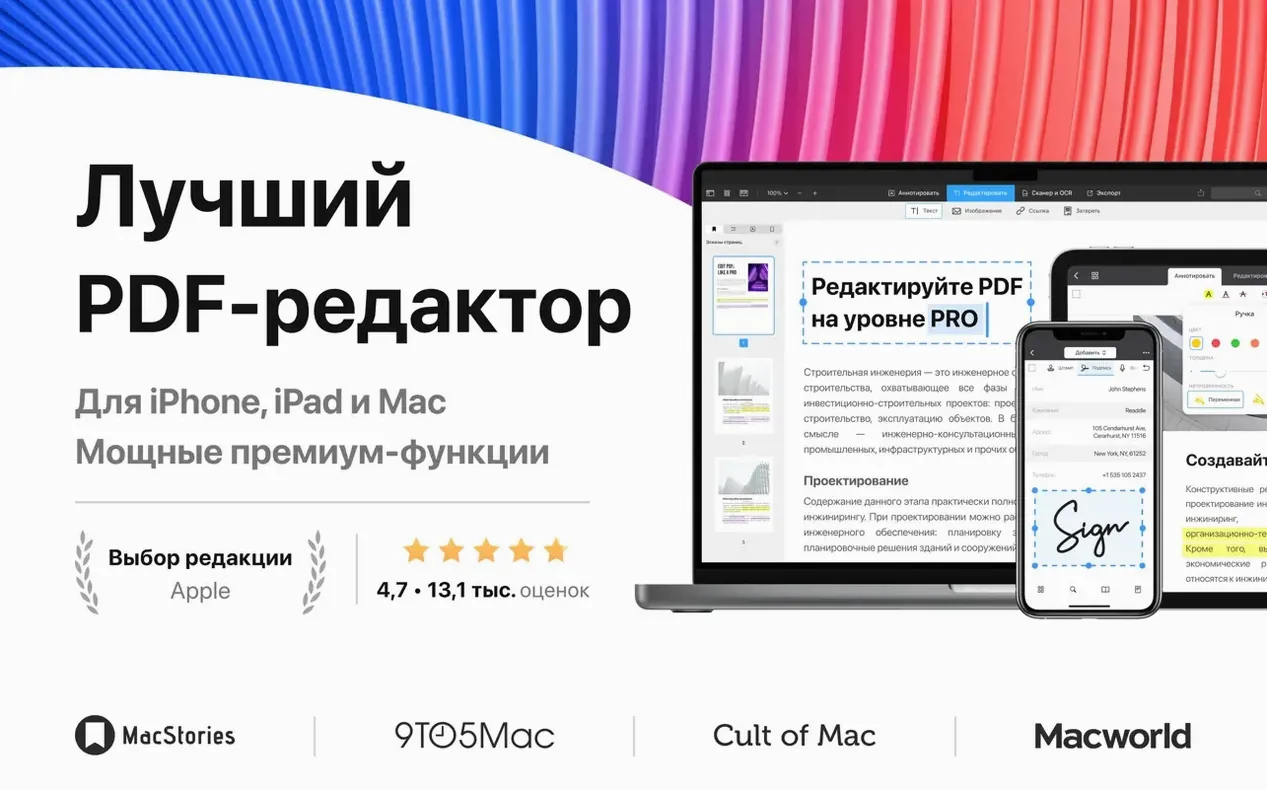
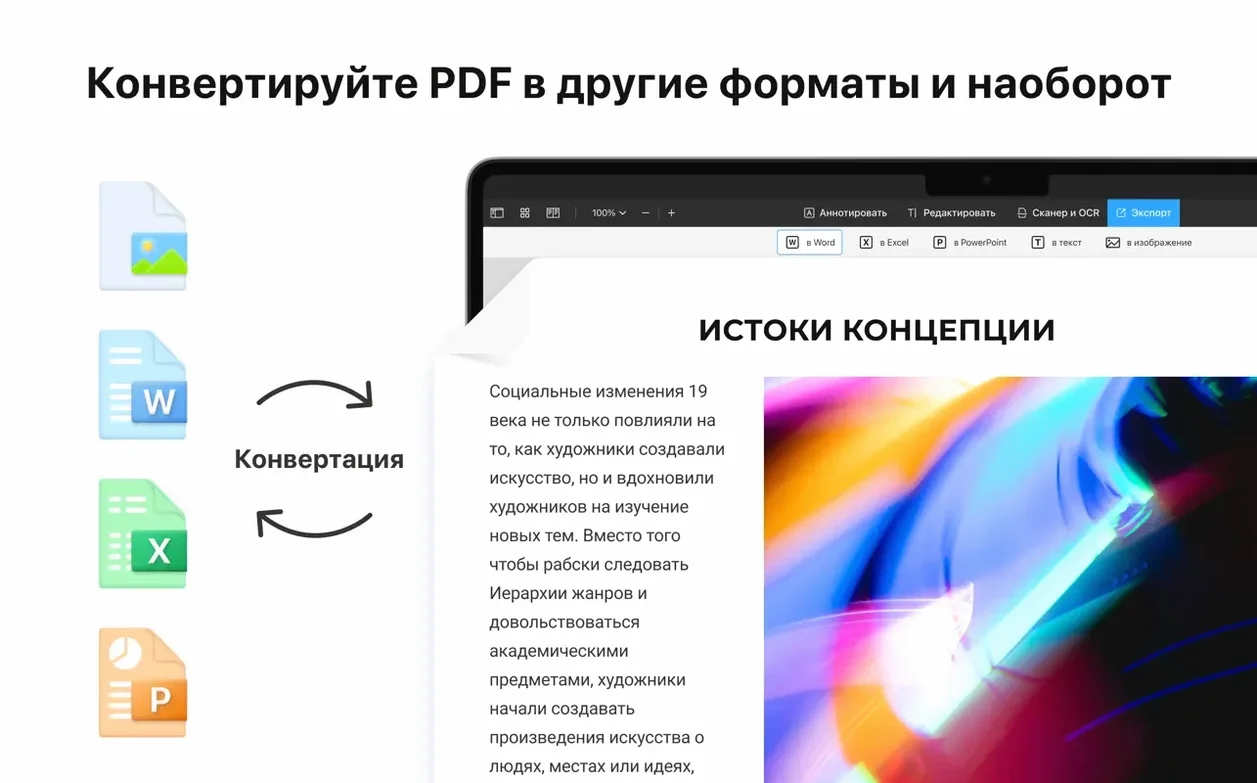
Accountants, students, and anyone who signs a lot of forms reach for PDF Expert. It is a reader that lets you edit without the fuss, and it fits right next to your regular Mac file handling.
Fill out the form
You open the scanned contract and tap the first blank field. The app recognizes it as a form and drops your text right in, keeping the original font size so nothing looks out of place.
Drop in a logo
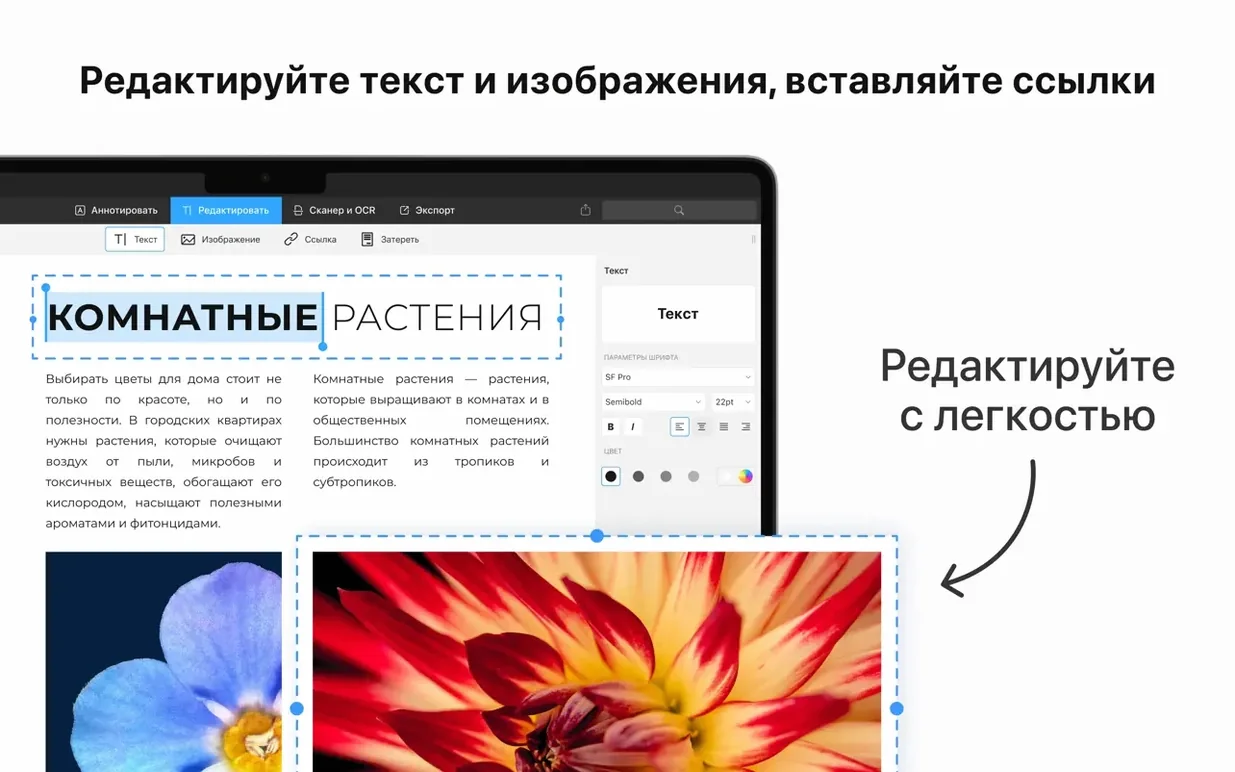
Next, you grab a company logo from the desktop and drag it over the placeholder image. You can resize it on the page and the surrounding text simply reflows around the new graphic.
Build the table of contents
Before sending, you pull up the page thumbnails and mark a few headings. The app builds a clickable table of contents from your selection so your client can jump straight to the signature line.
settings i change first
Fresh out of the disk image, PDF Expert works fine. But a couple of tweaks make it feel like your own tool instead of a borrowed one.
- Turn off the continuous scroll animation. In Preferences under the View tab, uncheck “Animate scrolling.” It is a small thing, but the page glide slows me down when I am flipping through a forty-page contract looking for clause 12.
- Set your default zoom. The app ships with a fit-to-width default. I switch mine to “Actual size” so signatures and fine print look the way the sender intended. You find this under the same View tab.
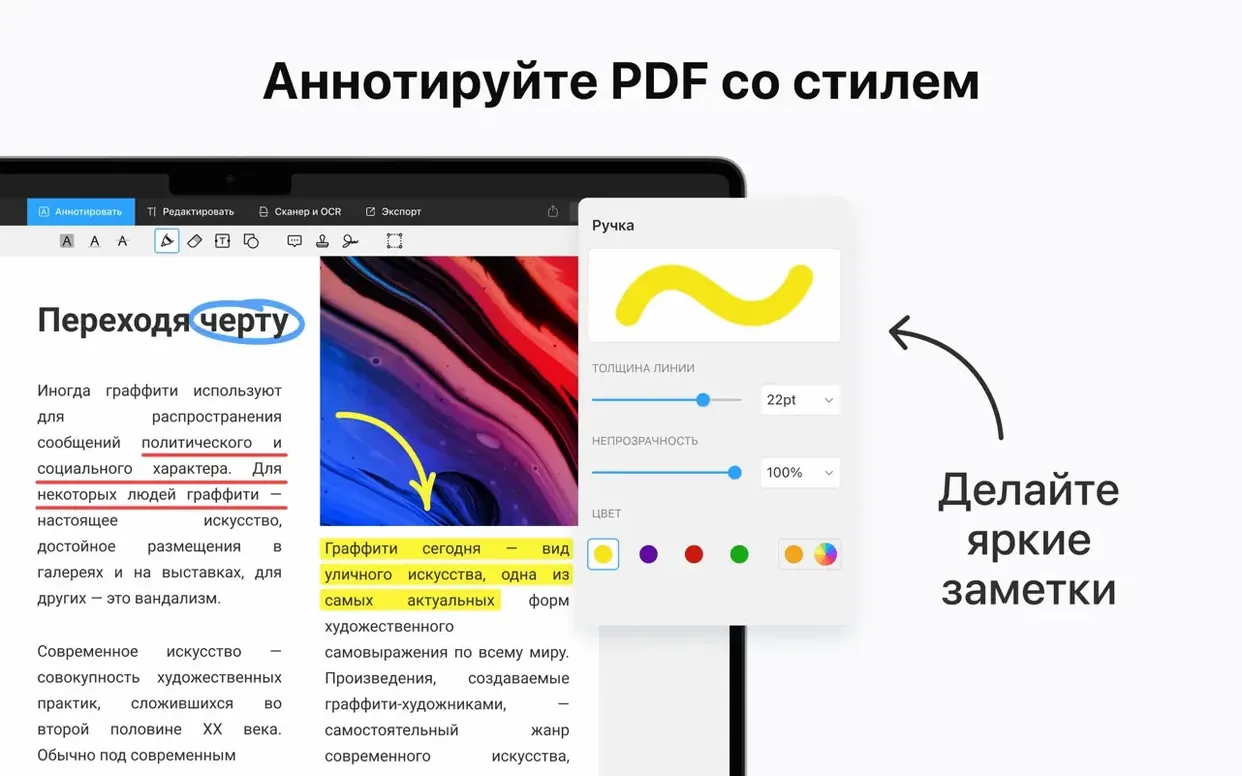
- Pick your annotation color once. Click the annotation toolbar, choose a color from the palette, then right-click it and select “Make Default.” Every sticky note and highlight you drop from then on matches, which keeps client markups from looking like a bag of Skittles.
- Disable the reading mode on launch. By default, the app sometimes opens documents in a distraction-free reading view. I prefer the full editing layout immediately. Switch it off in Preferences so every file opens ready to work.
None of these take more than ninety seconds to set, and you only do it once.
Right-click a thumbnail to export a single page
There are moves buried in everyday gestures that do not announce themselves. I only stumbled onto some of these months after switching.
- Right-click a page thumbnail and choose “Export page as…” You do not need to split the whole document just to pull out a single sheet. I use this weekly when a supplier sends a multi-page invoice and I only need the summary page for accounting.
- Hold Option while dragging a selection. Normally, selecting text and dragging copies it. Hold Option and it duplicates the content as a stamp-like object you can place anywhere on the page, which is handy for repeating watermarks or filling identical form fields.
- Use pinch-to-zoom on the thumbnail sidebar. Most people resize thumbnails by hunting for a slider. Pinch on the trackpad right over the thumbnail column and they scale up or down instantly. I keep mine large enough to read headings at a glance.
- Tab through form fields. When a PDF form is properly built, hitting Tab jumps from one fillable field to the next. PDF Expert respects this, and it saves you from clicking every single line in a five-page application.
- Drag a file onto the dock icon. If the app is already open, dragging any PDF, Word document, or image onto the dock icon opens it immediately. No need to hunt for the Open dialog.
These are not headline features. They are the things that shave seconds off repeat tasks.
Convert files from Finder without opening the app
PDF Expert does not try to replace Finder or your email client. It weaves into what is already there.
For quick conversions, I often skip the app entirely. Right-click a Pages or Word file in Finder, choose Open With, and pick PDF Expert. It converts the document to PDF on the spot and opens it, ready for annotation. The original file stays untouched.
Handoff support means I start marking up a contract on my iPad while I am on the couch, then pick up my Mac and the same document is waiting, scrolled to the exact paragraph I left off on. It works the other direction too, which keeps me from emailing files to myself like it is 2009.
When someone sends me a PDF that needs a signature, I pull it into PDF Expert, scribble with the trackpad or drop in a saved signature, then share it straight back through the macOS share sheet without ever saving a copy to the desktop. The app talks to Mail, Messages, and AirDrop without extra steps.
If you use the Mac’s built-in Quick Look, you already know you can press the spacebar on a PDF and peek inside. PDF Expert replaces that preview with its own engine for richer rendering and faster scrolling through large documents, though you will not notice the difference until you open a scanned 200-page report.
For people searching around for terms like PDF Expert torrent or PDF Expert crack Mac, I will say this: the app installs cleanly from the disk image, no activation hoops, and it runs on Intel and Apple Silicon Macs back to macOS 12. You get Russian, English, German, and seven other languages right in the box. If you do grab a PDF Expert Mac torrent, just make sure your macOS Gatekeeper settings are dialled in so everything launches smoothly.
Bottom line: three real-world moves and the document is out the door, no printer required.
This one's a maintenance update — no new features to point at, just under-the-hood fixes that keep PDF Expert running smooth on your Mac. Think of it as tightening the bolts on a kitchen mixer so it doesn't wobble mid-batch.
- macOS 12 (Monterey) or newer
- Works on Apple Silicon and Intel 64-bit Macs
Questions I actually get
Can I keep working on the same PDF between my Mac and iPad?
Yes, it supports Handoff, so you can start reading on an iPad and pick up right where you left off on the Mac.
What languages does the interface use?
The menus and tools speak Russian, English, German, Spanish, Italian, Simplified Chinese, Portuguese, Ukrainian, French, and Japanese.
Notes from the tables 0
Sign in or pull up a chair to leave a note.
No notes on this one yet. They go up after I read them.
More from the Office page
The whole page Office 326 MB
PDFelement Pro
12.1.28
Office 326 MB
PDFelement Pro
12.1.28
 Office 807 MB
OmniReader Pro
3.4.4
Office 807 MB
OmniReader Pro
3.4.4
 Office Updated 33 MB
OmniPlan Pro
4.11.0
Office Updated 33 MB
OmniPlan Pro
4.11.0
 Office 100 MB
OmniOutliner Pro
6.2.1
Office 100 MB
OmniOutliner Pro
6.2.1
 Office 47 MB
Numbers Creator Studio
15.3.1
Office 47 MB
Numbers Creator Studio
15.3.1
 Office 243 MB
QuickBooks Mac Plus
23.1.9.R10 Plus
Office 243 MB
QuickBooks Mac Plus
23.1.9.R10 Plus
 Office 169 MB
Nitro PDF Pro
13.3.1
Office 169 MB
Nitro PDF Pro
13.3.1
 Office 272 MB