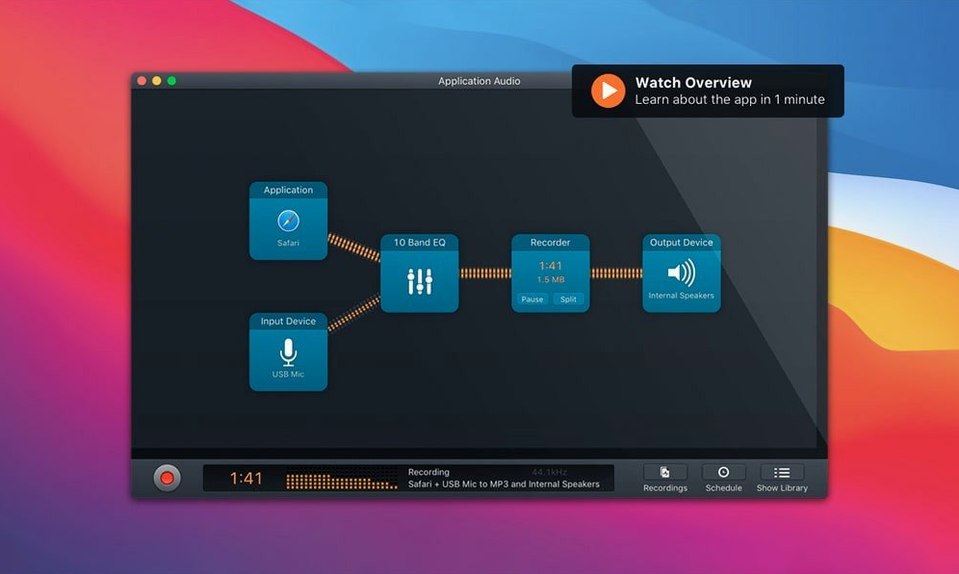
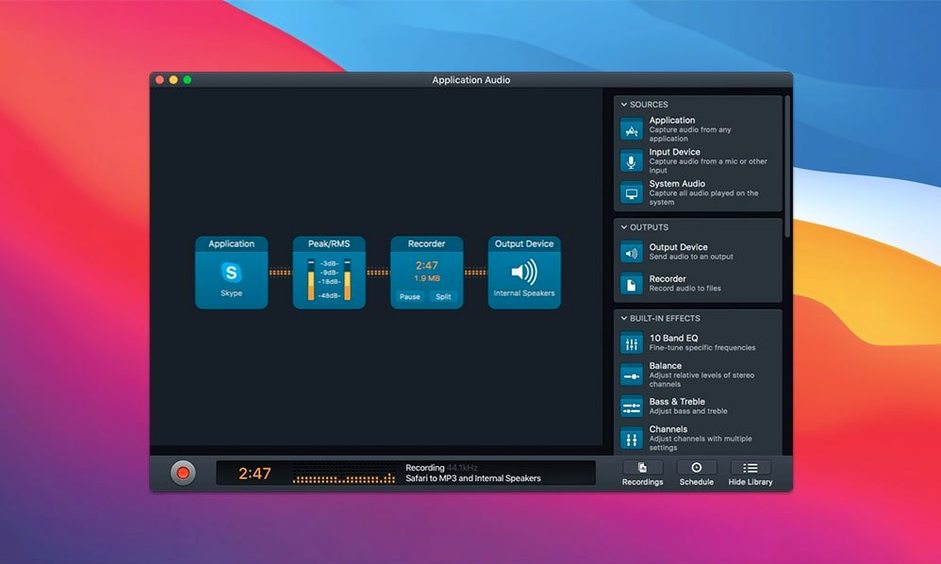
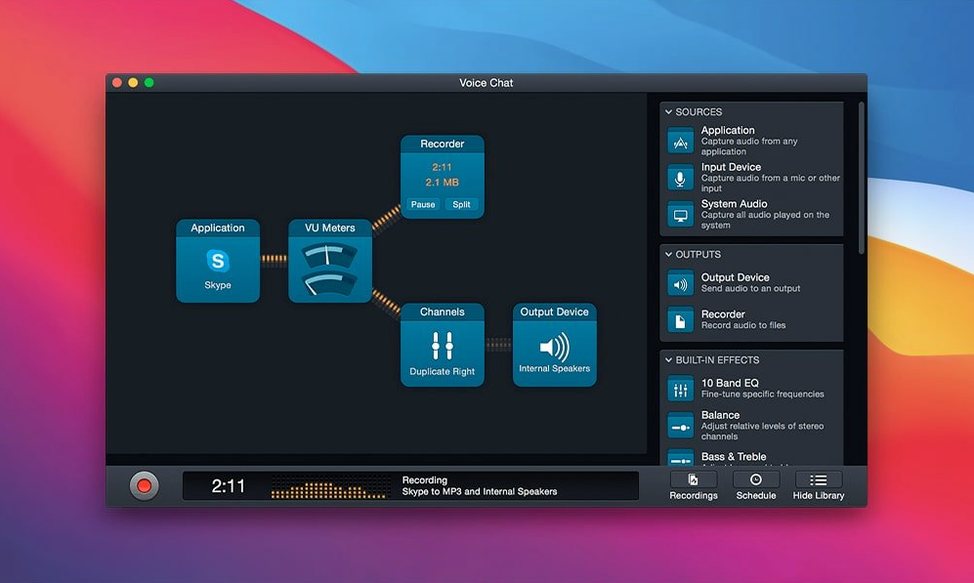
Audio Hijack is a Mac app that lets you grab audio from practically anywhere on your computer and save it, tweak it, or broadcast it.
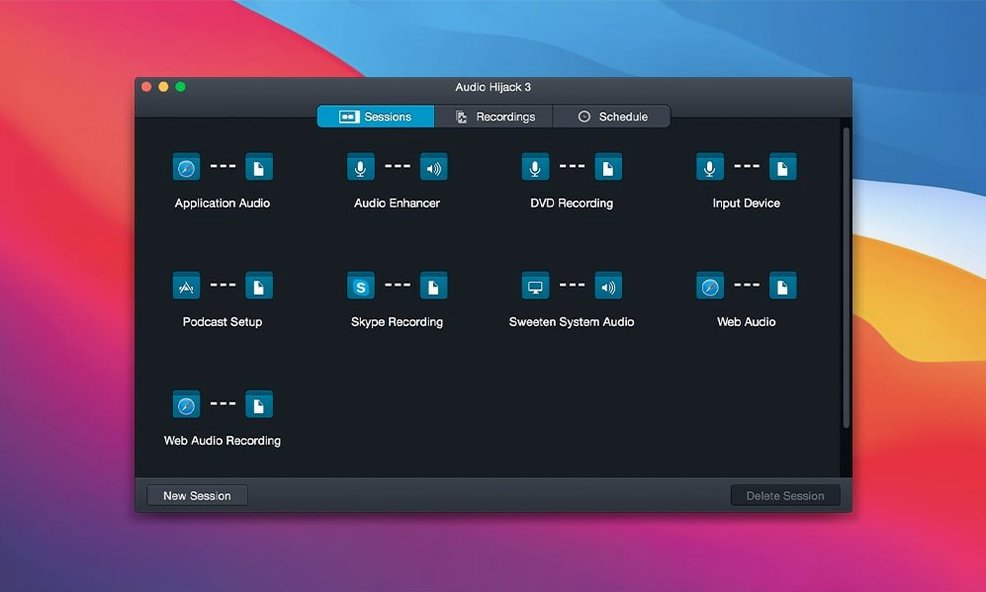
The best place to start is with the built-in templates. Skip the blank canvas and pick “Record Application Audio” from the list. Fire up Safari, play a track, and watch the meters bounce. Hit the big record button. That’s your first file, done in under a minute.
Next, try connecting two blocks. Drop an Application source and a Recorder into a session, then drag the new Denoise filter between them. You’ll hear the hiss disappear from a quiet recording. It feels like cleaning a dusty countertop with a good sponge—simple, satisfying, and immediately noticeable.
Once you’re comfortable, plug in a USB turntable or tape deck. The app sees the hardware as a live input source. Recording your old records becomes a one-click job, complete with the Declick and Dehum filters to clean up the pops and electrical hum you’ve lived with for years.
No audio from an app? Make it play something first
Sometimes the app doesn’t show the application you want to capture. Nine times out of ten, that program simply hasn’t played any audio yet. Open the source app, hit play on something—a YouTube video, a voice memo, anything—and Audio Hijack will spot it within a second or two. If it still doesn’t appear, a quick quit and relaunch of both apps usually shakes things loose.
Another hiccup people run into: recording a FaceTime call and getting silence on one side of the conversation. The fix lives in the session setup. Add two separate Application blocks—one for FaceTime, one for your microphone—then route them both into a single Recorder block. Without that second source, you’re only catching the incoming voice, not yours.
If the Denoise filter scrubs too hard and makes voices sound hollow, dial the strength slider back to about forty percent. The default is aggressive, and spoken-word recordings rarely need that much muscle. Same goes for Dehum—start low and creep up until the buzz vanishes without thinning out the bass.
Grabs any Core Audio app without extra drivers
Audio Hijack plays nicely with the Mac’s system-wide audio routing. It can grab sound from any app that uses Core Audio—Safari, Music, QuickTime, DVD Player, you name it—without needing special plug-ins or drivers. That’s the whole trick: it inserts itself as a pass-through, so apps don’t even know it’s there.
For podcasters who use editing tools like Reaper or Hindenburg, Audio Hijack hands off WAV or FLAC files that drop straight into a timeline. Record a remote interview, drag the file into your editor, and start cutting. No transcoding step, no format headaches.
It also pairs well with Shortcuts. You can build a Quick Action that fires up a specific session—say, recording internet radio for an hour—and trigger it from the menu bar without opening the main window. People who run weekly call-in shows often set a recurring Shortcut to capture everything at the same time each Thursday evening.
The Transcribe block feeds into any text editor or notes app. Let it chew through a meeting recording, then copy the transcript into Notes or Drafts. It’s not polished dictation, but for searchable rough notes, it does the job without sending your audio to a cloud service.
Pre-install questions checklist
Does it record system alerts and notification sounds too?
Only if you tell it to. When you choose an application as the source, Audio Hijack captures just that app’s audio. System beeps, message pings, and other background noise stay out of the recording. If you use the System Audio source instead, everything comes through—alerts, clicks, the lot. Most folks stick with per-app capture for clean results.
Will it record from two apps at once?
Yes. Drag multiple Application blocks into the same session, wire them all into one Recorder, and you get a single file with both sources mixed together. This is how people capture a browser-based voice chat alongside their own microphone feed. Each source keeps its own volume slider, so balancing the levels takes about ten seconds of listening.
Bluetooth lag only matters when you monitor live
It does, but there’s a small gotcha. Bluetooth introduces a slight delay, so if you’re monitoring a live recording through wireless cans, you’ll hear yourself a beat late. For capture-only tasks—recording a call you’re not monitoring in real time—Bluetooth is fine. For live work, plug in wired headphones and skip the lag.
Some people search for an audio hijack torrent or an audio hijack crack thinking they'll save a step. What you'll want to check is that you're getting a build that includes features like the updated Transcribe block or the Whisper.cpp backend improvements that arrived in version 4.6.0. The real thing installs in under two minutes and just works with macOS Sequoia and Golden Gate.
Bottom line: most problems come down to routing and levels. Get those two things right—pick the right source, check your meters, keep the filters light—and the app stays out of your way completely.
Version 4.6.0 lands with full support for macOS 27 Golden Gate, so nothing breaks on day one. Rogue Amoeba also gave the Transcribe block a brain boost with a smarter recommended model, and they updated the underlying Whisper.cpp engine to version 1.9.2 for sharper speech-to-text work.
- macOS 14.4 or newer
- Works on both Intel and Apple Silicon Macs
Questions I actually get
Can I use Audio Hijack to record a Zoom call or a VoIP conversation?
Absolutely. You can set an application source to grab audio from any VoIP service like Zoom or FaceTime, and save the conversation to a file on your Mac.
Notes from the tables 0
Sign in or pull up a chair to leave a note.
No notes on this one yet. They go up after I read them.