Send a podcast from your Mac to the kitchen speaker
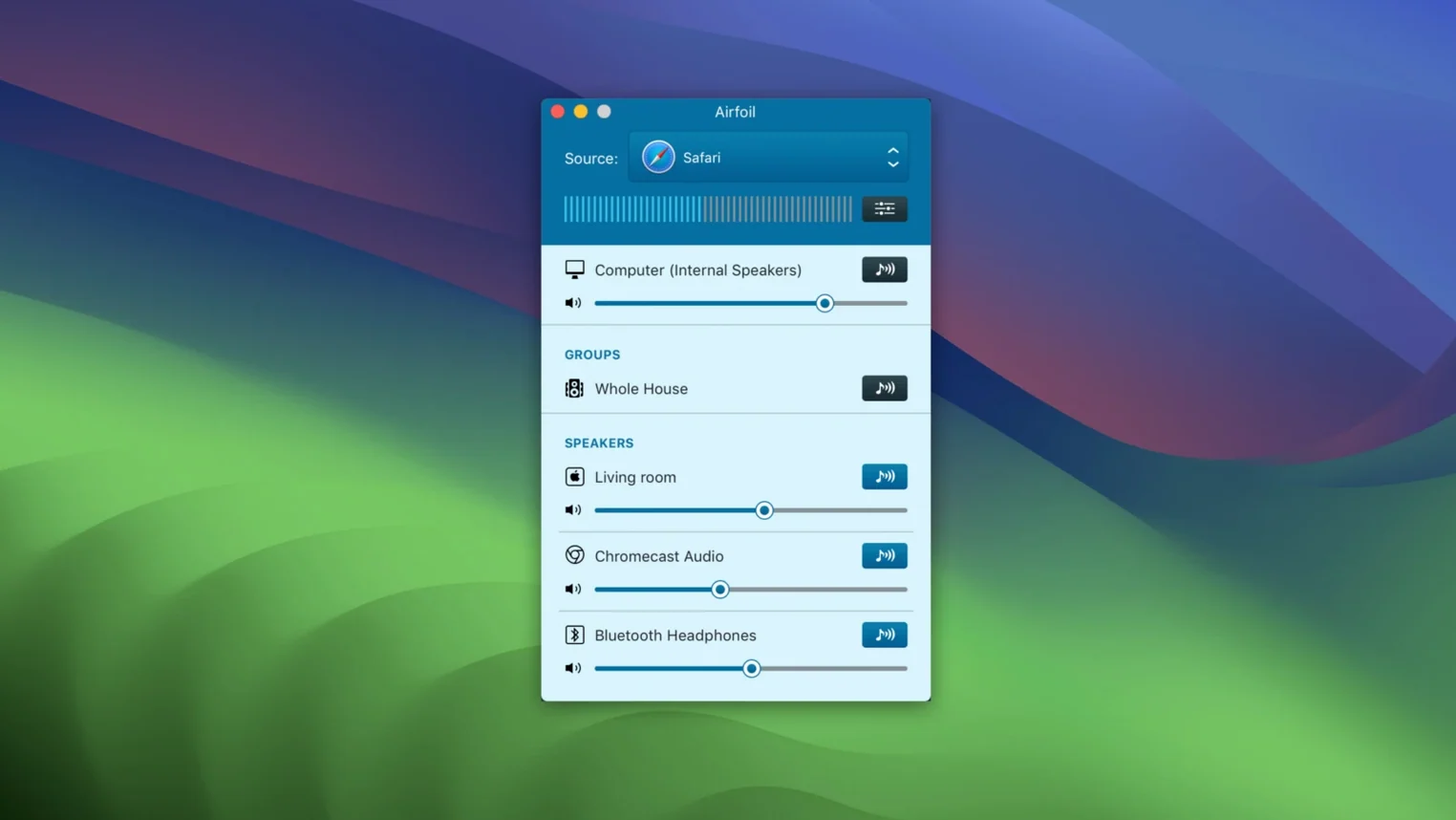
My old AirPort Express in the kitchen still works great. I launch Airfoil, pick my podcast app as the source, and click the speaker icon next to the kitchen. Ten seconds later I'm chopping onions to a true-crime story. The app also streams to Apple TV, Google Cast gadgets, and Bluetooth cans.
Play the same music across three rooms at the same time
Saturday morning cleanup means loud music everywhere. I select Music as the source, then check the boxes for the living room HomePod, the office Mac, and the patio Bluetooth speaker. Airfoil keeps everything in sync without touching a single cable.
Shape the sound with the built-in equalizer
My old bookshelf speakers get muddy in the low end. A quick tweak in Airfoil's EQ clears it right up before the audio leaves the Mac.
How Airfoil fits into your existing setup
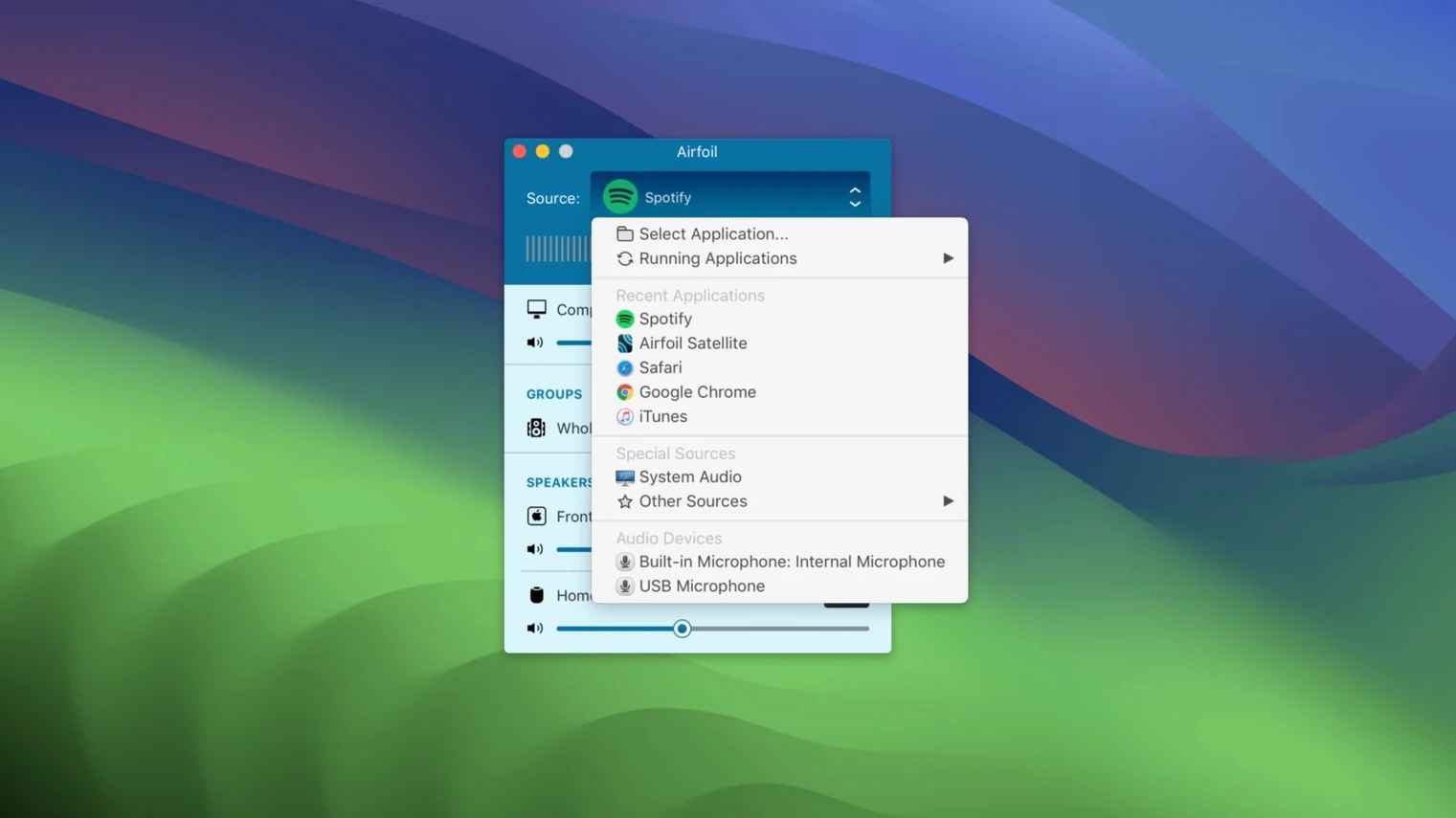
Airfoil doesn't ask you to replace anything. It sits between your Mac's audio output and whatever speakers you already own. The app grabs sound from a single application — Safari, Spotify, QuickTime, anything really — and hands it off to devices that macOS treats as separate destinations. That means I can keep system alert sounds on my Mac's internal speakers while a YouTube tutorial plays through the living room Apple TV. Two streams of audio, zero confusion.
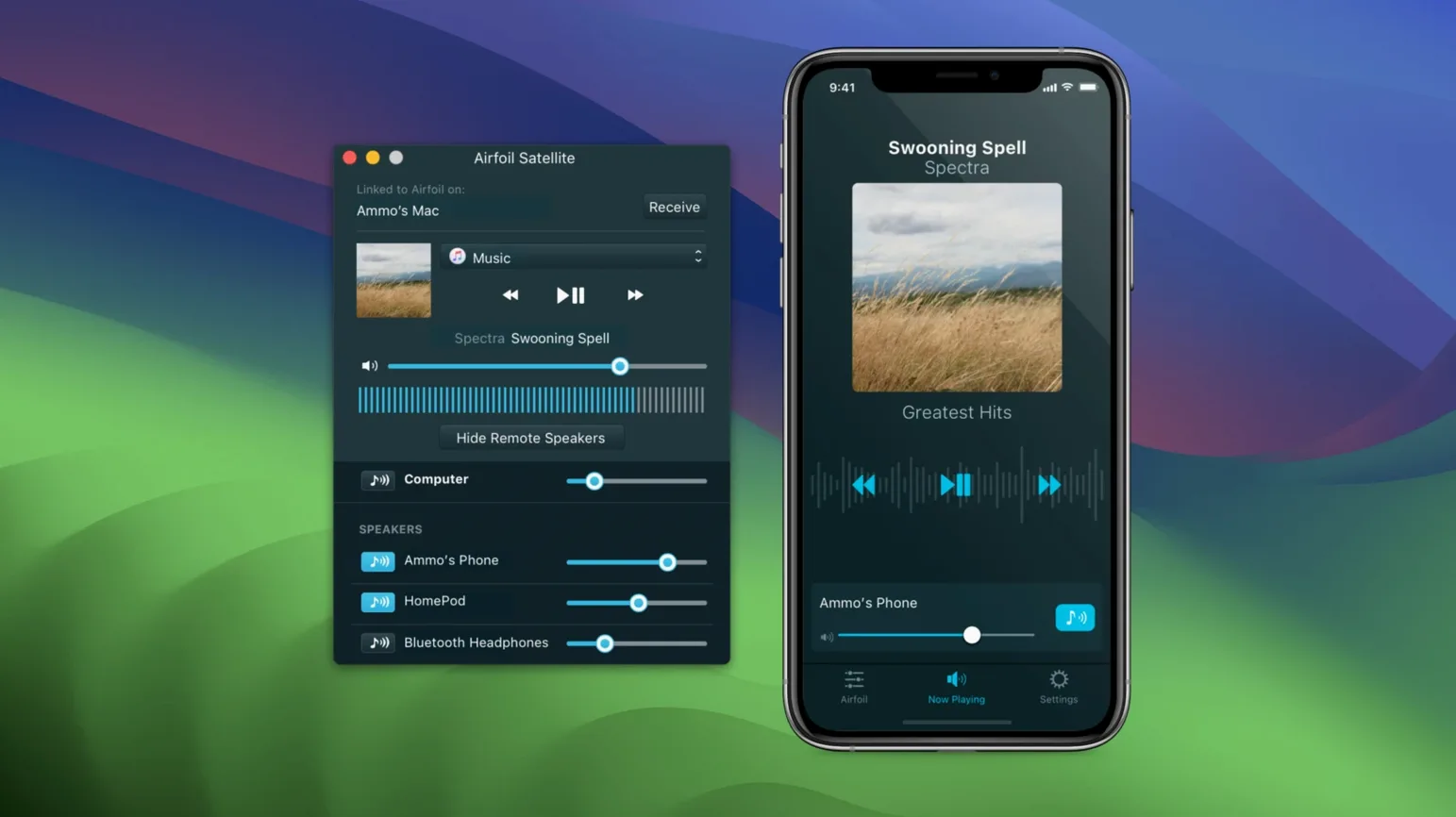
The integration with macOS runs deeper than you might expect. Airfoil taps into the same audio routing framework that GarageBand uses, so latency stays low. It also respects the volume controls in Control Center — turn down the Mac's master volume and the remote speakers follow. The app appears as a proper menu bar item, and if you use the Airfoil Satellite companion on an iPhone or iPad, you can switch sources or adjust levels from the couch without touching the Mac at all.
A Sunday morning workflow: news briefing to every room
Here's a routine I fell into without really planning it. Sunday mornings I want the news but I'm moving between rooms making breakfast, folding laundry, letting the dog out. Here's the step-by-step that took shape:
- Launch Airfoil. It remembers my last source — Safari with the local public radio station already loaded. If I closed it on something else, I pick Safari from the source dropdown.
- The app auto-connects to the three devices I use most: kitchen AirPort Express, bedroom HomePod mini, and the Google Cast speaker in the bathroom. That checkbox list appears in the main window; I just confirm all three are lit up.
- I click the EQ button and switch to my saved "Spoken Word" preset — a gentle bump around 2 kHz that makes voices cut through background noise like running water and sizzling pans.
- From the menu bar icon I slide the overall stream volume to about 60%. Loud enough to hear, quiet enough that I'm not shouting over it.
- Phone rings? I pause the stream from the Satellite app on my iPhone, talk, then tap play when I'm done. I never walked back to the Mac.
The whole thing takes fifteen seconds most mornings. No pairing, no AirPlay menu juggling, no wondering why one room is three seconds ahead of another. Airfoil handles the sync in Apple Lossless, so you get full quality without noticeable drift between rooms.
Little things you'll miss until you need them
Some features hide in plain sight. The silence monitor stops streaming when your source app goes quiet for more than a few seconds, which saves a bit of battery on Bluetooth speakers and avoids that faint hiss from powered-down amps. You'll find it in the Preferences pane under the Streaming tab.
Double-click a speaker's name in the device list and you open per-speaker settings. Each device can have its own volume offset and its own EQ bypass — useful when the HomePod already sounds great flat but the old desktop speakers need a bass cut. You can also rename speakers here, so "Living Room Speaker 2" becomes "Bookshelf Left" in your list.
Keyboard shortcuts are sparse but the one that matters is Command-L to lock the source application. Once locked, Airfoil won't switch sources even if you close the app you're streaming from. I lock Safari before I restart it to clear a stuck page; the stream never drops.
If you've looked for an airfoil for mac solution that plays nicely with gear you already own, the small conveniences here add up. The app remembers which speakers you use together and groups them in the menu bar dropdown under a "Recent Set" entry. One click reconnects the whole bunch. No scripting, no fiddling with audio MIDI setup.
- macOS 14.4 or later
- Apple silicon or Intel 64-bit Mac
Notes from the tables 0
Sign in or pull up a chair to leave a note.
No notes on this one yet. They go up after I read them.