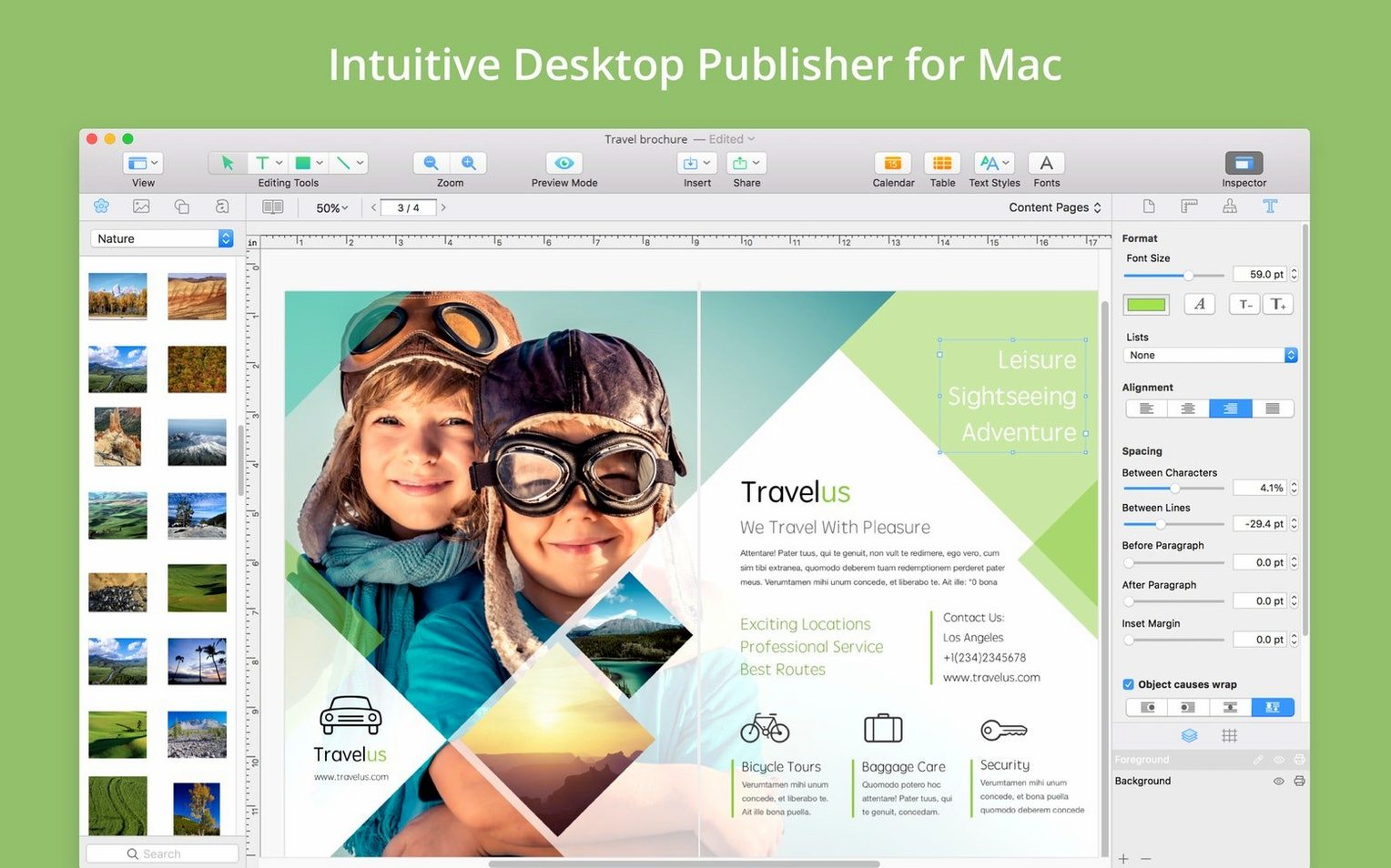
This app runs natively on any Mac you're likely using—Apple silicon and Intel processors, all the way back to macOS 10.12 Sierra. If the machine is still humming, Swift Publisher 5 will launch on it.
- Pick your canvas. Start a postcard, a multi-page magazine, a self-published book, or a brochure. The blank page respects bleed settings for print down the line.
- Set the text bones. Multi-column layouts are a checkbox, not a fight. Drop in your copy, and text flows around photos and illustrations without manual line-breaking.
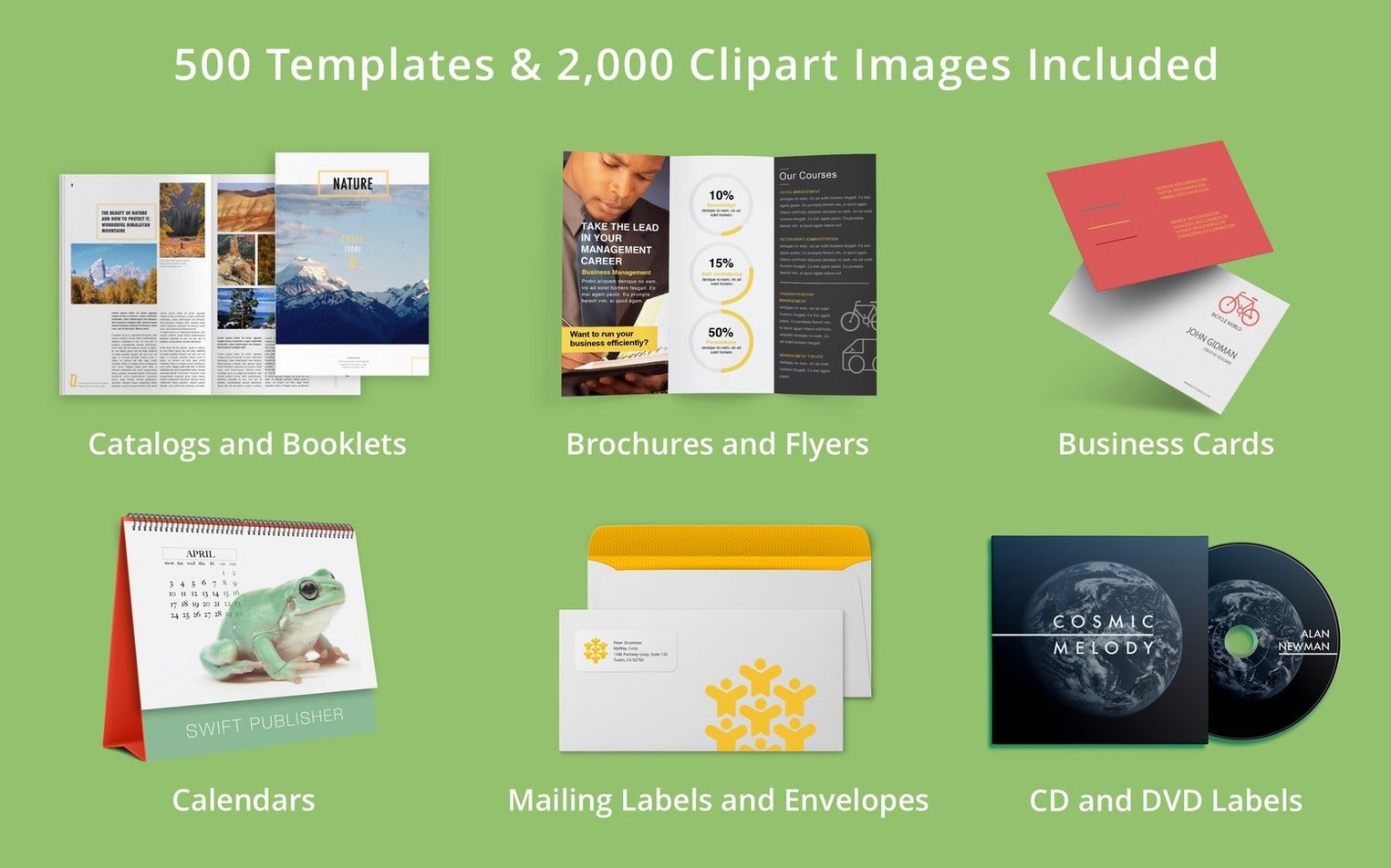
- Add the visuals. Grab something from the built-in stash—over 2,000 clip-art pieces and 100 image masks—or draw your own. The internal graphics editor handles gradients, freehand shapes, and transparency controls right on the page. No round-tripping to another app.
- Push it out the door. Export to digital formats, publish straight to the web, or send a print-ready file with full bleeds.
It sits comfortably alongside the tools you already have, handling the layout-heavy jobs a word processor gets cranky about, without asking you to learn a pro-grade beast. It’s the middle ground that actually earns its place in the dock.
Switch measurements to points before your first layout
Out of the box, Swift Publisher makes a few assumptions about how you work. Tweaking three things early saves a lot of undoing later.
- Default measurement units. The app ships in inches, but plenty of us think in points or millimeters. Head into the preferences and switch the rulers to whatever you actually measure with. It changes how every new document behaves, not just the one you are staring at.
- Master page elements. Before dropping content onto page one, open the master page and set your running headers, page numbers, and any repeating background graphics. It is ten minutes now versus redoing thirty pages by hand.
- Auto-save interval. Tighten it. The default gap between saves is generous, and you will forget to hit Command-S when you are deep in a layout. Set it to five minutes and stop worrying.
Skip the template tour and build one flyer instead
You will be tempted to explore every template. Resist that. Pick one project—a simple flyer or a two-page letterhead—and build it start to finish. Templates are scaffolding, not the building, and you learn the app by breaking things and putting them back.
Get comfortable with the two features that save the most time in the first week. The smart guides snap objects into alignment without you measuring anything, and the text-flow controls let you thread a single story across multiple boxes with a couple of clicks. Once those feel natural, the rest of the app opens up.
Also worth knowing: the clip-art and mask libraries are searchable, but the search field is small and easy to miss. Type a word—"arrow," "leaf," "badge"—instead of scrolling through categories. You will find usable art in seconds.
small conveniences you will kick yourself for missing
- Double-click a gradient stop on an object to pop open the color picker instantly. Most people drag stops around for weeks before discovering that.
- Hold Option while dragging a shape to duplicate it in one motion. Faster than copy-paste, and it respects the current grid.
- Right-click any image and choose "Edit Original" to open the internal graphics editor with that image loaded. You can adjust transparency, add a freehand mask, or tweak the gradient overlay without leaving the page context.
- Bleed preview. Tucked in the View menu, it shows exactly what trims off at the printer. Turn it on before exporting anything headed to a print shop.
- Tab through text boxes. When you have multiple linked text columns, the Tab key jumps between them in reading order. It sounds obvious, but plenty of users click each box manually for months.
None of these are hidden Easter eggs—they are just small enough that the manual glosses over them. Learn them in the first two days and the app feels much lighter under your hands.
One small but practical change: there’s now an alternative way to open documents saved in older versions of the app, so your earlier projects don't get locked out.
- macOS 10.12 or later
- Apple silicon or Intel processor
Questions I actually get
Can I use my own photos and drawings inside Swift Publisher 5?
Yes. It includes an internal image editor for illustrations, and you can flow text around any photos or objects you insert.
Notes from the tables 0
Sign in or pull up a chair to leave a note.
No notes on this one yet. They go up after I read them.