

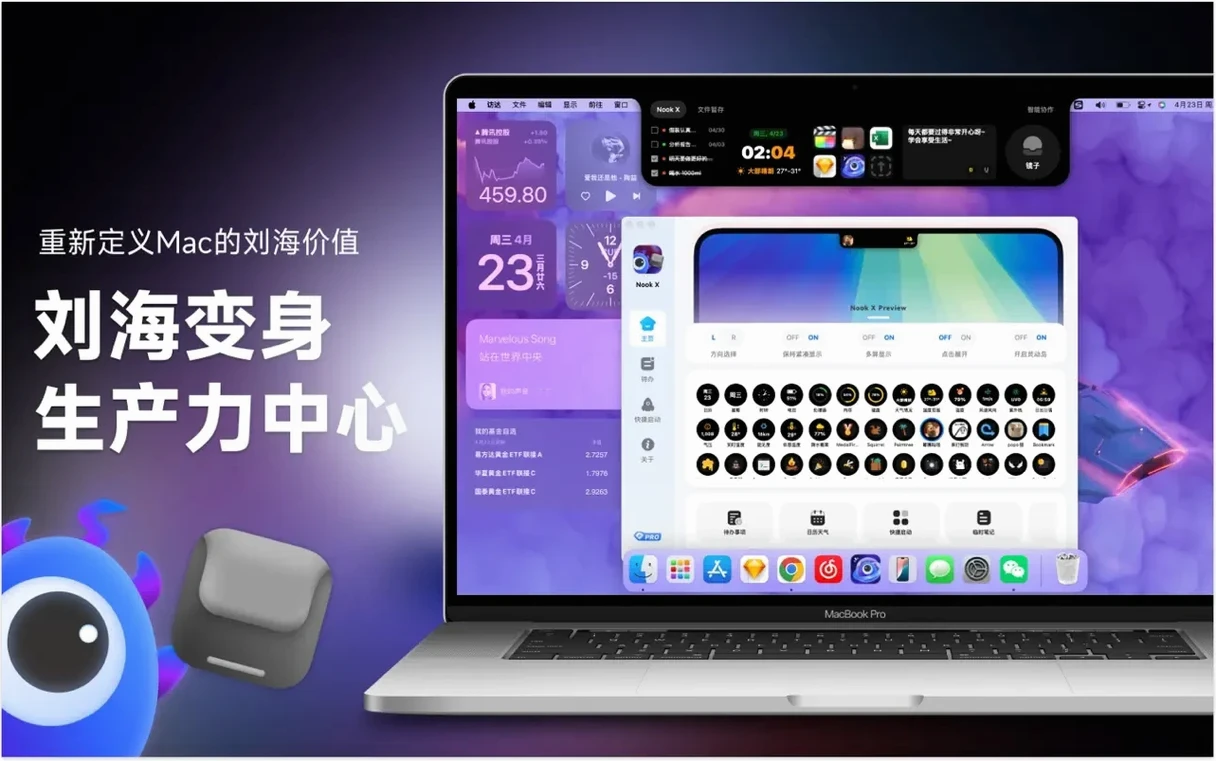

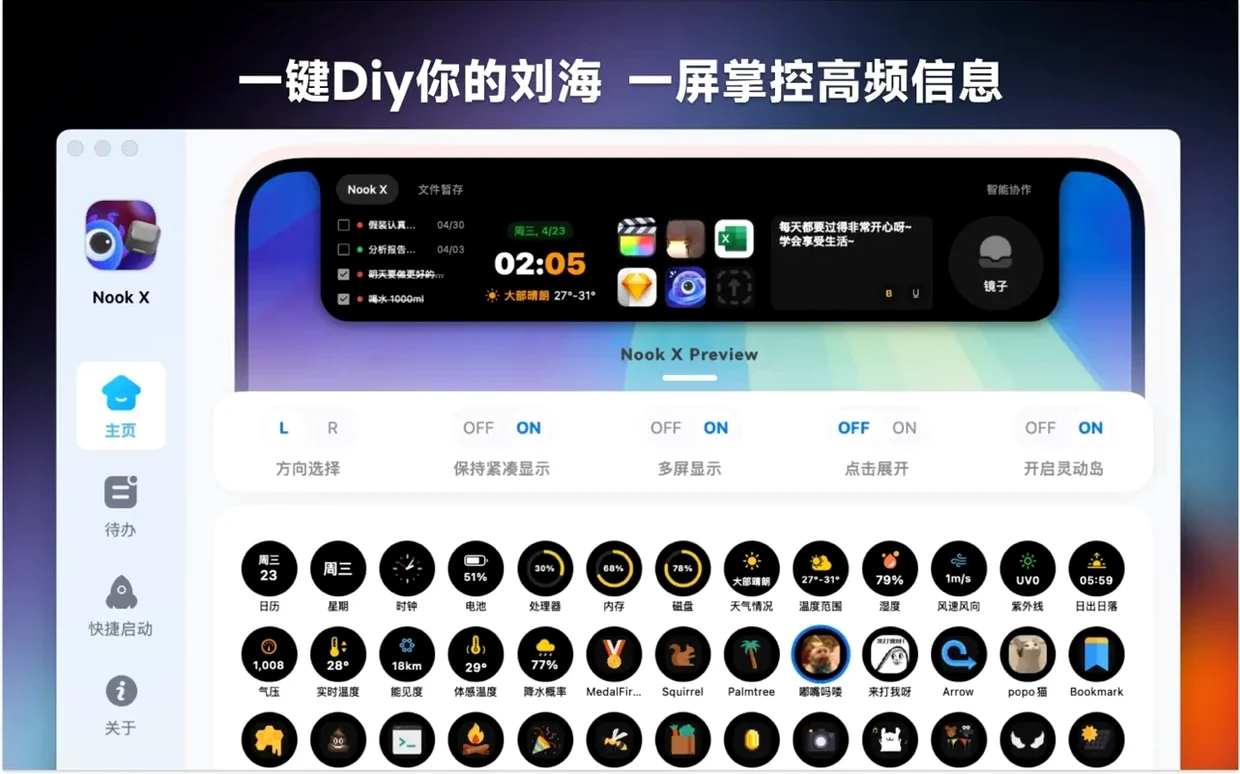
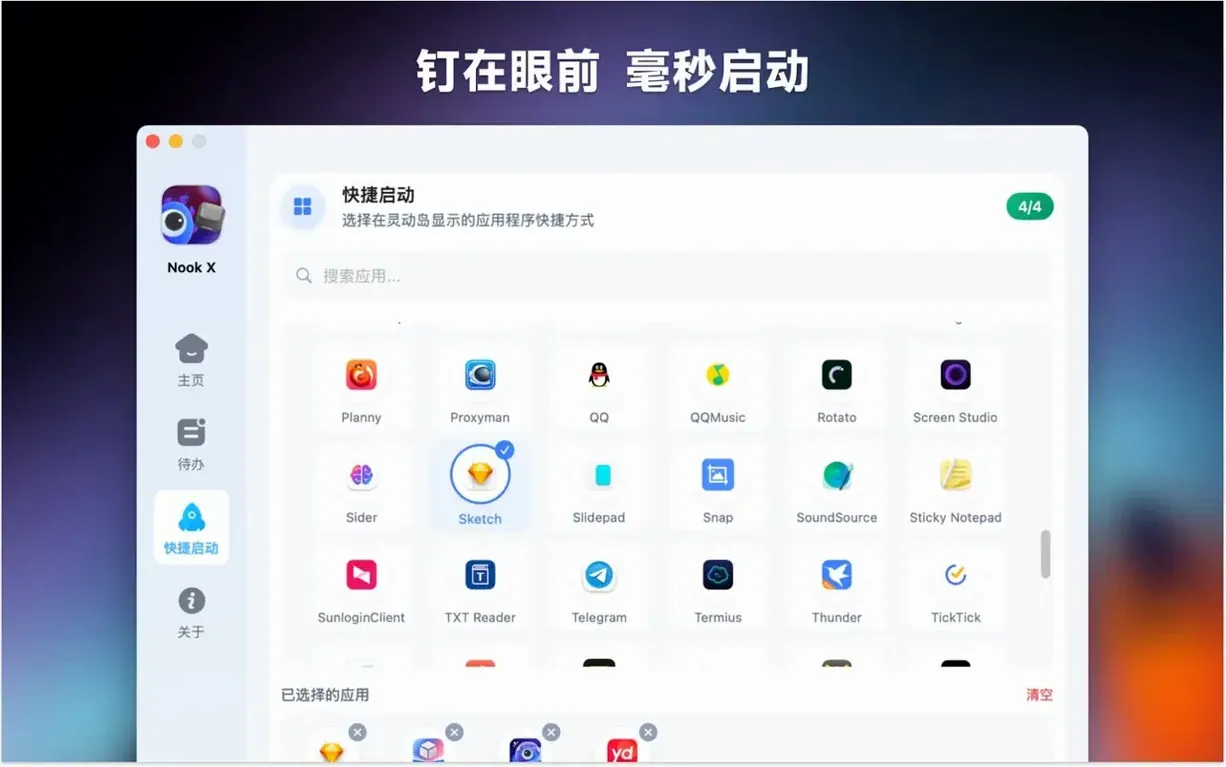
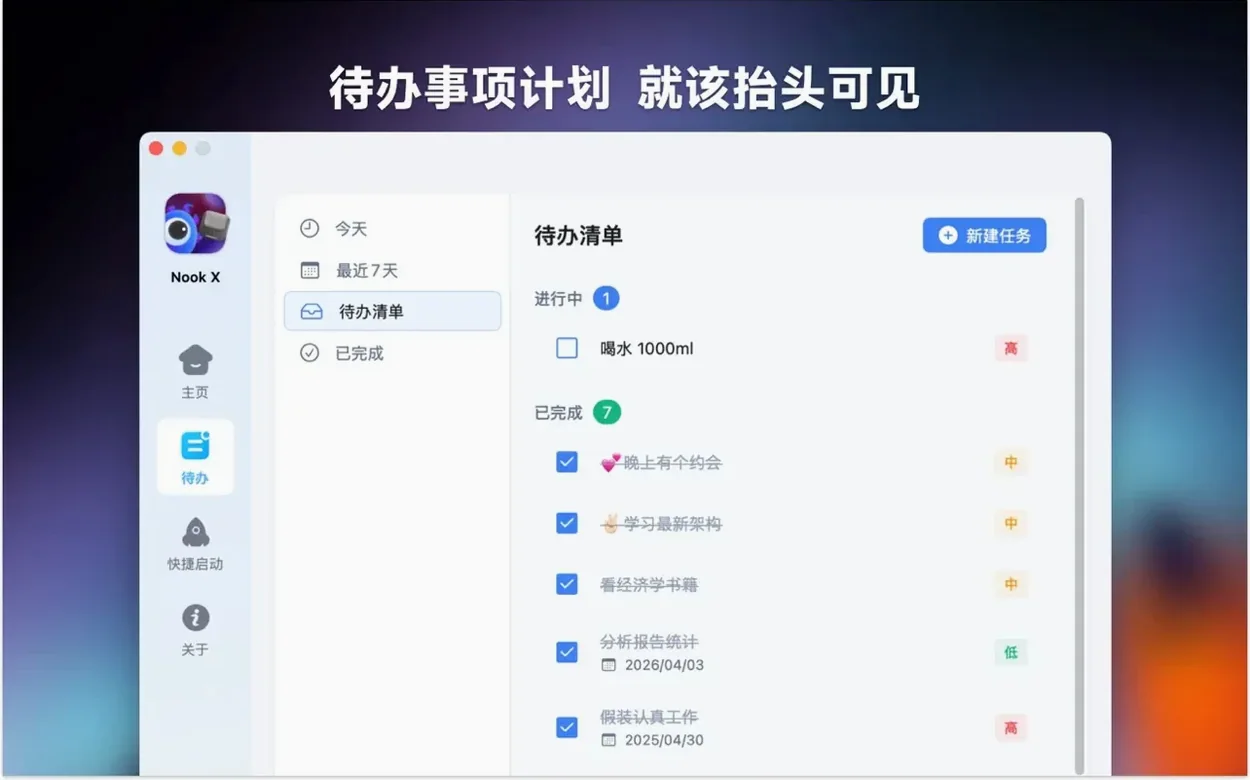
If you’ve ever used Stickies to park a random thought and iTunes to set a mood while you work, Nook X feels like the natural next step—except it also brings an AI chat window into the mix. It doesn’t try to replace your heavyweight project manager or your streaming subscription. Instead, it gives you a single, lightweight panel where three daily tools sit side by side.
| Detail | Info |
|---|---|
| Current version | 2026.09.15 |
| macOS required | 13 or later |
| Apple Silicon / Intel | Both, 64-bit |
The piece an experienced user will appreciate is how the parts talk to each other. You can highlight a line in the AI chat and turn it straight into a to-do with a priority flag and reminder, no copy-paste dance needed. The music side isn’t just a basic player either—it handles common audio formats and lets you search for a song by typing a snippet of lyrics you half-remember. Tasks, tunes, and a brainstorming partner, all in one Mac app that stays out of your way until you need it.
Quiet the appliance roar in five minutes
Out of the box, Nook X works, but it's set up to show you everything at once. The first five minutes after launch feel like walking into a kitchen where every appliance is running. Here’s what I change immediately.
Turn off the automatic lyrics popover unless you actually want karaoke mode every time a track plays. The switch lives in the preferences panel under Music. While you're there, set the default audio source folder so the player doesn't scan your entire home directory looking for files. Point it at one folder and let it learn that space.
On the AI side, the voice input toggle defaults to on, which means the microphone icon sits active in the chat bar waiting for a click. If you never talk to your Mac—plenty of people don't—flip that off in Assistant preferences. You'll gain a cleaner input field and one less thing to misclick.
The notch panel width can be adjusted, and the default eats more screen than I like on a 13-inch MacBook. Grab the right edge of the panel and drag inward. The app remembers the size across restarts, so you do this once.
Lastly, task creation from chat is on by default but the confirmation dialog can be silenced. Under Tasks, uncheck "Ask before creating" and the app will convert highlighted chat text straight into a to-do without the extra step. It feels faster, and you can always edit the task afterward.
Drag a to-do straight into Apple Reminders
Nook X doesn't lock you into its own ecosystem, and that's what makes it stick. The tasks you create aren't trapped inside the app. You can drag a to-do out of the panel and drop it into Apple Reminders, Notes, or even a plain text file on your desktop—the app sends the text along without fuss. It's a small detail, but it means the task list you build during a music session doesn't vanish when you close the window.
The music player respects the macOS media keys by default. Press play on your keyboard and Nook X picks up the command if it was the last thing playing audio. It also appears in Control Center under the Now Playing widget, so you can skip tracks from your menu bar without opening the full panel. If you use AirPods, the ear-detection pause and resume works the same as it does in Apple Music.
For the AI chat, the clipboard integration is simple but useful. Copy a paragraph from Safari, switch to the chat input, and paste it. Ask Nook X to summarize, translate, or rephrase. The response sits in the chat history, and you can copy it back out or send it straight to a task. It doesn't try to be a full document editor—it's more like a smart scratchpad that sits between your browser and your notes app.
Language switching happens automatically based on your macOS system language, but the in-app language selector overrides it. If you share a Mac with someone who prefers a different interface language, the two settings don't fight each other. The app just uses whichever you set last.
Don't treat it like a full project manager
The most common one I see: treating the task list like a full project manager. Nook X is not OmniFocus, and it's not trying to be. If you dump thirty tasks into it with no priorities and no reminders, the list becomes noise. Use the priority flags—there are three levels—and attach a reminder only to the two or three things you actually need nudged about. Let the rest sit as a simple checklist.
Another mistake is leaving the AI chat open while working in other apps and forgetting the voice input is still listening. The microphone doesn't record in the background, but if you click back into Nook X and accidentally hit the voice button, it starts transcribing whatever it hears. A quick trip to preferences to disable voice input unless you're actively using it solves this.
On the music side, new users sometimes drop an entire external drive into the library scan and wonder why the app beachballs. The player builds a local index of track names and lyrics data, and throwing a hundred thousand files at it at once is a recipe for a slow first scan. Start with a small folder, let it finish, then add more. The incremental scan is fast—the initial bulk one is not.
Lastly, beginners often miss that the search box in the music panel searches lyrics, not filenames. Typing "Yesterday" won't find the track unless the lyrics tag in the file actually contains that word. If you want filename search, use the filter bar in the playlist view instead. Two different search tools, two different jobs. Once you understand which is which, finding a half-remembered song becomes genuinely satisfying.
- macOS 13 or later
- Works on Apple Silicon and Intel 64-bit Macs
Questions I actually get
Can Nook X create a task from something I type in the AI chat?
Yes, you can turn any line from the chat directly into a to-do with a priority and reminder, no extra steps.
How does the music search work?
You can search for songs by typing a line or phrase from the lyrics—handy when you can’t remember the title.
What languages does the interface support?
It supports Russian, English, German, Vietnamese, Indonesian, Spanish, Italian, Traditional Chinese, Simplified Chinese, Korean, Portuguese, Thai, French, and Japanese.
Notes from the tables 0
Sign in or pull up a chair to leave a note.
No notes on this one yet. They go up after I read them.
More from the Mac Apps page
The whole page Mac Apps Updated 12 MB
NotchBox
1.1.71
Mac Apps Updated 12 MB
NotchBox
1.1.71
 Mac Apps Updated 7 MB
NotchNook
1.6.2
Mac Apps Updated 7 MB
NotchNook
1.6.2
 Mac Apps 41 MB
Nik Collection
9.0
Mac Apps 41 MB
Nik Collection
9.0
 Mac Apps 3.5 GB
OmniGraffle Pro
7.26
Mac Apps 3.5 GB
OmniGraffle Pro
7.26
 Mac Apps 73 MB
OmniPlayer: MKV Video Player Pro
2.1.22
Mac Apps 73 MB
OmniPlayer: MKV Video Player Pro
2.1.22
 Mac Apps Updated 78 MB
NeoFinder
9.3
Mac Apps Updated 78 MB
NeoFinder
9.3
 Mac Apps 41 MB
One Switch
1.35.4
Mac Apps 41 MB
One Switch
1.35.4
 Mac Apps 7 MB