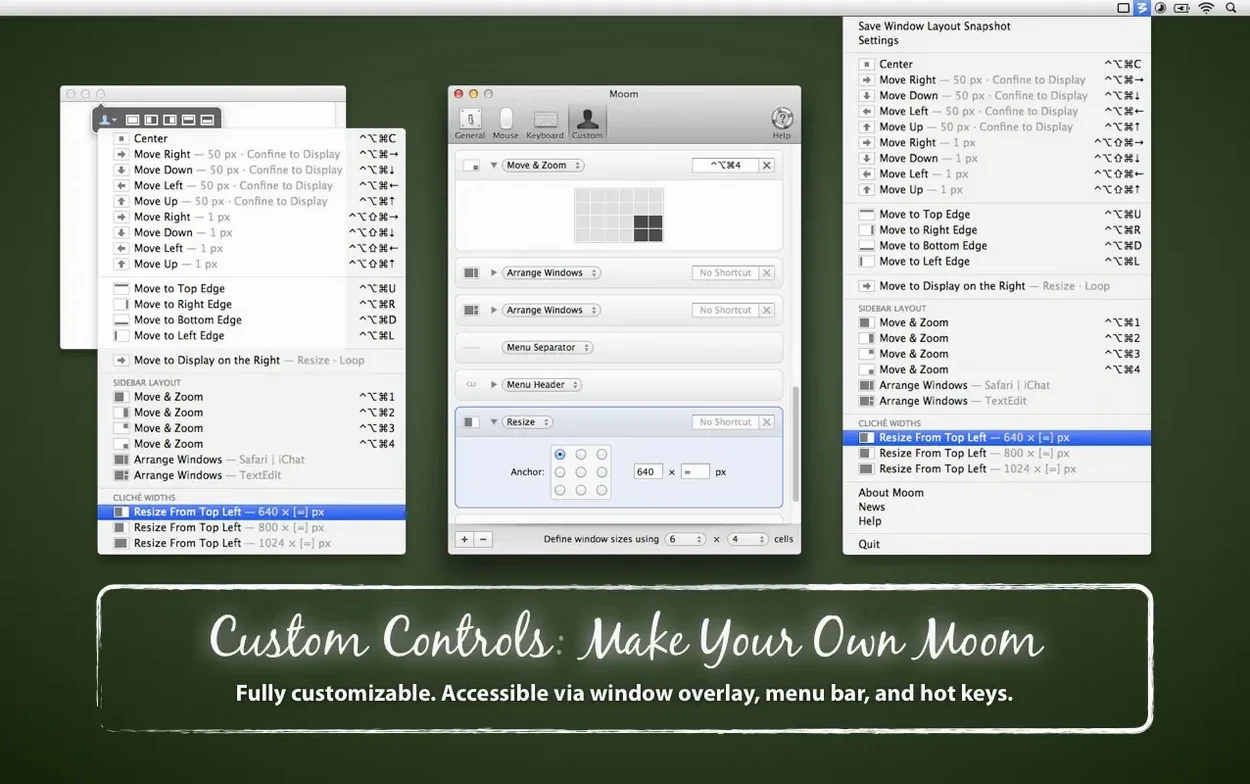
Your Mac is happy to let windows pile up like a messy desk, but moving and resizing them still feels clunky. The green button guesses, and dragging edges is slow. Moom steps in as the missing piece, a small utility that puts you in charge of where things land without turning you into a keyboard shortcut encyclopedia overnight.
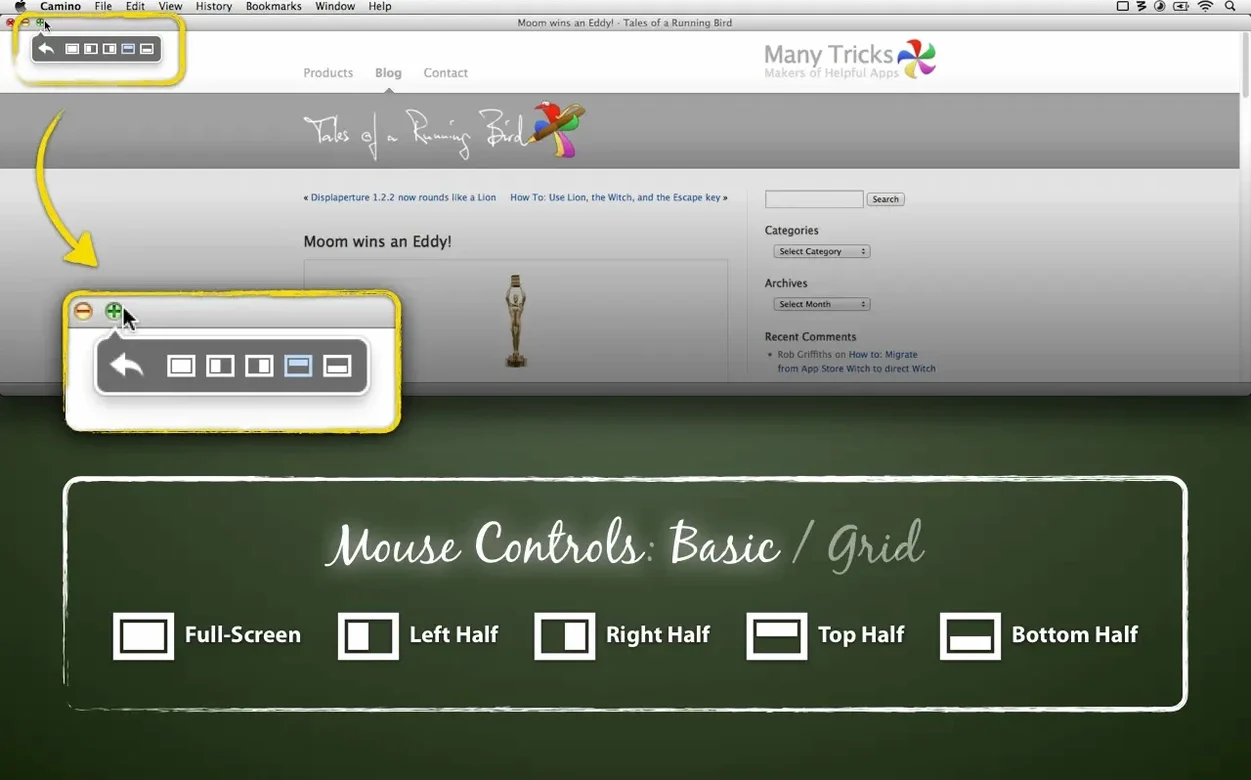
- Snaps that make sense. Hover over the green zoom button and a pop-up palette appears. One click sends a window to half the screen, a corner, or the other display.
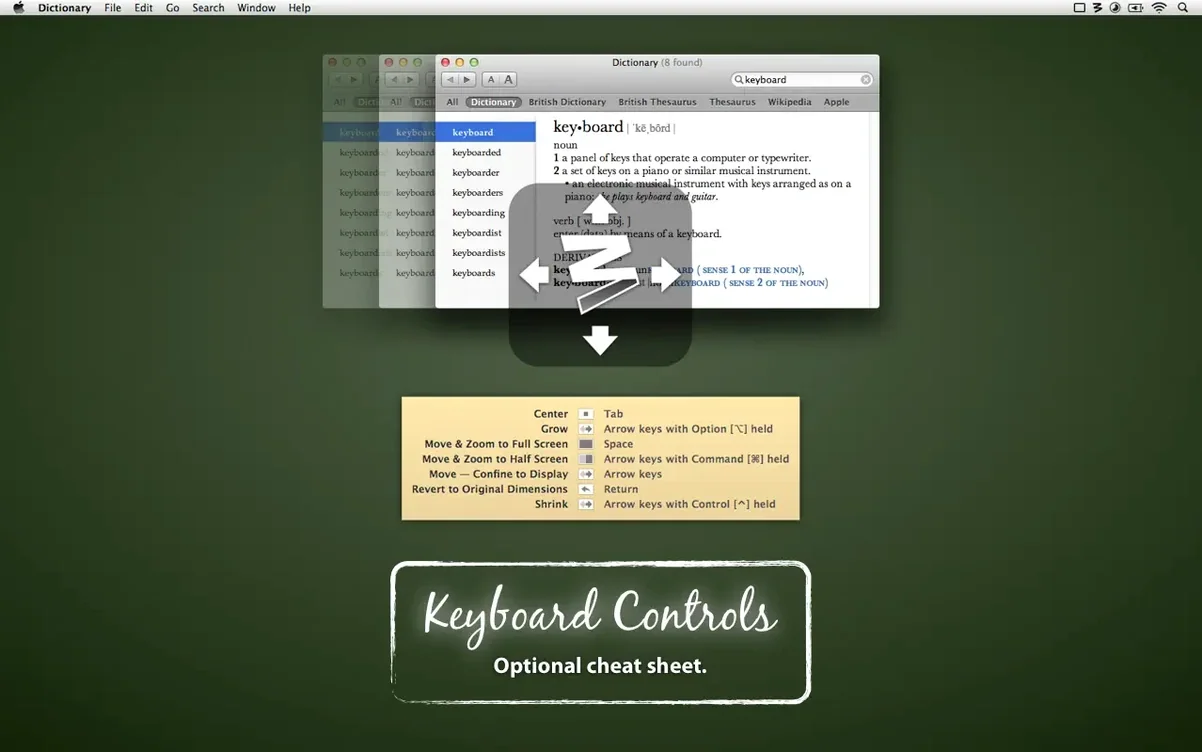
- Move without the mouse. Define keyboard shortcuts to push windows around and resize them—useful when you're typing and don't want to reach for the trackpad.
- Recall entire setups. Save a layout of your browser, editor, and terminal, then restore it later. The new version even spots which windows belong where based on what's open.
- Plays nice with others. It extends what macOS already does, so it feels like a thoughtful upgrade, not a separate universe. It knows to skip minimized windows and hidden apps when restoring layouts to the active display.
Moom doesn't replace the Finder or your other tools; it just addresses a gap Apple left open. Assign a few snaps, forget the app is there, and enjoy windows that land where you expect them.
How Moom fits with the rest of your Mac
Moom doesn't hog a spot in the Dock or fight with the tools you already use. It extends the green zoom button you've ignored for years and gives it a second life. Trigger the palette from the button, then get back to work. If you use BetterTouchTool or Karabiner-Elements, you can chain Moom's keyboard shortcuts into larger macros without the apps stepping on each other's toes. And it lives quietly in the menu bar—no floating panels, no persistent overlays.
On multi-display setups, Moom understands which screen a window lives on. Snapping to half-screen on an external monitor works the same as on the built-in display. The layout feature respects display boundaries, so a saved arrangement created on a 27-inch screen won't spill onto the laptop panel when you undock. It also cooperates with macOS Spaces: move a window to another desktop with a shortcut, then use Moom to snap it into place once it lands.
Runs lean on Intel and Apple Silicon
Does it slow down the Mac or cause weird window flicker? No. Moom is a lightweight utility that hooks into the window server the way Apple intended. On both Intel and Apple Silicon machines it uses barely any CPU time. The 4.6 update fixed a macOS quirk where hidden apps would confuse layout restoration, so the flicker days are behind us.
Will I need to learn a hundred shortcuts? Not unless you want to. Plenty of people just use the green-button palette and never touch the keyboard side. You can start with the six presets, then add one custom size when you notice a pattern in how you arrange things. The learning curve is as shallow or as deep as you choose.
Can it handle an oddball window that refuses to resize? Most stubborn windows cooperate, but apps that draw their own title bars—like some Adobe panels—occasionally need a second nudge. In practice, Finder, browsers, terminals, and the apps you live in snap exactly as you'd hope.
The latest update adds some real smarts to saved layouts. Moom can now assign windows to their saved spots by simply recognizing which apps are frontmost, so you don't have to line things up perfectly beforehand. Layouts set for the active display also got a bit more polite: they'll now skip hidden apps and minimized windows, plus a macOS quirk that misplaced hidden-app windows has been worked around.
- macOS 10.13 High Sierra or newer
- Works on Intel and Apple Silicon Macs
Questions I actually get
Does Moom work with my current version of macOS?
Moom requires macOS 10.13 High Sierra or newer, and it runs on both Intel and Apple Silicon Macs.
Can I move windows between displays with Moom?
Yes, you can send windows to another display using the pop-up palette, mouse actions, or a keyboard shortcut.
Does Moom only do snapping, or can it remember window layouts?
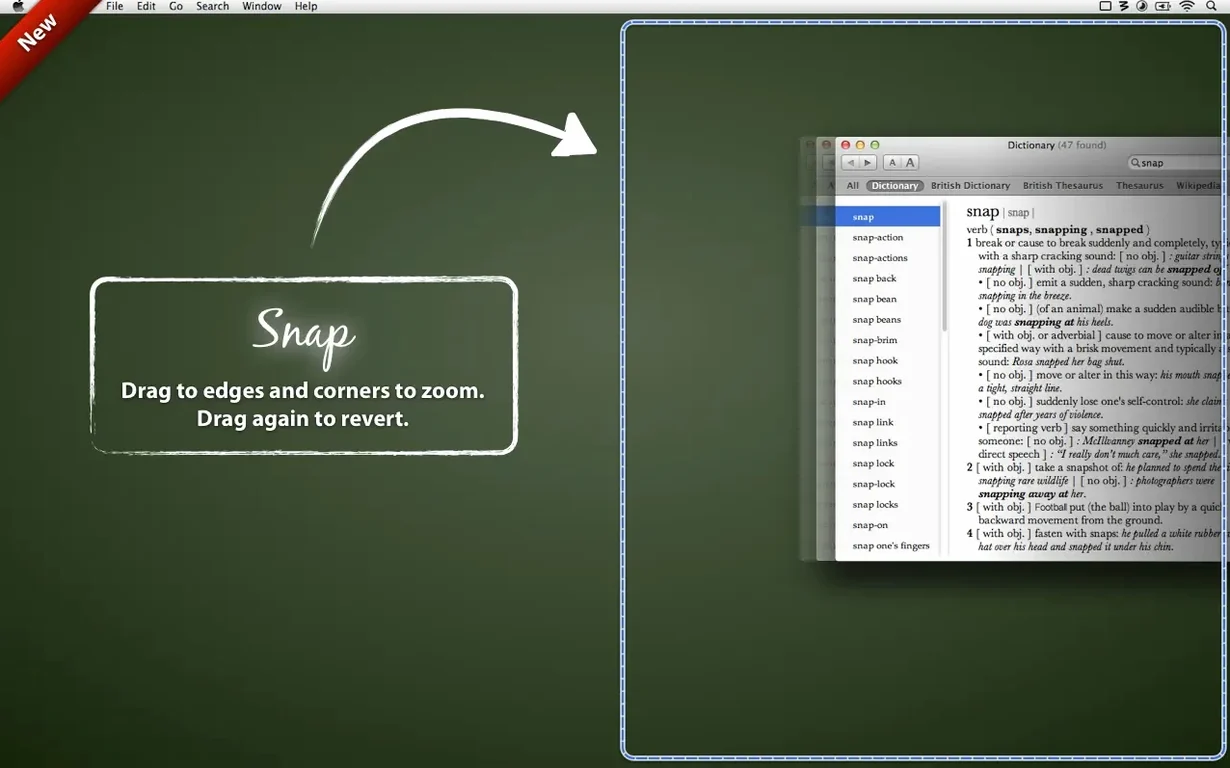
It does both. You can snap windows to edges and also save complex arrangements of multiple windows to restore them later with one click.
Notes from the tables 0
Sign in or pull up a chair to leave a note.
No notes on this one yet. They go up after I read them.