

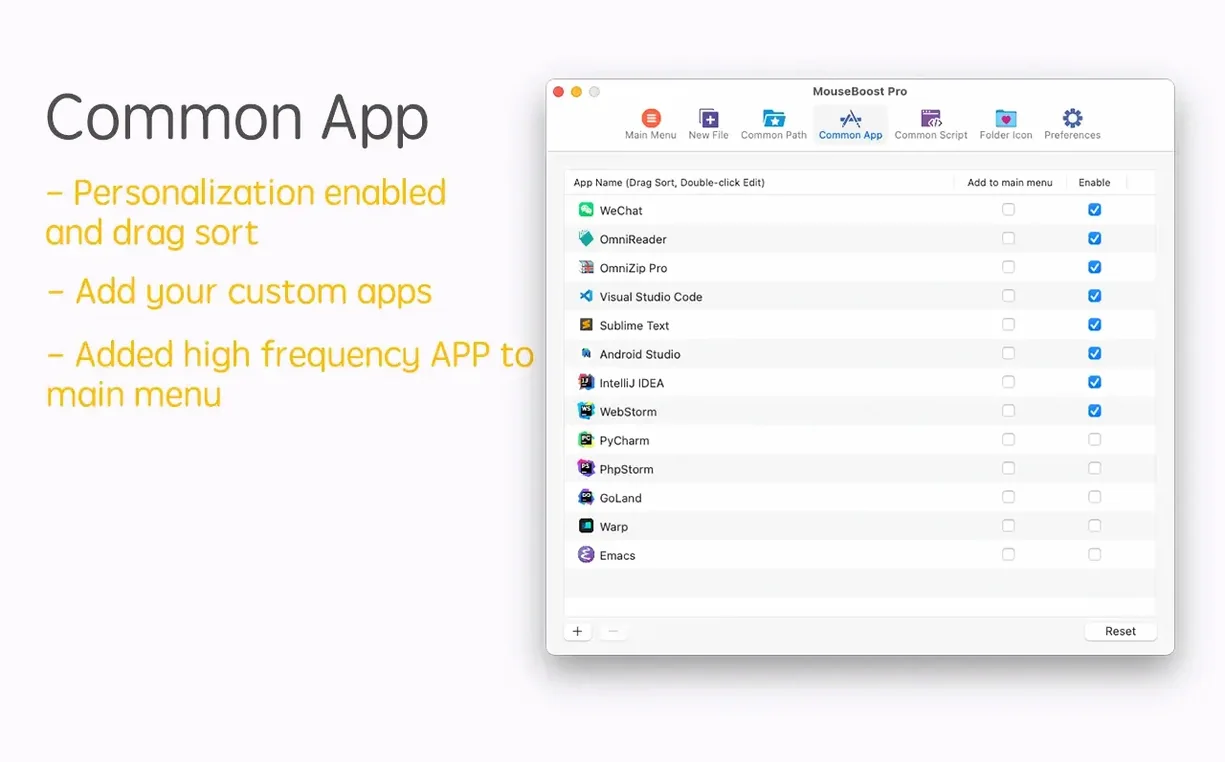
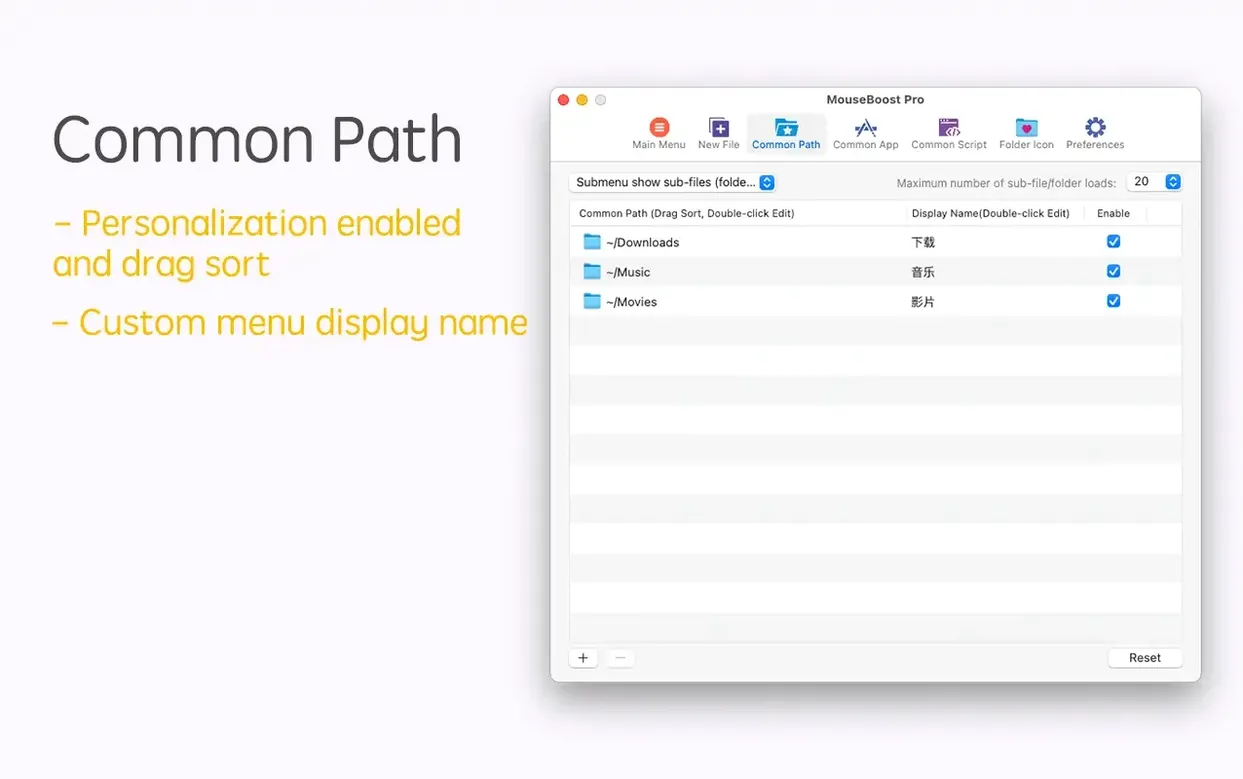
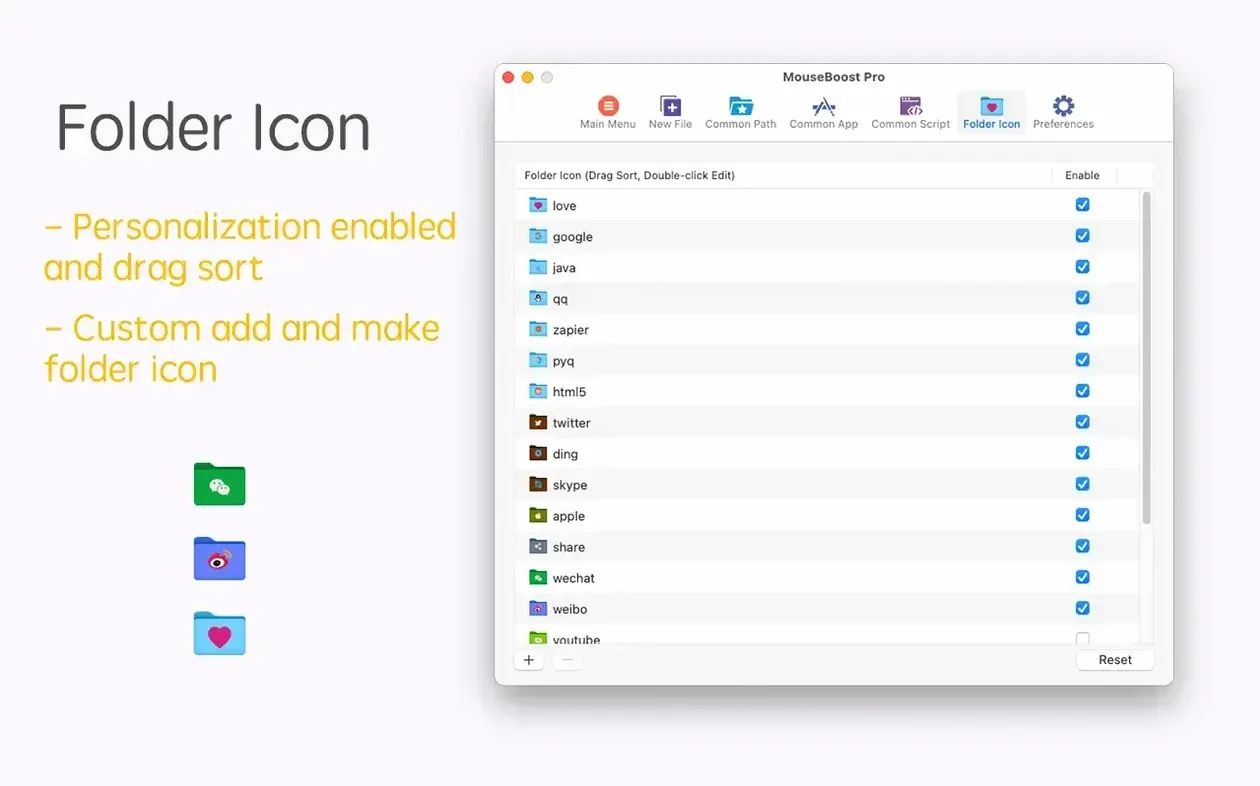
Freelancers juggling client folders, coders tired of digging through menus, and anyone who organizes a lot of files by hand — those are the folks I see getting the most out of MouseBoost Pro. It lives in your right-click menu, so the tools you actually need are always one click away instead of buried three menus deep.
Say you’ve got a folder of thirty screenshots that all need renaming before you send them off. Instead of clicking each one twice with a careful pause in between, you select the batch, right-click, and open the batch rename tool. You can insert text at a specific position, pull names from a list, or strip out the gibberish your camera app tacked on. Pick your pattern, apply it, and the whole mess tidies itself up in a couple of seconds.
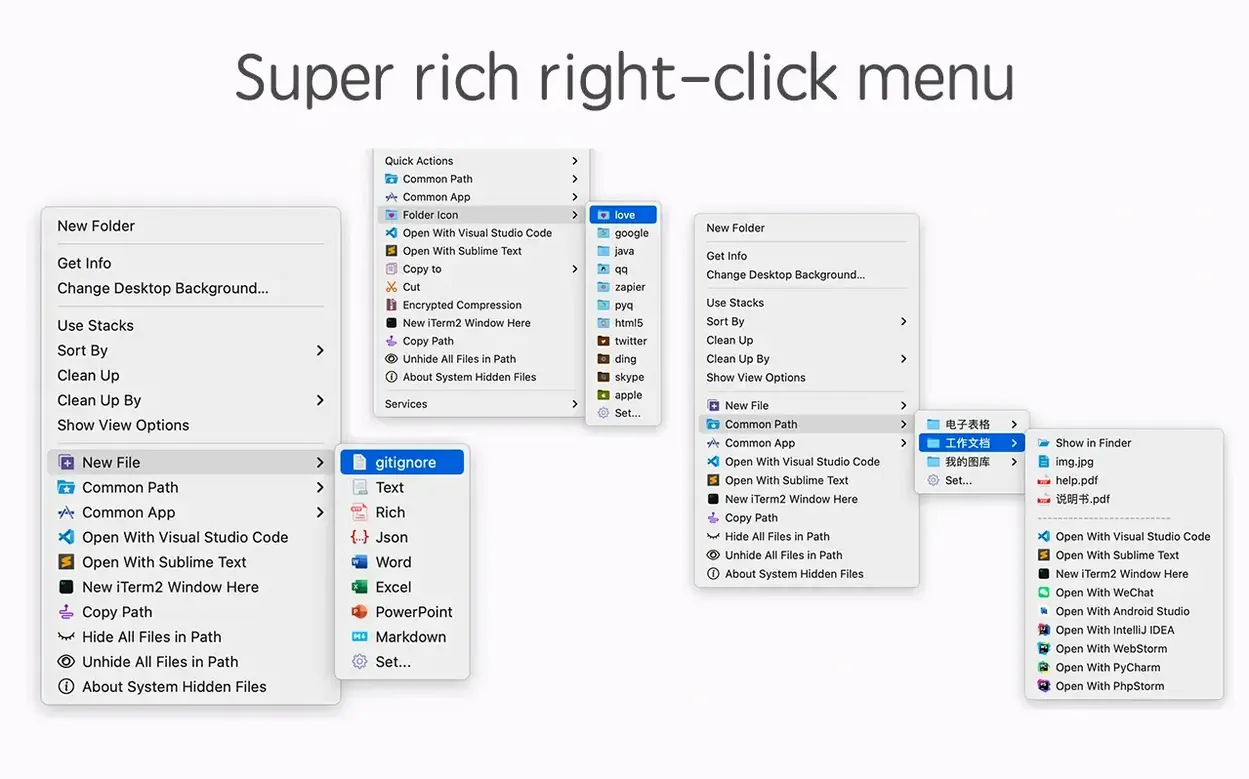
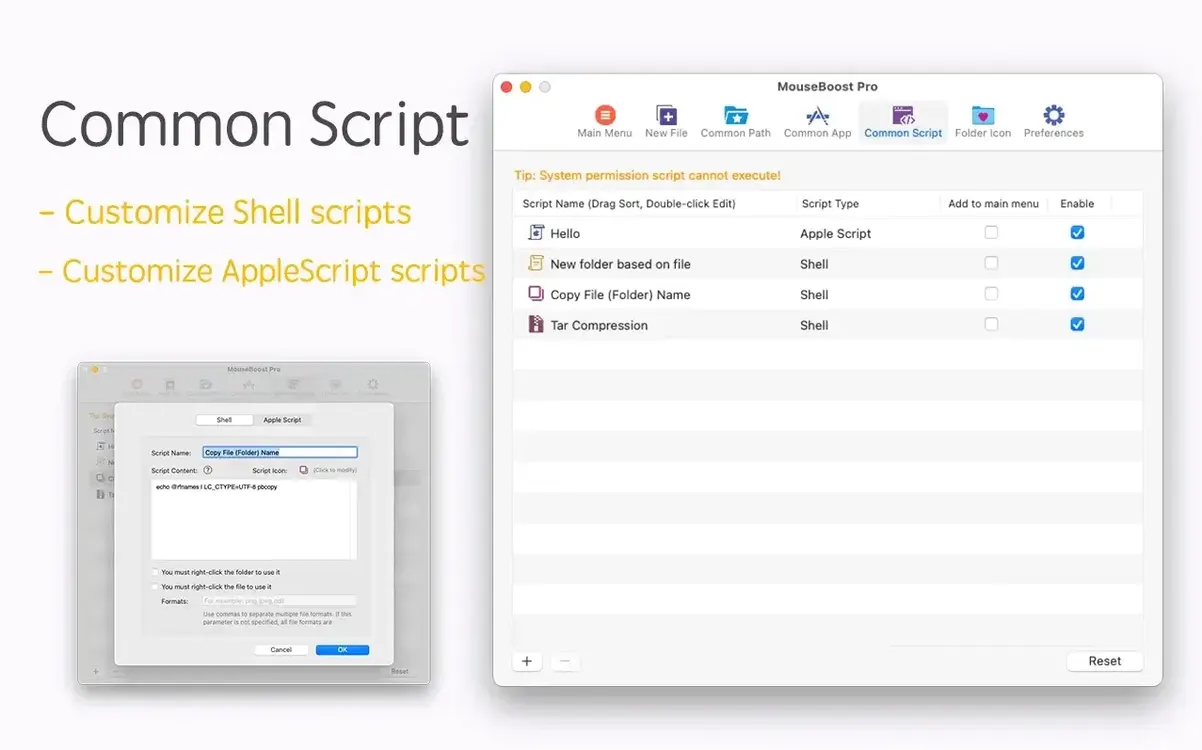
From the same right-click menu you can copy the file path, calculate a SHA256 checksum to confirm nothing got corrupted, or move everything to a project folder you’ve set as a favorite. You can even right-click a folder and change its icon on the spot — no manual tinkering with Get Info panels. And if you need to pop open that folder in iTerm2 or VS Code, the app hands it off directly to the right directory.
Bottom line: it turns the Finder into a launchpad for the kind of small, practical tasks that eat up your afternoon when you do them the long way.
A screenshot workflow, from import to client email
Here is how I send five annotated screenshots in under a minute without opening Preview or Photos even once.
First, I drag the PNGs into a new folder on the desktop. I select all five, right-click, and run Quick preview for folder tree — MouseBoost Pro shows me a clean visual overview so I can confirm these are the right grabs before I touch anything. Then I fire up batch rename. I choose insert text at position, type _draft at the end of every filename, and apply. The whole batch changes in a blink.
Next I right-click one file, copy its SHA256 checksum, and paste it into my notes. If the client ever claims the file arrived garbled, I have the hash ready. Finally I select the five PNGs again, right-click to choose my Client drafts favorite folder, and move them. Done. No drag-and-drop acrobatics, no switching windows six times.
Turn off the kitchen-counter clutter
The right-click menu ships with everything turned on, but that is like a kitchen with every gadget out on the counter. Here is what I trim first.
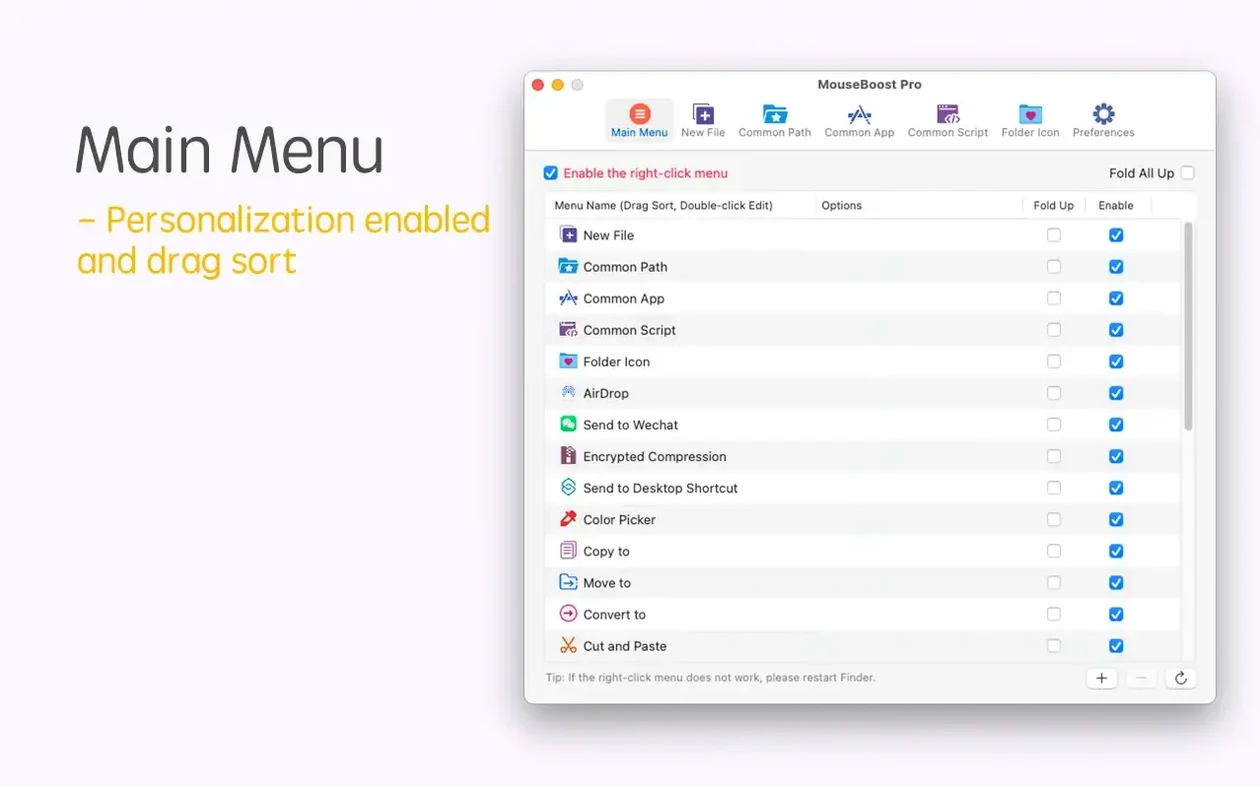
- Hide tools you never touch. Open preferences and uncheck anything that just adds noise. I keep maybe twelve of the thirty actions visible.
- Reorder the menu so muscle memory works. You can sort all menus by dragging. I put batch rename, copy path, and move to favorites right at the top — those three cover eighty percent of my day.
- Set a maximum depth for directory trees. If you generate folder trees often, cap the depth at three or four levels. It keeps the output readable instead of spitting out every nested node like a runaway printer.
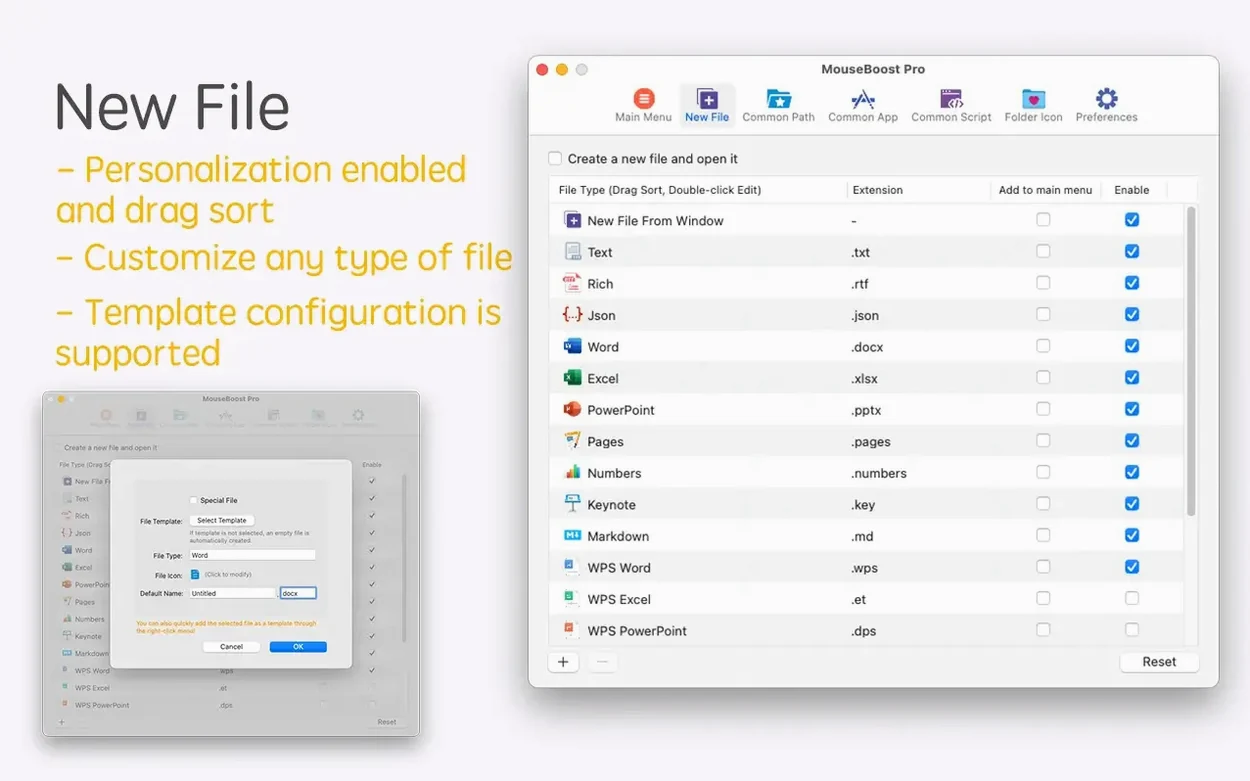
- Add your own custom file type. Under the new-file menu, I created a blank Markdown template so I can right-click in any folder and start a note instantly. You can do the same for YAML, JSX, or whatever format you reach for ten times a day.
Preview folder trees without opening them
Version 5.2.8 brought a handful of things that changed how I use mouseboost pro day to day. The quick preview for folder trees alone saves me from opening a dozen folders just to see what is inside — I right-click, glance at the tree, and move on. The automatic OCR copy joined the aspect ratio selector, which means I can grab a region of a screenshot and pull the text out without launching a separate OCR tool.
Batch renaming got noticeably smarter. The insert text at a specific position option handles naming patterns that used to require a separate renamer app, and the rename-from-list feature lets me paste in a column of new names and apply them in order. For anyone who has ever renamed twenty files to match a client spreadsheet, that is a genuine time saver.
Scrolling capture improved as well, so long webpage or chat-thread screenshots come out cleaner than before. And the new maximum depth setting for file and directory trees means you are no longer stuck with an all-or-nothing dump of every subfolder on your drive.
Bottom line: the update did not reinvent mouseboost pro, it just sanded down the rough edges that made everyday tasks take a few extra clicks.
A few welcome tweaks in this update. The file and directory tree view got a quick preview option and a maximum depth setting so you don't accidentally map your whole drive. Batch renaming picks up two new tricks: inserting text at a chosen position and pulling replacement names straight from a list. And the screenshot tool now handles aspect ratio selection and automatic OCR copy, with smoother scrolling capture thrown in for good measure.
- OS X 10.11 or later
- Apple Silicon or Intel 64-bit Mac
Questions I actually get
Can I remove actions I never use from the right-click menu?
Yes, you can customize the menu so only the tools you reach for regularly show up, keeping the list short and relevant.
Does it work on Apple Silicon as well as older Intel Macs?
Absolutely, MouseBoost Pro supports both ARM and 64-bit Intel architectures, so it runs natively no matter which Mac you're on.
Notes from the tables 0
Sign in or pull up a chair to leave a note.
No notes on this one yet. They go up after I read them.
More from the Mac Apps page
The whole page Mac Apps 187 MB
Movavi Screen Recorder
23.1.1
Mac Apps 187 MB
Movavi Screen Recorder
23.1.1
 Mac Apps 110 MB
Movavi Video Converter
22.5.0
Mac Apps 110 MB
Movavi Video Converter
22.5.0
 Mac Apps 79 MB
Movavi Video Editor
22.4.1
Mac Apps 79 MB
Movavi Video Editor
22.4.1
 Mac Apps 126 MB
Movavi Video Suite
22.4.1
Mac Apps 126 MB
Movavi Video Suite
22.4.1
 Mac Apps 294 MB
Movist Pro
2.17.2
Mac Apps 294 MB
Movist Pro
2.17.2
 Mac Apps 60 MB
Mp3tag
1.14.1
Mac Apps 60 MB
Mp3tag
1.14.1
 Mac Apps 13 MB
m’s HalfTone
1.5.3
Mac Apps 13 MB
m’s HalfTone
1.5.3
 Mac Apps 6 MB