
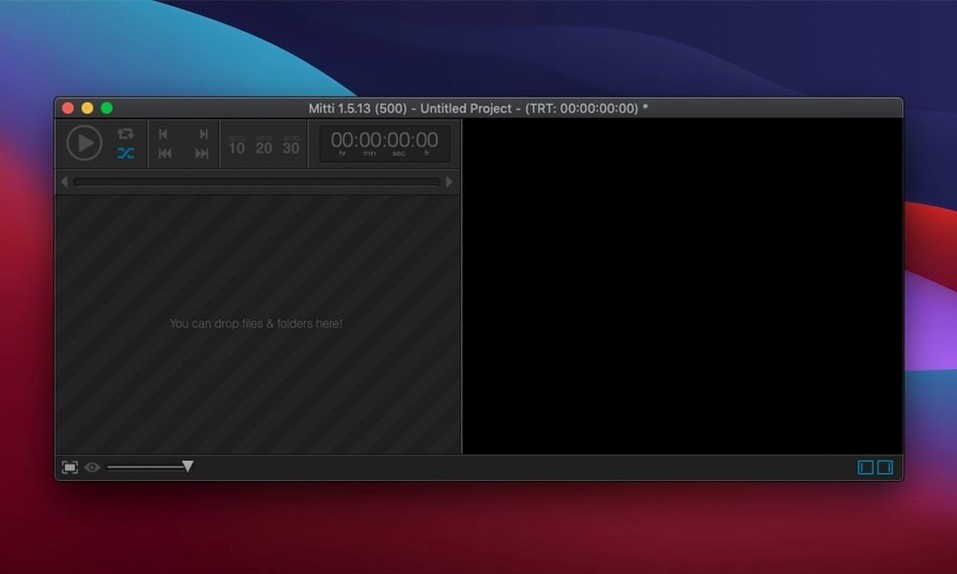
Mitti runs on any Mac that can handle macOS 10.15 Catalina or newer. It’s a universal app, so it works natively on both Apple Silicon and older Intel machines. If your Mac is still humming along on Catalina, you’re in. If you’ve moved to Sequoia, you’re also in. The developer keeps things current, with notes for version 2.8.19 already posted.
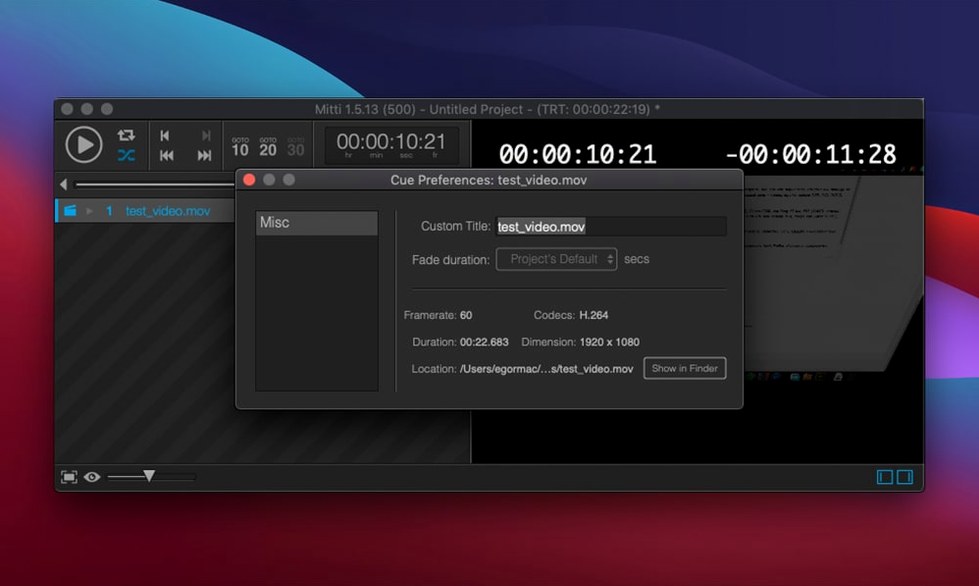
Under the hood, it’s a video cue player built for live events and theater work. You load up clips, stills, or live camera feeds—including Blackmagic sources—and fire them off when the moment calls for it. Each cue gets its own fade-in and fade-out timing, plus the ability to loop forever. You can pull in Syphon and NDI feeds, route audio to specific channels, and trim clips with in and out points.
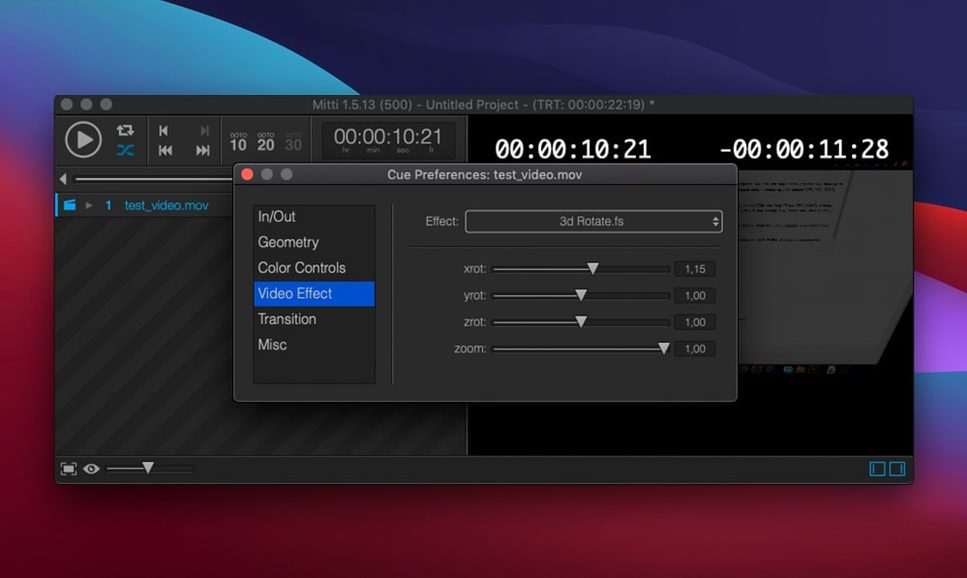
Visually, you’re covered with a big toolbox: over 100 ISF video effects and more than 30 ISF transitions. The color management keeps things looking right on whatever screen or projector you’re feeding, which matters when the house lights go down.
Dragging a folder into a theatre show
Say you're running visuals for a small theatre production. You've got a MacBook and a projector plugged in via HDMI. Here's how a show night usually goes.
You open Mitti and drag tonight's folder of video clips straight into the main window. The app builds your cue list in seconds. You tap the spacebar to preview the first clip — a slow fade-up of a starfield — then dial in a four-second fade using the on-screen slider. No menus, no buried settings.
Before doors open, you set the second monitor to fullscreen output. Mitti remembers which display you picked last time, so it's a single click. You run through the opening sequence once: starfield fades in, holds, then a title card crossfades with a preset transition. Everything lands on beat. You lock the machine, grab a coffee, and wait for the house manager's nod.
Showtime. You fire cue one with the keyboard. The starfield blooms across the stage. No stutter, no dock icon flashing — just clean playback. Between cues you glance at the timecode readout. The next clip is cued and waiting, and you know exactly how many seconds you've got before the scene change.
Clicking a cue won't flash the projector
The app is full of quiet design choices that only surface after you've done a few shows with it:
- Preview without panic. Clicking a cue doesn't send it to the projector. The main window and the fullscreen output are separate until you hit Go. You can scrub, trim, and check frame edges while the audience sees something else entirely.
- Fade handles right on the timeline. You don't need to open a panel to adjust fade durations. Grab the handle at the start or end of a clip and drag. The change is visible immediately in the waveform-style timeline.
- Automatic transcoding. Toss an old AVI or WMV file into the cue list and Mitti quietly converts it to a modern format in the background. No error messages, no codec-hunting — it just handles it.
- Playlist export with all media. When you need to move the show to a backup machine, the "export with content" option bundles every clip and the cue file into one folder. Copy it over and you're running, no relinking needed.
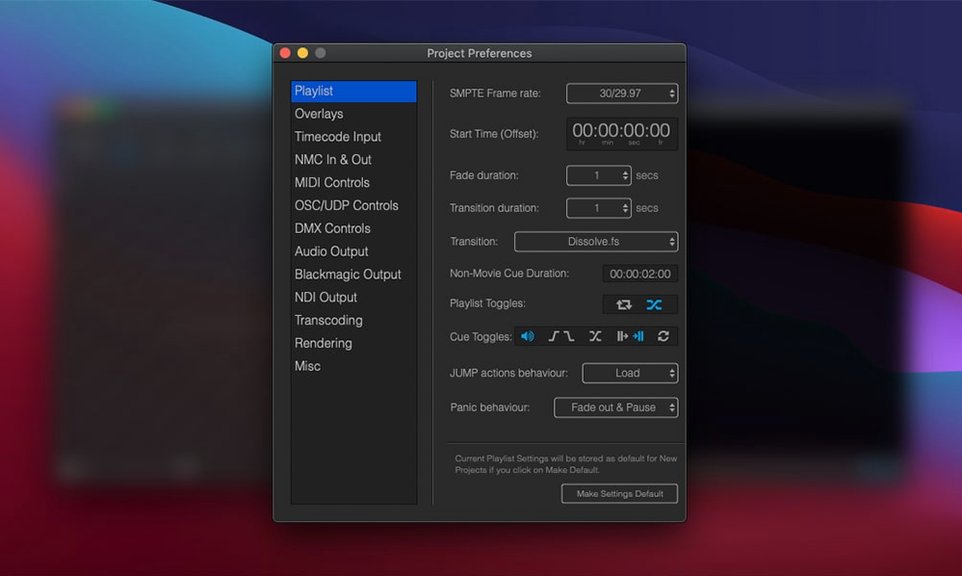
- NMC sync across Macs. If you run a second Mac as a backup, the internal NMC protocol keeps the two machines in lockstep. Fire a cue on one, and the other follows. It's not flashy, but it saves a show when something goes wrong mid-performance.
It’s straightforward software for a specific job.
- macOS 10.15 or later
- Apple Silicon or Intel processor
Notes from the tables 0
Sign in or pull up a chair to leave a note.
No notes on this one yet. They go up after I read them.