

Version 6.3.1 landed with a handful of fixes that matter if you live inside Open and Save sheets. It squashes a couple of bugs specific to macOS 27, sorts out an iCloud syncing hiccup for pinned folders, and adds a handy drag target below the menu bar icon for dropping files or folders straight from the Finder.
A sidebar that follows you into every dialog
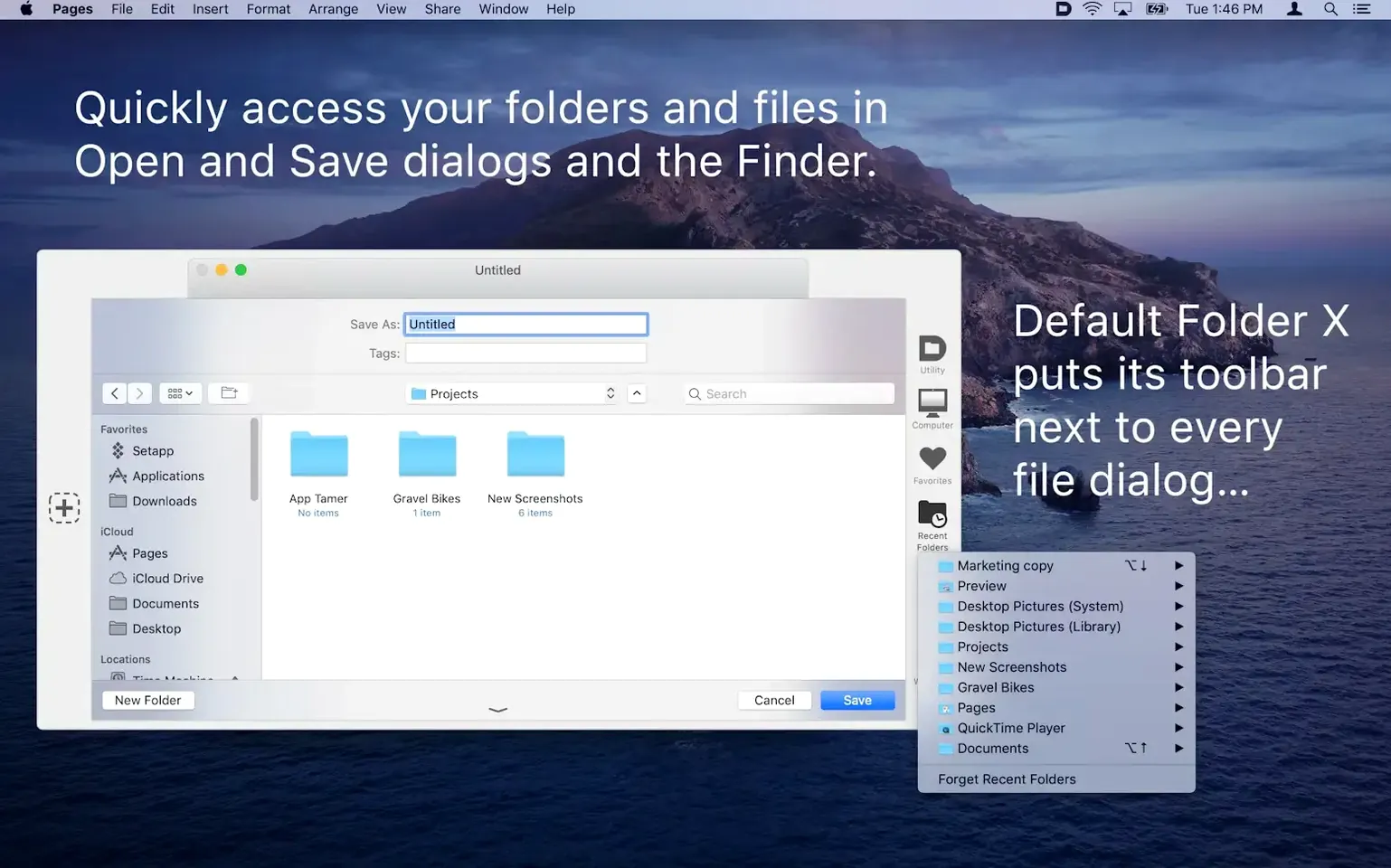
Default Folder lives in the background and makes every Open and Save dialog on your Mac more useful. Instead of digging through columns every time, you get a sidebar of your favorite folders, a list of recent locations, and the ability to jump to any open Finder window with a click. You can even set a different default folder for each app—so your graphics work always starts in the right project folder without you lifting a finger.
Reclaiming clicks for project-hopping workflows
This is for anyone who spends more time navigating folders than actually naming files. If you bounce between a handful of project directories all day, the favorites list and per-app defaults alone save a surprising number of clicks. The extra file controls inside the dialog—rename, delete, duplicate, or get info without leaving the Save sheet—are the kind of thing you didn’t know you wanted until you’ve used them. Keyboard shortcuts keep the whole thing moving fast, and the preview thumbnails in Open dialogs help you confirm you’re picking the right file before you commit.
Skipping the per-app folder setup
Most people install it and expect magic without doing the five-minute setup. The biggest miss is ignoring the per-app default folders. If you don’t tell Default Folder that Affinity Photo should always start in ~/Pictures/Client Work, it won’t. Another one is leaving the favorites list empty—drag three folders you actually use every day into it right away, then add more as you go.
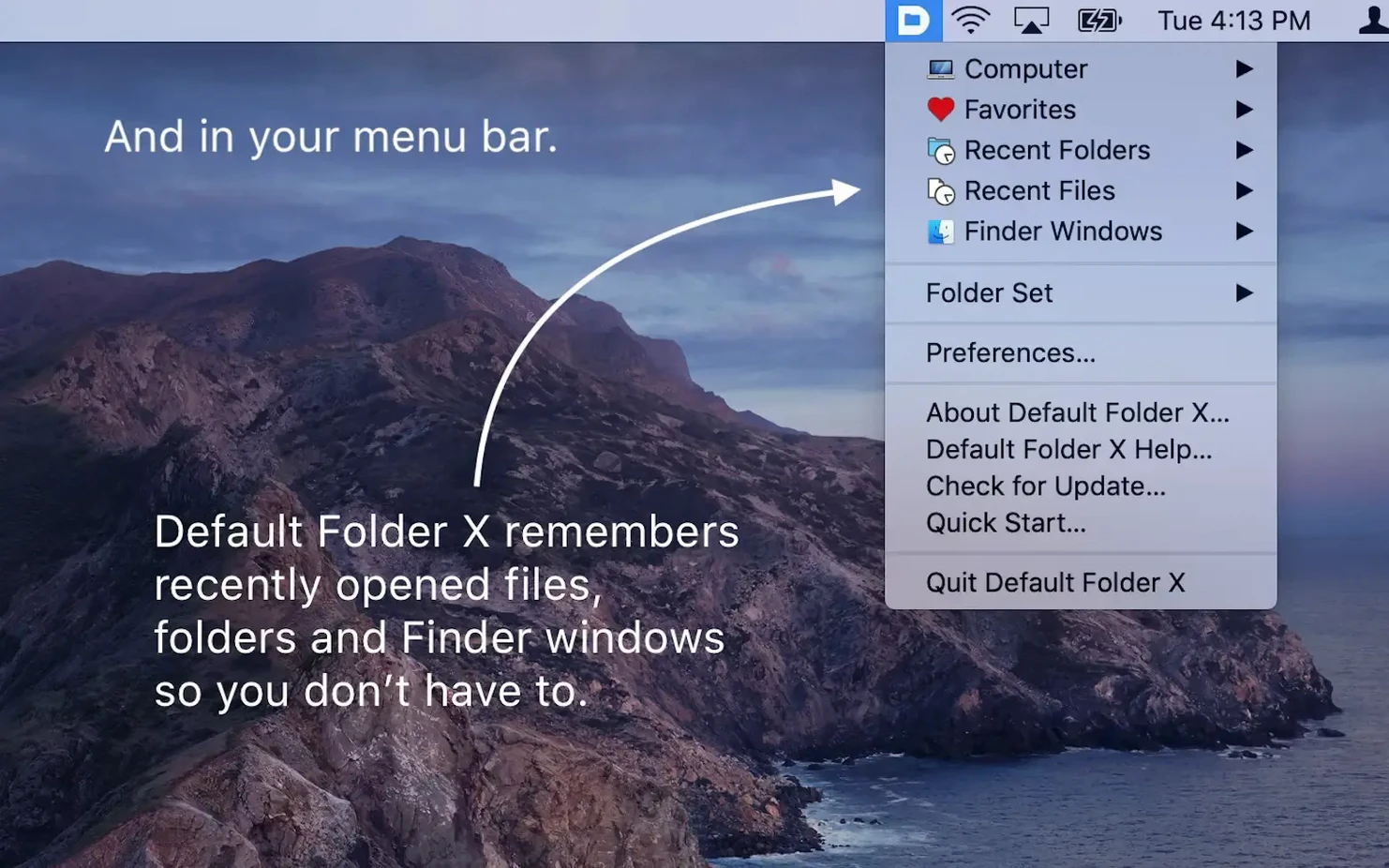
People also forget the menu bar icon exists. It’s not just decoration. Click it and you can jump to any Finder window, your recent folders, or your favorites without a dialog even being open. And the keyboard shortcuts—especially the one that brings the Open/Save dialog straight to your favorites—sit unused for weeks because nobody checks the preferences pane.
Give three apps a default folder by lunchtime
Start small. On day one, pick three apps you use constantly and give each its own default folder. Notice how much less you’re clicking around by lunchtime. Then, the next time a Save dialog pops up, try right-clicking a file already in that folder—rename it or delete it right there instead of switching to the Finder. It feels like a party trick until it becomes a habit.
Take five minutes to set up a handful of favorites: your Downloads folder, your current project, your desktop if you’re the messy type. The default folder x download routine gets a lot smoother once those are in place. And when you’re dragging a file out of the Finder, watch for that new drag target below the menu bar icon—drop it there and the app’s ready to file it wherever you need.
Version 6.3.1 is mostly a cleanup release. Here’s what changed:
- Added a drag target below the menu bar icon so you can drop files or folders from the Finder.
- Fixed Save dialog popup menus on macOS 27.
- Fixed a List View bug in Save dialogs on macOS 27 that opened clicked folders immediately.
- Fixed iCloud syncing so changes to pinned folders sync right away.
- macOS 10.13 or later
- Runs on Intel and Apple Silicon Macs
Questions I actually get
Does Default Folder let me rename or delete files from the Save dialog?
Yes, you can right-click any existing file in an Open or Save dialog to rename, delete, duplicate, or get info on it without switching to the Finder.
Notes from the tables 0
Sign in or pull up a chair to leave a note.
No notes on this one yet. They go up after I read them.
More from the Mac Apps page
The whole page Mac Apps 3 MB
Depth Scanner
1.15.6
Mac Apps 3 MB
Depth Scanner
1.15.6
 Mac Apps 2 MB
Disk Drill
6.3.2326
Mac Apps 2 MB
Disk Drill
6.3.2326
 Mac Apps 46 MB
dBpoweramp Music Converter
2026.09.13
Mac Apps 46 MB
dBpoweramp Music Converter
2026.09.13
 Mac Apps 31 MB
DaVinci Resolve Studio
21.1.1
Mac Apps 31 MB
DaVinci Resolve Studio
21.1.1
 Mac Apps Updated 7.9 GB
DMG Canvas
4.2.3
Mac Apps Updated 7.9 GB
DMG Canvas
4.2.3
 Mac Apps 24 MB
DaisyDisk
4.34.2 admin
Mac Apps 24 MB
DaisyDisk
4.34.2 admin
 Mac Apps 9 MB
DockView
2.2.5
Mac Apps 9 MB
DockView
2.2.5
 Mac Apps Updated 15 MB