

Video editors who live in Final Cut Pro usually end up here. Compressor is the tool you send your project to when you need a pile of different file formats, not just the single export your editing timeline gives you.
One source file, many output formats
- Turns a single source file into multiple formats in one pass
- Builds custom output recipes for HDR, HEVC, 360° video, and MXF
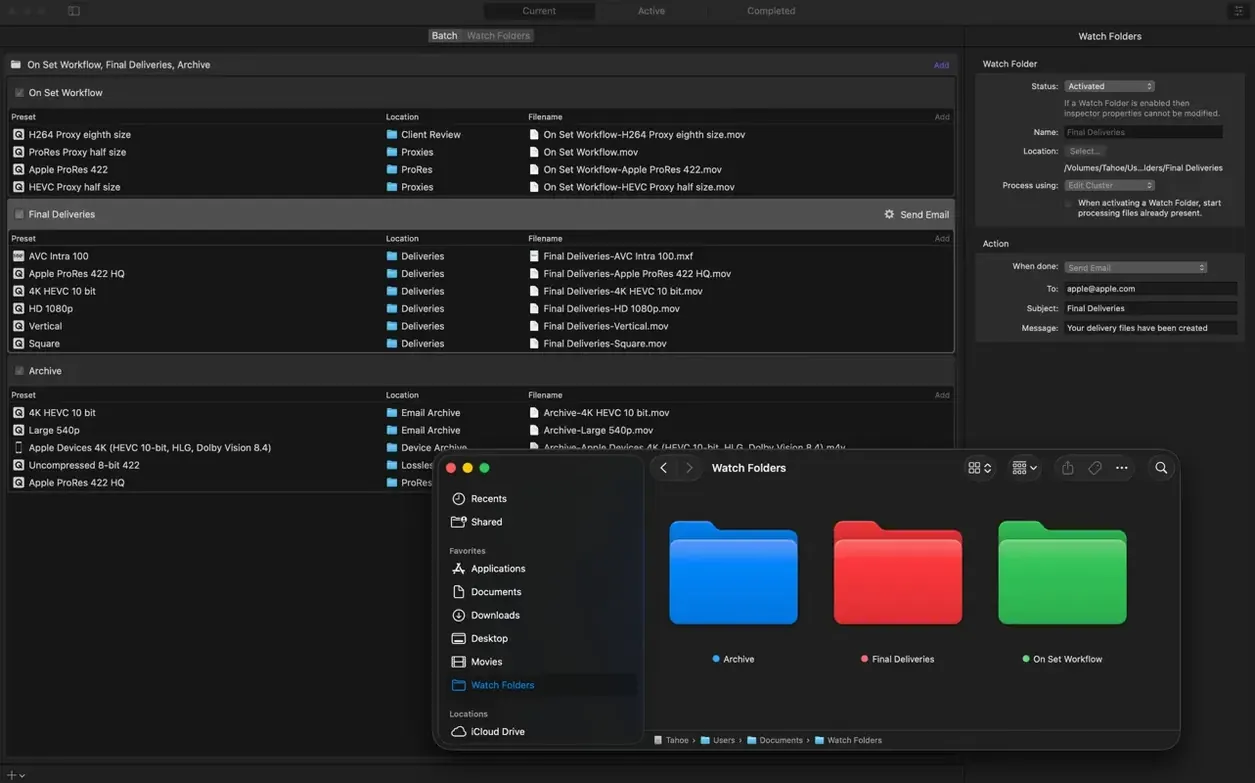
- Handles post-encode chores like emailing a file, copying it to a server, or firing off a custom script
- Splits the heavy lifting across every CPU core you've got, or even multiple Macs on the network
Same engine as Final Cut Pro
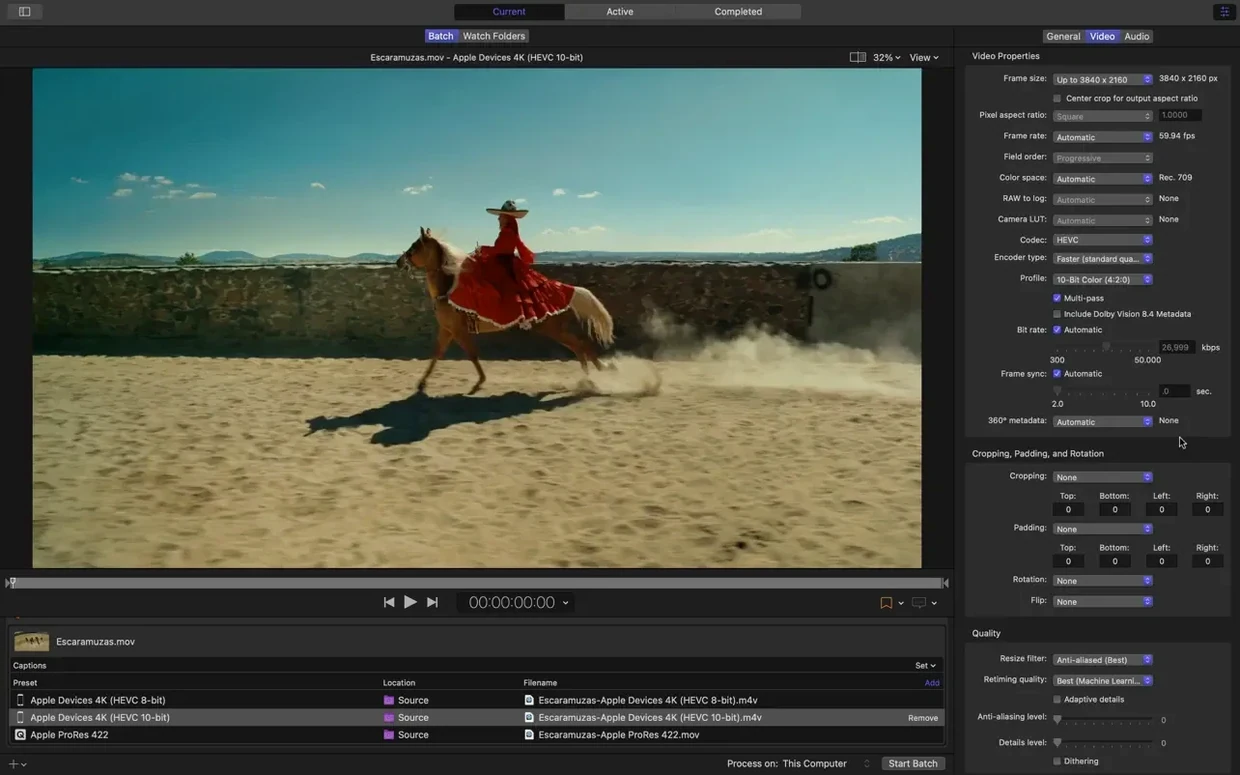
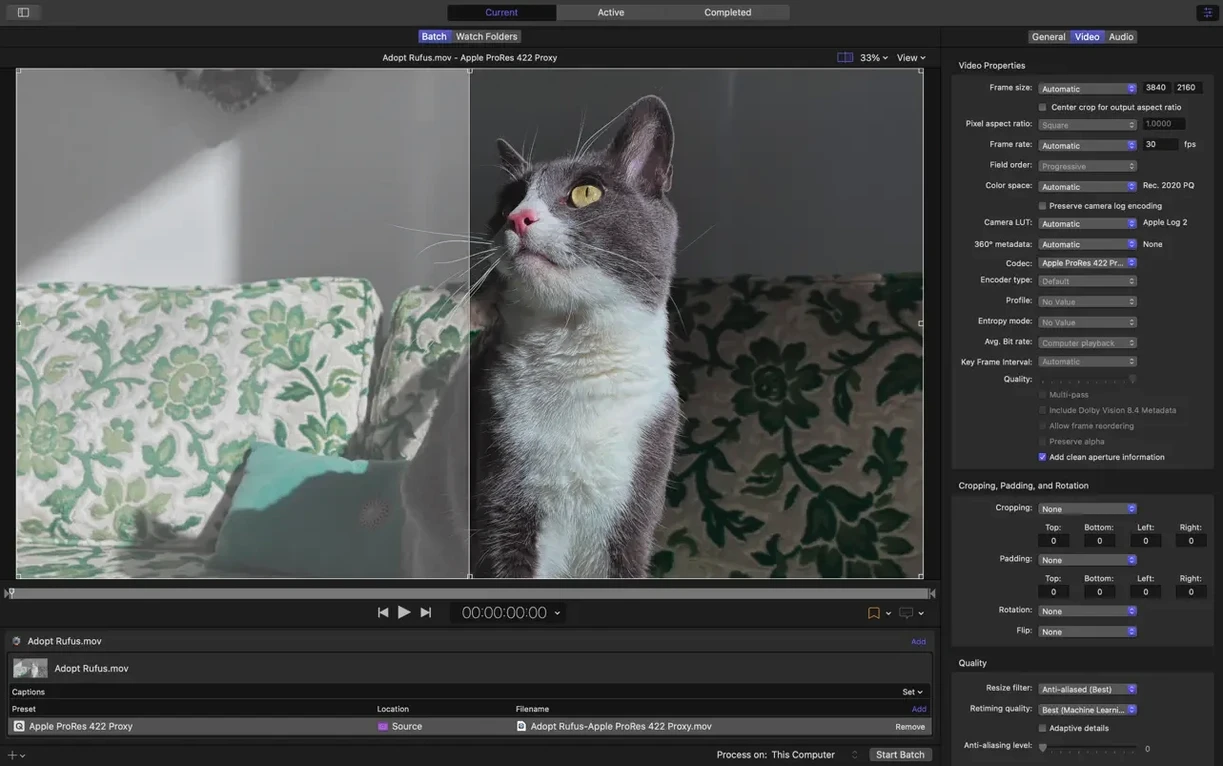
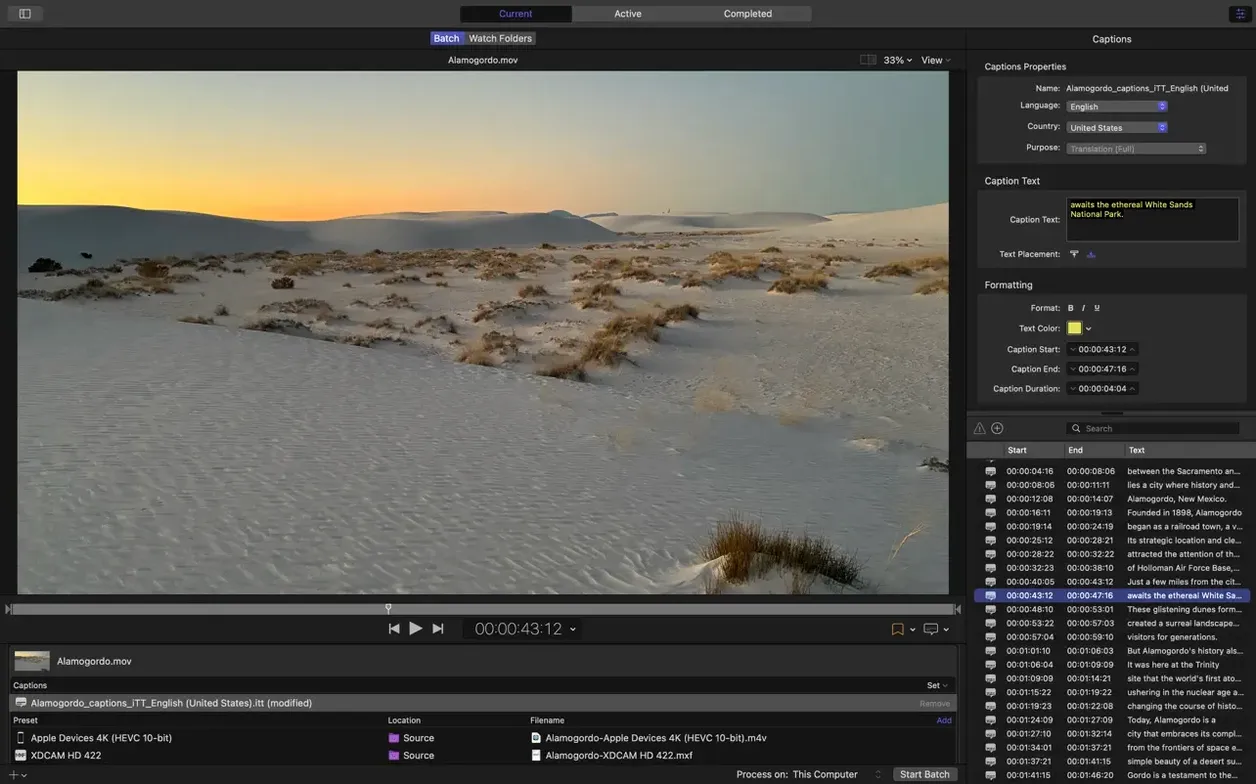
If you already know your way around Final Cut Pro or Motion, the engine under the hood is the same one—so your color grades and effects translate without surprises. The side panel keeps your encoding settings in plain sight, and the inspector lets you tweak audio and video properties without digging through menus. It's not a flashy app. It's a workbench for people who need a finished file to land exactly where it's supposed to, in the right wrapper, without babysitting the process.
Send from Final Cut Pro and walk away
Compressor doesn't shout about itself, and that's kind of the point. It slides into a routine you might already have. You finish a timeline in Final Cut Pro, send it straight to Compressor from the Share menu, and walk away while it builds every version you need. The same clips you prepared in Motion for titles and transitions pass through Compressor's engine without a hiccup because it's the same rendering code underneath.
Outside the Apple bubble, it plays friendly with macOS in small practical ways. Drag a folder of source files onto the Compressor icon in the Dock and it opens a new batch. Set a post-encode action to move the finished file into a watched folder that Hazel or a backup script picks up, and you've got a little pipeline without writing a line of code. Finder tags survive the trip too, so smart folders downstream still find what they're looking for.
And distributed encoding? That's where an old Mac Mini in the corner suddenly earns its shelf space. You enable sharing on a second machine, and Compressor parcels out segments of the encode. It doesn't turn a slow render into instant magic, but it shaves real minutes off a long queue when you're juggling deadlines.
When one export isn't enough
Do I need Compressor if I already export from Final Cut Pro? Not for a single H.264 file you're uploading to a client. But the moment you need a ProRes master, an HEVC copy, and a small web preview all from the same timeline, Compressor does that in one go instead of three separate exports. It also unlocks codec settings Final Cut's built-in Share pane keeps hidden.
Will it slow down my Mac while I'm doing other work? By default it grabs whatever cores are free. You can throttle it back in the preferences if you need snappy responsiveness for something else. On Apple silicon Macs, the HEVC hardware encoder takes a lot of the heat off the CPU anyway.
Can I use it without Final Cut Pro? Absolutely. Drop any media file onto the window—a ProRes master from Resolve, a Motion project, even a QuickTime screen recording—and set up your output. It's a standalone transcoder first; the Final Cut integration is just a handy shortcut.
Don't hoard near-duplicate presets
The first one is collecting presets like trading cards. Adding twelve output formats to a batch feels productive until you realize half of them are slight variations of the same H.264 setting. Start with three or four that match your actual delivery specs, and duplicate a preset when you genuinely need a variant.
Another common stumble is ignoring the preview window's anaglyph toggle. Someone working with stereoscopic footage builds a full 3D output setting, queues the job, and only after encoding discovers the left and right channels were swapped. The new anaglyph preview in version 5.3 lets you catch that in thirty seconds instead of thirty minutes.
People also forget about the location of their original source files. Compressor references them, it doesn't bundle them. If you drag a clip from a USB drive into a batch and unplug that drive mid-encode, the job fails. Keep your working media on a local drive or a network volume that stays mounted.
Bottom line: Compressor earns its keep when you're delivering to multiple places at once and don't want to export the same timeline four times.
Version 5.3 adds a few handy tools for stereoscopic and immersive video workflows, plus some quality-of-life improvements on Apple silicon.
- Immersive metadata viewer so you can check settings before encoding
- Output support for 180° Apple Projected Media Profile
- Anaglyph preview option for stereoscopic video
- 5.1 AAC option in Apple Device export settings
- HEVC data rate limits on Apple silicon machines
- Transcode immersive sources without WAV files to Apple Immersive outputs
- macOS 15.6 or later
- Apple silicon or 64-bit Intel Mac
- 8 GB memory
- 1.2 GB available disk space
Notes from the tables 0
Sign in or pull up a chair to leave a note.
No notes on this one yet. They go up after I read them.
More from the Mac Apps page
The whole page Mac Apps Updated 8 MB
CorelCAD
2022.5 Build 22.3.1.4090
Mac Apps Updated 8 MB
CorelCAD
2022.5 Build 22.3.1.4090
 Mac Apps 293 MB
Commander One PRO
3.18.0
Mac Apps 293 MB
Commander One PRO
3.18.0
 Mac Apps Updated 53 MB
CorelDRAW
27.2.0.135
Mac Apps Updated 53 MB
CorelDRAW
27.2.0.135
 Mac Apps 2.1 GB
Coherence X
6.1
Mac Apps 2.1 GB
Coherence X
6.1
 Mac Apps 26 MB
CrossOver
26.3.0
Mac Apps 26 MB
CrossOver
26.3.0
 Mac Apps 285 MB
Cocktail Sequoia Edition
18.7.1
Mac Apps 285 MB
Cocktail Sequoia Edition
18.7.1
 Mac Apps 3 MB
CloudMounter
4.18
Mac Apps 3 MB
CloudMounter
4.18
 Mac Apps 68 MB