
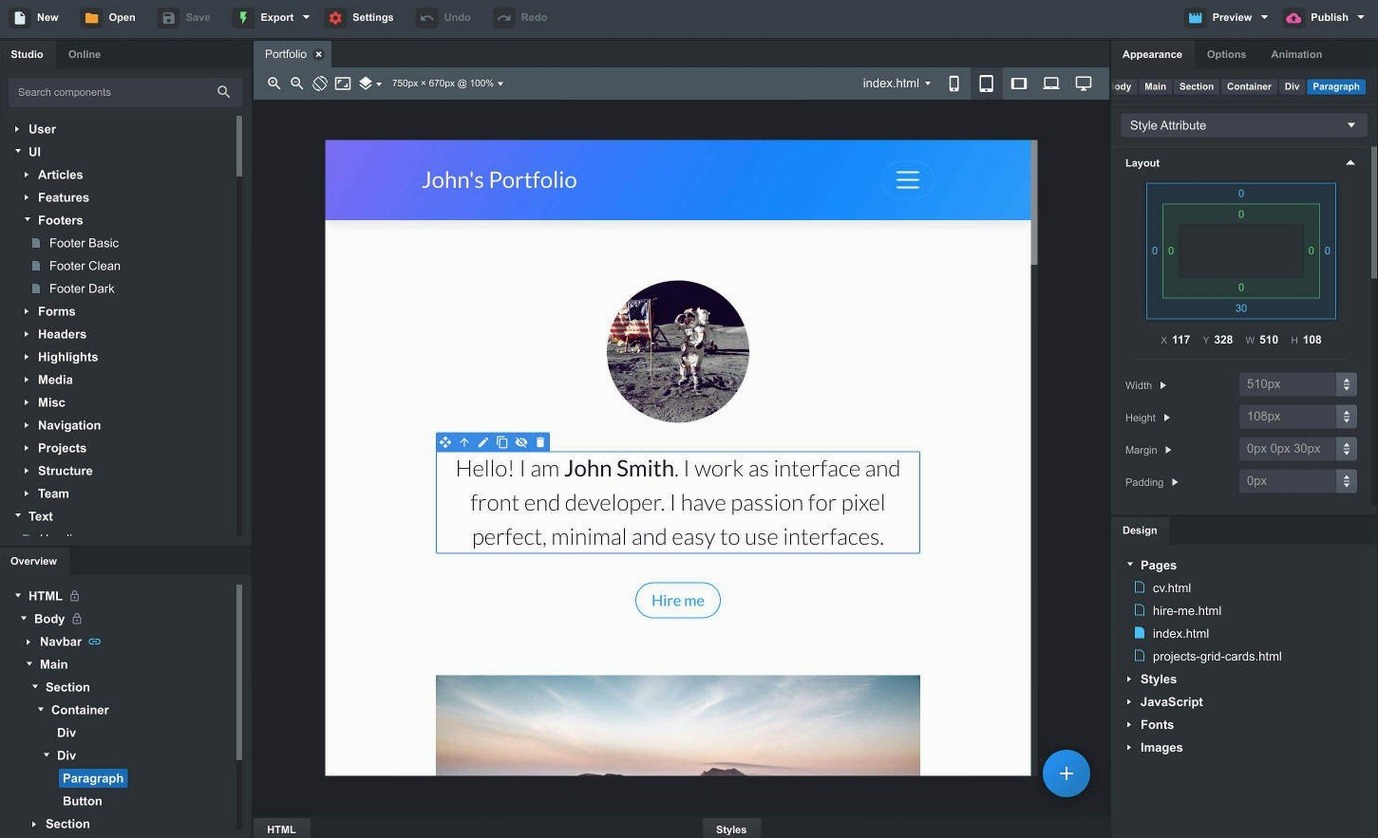
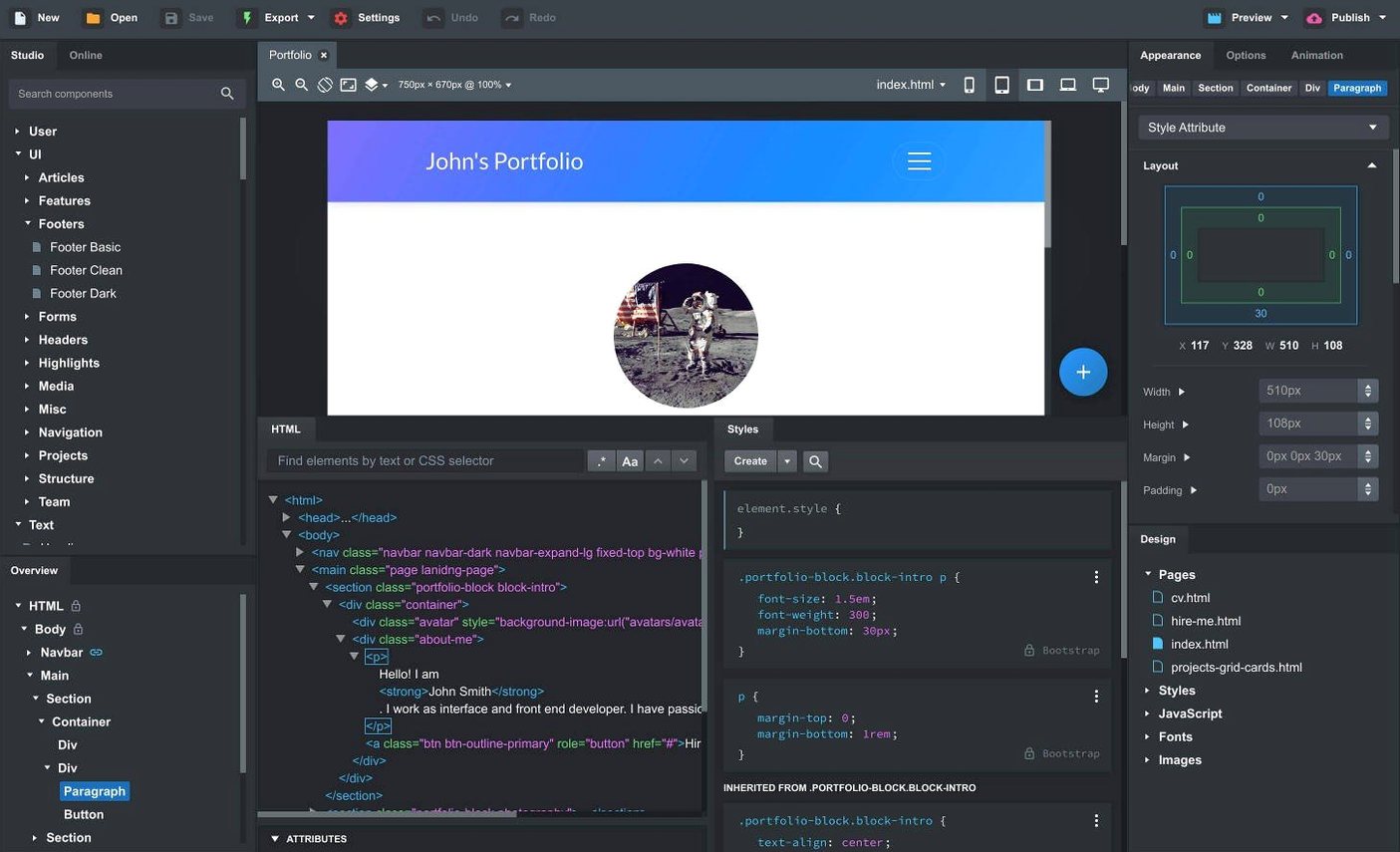
Bootstrap Studio is a desktop design tool that lets you build responsive websites using the Bootstrap framework without writing all the code by hand.
Drag-and-drop canvas — you assemble pages from real Bootstrap components like navbars, galleries, and cards. The app understands the framework's structure, so nested elements snap into the right place in the DOM, not just where you drop them on screen.
Custom components — select any chunk of your page and save it as a reusable piece. Do this once for a pricing table or footer you've tweaked, then drop it into other projects instead of rebuilding it each time.
Full code access — the visual editor is backed by real HTML, CSS, and JavaScript. You can switch to the code panels to fine-tune styles or add your own scripts. When you export, you get clean, semantic markup ready to go live.
Import existing sites — drag in folders of HTML, CSS, JS, and images, and Bootstrap Studio picks them apart into an editable project. Handy for reworking something you built elsewhere.
Community component library — beyond the built-in pieces, you can browse designs shared by other users and pull them straight into your project.
Bottom line: it's the Bootstrap workflow I'd want if I were building client sites every day — visual enough for speed, close enough to the code for control.
Drag-and-drop habits that fight the grid
I see the same stumbles over and over when people first open the app. None of them are dealbreakers—just habits that slow you down until someone points them out.
- Treating the canvas like a page-layout app. Bootstrap Studio isn't a freeform design tool. New users drag elements anywhere and get frustrated when things snap into the Bootstrap grid. Learn the 12-column system first—every row and container decision flows from it.
- Editing CSS in the wrong place. The app gives you several spots to write styles: the component options panel, the Styles tab, and external CSS files. Beginners often pile custom rules into component-level overrides, then can't find them later. Put shared styles in a dedicated CSS file from day one.
- Ignoring the linked components feature. People copy-paste the same navbar or footer across twenty pages, then update each one manually. Link the component instead—change it once, every page follows.
- Over-nesting containers. It's easy to drop a container inside a container inside a container without noticing. The preview looks fine on a desktop screen, then breaks on a phone. Keep your DOM shallow until you have a reason not to.
- Skipping the multi-device preview. The canvas shows one viewport at a time. Beginners design for their monitor and call it done. Open the live preview on a tablet and phone before you export—Bootstrap's responsive classes do the work, but only if you use them.
Scenario: a freelance designer building a restaurant site
Imagine someone who left a kitchen career and now builds simple sites for local businesses—cafes, bakeries, the odd food truck. They know enough HTML and CSS to be dangerous but not enough to hand-code a full responsive menu page from scratch.
They open bootstrap studio mac and drag together a homepage: a sticky navbar with the restaurant's name, a hero section with a photo of the dining room, and a three-column card row for the week's specials. The card layout falls into the grid without fuss—two columns on tablet, stacked on mobile, all handled by Bootstrap classes under the hood.
The menu page needs to show the same footer and navbar as the homepage. Instead of copying anything, they convert those parts into linked components. When the client asks to change the phone number, one edit updates every page.
For the gallery, they pull a community-contributed lightbox component from the online library, drop in photos from the client's phone, and tweak the spacing in the Styles panel. A quick test in the live preview on an iPad and an old Android phone confirms everything reflows cleanly. They export the project, hand the folder to the client's hosting guy, and move on to the next job.
Version 6.7.3 is a maintenance update with a couple of welcome additions for the AI Assistant and component options.
- The AI Assistant now supports gpt-4o-mini and gpt-4o models.
- Fixed a bug where the OpenAI API key dialog rejected some valid keys.
- The Icon Dialog now shows the icon count and type for each icon set.
- Navbars get a new Sticky On option, and Bootstrap modals have a Click Outside to Close setting.
- macOS 10.13 or later
- Runs on both Intel and Apple Silicon Macs
Questions I actually get
Which versions of Bootstrap does Bootstrap Studio support?
It supports Bootstrap 3.4, Bootstrap 4.6, and Bootstrap 5.3, so you can work with older projects or build with the latest release.
Can I import an existing website into Bootstrap Studio?
Yes — you can drag in folders containing HTML, CSS, JavaScript, and image files, and the app will convert them into an editable project.
Does Bootstrap Studio create clean code for export?
It exports clean, semantic HTML along with your CSS and JavaScript, so the final output is ready to upload to a web host.
Notes from the tables 0
Sign in or pull up a chair to leave a note.
No notes on this one yet. They go up after I read them.