

Quietly, Juuso Salonen pushed out version 3.4. No new buttons, no redesigned windows. What changed is mostly under the hood: the installer now guides you through macOS Tahoe's tighter permission layers without leaving you staring at a cryptic error. There's also a new help view that pops up if the app ever fails to launch, pointing you toward the fix instead of a dead end.
Still invisible, still in charge
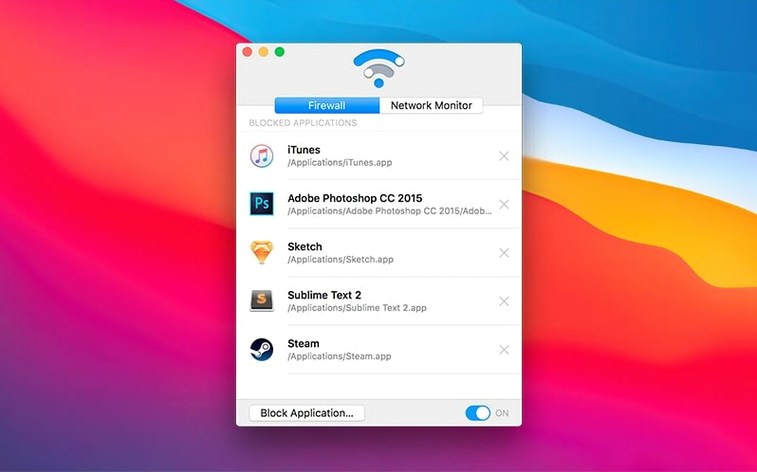
The rest of Radio Silence stays exactly as it was — and that's the point. It's a tiny firewall that lists which of your apps are phoning home and lets you cut them off with a single click. No menu bar icon, no nagging. Blocked apps can be pulled off the list just as easily when you change your mind. It handles both Apple Silicon and Intel Macs running macOS 10.15 or later, and the whole thing sits so lightly you'll forget it's there until some app you blocked suddenly can't reach its server.
What didn't need fixing
It still monitors incoming connections apps try to make, stays out of your way, and doesn't pretend to be anything more than a straightforward network gate. If you had it working before, version 3.4 will feel identical. If you're new to it, you're getting the same simple tool that's been quietly doing its job for years, now with fewer installation hiccups on the latest macOS.
No dock animation, just a quiet list of blocked apps
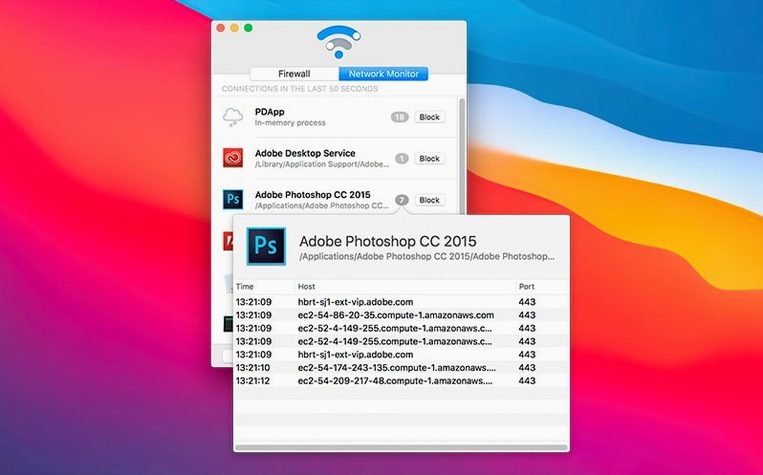
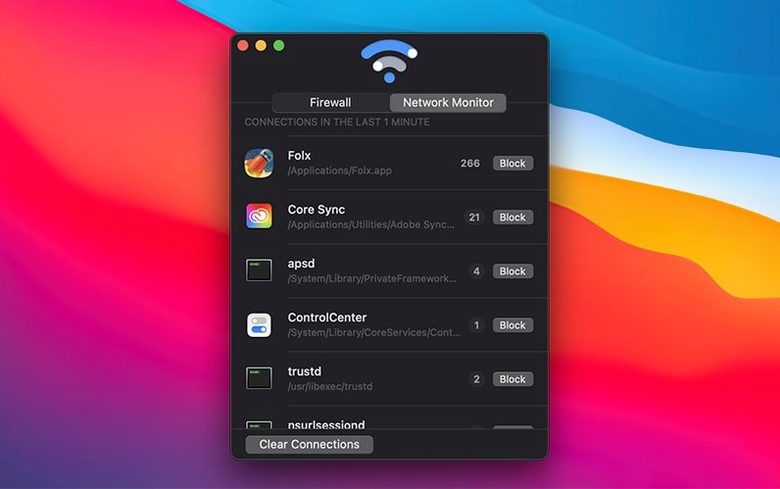
You launch Radio Silence and it sits there, plain and quiet. There is no dock animation, no splash screen asking for a review. You click the Firewall tab and see a short list of apps you blocked last week — a photo editor, some disk cleaner you never trusted. Then you switch over to the Network Monitor tab to see what's happening right now.
A connection pops up from an app you barely remember installing. It's reaching out to a server in a country you can't place. You highlight it, click Block Application, and it vanishes from the live feed. That app won't make a peep again unless you go into the firewall list and remove it. The whole thing takes thirty seconds. You close the window and Radio Silence disappears again, doing its job without a menu bar icon or a single notification.
Workflow: locking down a new app before it talks to the world
Say you download a trial of a new writing tool. Before you even open it, you fire up Radio Silence's Network Monitor. You launch the writing app and watch the connection list. Within moments, three connections appear — one to a crash-reporting server, one to an analytics host, and one that looks like a license check. You block all three with a click each. Now the app still runs, but it's radio silence for anything it wanted to whisper back home. No editing config files, no digging through preferences. Just click and move on.
Blocking iCloud services breaks more than you expect
The first one is blocking system processes they don't recognize. Radio Silence shows everything, including macOS services that keep iCloud and software updates working. Block those and you'll wonder later why your Mac went quiet in ways you didn't intend.
Another is forgetting the firewall is paused. People hit pause to test something, then close the window and assume it is still blocking. It is not. Radio Silence stays paused until you open it again and resume. If you are using a radio silence mac setup to keep certain apps offline, check that pause button before you blame the app for a leak.
A third mistake is assuming the block works instantly on an app that is already connected. Sometimes the existing connection takes a moment to drop. If the app already has a live socket open, killing it in the monitor does not retroactively undo the packets that already went out. A quick quit and relaunch of the blocked app sorts it out every time.
Version 3.4 is mostly about getting out of your way during setup. Here's what's new:
- Installation guidance built for macOS Tahoe's permission changes.
- Smarter handling of installation errors and missing permissions.
- A help view that appears with troubleshooting info if the app won't start.
- macOS 10.15 or later
- Apple Silicon and Intel Macs
- English interface
Notes from the tables 0
Sign in or pull up a chair to leave a note.
No notes on this one yet. They go up after I read them.
More from the Mac Apps page
The whole page Mac Apps 5 MB
RAR Extractor - unzip
16.4.1
Mac Apps 5 MB
RAR Extractor - unzip
16.4.1
 Mac Apps Updated 16 MB
RAR Extractor
13.9.6
Mac Apps Updated 16 MB
RAR Extractor
13.9.6
 Mac Apps Updated 14 MB
Raycast Pro
2.5.1.0
Mac Apps Updated 14 MB
Raycast Pro
2.5.1.0
 Mac Apps Updated 100 MB
QuarkXPress
22.0.1
Mac Apps Updated 100 MB
QuarkXPress
22.0.1
 Mac Apps 2.4 GB
PyCharm
2026.2.3
Mac Apps 2.4 GB
PyCharm
2026.2.3
 Mac Apps 1.4 GB
ProPresenter
7.16.3
Mac Apps 1.4 GB
ProPresenter
7.16.3
 Mac Apps 207 MB
Rhino
8.30.26103.11002
Mac Apps 207 MB
Rhino
8.30.26103.11002
 Mac Apps 760 MB