
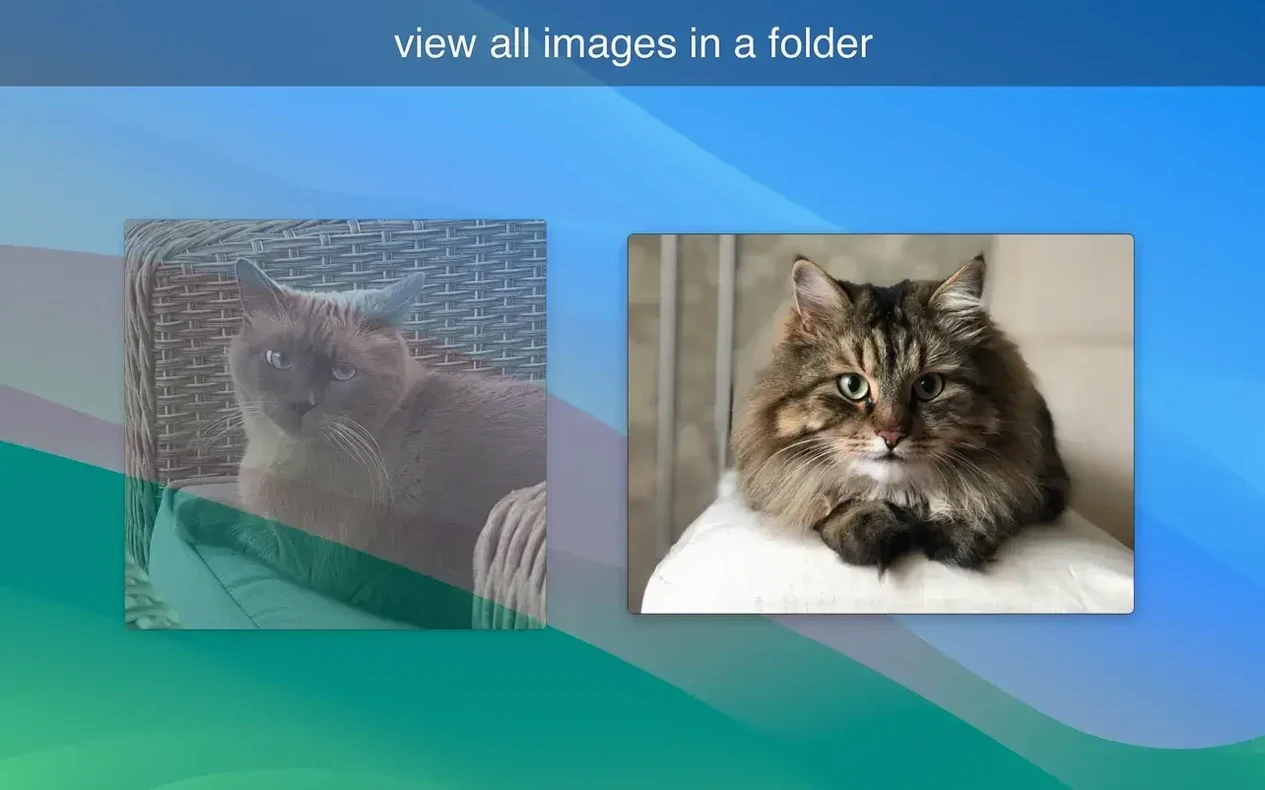
JPEG, PNG, TIFF, and even animated GIFs—LilyView handles all four without blinking. But here’s the real difference: it doesn’t ask you to import a single file. I point it at a folder of vacation shots on my desktop, and I’m flipping through them instantly, no library database getting in the way. It’s a straightforward browser that feels like a natural replacement for Preview when I just want to look at pictures.
Flipping through a folder
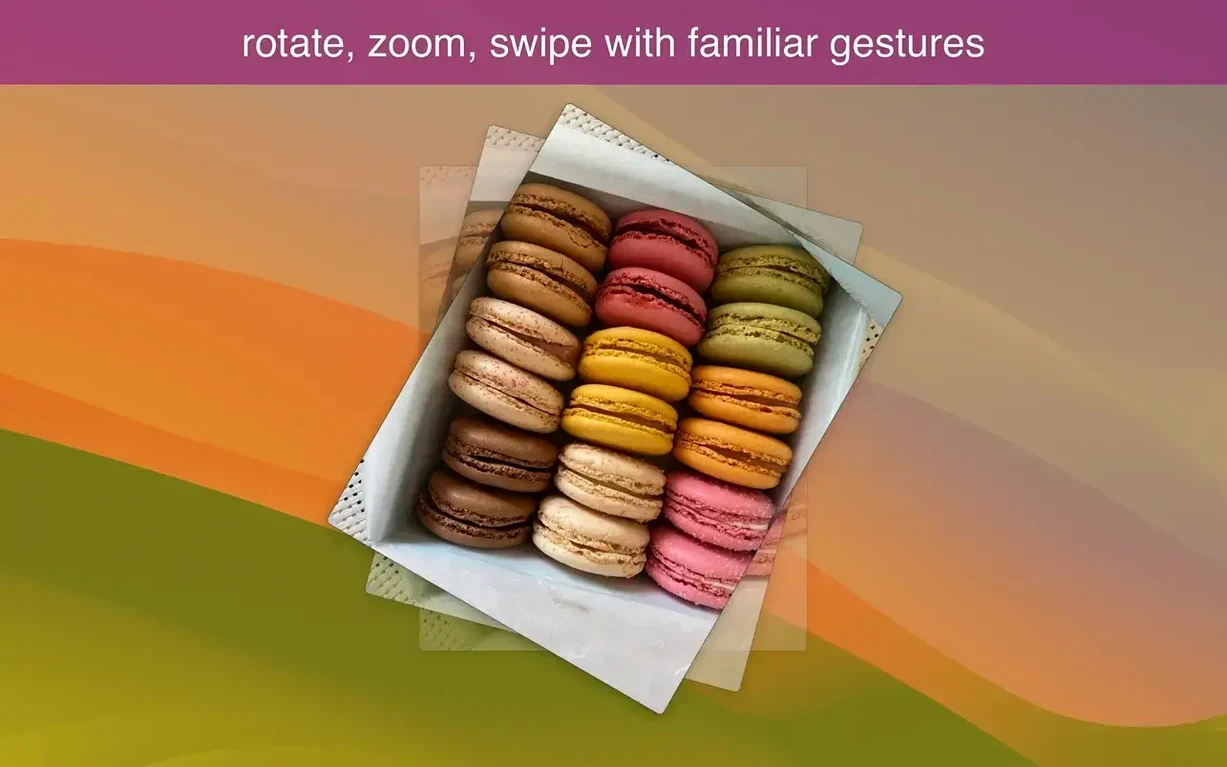
I open a directory and start swiping on my trackpad to move through the images. A flick of my finger jumps to the next shot; a press of the Home key sends me straight to the first photo in the folder. When I find a shot I need to examine closely, I zoom in with a pinch or a mouse scroll. If a photo came in sideways, a quick tap rotates it upright. Need to see the real thing? One click shows the image at its original size, no guesswork.
The details when you need them
The interface stays out of my way until I want more information. Sliding my pointer to the right edge of the screen pulls out a panel with the photo’s attributes—file name, dimensions, and the rest. It’s a clean setup. The app speaks English and Russian, runs on both Apple Silicon and older Intel Macs dating back to High Sierra, and takes input however my hands are working that day: mouse, keyboard, or the trackpad gestures I use most.
- macOS 10.13 or later
- Works on both Apple Silicon and Intel 64-bit Macs
Questions I actually get
Does LilyView build a photo library?
No, it reads images directly from your existing folders, so you start browsing immediately without waiting for an import.
What image formats can LilyView open?
It supports common formats including JPEG, PNG, TIFF, and animated GIFs.
How do I see a photo’s file information?
Move your pointer to the right side of the screen while viewing an image, and a panel will slide out with the photo’s attributes.
Notes from the tables 0
Sign in or pull up a chair to leave a note.
No notes on this one yet. They go up after I read them.