

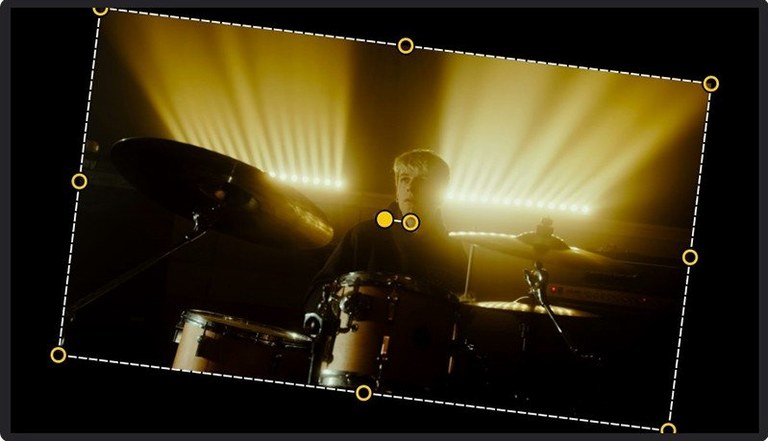


When you need to grab a quick screen recording and turn it into something watchable, opening three different apps just to trim the ends and add a title feels like overkill. AceMovi Video Editor puts the recorder and the editor under one roof.
Screen recorder — capture the whole screen, a window, or a dragged-out rectangle.
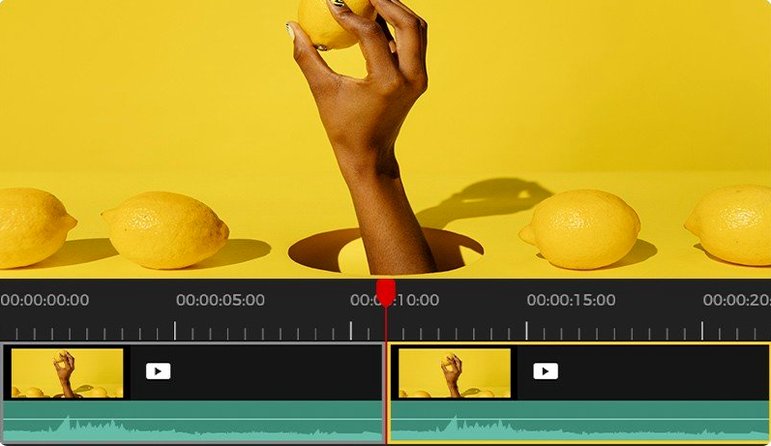
Timeline editor — trim clips, drop in audio, layer text, and rearrange the pieces with simple drag-and-drop.
Export options — save the finished video locally or share it online directly from the app.
System fit — runs on any Mac still holding on to macOS 10.12 or later, as long as it has an Intel chip.
It’s not trying to replace the heavy hitters. Think of it as the utility knife you reach for when a screen recording needs cleanup before sending it off.
Timeline drags get smoother with screen recordings
Version 5.8.0.34 didn’t rewrite the rulebook, but there are a couple of quiet improvements you’ll notice in daily use. The timeline feels a little less jumpy when you’re dragging clips around, especially longer screen recordings that used to stutter on older Intel Macs. Export presets for iPhone, iPad, and a handful of Android devices got updated to match current screen resolutions, so videos land on the phone without black bars up the sides.
- Timeline responsiveness — scrubbing through 1080p recordings is smoother, with fewer dropped frames when previewing.
- Device presets refreshed — export targets for Galaxy and Huawei phones now match their actual display sizes instead of the older generic profiles.
- Audio sync — recorded screen audio stays locked to the video more reliably when you trim from the beginning of a clip.
Nothing flashy, just the kind of fixes that make the difference between editing that flows and editing where you keep apologizing to yourself.
Set your own export folder instead of the buried default
Out of the box, AceMovi makes a few assumptions that are fine for a quick test but worth adjusting once you know you’ll use it again.
Default export location. The app drops finished videos into a folder buried three levels deep in your Documents. Point it somewhere you can actually find, like the desktop or a dedicated project folder. You change this once and forget about it.
Recording frame rate. The screen recorder defaults to 15 frames per second. For anything where cursor movement matters — a tutorial, a software walkthrough — bump it to 30 fps under the recording settings. The file size goes up, but the result looks like a real screen instead of a slideshow.
Timeline snap. Snap is on by default, which helps when lining up clips but fights you when you need fine adjustments. If you’re trimming tight, toggle it off temporarily in the timeline toolbar. You’ll get frame-level control without the magnet effect pulling everything to the nearest second mark.
Those three changes take under a minute and make the whole experience feel like it was set up by someone who actually uses the software.
- macOS 10.12 or later
- Intel processor
- Interface language: English
Questions I actually get
Can AceMovi Video Editor record my screen?
Yes, it has a built-in screen recorder that captures your full screen, a specific window, or a custom area.
What macOS version does AceMovi need?
It requires macOS 10.12 or later and is built for Intel-based Macs.
Notes from the tables 0
Sign in or pull up a chair to leave a note.
No notes on this one yet. They go up after I read them.
More from the Mac Apps page
The whole page Mac Apps 3 MB
A Better Finder Attributes
7.50
Mac Apps 3 MB
A Better Finder Attributes
7.50
 Mac Apps 13 MB
1Password
7.9.4
Mac Apps 13 MB
1Password
7.9.4
 Mac Apps 70 MB
Adobe Premiere Rush
1.5.62
Mac Apps 70 MB
Adobe Premiere Rush
1.5.62
 Mac Apps 1.6 GB
Affinity Designer
2.6.5
Mac Apps 1.6 GB
Affinity Designer
2.6.5
 Mac Apps 779 MB
Affinity Publisher
2.6.5
Mac Apps 779 MB
Affinity Publisher
2.6.5
 Mac Apps 783 MB
Aiarty Video Enhancer
3.8
Mac Apps 783 MB
Aiarty Video Enhancer
3.8
 Mac Apps 182 MB
AirBuddy
3.0-890
Mac Apps 182 MB
AirBuddy
3.0-890
 Mac Apps 49 MB