

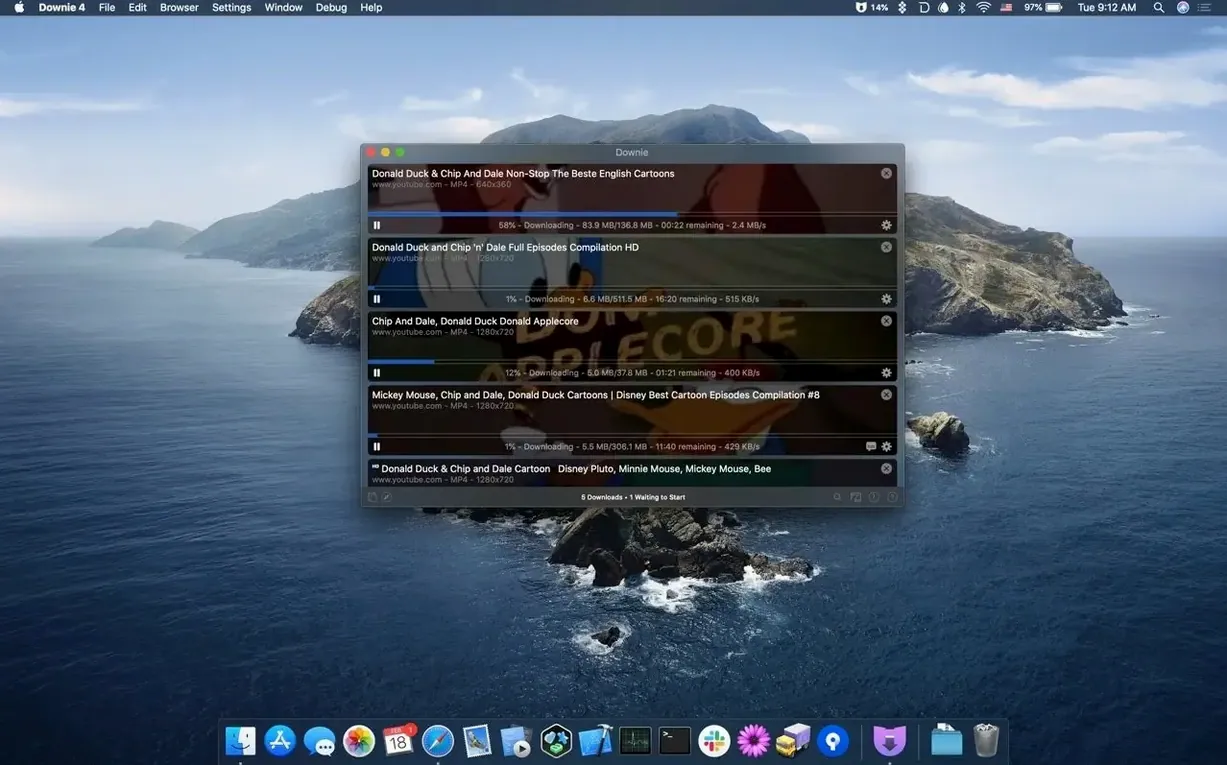
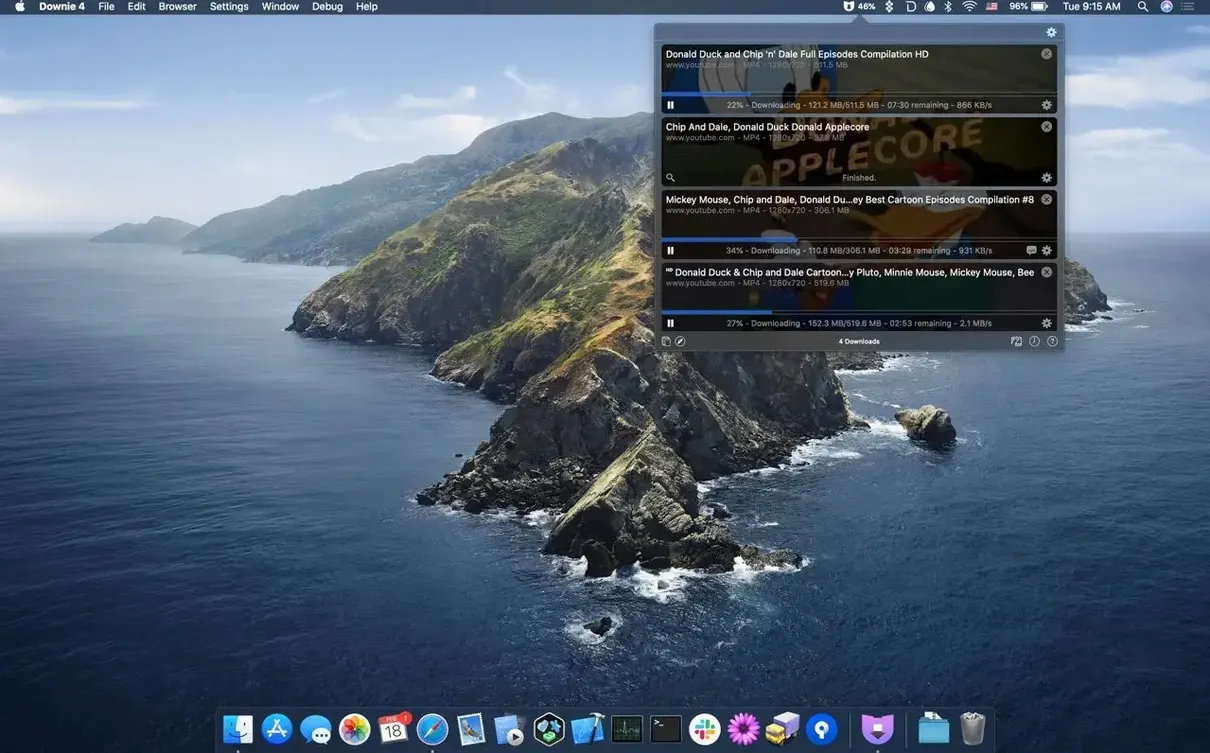
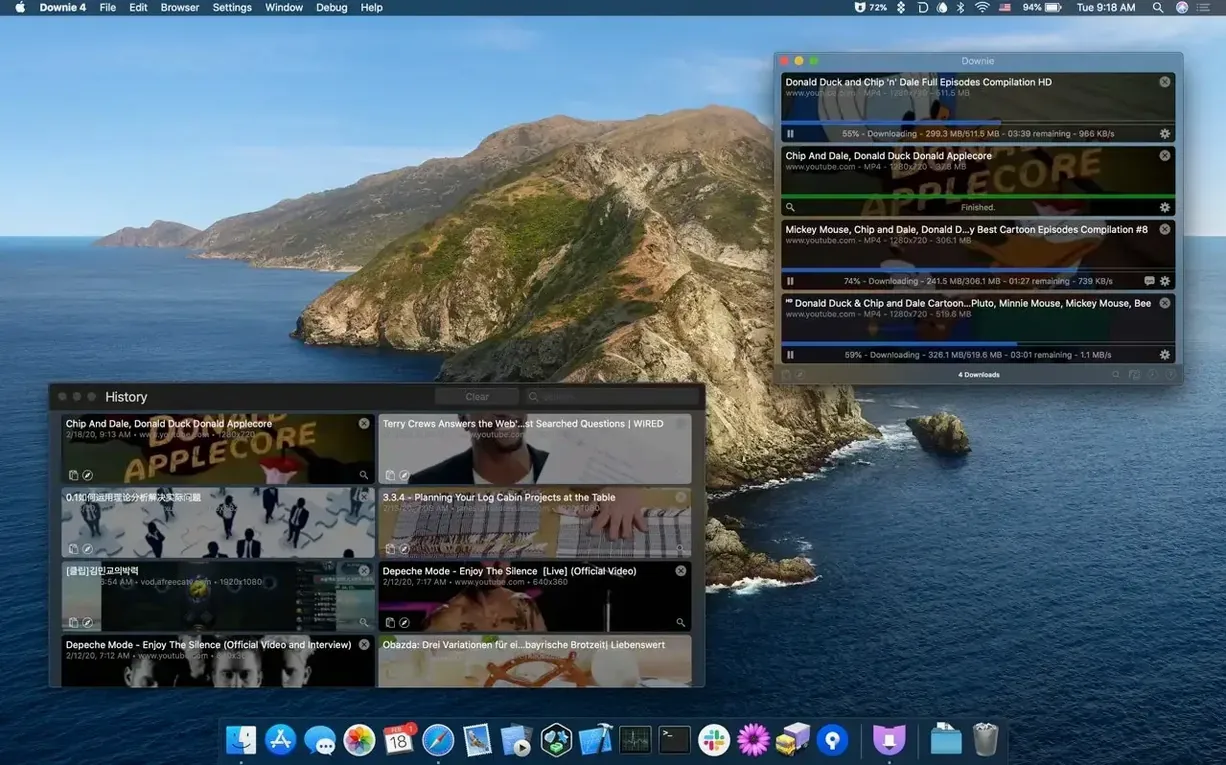
If you’ve ever used Permute to wrangle video files on your Mac, you already know Charlie Monroe makes tools that stay out of your way. Downie comes from the same kitchen. It’s not a browser extension masquerading as an app — it’s a proper Mac downloader that pulls video from thousands of sites without making a fuss.
How do I grab a video once I find it?
Drag the link from your browser onto Downie’s dock icon or window. It parses the page, picks the best quality and starts pulling. If you’ve added the browser extension, a single click in your toolbar sends the current page straight to the app.
Extract only the audio track before you download
Before you drop a link, open Downie’s preferences and set it to extract audio only. It’ll hand you a clean audio file instead of a video — handy for talks or playlists. You can also have it convert the download to MP4 automatically in the same settings area.
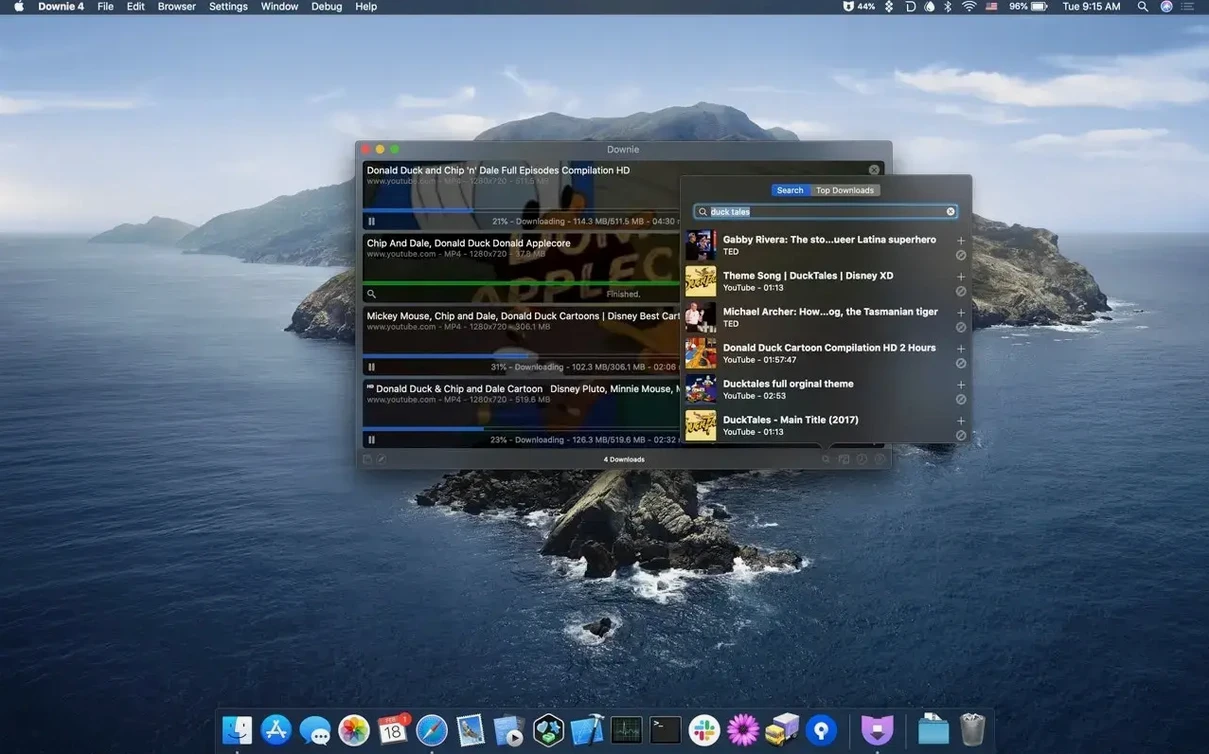
Can I find videos without leaving the app?
a researcher’s Saturday morning
Imagine a grad student pulling together clips for a media studies presentation. She has a dozen browser tabs open — YouTube interviews, an Instagram live recording, a Vimeo documentary excerpt. Instead of juggling separate downloaders or sketchy web converters, she drags each link to Downie’s drop zone as she finds it. The app queues them silently. Twenty minutes later she has a folder of clean MP4 files, all named sensibly, all in the same format. She didn’t babysit a single progress bar. That’s the rhythm Downie settles into when you stop thinking about it.
Paste any copied link and start downloading
A few conveniences are easy to miss if you only use the drag-and-drop basics. They’re not flashy, but they save clicks and head-scratching.
- Paste and go. Copy a video URL anywhere on your Mac. Switch to Downie, press
⌘V, and the download starts immediately. No window targets, no dragging. - CSV or XML imports. If you maintain a list of videos to archive — maybe for a course library or a reel of reference clips — you can drop a CSV or XML file onto Downie. It reads the URLs and optional custom titles, then processes the whole batch while you do something else.
- Permute handoff. When you need a downloaded video in a different container or want to stitch separate parts into one file, Permute picks up right where Downie leaves off. It’s not bundled, but they talk to each other like old coworkers.
- 4K YouTube. Downie doesn’t cap you at 1080p. On YouTube videos that offer it, the app grabs the full 4K stream without extra configuration.
- Dock icon drop. You don’t even need the window open. Drag a link straight onto the dock icon and Downie gets to work.
Sites that changed delivery still work on Tuesday morning
Version 4.13 kept the engine running smoothly. The developer tightened up parsing for a handful of sites that had changed their delivery methods, which is the kind of invisible maintenance that means your Tuesday morning download doesn’t suddenly fail. A few earlier 4.x releases improved how Downie handles high-resolution YouTube streams and added the CSV import option, which turned the app from a single-video tool into something you can feed a whole spreadsheet.
One practical effect in everyday use: when you run a downie mac setup on Apple Silicon, the app stays responsive even with a large queue. Earlier versions could feel sluggish under heavy batch loads; the recent updates smoothed that out. The browser extension also received quiet updates that make the downie download handoff more reliable on Safari and Firefox, not just Chrome.
Bottom line: the version number bumps haven’t changed what Downie does, but they’ve made it do it more steadily. For anyone who uses downie 4 daily, that steadiness is the whole point.
Yes. The built-in search lets you type what you’re after and browse results right inside Downie. No need to open a browser first.
- macOS 11 or later
- Apple Silicon or Intel 64-bit processor
Questions I actually get
Can Downie work with Permute?
Absolutely. You can send a finished download straight to Permute for converting to a different format or device preset without extra steps.
Does the app run on older Intel Macs?
It supports both Apple Silicon and Intel 64-bit Macs, as long as you're running macOS 11 or later.
What languages does the interface support?
It covers a lot of ground, including English, Spanish, French, German, Japanese, Korean, Russian, and many more.
Notes from the tables 0
Sign in or pull up a chair to leave a note.
No notes on this one yet. They go up after I read them.
More from the Video Downloaders page
The whole page Video Downloaders 30 MB
HarborDrop
1.4
Video Downloaders 30 MB
HarborDrop
1.4
 Video Downloaders 9 MB
iDownerGo
10.15.0
Video Downloaders 9 MB
iDownerGo
10.15.0
 Video Downloaders 76 MB
iTubeGo
10.15.0
Video Downloaders 76 MB
iTubeGo
10.15.0
 Video Downloaders 115 MB
AmpliTube
5.8.2
Video Downloaders 115 MB
AmpliTube
5.8.2
 Video Downloaders 3.1 GB
4K YouTube to MP3
26.3.5
Video Downloaders 3.1 GB
4K YouTube to MP3
26.3.5
 Video Downloaders 218 MB
4K Video Downloader
26.3.5
Video Downloaders 218 MB
4K Video Downloader
26.3.5
 Video Downloaders 247 MB
Musify
5.3.0
Video Downloaders 247 MB
Musify
5.3.0
 Video Downloaders 68 MB