
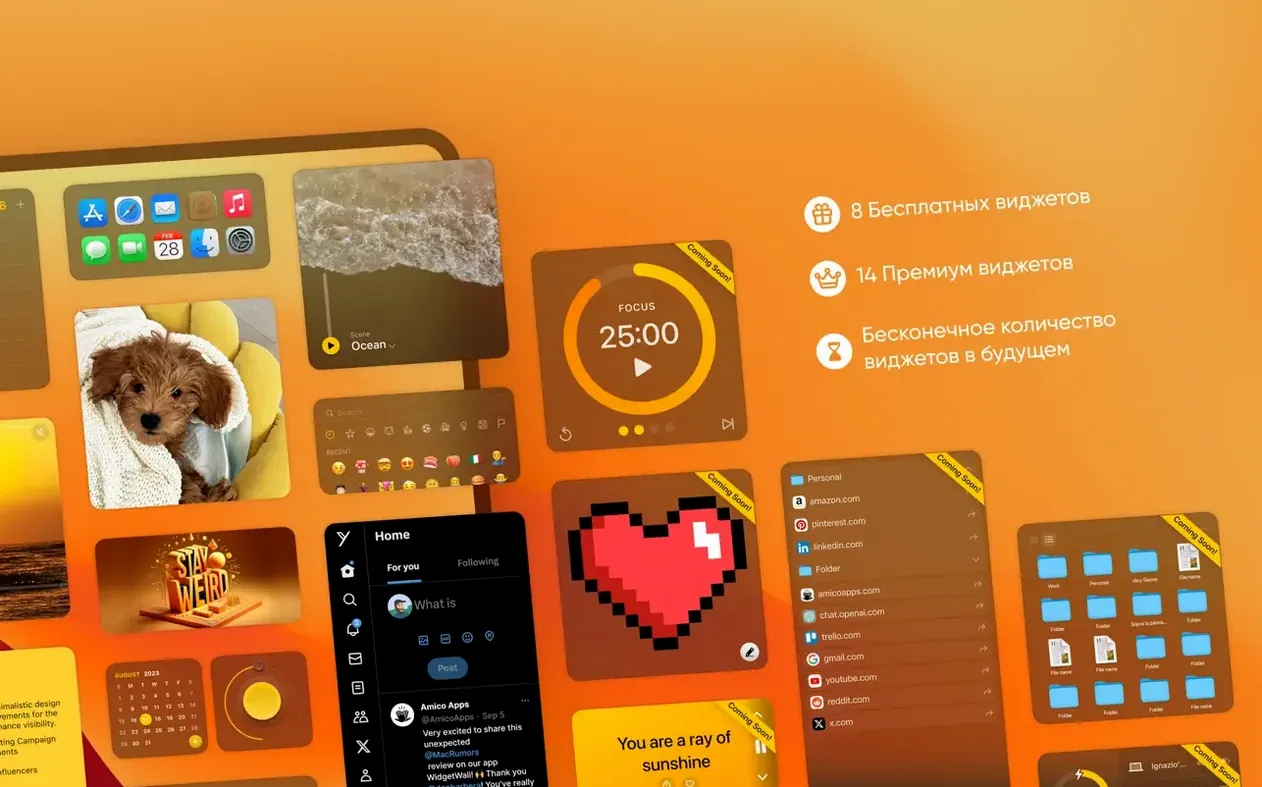
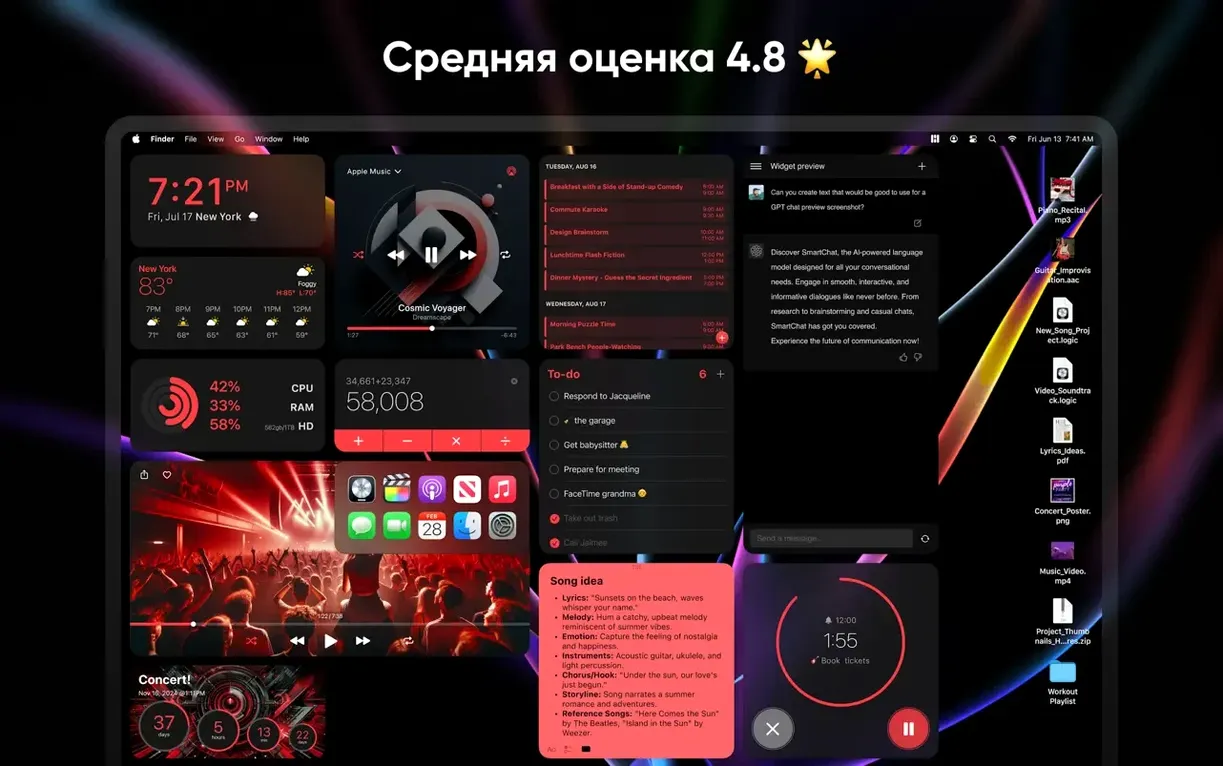
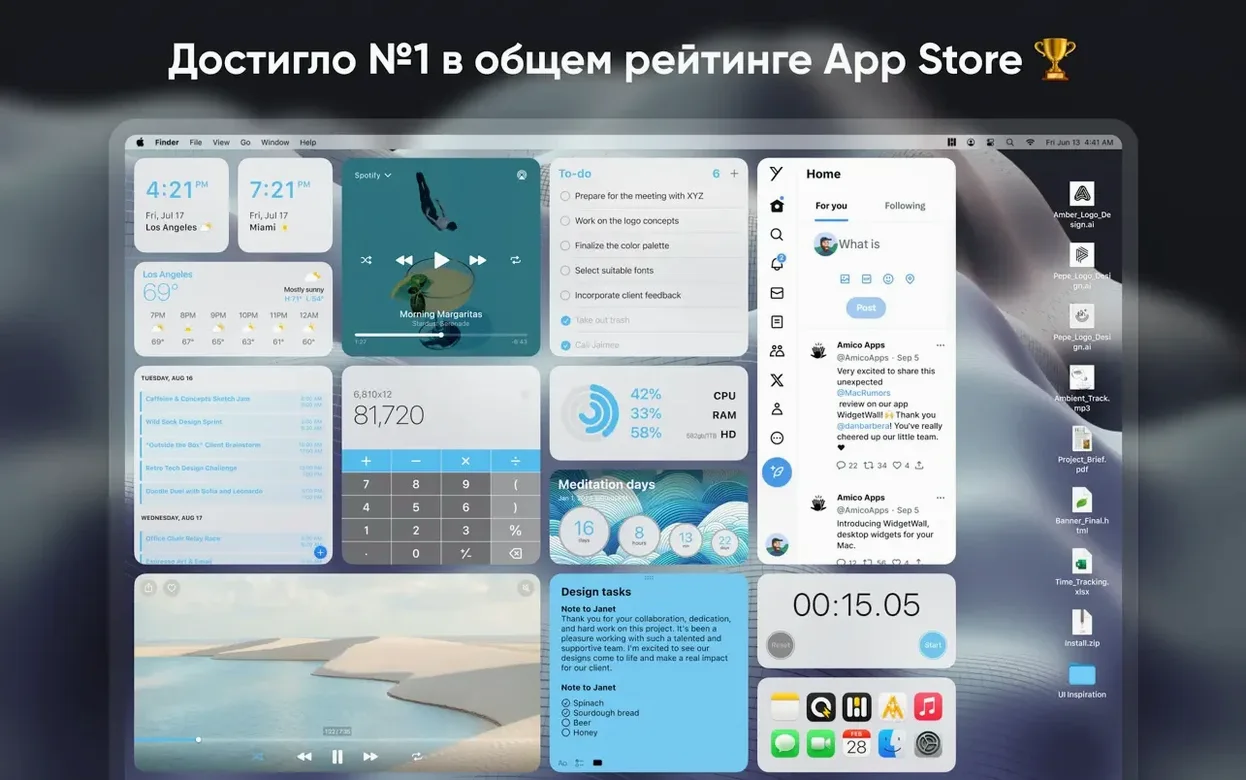
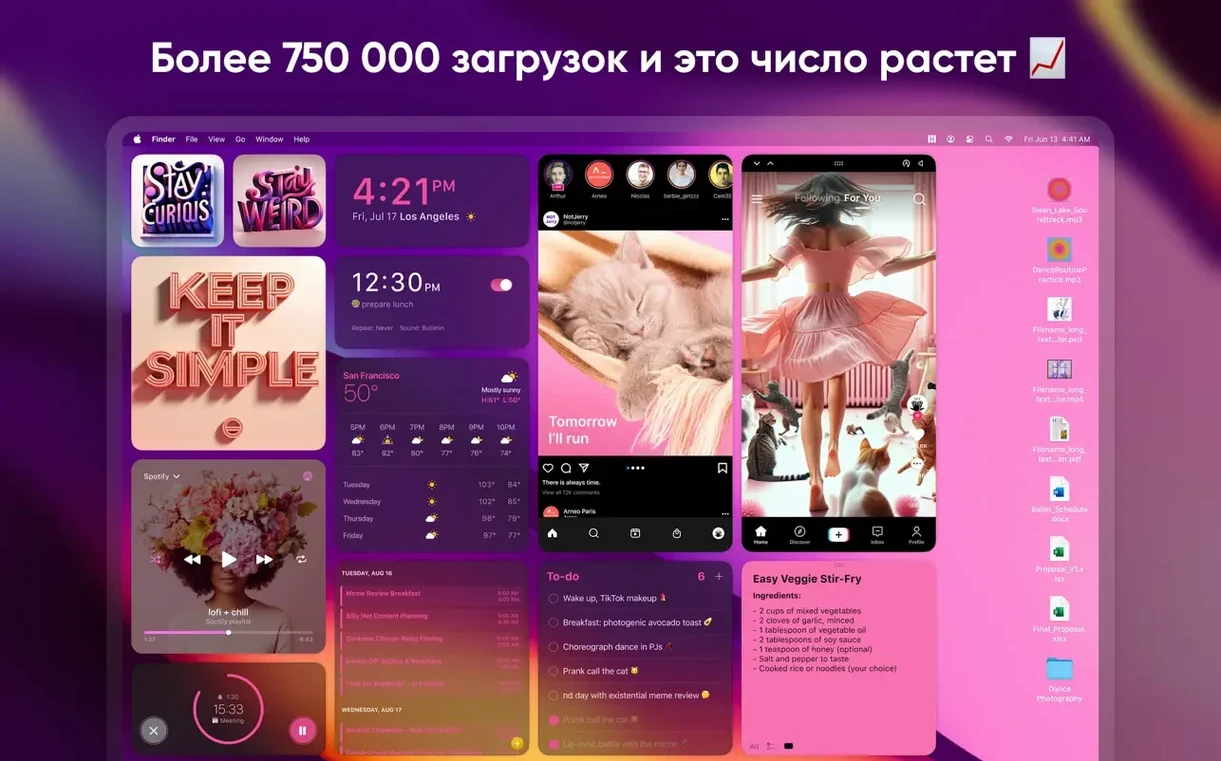
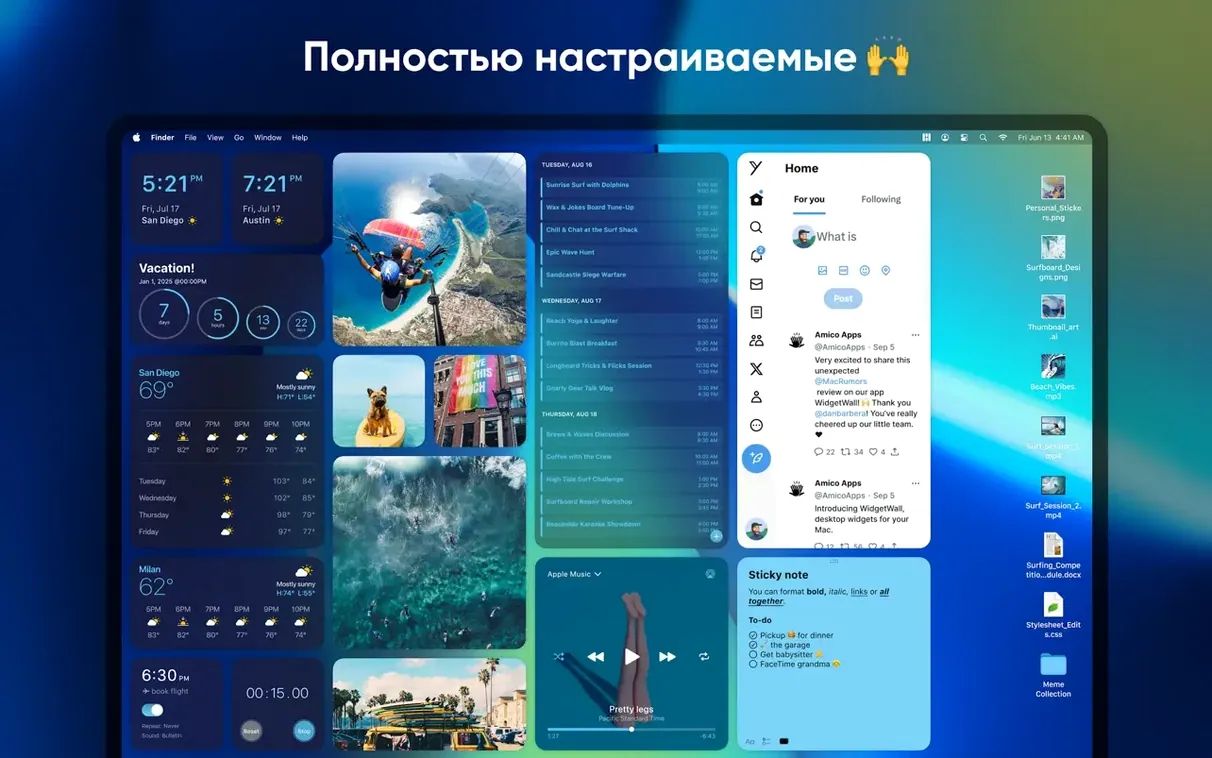
You sit down at your Mac, and a flurry of confetti drifts across the wallpaper. A clean analog clock sits in the corner, and your calendar for the day is pinned just below it. That is WidgetWall in a nutshell—a collection of handy and playful widgets that live directly on your desktop, not hidden in a side panel.
Three widgets to try first
- Photos. Pick a favorite album and give it a permanent spot on the desktop. It’s the fastest way to make the computer feel like yours.
- App Shortcuts. Drop your four most-used apps into a widget so they’re always one click away, no Dock hunting required.
- White Noise. Rain on a tin roof or simple static—good company while you work through a quiet afternoon.
Finding the right size and style
Every widget ships in small, medium, and large, so you can fill a large empty screen or tuck something tiny beside your open windows. After you run the installer, a handful of widgets appear automatically, which gives you a working sketch to tweak. The app is plain-spoken about what it does: no dashboards, no accounts, just objects you arrange until the desktop feels right. Bottom line: start with Photos and App Shortcuts, then explore the Timer, Notes, or Weather when you’re ready.
Pomodoro, notes, and music on the desktop
I set a Pomodoro timer on the left side of my screen, open the Notes widget beside it, and drag the Music widget to the bottom corner. The desktop starts to feel less like a parking lot for files and more like a command center. A typical session goes like this:
- Right-click any empty spot on the desktop and pick a widget from the menu. The Clock lands first, set to medium so it’s readable but not bossy.
- Resize it by grabbing the corner—small for a subtle timestamp, large when I want seconds ticking away.
- Add the Calendar widget. Drag it near the Clock. Now one glance tells me the time and what’s coming up.
- Open the Weather widget and type in a city. Medium size shows the forecast without eating half the screen.
- Pin a few App Shortcuts above everything else. Safari, Notes, Messages, Terminal. One click, no Dock hunt.
- When I need focus, I turn on the Pomodoro widget and minimize everything else. Twenty-five minutes of quiet, then the timer chimes.
Right-click to pin a clock behind your windows
A few conveniences hide just below the surface. Right-click any widget and you’ll find a “Send to Back” option that keeps it planted behind your open windows—perfect for clocks and weather panels you want visible but not in the way. The Emoji Browser widget doubles as a quick copy tool: click an emoji and it’s on your clipboard, ready to paste into a message or document. If you run the Stopwatch widget, you can click the time readout to copy it, handy when you’re tracking billable minutes and need to drop the number into an invoice.
Keyboard shortcuts are sparse but smart. Press ⌘W to close a selected widget, and ⌘N opens the widget picker without a trip to the menu. The Calculator widget accepts typed input—just click it and start punching numbers on your keyboard. No separate window pops open.
Building a morning dashboard
Here’s a workflow I settled into after a week. Every morning I want the same three things: what’s on my calendar, what the weather looks like, and a quick path to the apps I’ll use first. Here’s how it comes together with WidgetWall.
- Clear yesterday’s widgets by right-clicking and choosing “Close” on anything I don’t need today.
- Add a large Calendar widget to the upper-right corner. It pulls from the Mac’s Calendar app, so any appointments appear without extra setup.
- Add a medium Weather widget just below it. I keep two cities pinned—home and the town where my main client is based.
- Add an App Shortcuts widget in the lower left. I swap the shortcuts depending on the day: writing days get Notes, Safari, and Numbers; coding days get Terminal, Visual Studio Code, and Safari.
- Drop a small Clock widget in the bottom-right corner. Out of the way but always there.
- Finish with the White Noise widget. Medium size, rain sound. I click play and start the first task.
The whole setup takes under two minutes once you know where everything lives. After that, the desktop works like a quiet assistant—nothing flashes, nothing nags, just the information you placed there sitting where you left it. For a widgetwall mac download that puts control in your hands rather than burying it in a sidebar, it’s a refreshingly straightforward arrangement.
- macOS 12 or later
- Works on Intel and Apple Silicon Macs
Questions I actually get
Which macOS version does WidgetWall need?
WidgetWall requires macOS 12 (Monterey) or later and runs natively on both Intel and Apple Silicon Macs.
What kind of widgets come with the app?
It includes over twenty, from practical tools like Calendar, Reminders, and Calculator to fun additions like Confetti, TikTok, and an Emoji Browser.
Can I change the size of a widget?
Yes, every widget is available in small, medium, and large sizes so you can fit them to your desktop layout.
Notes from the tables 0
Sign in or pull up a chair to leave a note.
No notes on this one yet. They go up after I read them.