

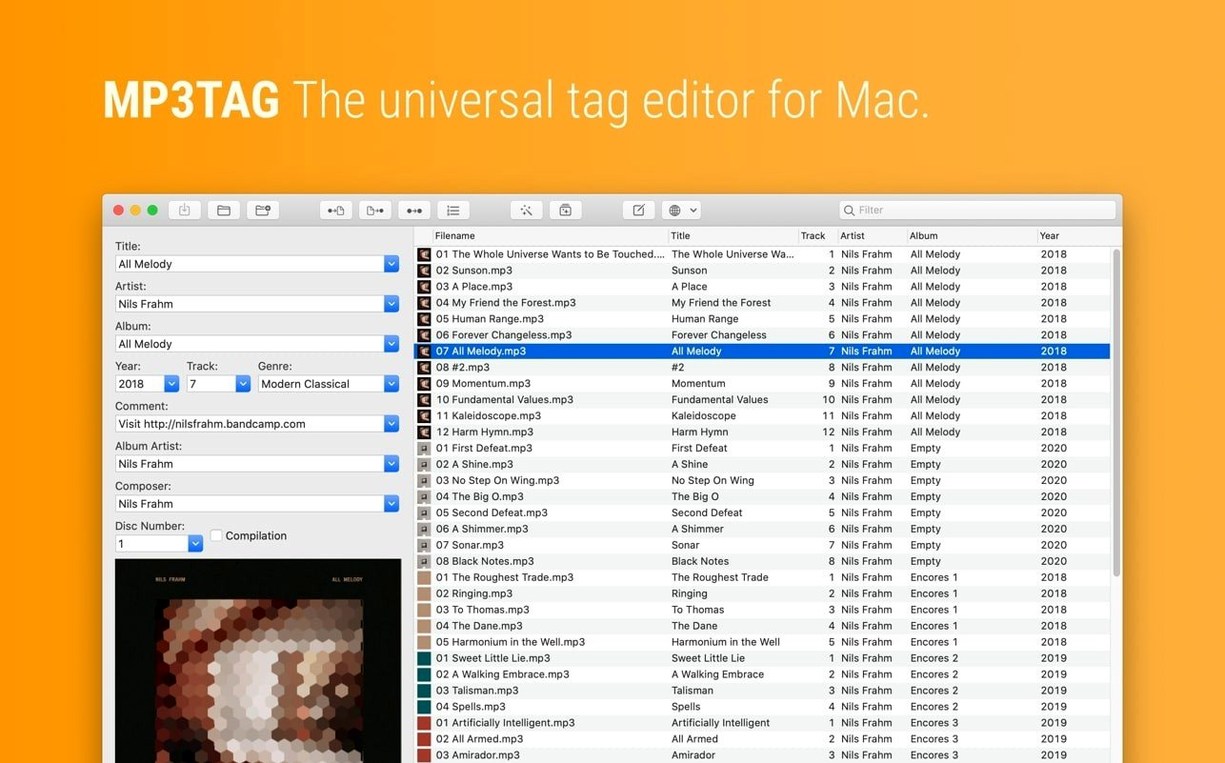
Mp3tag supports over ten audio formats right out of the gate, including MP3, FLAC, MP4, OGG, and WAV. Before you get to the editing, the first question is whether it will even open on your machine.
Native Apple silicon support and batch tag editing
- Anyone on an Apple Silicon Mac or an older Intel machine—native support is there for both, back to macOS 10.14.
- Cleaning up messy music libraries with batch editing; fix hundreds of tracks in one pass.
- Renaming files based on their tags, or pulling tag info from filenames when the metadata is a mess.
Gatekeeper bypass required on first launch
- You’ll need to bypass Gatekeeper on first launch via Terminal—the install steps walk you through it.
- This is the dedicated Mac version, not a port, so it feels at home on your desktop.
A few things that trip up new users
A few things trip up new users. Knowing them ahead of time saves a headache.
Tag changes vanish after using another tool
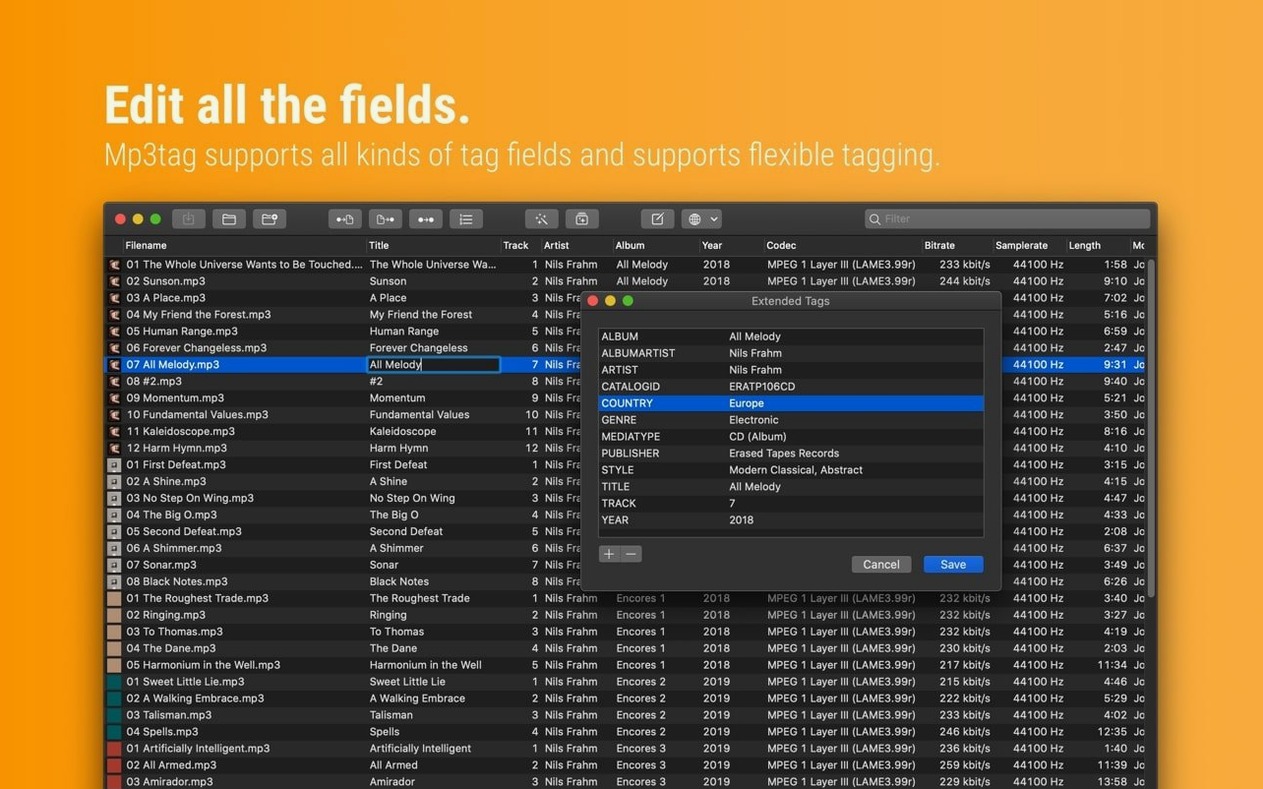
You edit a batch of FLAC files, open the Extended Tags window to check something, and your Tag Panel edits are gone. This was a known gremlin in earlier builds. Version 1.14.1 fixes it—changes stick now. If you’re on an older version, save before opening any secondary window.
Cover art not saving
You drag a cover into the sidebar and it shows up, but the file still has the old image. This usually means you looked at the Tag Sources panel or ran an action before hitting Save. The fix is simple: always save the file first, then run converters or searches.
Files won’t open after tagging
Sometimes an app like Music or a DJ tool refuses to read a file you just tagged. Nine times out of ten the tag version is the culprit. Some players choke on ID3v2.4 tags. Switch the write format to ID3v2.3 in Preferences > Tags > MP3 and re-save. That clears it up for most car stereos and older software.
Discogs search returns nothing
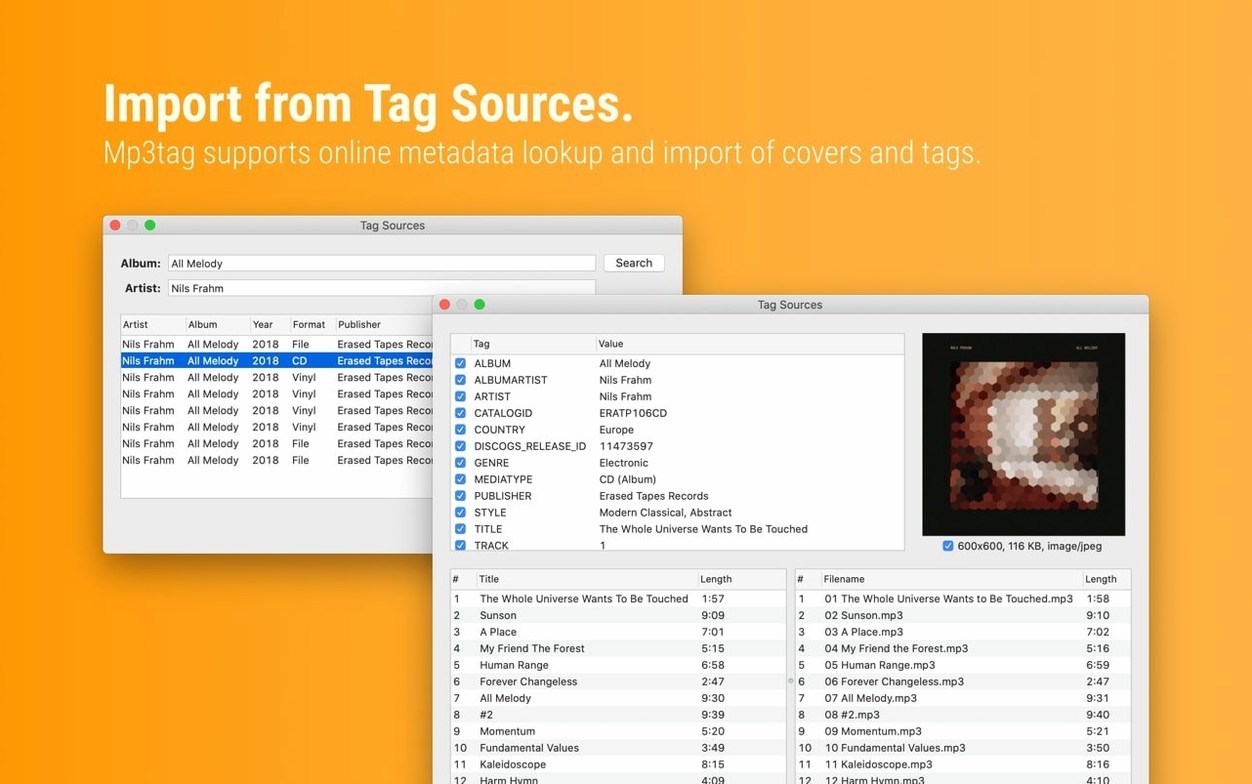
You type an album name and get zero results. Discogs needs a personal access token now—you generate one in your Discogs account settings and paste it into Mp3tag’s source preferences. Without it, the search stays blank.
Start with one messy folder and MusicBrainz
Don't try to fix your whole library on day one. Pick one messy folder and learn the rhythm.
- Load a small batch of files and press Cmd+D to open the Tag Sources panel. Search MusicBrainz first—it’s faster and needs no token.
- Check the preview side by side before applying. Mp3tag shows old values on the left and new ones on the right.
- Rename the files from the tags right after, using Convert > Tag – Filename. That locks in the cleanup and makes things findable in Finder.
- Save a backup of one untouched file before you experiment with action groups. It’s your undo button if a bulk replace goes sideways.
Once you’ve done three or four albums, muscle memory kicks in and it feels like second nature.
Customize the Tag Panel with composer and album artist
The defaults are sensible, but a few tweaks make daily work smoother.
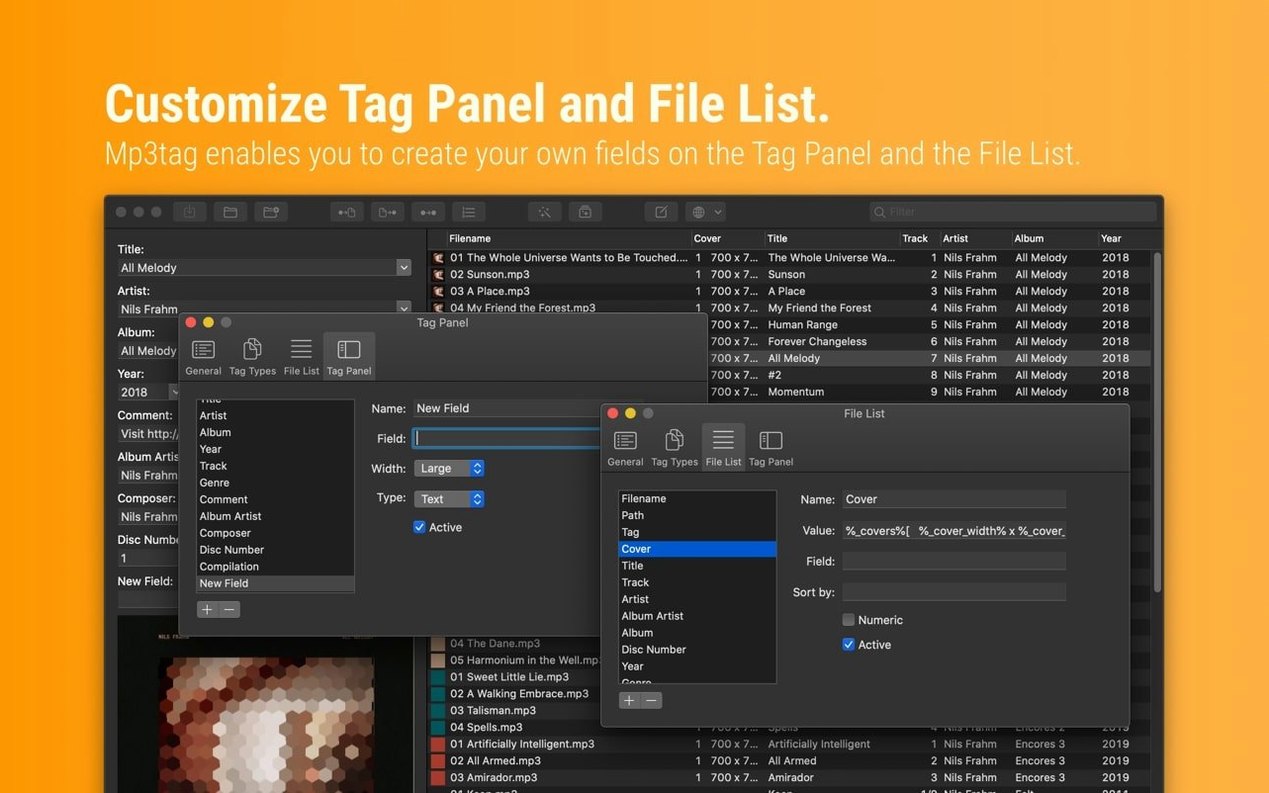
- Tag Panel layout: Go to View > Tag Panel and customize which fields show up. Most collectors add Composer, Album Artist, and Comment right away. Drag them into the order you actually use.
- File renaming format string: Under Preferences > Format strings, set your default rename pattern. Something like
%artist% – %title%or%track% %title%saves you typing it every time. - Cover image size limit: Preferences > Tags > Cover lets you cap embedded artwork at a maximum resolution. Set it to 1200px—big enough for Retina screens, small enough to keep file sizes reasonable.
- Write mode for MP3: Switch to ID3v2.3 if you share files with older hardware or DJ software. It’s under Preferences > Tags > MP3.
- Keyboard shortcuts: The app ships with a few, but you can assign custom ones in System Preferences > Keyboard > App Shortcuts. Map “Save” to Cmd+S right away—the default save behavior uses the toolbar button.
Cold launch in under two seconds on M1
After a few weeks of daily use, Mp3tag earns its keep without making a fuss. It launches cold in under two seconds on an M1 machine, and about four seconds on an older Intel Mac. Loading a folder of 500 FLAC files takes a breath—maybe a second and a half—and then you’re editing.
Memory usage sits around 120 MB with a few hundred tracks open. That’s light enough to leave running alongside a browser, a notes app, and a DAW without swapping. CPU spikes happen during batch saves and cover art resizing, but they’re brief. On a MacBook Air without a fan, the chassis stays cool even after rescaling 200 album covers in one go.
Stability has been solid. The crash fix in 1.14.1 addressed the only repeatable one I’d seen, which involved the Action Groups window. Since then, no unexpected quits across several weeks of tagging, renaming, and fetching Discogs data. The app doesn’t phone home or run background processes when closed, so it doesn’t nibble at battery life.
If you’re coming from a Windows tagging tool, the Mac version feels familiar but tidier. Window resizing is smooth, text stays sharp on Retina displays, and the dark mode support matches the system setting without any fiddling. It’s the kind of tool you forget is running until you need it—and when you need it, it’s right there.
Version 1.14.1 tidies up a few loose ends with tag editing and stability.
- Fixed a crash on macOS 27 when adding action groups.
- Cover changes in the Tag Panel no longer vanish if you open Extended Tags first.
- Unsaved Tag Panel changes now stick after using Cover Search, Tag Sources, or Converters.
- Decimal BPM values stay decimal in MP4 tags instead of being rounded down.
- macOS 10.14 or later
- Intel (64-bit) or Apple Silicon Mac
Questions I actually get
Which audio formats does Mp3tag for Mac support?
It works with MP3, MP4, M4V, FLAC, OGG, OPUS, AIF, DSF, MPC, and WAV files.
Does Mp3tag run on Apple Silicon Macs?
Yes, it runs natively on Apple Silicon without Rosetta.
Notes from the tables 0
Sign in or pull up a chair to leave a note.
No notes on this one yet. They go up after I read them.
More from the Mac Apps page
The whole page Mac Apps 60 MB
m’s HalfTone
1.5.3
Mac Apps 60 MB
m’s HalfTone
1.5.3
 Mac Apps 6 MB
Movavi Video Suite
22.4.1
Mac Apps 6 MB
Movavi Video Suite
22.4.1
 Mac Apps 294 MB
Movavi Video Editor
22.4.1
Mac Apps 294 MB
Movavi Video Editor
22.4.1
 Mac Apps 126 MB
Movavi Video Converter
22.5.0
Mac Apps 126 MB
Movavi Video Converter
22.5.0
 Mac Apps 79 MB
Movavi Screen Recorder
23.1.1
Mac Apps 79 MB
Movavi Screen Recorder
23.1.1
 Mac Apps 110 MB
MouseBoost Pro
5.2.8
Mac Apps 110 MB
MouseBoost Pro
5.2.8
 Mac Apps Updated 17 MB
Mountain Duck
5.3.2
Mac Apps Updated 17 MB
Mountain Duck
5.3.2
 Mac Apps 187 MB