
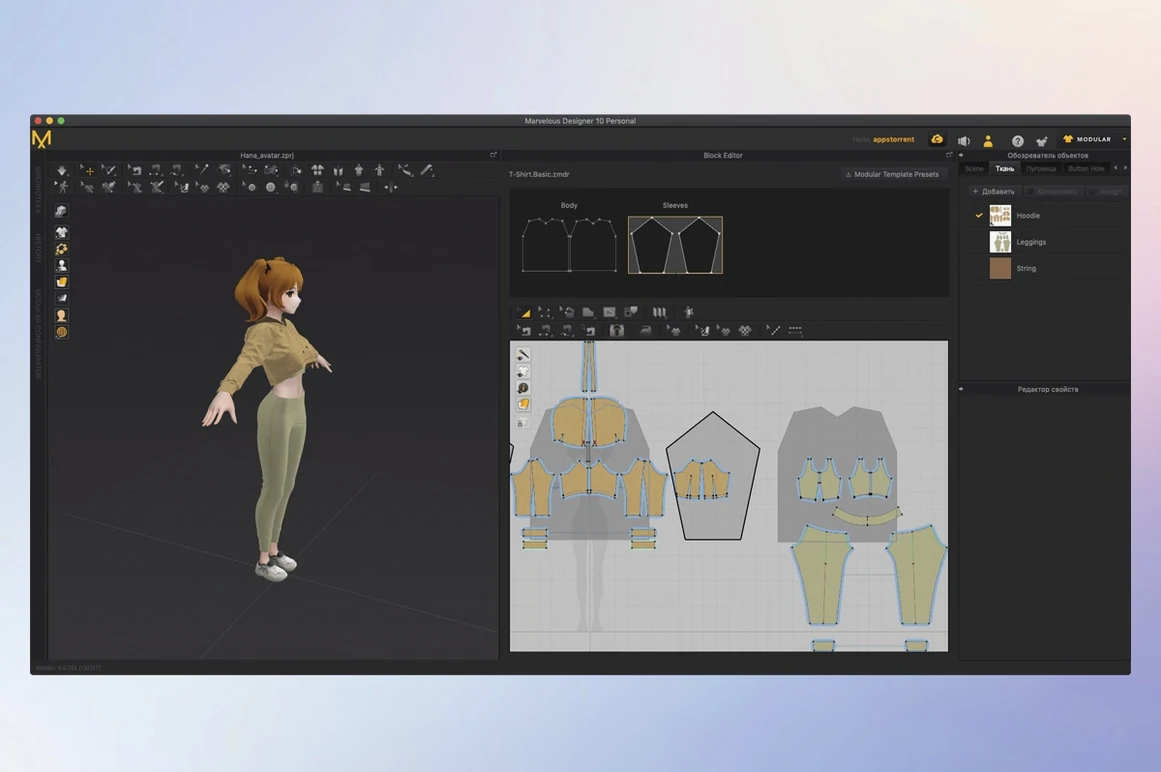
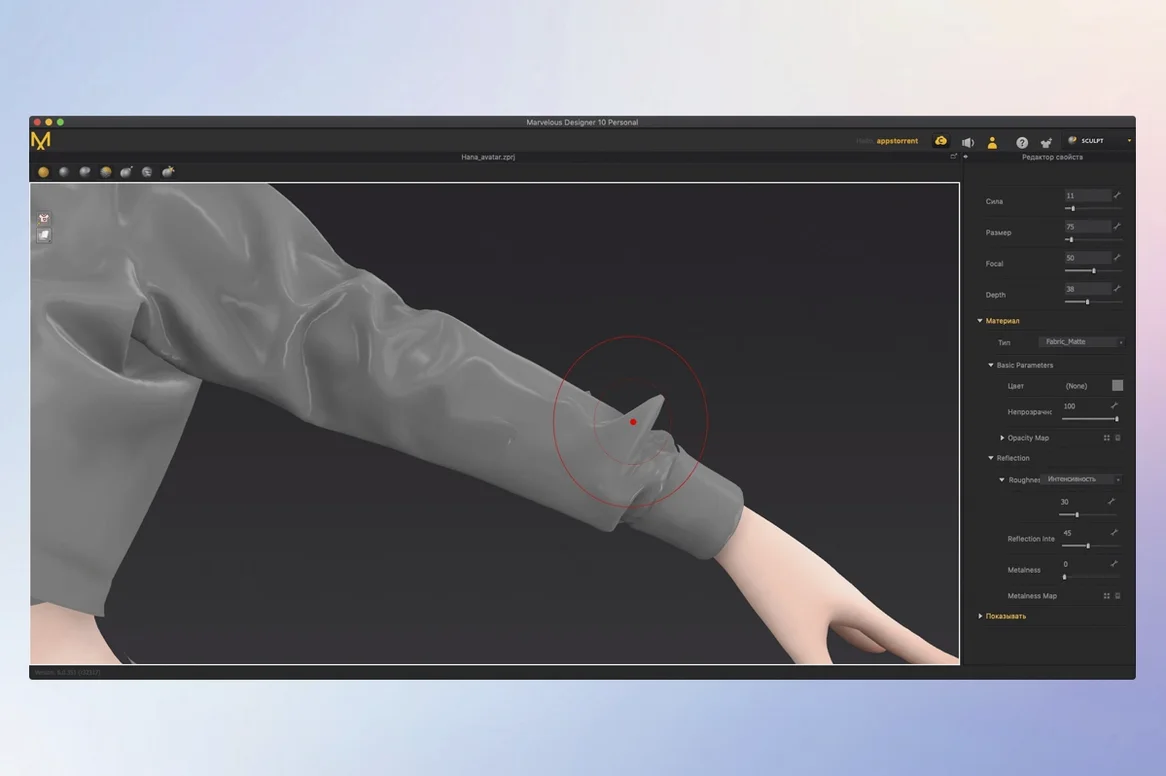
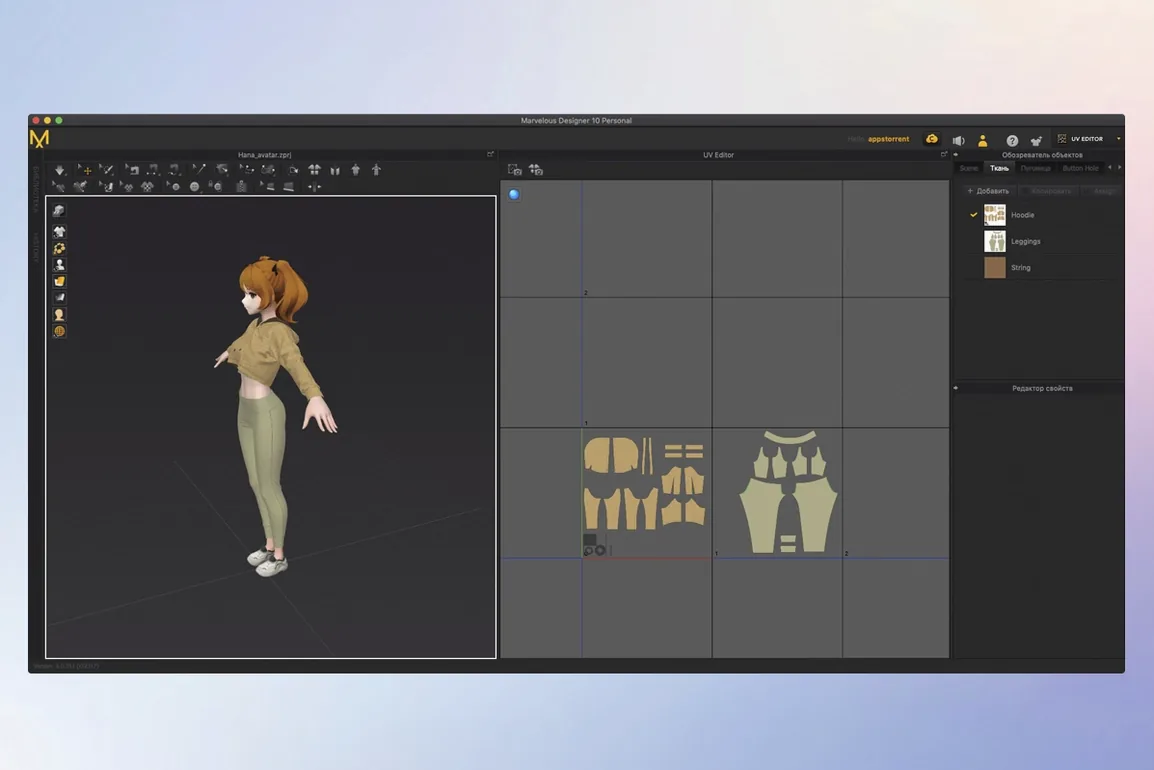
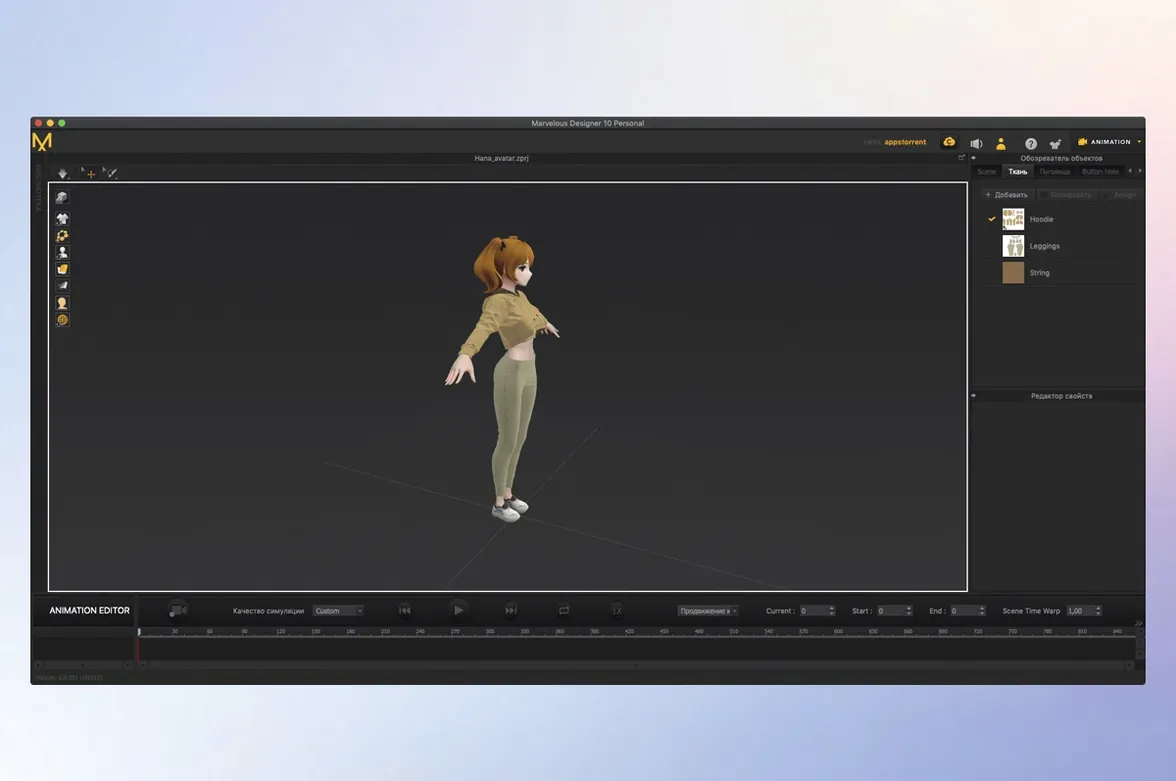
If you work with a 3D character tool like Blender or Maya, Marvelous Designer is the tailor you bring in to dress your models. It’s not a general modeling app—it’s built from the ground up to cut, stitch, and drape fabric. Before you picture your next design, let’s make sure it runs on your Mac.
- Runs on Apple Silicon and Intel Macs, starting from macOS 12
- Imports and exports with Maya, Blender, ZBrush, and Modo using USD and Alembic formats
- Records cloth motion on moving characters so a walking avatar’s jacket folds naturally
- Simulates physical properties like texture and thickness on buttons, folds, and accessories
- Lets you create and edit polygonal pattern shapes from scratch
- Interface available in eleven languages, including Spanish, Japanese, and Arabic
A Mac that meets the OS requirement will open the door to high-accuracy draping and pattern editing. Bottom line: the hardware needs are modest, but the fabric tools run deep.
When your garment explodes on the first simulate
Even after you learn the sewing tool and the pattern window, a few things trip people up regularly. Most of them aren't bugs — they're just the way cloth simulation behaves when one setting is off.
- Garment explodes or jitters during simulation. Nine times out of ten, the particle distance is too large for the pattern size. Drop it to 10 mm or lower before you start draping. If it still flails, check that your sewing lines aren't crossed and that the fabric isn't already intersecting the avatar at frame zero.
- Fabric slides off the shoulders. The default friction can be too slippery on smooth skin. Increase the friction coefficient in the fabric properties, or add a thin under-garment layer for the main cloth to grip.
- Simulation crawls on a complex scene. Freeze any garment pieces you aren't actively adjusting. Switch the avatar to a lower-poly proxy during the rough drape pass, then swap back for the final sim.
- Imported avatar doesn't register collisions. The mesh needs to be set as an avatar inside Marvelous Designer, not just a static prop. Right-click the imported object in the Scene panel and assign it the Avatar role, then re-run the simulation.
Most troubleshooting follows the same pattern: isolate the moving parts, lower the particle distance, and check what Marvelous Designer thinks is an avatar versus a prop.
The 3D Pencil skips flat drafting entirely
The 2026.0 update brought three tools that quietly reshape how a typical session flows. None of them require you to relearn the program, but each one removes friction that used to be part of the routine.
The 3D Pencil lets you draw pattern edges directly on the avatar in the 3D view, skipping the flat 2D window for quick mock-ups. You sketch a neckline or a hem right where it sits, and the pattern piece appears. For concept work, it cuts pattern-drafting time in half.
Template-based rigging in EveryWear means you no longer build a rig from scratch for each garment you send to a game engine. You assign a pre-made rig template, and the cloth follows the skeleton. Artists moving assets into Unreal or Unity save a chunk of technical back-and-forth.
The Toon Shader isn't a gimmick. Stylized projects that used to need a round-trip through another renderer now get cell-shaded cloth previews right in the viewport. A marvelous designer mac setup can now show an art director a stylized drape without leaving the app.
Skipping arrange points before you simulate
Everyone makes the same handful of moves when they first open the software. I did most of them myself, and they're easy to unlearn.
Skipping the arrange points step. New users lay a pattern piece flat and hit simulate, expecting it to magically wrap the body. Nothing happens. You have to place arrange points on the pattern and the avatar so the cloth knows where to start. Place at least three points around the torso before your first sim.
Editing patterns while the simulation runs. It's tempting to tweak a curve and watch the cloth react in real time. But simultaneous editing and simulating leads to tangled meshes and wasted CPU cycles. Pause the sim, make your cut or reshape, then resume. Your Mac's fans will thank you.
Ignoring the fabric presets. Silk, denim, and leather behave differently, but a beginner often leaves the default cotton on every garment. Take thirty seconds to pick a preset that matches the real material you're after — it changes the drape, the fold radius, and the collision behavior instantly.
Trusting the auto-sew too much. The automatic sewing tool guesses which edges to connect, and it guesses wrong on complex patterns. Manual sewing with the Segment Sewing tool takes an extra minute and saves you from pins that pull in the wrong direction.
Bottom line: pause before you simulate, set your fabric type, and always place your arrange points. Those three habits alone flush out most early frustration.
- macOS 12 or newer
- Apple Silicon and Intel support
Questions I actually get
Can Marvelous Designer simulate how different fabrics move?
Yes, it records realistic clothing motion during simulation on moving characters and can simulate the physical properties of fabric on details like buttons and folds.
Notes from the tables 0
Sign in or pull up a chair to leave a note.
No notes on this one yet. They go up after I read them.